
Opportunity automation creates an opportunity when a new contact is added, and names it using a rule you choose. It saves you creating a deal by hand for every enquiry, and it keeps deal names consistent enough to scan.
In this guide you’ll learn how to:
- Turn Auto-create Opportunity on or off
- Choose a naming rule
- Build a custom name format from variables
- Save your automation settings
Before you start
Your profile needs the client settings permission
(view-clients-settings) to open the CRM
Customize drawer.
How to open opportunity automation
Opportunity automation lives in the CRM Customize drawer.
- Click CRM in the sidebar.
- Open the People or Opportunities tab.
- Click the Customize icon in the toolbar.
- Click Opportunity Automation.
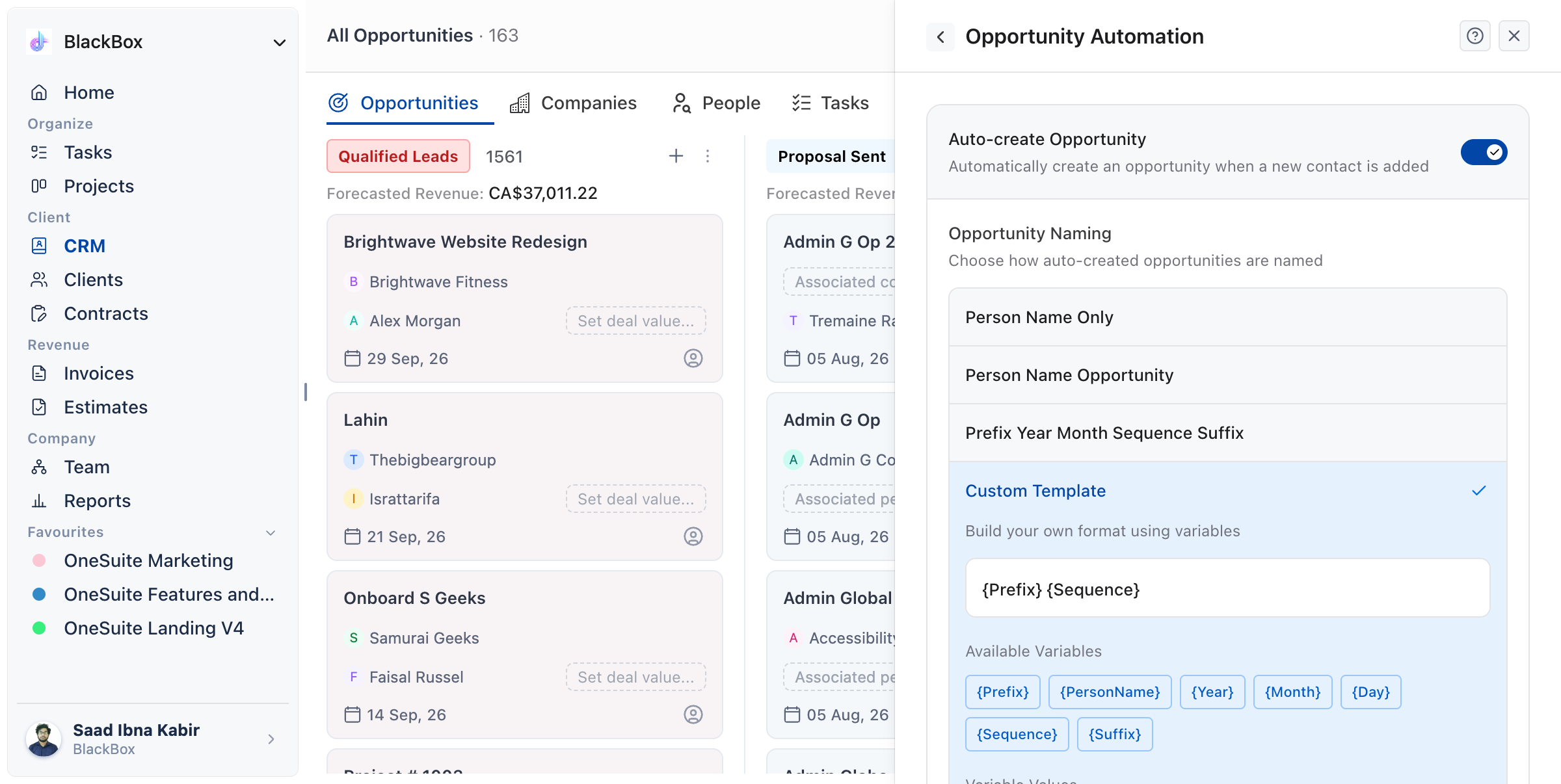
How to turn automatic creation on or off
Use the Auto-create Opportunity switch at the top of the section, then click Save Changes.
- Switch Auto-create Opportunity on or off. Its description reads “Automatically create an opportunity when a new contact is added”.
- Click Save Changes at the bottom of the section. Until you do, the drawer shows You have unsaved changes.
When it is on, adding a contact starts an opportunity for them. On the People tab, the Create as opportunity checkbox beside a new name is ticked, and after you save the person a Create as Opportunity box opens with the name your rule produces. Click Create to add the opportunity, with the person as its point of contact.
Note: ticking or clearing the Create as opportunity checkbox on a new row also changes this switch for your whole business.
How to choose a naming rule
Under Opportunity Naming, click one of four rules, then click Save Changes. The Preview under the selected rule shows an example name.
| Rule | What it does |
|---|---|
| Person Name Only | Uses the contact name as the opportunity title. |
| Person Name Opportunity | Appends “Opportunity” to the contact name. |
| Prefix Year Month Sequence Suffix | Generates a structured code with date parts and a running number. |
| Custom Template | Builds the name from your own format using variables. |
Person Name Only suits teams where one contact means one deal. Person Name Opportunity helps when deals and contacts show up in the same search results. Prefix Year Month Sequence Suffix suits teams that need deal references that sort by date.
For Prefix Year Month Sequence Suffix, set three values:
- Prefix: the letters the code starts with, for
example
OPP. - Sequence Start: the number the running count begins at. The lowest value is 1.
- Suffix: text the code ends with, for example
New.
How to build a custom name format
Choose Custom Template, type a format that mixes plain text and variables, then click Save Changes.
- Click Custom Template.
- Type your format in the template box, for example
{Prefix}-{Year}-{Month}-{Sequence}. You can click any variable under Available Variables to insert it where your cursor is. - Under Variable Values, set the Prefix, Sequence Start and Suffix your template uses.
- Check the Preview, which fills your template with a sample contact and today’s date.
- Click Save Changes.
| Variable | What it inserts |
|---|---|
{Prefix} |
The Prefix you set under Variable Values |
{PersonName} |
The contact’s name |
{Year} |
The year the opportunity is created |
{Month} |
The month it is created, as two digits |
{Day} |
The day it is created, as two digits |
{Sequence} |
The next number in the running count |
{Suffix} |
The Suffix you set under Variable Values |
Note: the Preview is a guide. The suggested name appears in the Opportunity name box when the opportunity is created, and you can edit it there before you click Create.
Not using OneSuite yet? Start your free trial →
FAQs
Does changing the naming rule rename my existing opportunities?
No. The rule only suggests a name when a new opportunity is created. Existing deals keep their names.
Can I still rename an opportunity by hand?
Yes. The rule decides the starting name only. Rename an opportunity at any time from the table, the Kanban card or its page.
Why didn’t my change to the switch take effect?
Changes in this section save only when you click Save Changes. If the drawer still shows You have unsaved changes, click it.
What happens if I turn automatic creation off?
Contacts are added without an opportunity, and you create deals yourself from the Opportunities tab.
Can I just name deals manually instead?
For a handful of deals a month, yes, and many teams do. Automation earns its place when volume makes naming inconsistent, because inconsistent names make the pipeline hard to scan and search.
What to do next
Tidy your CRM: Choose which tabs and lists your team sees in How to Customize Your CRM.
Add contacts: See the automation at work when you add a contact with Adding People.
Work your deals: Fill in and move your opportunities with Creating Opportunity.