
Getting your team into OneSuite is straightforward. You send them an invitation, they click a button in their email, verify their account, and they’re in. The whole process takes about two minutes.
Sending Your First Invitation
Step 1: Open the Team Section
Click Team in your sidebar. You’ll see a list of everyone currently in your business.
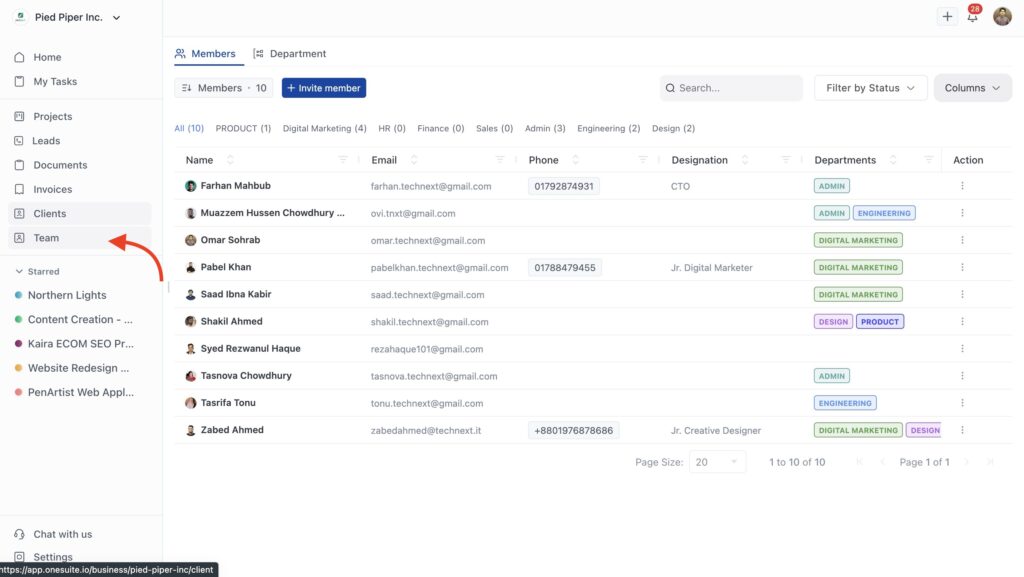
Step 2: Start the Invitation
Click the Invite member button at the top of your team list. A form will open asking for the new member’s details.
Step 3: Fill in the Details
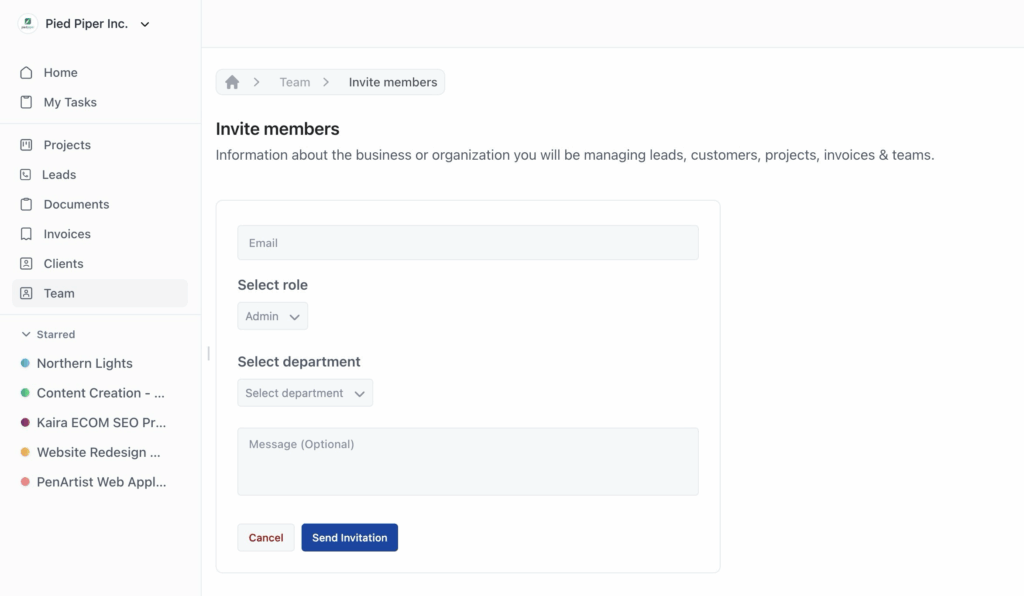
You need to provide three things (four if you want to personalize it):
- Email address – Where OneSuite will send the invitation
- Role – What level of access they’ll have (Admin, Manager, Member, or Limited)
- Department – Which department they belong to (Product, Digital Marketing, HR, Finance, etc.)
- Message (Optional) – A personal note to include in the invitation email
Choosing the right role:
- Admin – Full access to everything, including billing and team management
- Manager – Can manage projects and see most data, but limited access to settings
- Member – Standard access for day-to-day work
- Limited – Restricted access to specific areas
Step 4: Send the Invitation
Click Send Invitation. OneSuite immediately sends an email to the address you entered.
What Happens Next
The Invitation Email
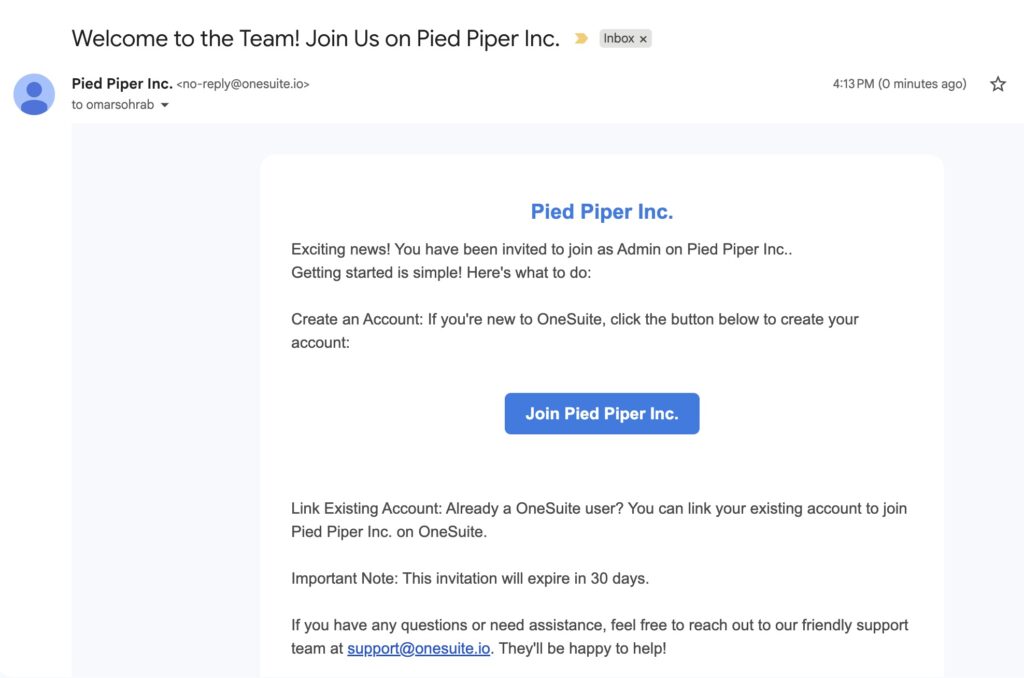
Your new team member receives an email titled “Welcome to the Team! Join Us on [Your Business Name].” The email includes:
- A Join [Your Business Name] button
- Instructions for creating their account or linking an existing OneSuite account
- A reminder that the invitation expires in 30 days
Tracking Pending Invitations
While you wait for them to accept, you can see their invitation status:
- Click Team in your sidebar
- The Invitations tab is visible if there are pending invitations.

You’ll see:
- The person’s name and email
- When you sent the invitation
- Two options: Resend invitation or Cancel
When to resend: If a few days pass and they haven’t joined, click Resend invitation. Maybe the email went to spam, or they just missed it.
When to cancel: If you sent an invitation by mistake or the person is no longer joining, click Cancel to remove the pending invitation.
The Team Member’s Experience
Here’s what happens on their end:
Step 1: They Check Their Email
They receive the invitation email in their inbox (sometimes it lands in spam, so remind them to check there too).
Step 2: They Click the Join Button
Clicking the button takes them to a verification screen.

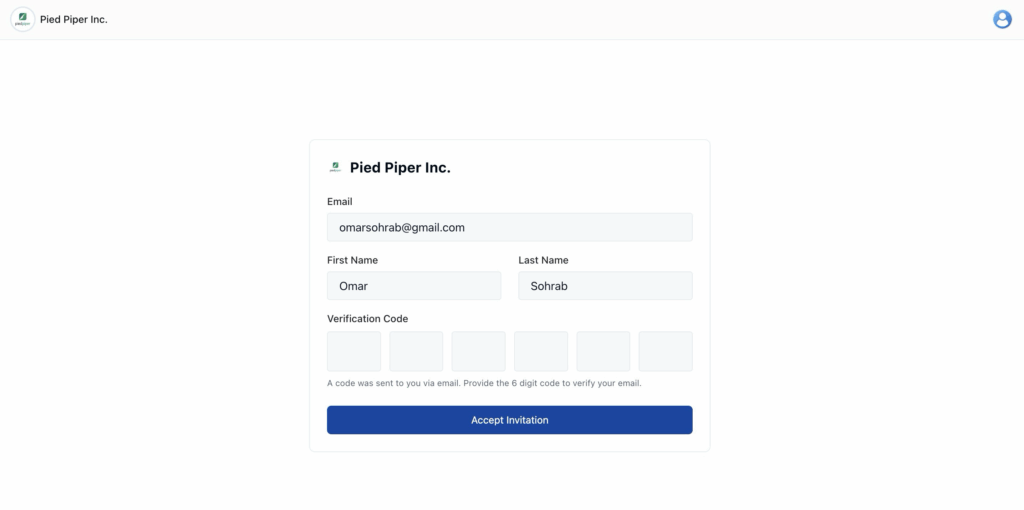
Step 3: They Verify Their Email
OneSuite sends a 6-digit verification code to their email. They enter:
- Their email address
- Their first name
- Their last name
- The 6-digit verification code
Step 4: They Accept the Invitation
After clicking Accept Invitation, they’re added to your business with the role and department you selected.
FAQ
Q: Can I invite someone who already has a OneSuite account?
A: Yes. The invitation email includes an option to link their existing OneSuite account to your business.
Q: How many team members can I invite?
A: It depends on your plan. Check your plan limits in Settings → Billing
Q: Can I change someone’s role after they join?
A: Absolutely. Go to Team, find their name in the list, click the three-dot menu, and select Edit. You can update their role, department, or other details anytime.
Q: What if I need to remove someone from my team?
A: Go to Team, find their name, click the three-dot menu, and select Remove from team. They’ll lose access immediately.
Q: Do team members need to pay for their own OneSuite account?
A: No. Team members are part of your business subscription. You pay for their access through your plan.