
Expense categories are the list your team picks from when logging a cost, such as Meals, Travel or Software. Category is a required field on every expense, so you need at least one category before anyone can track spend.
In this guide you’ll learn how to:
- Create an expense category
- Set a unit name and unit price for costs claimed per unit
- Edit, archive, restore and delete categories
Before you start
- You need access to Settings to add or change categories. The Settings page carries an Admin only badge. People without that access can see the list but cannot change it.
- Categories are shared by everyone in the business. You set them up once for the whole team.
How to create an expense category
You create a category with New category, either in Settings or on the Expenses page. Both places edit the same list, but their dialogs use slightly different labels.
From Settings:
- Click your name at the bottom of the sidebar, then click Settings.
- Click Time Tracking, then Expense Categories.
- Click New category.
- Enter a Name, for example
Travel. - Click Create.
From the Expenses page:
- Click Expenses in the sidebar.
- Click the Categories tab.
- Click New category.
- Enter a Category name, for example
Meals. - Click Save category.
A name is required and can be up to 120 characters.
How to set a unit price
A unit price lets your team claim a cost as a quantity, such as miles driven, instead of a cash amount.
From Settings:
- Open the category’s actions menu and click Edit, or create a new category.
- Enter a Unit name, for example
mile. - Enter a Unit price, for example the rate you pay per mile.
- Click Save changes, or Create for a new category.
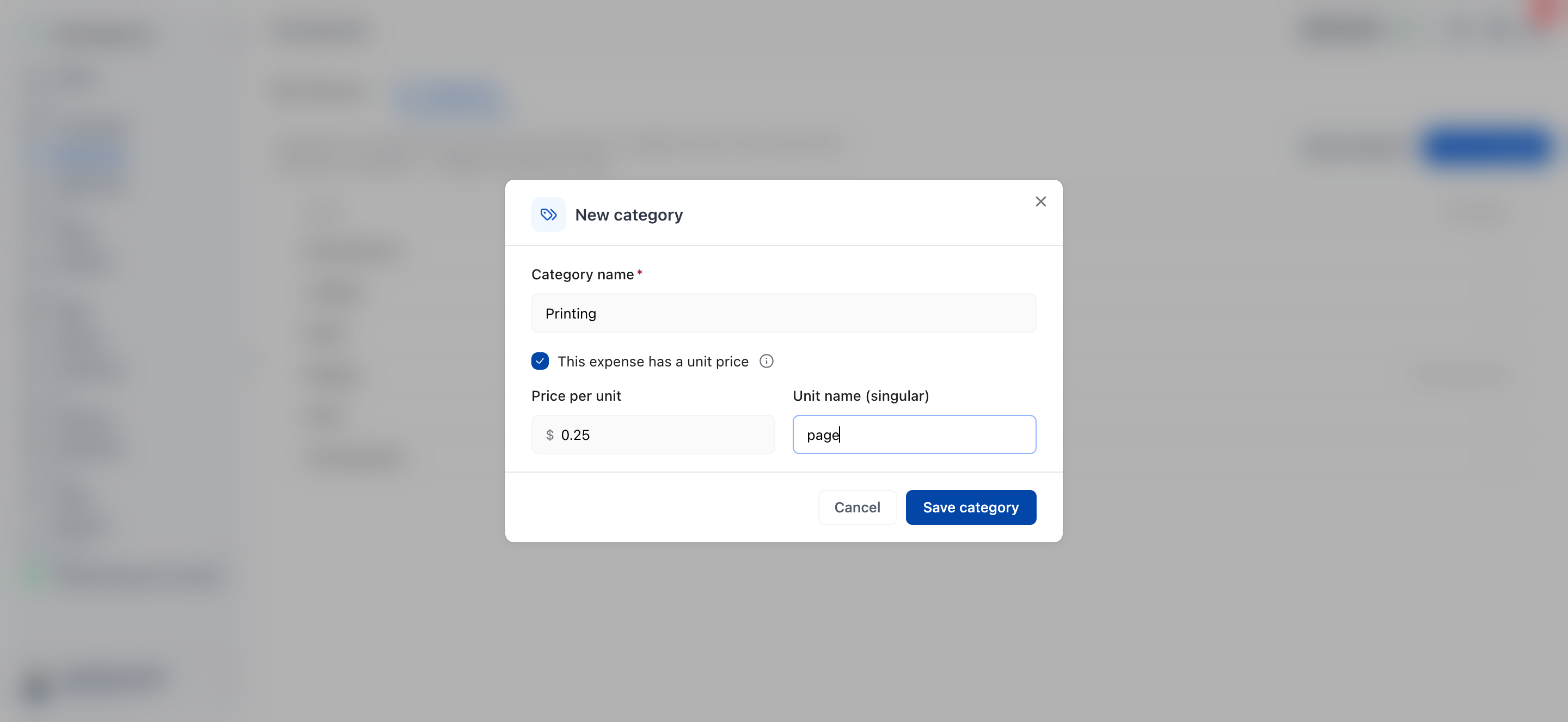
From the Expenses page, Categories tab:
- Open the category’s actions menu and click Edit, or click New category.
- Tick This expense has a unit price.
- Enter a Price per unit.
- Enter a Unit name (singular), for example
mile. - Click Update category, or Save category for a new category.
From then on, when someone picks this category on an expense, the Amount field becomes Quantity. They enter the number of units and OneSuite works out the total.
A category only switches to quantity entry when it has both a unit name and a unit price. On the Expenses page, unticking This expense has a unit price clears both.
| Field | Limit |
|---|---|
| Name or Category name | Required. Up to 120 characters. |
| Unit name | Up to 60 characters. |
| Unit price or Price per unit | 0 or more, with at most 3 decimal places, for example
0.535. |
How to edit, archive or delete a category
You manage a category from its actions menu, which offers Edit, Archive (or Restore) and Delete.
- Go to Settings, Time Tracking, Expense Categories, or to the Categories tab on the Expenses page.
- Open the actions menu on the category’s row.
- Click Edit to change its name, unit name or unit price.
- Click Archive to take it off the picker without losing it.
- Click Delete to remove it for good, then confirm.
An archived category disappears from the picker for new expenses and shows Archived in the list. Turn on Show archived to see it, then click Restore to bring it back. Expenses already filed against an archived category keep it, and a unit priced one still asks for a Quantity when you edit the expense.
You can only delete a category that nothing has been tracked against. Otherwise Delete is greyed out with the message Categories with expenses tracked to them cannot be deleted. Archive it instead.
Not using OneSuite yet? Start your free trial →
FAQs
Do I need expense categories before my team can track expenses?
Yes. Category is required on every expense, so with no categories the picker shows No expense categories yet and nobody can save an expense.
How do I set up mileage as an expense category?
Create a category such as Mileage, give it the unit name
mile and a unit price per mile. Your team then enters miles
driven in Quantity, and OneSuite works out the
total.
Why can’t I delete an expense category?
A category that has expenses tracked to it cannot be deleted. Archive it instead: it leaves the picker, and the expenses already filed against it keep their category.
Can I just use Notes instead of categories?
No, not on their own. Notes is free text on each expense, while Category is required and is what gives an expense its unit price. Use both: the category for the kind of cost, the note for the detail.
Who can create expense categories?
People with access to Settings can create, edit, archive and delete categories. Everyone else sees the list on the Categories tab but cannot change it.
What to do next
Start logging costs: Put your new categories to use with Tracking Expenses.
Allow reimbursement: Turn on expense reimbursement in Timesheet Preferences.
Watch project costs: See how expenses add up on a project in How to Track Project Hours and Costs.