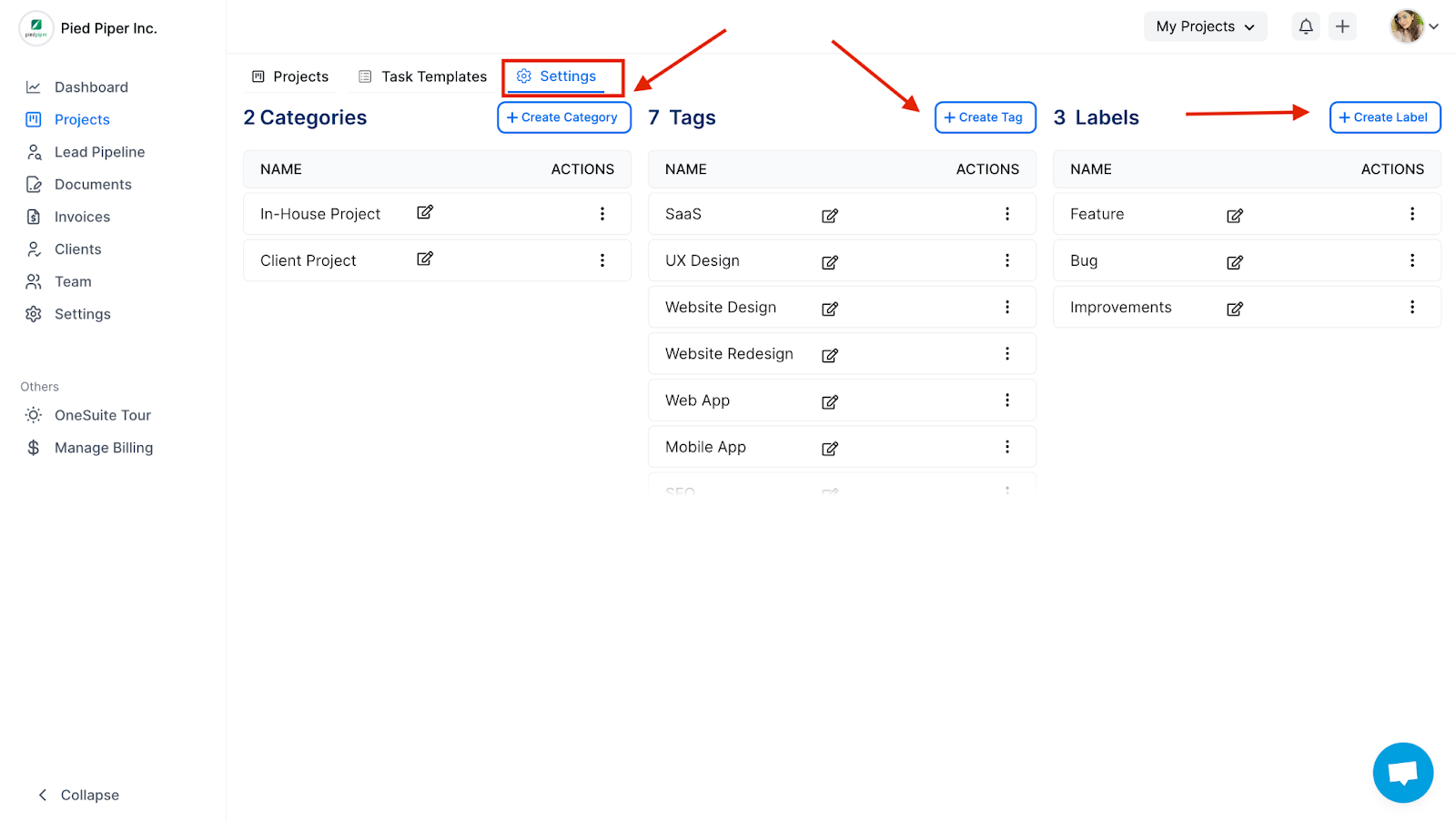
OneSuite lets you create customized categories, tags and labels for your projects. They help you organize, track and categorize your work, so you can quickly identify and prioritize tasks.
In this guide you’ll learn how to:
- Find where categories, tags and labels are managed
- Create categories, tags and labels
- Edit the names or colors of existing ones
- Delete the ones you no longer need
Where do I create categories, tags and labels?
You create and manage them in the Settings section of Projects.
- Click Projects in the left sidebar.
- Go to the Settings section, where you can create and manage categories, tags and labels.
How to create categories, tags and labels
Each one has its own purpose, and you create them to fit how your business works.
| Type | How to use it |
|---|---|
| Categories | Create categories for what suits your business and work, and what tracks progress best. |
| Tags | Create your own customized tags, or use the default ones. |
| Labels | Create labels tailored to your preferences. |
How to edit or delete categories, tags and labels
You can edit any existing category, tag or label, and remove the ones that are no longer relevant.
- Edit: update the name or color of an existing category, tag or label.
- Delete: remove any category, tag or label that is no longer relevant, to keep your project management interface clean and organized.
Not using OneSuite yet? Start your free trial →
FAQs
Can I create my own tags for projects in OneSuite?
Yes. You can create your own customized tags, or use the default ones.
Can I change the color of a category, tag or label?
Yes. You can edit an existing category, tag or label to update its name or its color.
What happens when I delete a tag or category?
It is removed from your list. Delete the ones that are no longer relevant to keep your project management interface clean and organized.
What is the difference between categories, tags and labels?
Categories track progress in the way that suits your business, tags can be your own or the default ones, and labels are created to your preferences. Together they help you organize and categorize work.
Can I just put keywords in task names instead?
You can, but they won’t be consistent or easy to scan. Categories, tags and labels give every project the same set of options, so you can quickly identify and prioritize tasks.
What to do next
Set up workspace-wide options: Manage templates, categories and tags in one place with Customize the Project Management Module.
Track your own details: Add project-specific fields with Custom Fields.
Put them to work: Label and prioritize tasks with Adding Tasks to Boards in OneSuite.