
This glossary defines the terms you meet in OneSuite, grouped by the module they belong to. Use it when a label, status or setting is new to you, so you know what it does before you change it.
In this guide you’ll learn how to:
- Find a term by the module it belongs to
- Tell similar terms apart, such as a role and a profile, or approving and locking
- Understand the time tracking, approval, billing and reporting terms
- Match each term to the label you see in the product
How to find a term in this glossary
Terms are grouped under the module where you meet them, and listed alphabetically within each group.
- Pick the module where you saw the term, for example Approvals or Projects. Terms used everywhere are under Core concepts.
- Scan the table for the term. Terms are in alphabetical order.
- Where a term matches a label in the product, the definition shows that label in bold, spelled exactly as you see it.
Core concepts
| Term | Definition |
|---|---|
| Archive | To hide a record from active lists without deleting it. Archived items, such as work types and expense categories, can be restored. |
| Bulk action | One action applied to several records at once, such as approving several timesheets or recording payment on several invoices. |
| Business | Your company’s workspace in OneSuite. Everything you create, from clients and projects to time entries and invoices, lives inside a business. |
| Capability | A specific thing you can do inside a module, such as running a timer in Timesheet or sending a reminder in Invoices. |
| Custom field | An extra field you define to hold information OneSuite doesn’t track by default, for example on project tasks, where nine field types are available, or on companies and opportunities. |
| Duplicate | A copy of an existing record, such as a project or a saved report, made so you don’t start from scratch. |
| Export | Downloading records from a list to your computer, usually as a CSV or Excel file. |
| Filter | A control that narrows a list to the records that match what you choose, such as one client or one status. |
| Import | Bringing records into OneSuite from a file. Clients, CRM people and CRM companies import from CSV, and team members import from a CSV or Excel file. |
| Module | A major area of OneSuite with its own sidebar row, such as Timesheet, CRM or Invoices. An admin switches modules on or off for the whole business. |
| Notification | An alert about activity in your business, listed under the bell icon in the top bar. |
| Search | The search box at the top of a list, which finds records in that list only. OneSuite has no search across the whole app. |
| Sidebar | The menu on the left. It shows Home, then the groups Track, Organize, Client, Revenue and Company. |
| Solution | An older word for a module, still used in some help articles. |
Home
| Term | Definition |
|---|---|
| Home | Your dashboard and the first row in the sidebar. It shows the KPI strip, the Needs you queue and the widgets you have added. |
| KPI strip | The row of totals at the top of Home: Active Clients, Ongoing Projects, Total Revenue and Pending Invoices. |
| Needs you | A queue on Home that counts timesheets waiting for your review, with a Review link to Approvals. It appears only for reviewers, and only when something is waiting. |
| Widget | A card on Home that shows one set of information, such as Revenue Forecast or Stalled Opportunities. You add, move, resize and remove widgets yourself. |
Timesheet and time tracking
| Term | Definition |
|---|---|
| Add time | The dialog for logging an entry by hand. You choose a project, a work type if the project offers them, a task and a note, then enter a duration. |
| Billable | Time or an expense the client can be charged for. Billable time and expenses that are not on an invoice yet count as uninvoiced. |
| Non-billable time | Time that is tracked but never charged to a client. No invoice can ever take it. |
| Reopen | The action that returns sent-back entries to you, so you can edit them and submit them again. A reviewer can also reopen an approved entry. |
| Submission | Sending your draft time to your approver. You submit a week, a day or a custom range with Submit week for approval, and the entries then show Submitted. |
| Time entry | One record of time spent on a project, with its work type, task and note. An entry you type in must be at least 2 minutes long, and no entry can be longer than 24 hours. |
| Time entry status | Where an entry stands in review: Draft, Submitted, Approved, Sent back or Void. Its billing status is separate: Unbilled, Billed, Paid or Void. |
| Time rounding | A setting in Preferences that rounds each entry to 6, 15 or 30 minutes for summary reports, budget calculations and new invoices. Timesheets and detailed reports keep the exact time. |
| Timer | A clock you start on a project and stop when you finish, from the top bar or the Day view. A running timer stops at 8 hours, and you then keep or discard it. |
| Timer mode | Whether people record Duration or Start and end times. You set it in Settings, Time Tracking, Preferences. |
| Timesheet | The module where each person logs their time, with Day, Week, Calendar and List views. A project also has a Timesheet tab that totals the time tracked on it. |
| Work type | A kind of work your team tracks time against, such as design or consulting, with an optional default rate. If a project offers work types, every entry on it needs one. |
Expenses
| Term | Definition |
|---|---|
| Expense | A cost recorded against a project, with a date, a category, an amount and an optional receipt. |
| Expense category | A kind of cost your team claims, such as travel. A category with a unit and a unit price asks for a quantity instead of an amount, for example miles driven. |
| Expense reimbursement | A setting in Preferences that lets people flag expenses they paid for themselves. With it off, the reimbursement checkbox is hidden. |
| Receipt | The image or PDF attached to an expense as proof of the cost. Each expense takes one file. |
| Reimbursable | An expense the person paid with personal funds and needs paid back. Once the business pays them, someone marks it Paid. |
Approvals
| Term | Definition |
|---|---|
| Approval | A reviewer’s sign-off on submitted time and expenses. Approved entries can no longer be edited. |
| Approval Policy | The settings page for Timesheet approvals, Manager self-approval, Invoice approval warnings and automatic locking. |
| Force submit | A reviewer’s action that submits someone else’s unsubmitted time for them. |
| Lock | A freeze on a date range, so nobody can edit or delete its time and expenses. You lock automatically with Automatically lock timesheets, or once with Apply one-time manual lock on Approvals. Approving and sending back still work. |
| Manager self-approval | A setting that lets managers approve their own submitted time and expenses. With it off, someone else has to approve them. Administrators are never restricted. |
| Pending approval | The status of a submitted week that no reviewer has approved or sent back yet. |
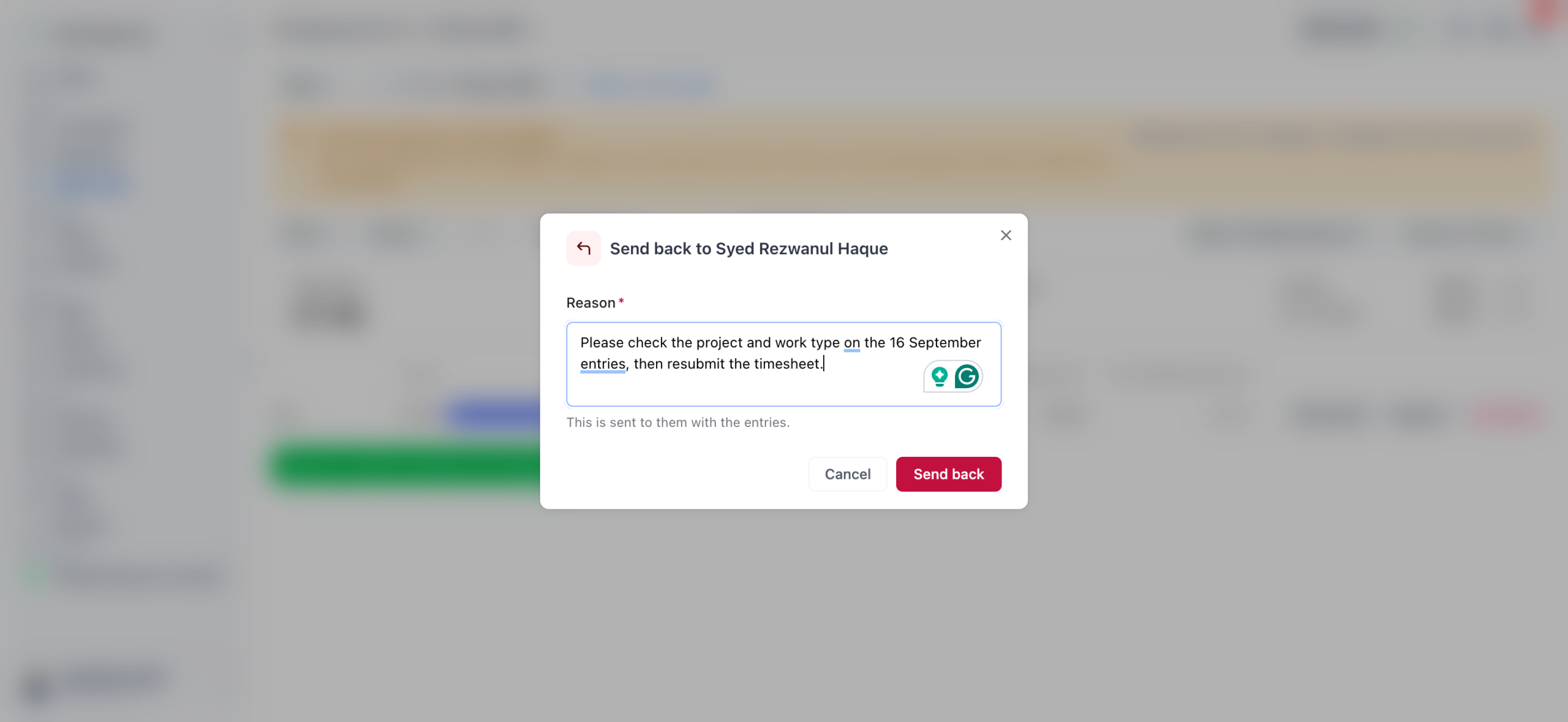
| Send back | A reviewer’s action that returns submitted entries to the person with a required Reason. The entries show Sent back until the person reopens, fixes and resubmits them. |
| Withdraw approval | An approver’s action that reverses an approval, so the week goes back to pending approval. There is no action for withdrawing your own submission before it is reviewed. |
Tasks
| Term | Definition |
|---|---|
| Board | The Tasks tab that shows your tasks from every project as cards in columns. |
| Calendar | The Tasks tab that places your dated tasks on a Daily, Weekly or Monthly calendar. |
| Tasks | The module that gathers your tasks from every project in one place. |
| Team Overview | The Tasks tab, for admins, that shows open, overdue and completed work for each person. |
Projects
| Term | Definition |
|---|---|
| Assignee | The team member responsible for completing a task. |
| Categories | A shared list, set up in Projects, Customize, that every project uses to classify tasks. |
| Collaborator | A team member added to a project. On a Private project, only you and collaborators have access. |
| Due date | The date by which a task or project should be finished. |
| Favourites | Projects you starred with Mark as favorite. They appear under Favourites in the sidebar. |
| Kanban | The project view that shows tasks as cards in columns you drag between. |
| Label | A tag you create inside one project to mark its tasks. |
| List | The project view that shows tasks as rows in a table. |
| Privacy | Who can open a project. Private means only you and collaborators; Public means every team member in your business. |
| Project | A container for the work you do for a client: tasks, files, tracked time and billing settings. |
| Project manager | The person designated to manage a project. Budget alert emails go to a project’s managers. |
| Project status | Where a project stands: Working, Completed, Archived or Paused. |
| Project template | A reusable project structure. Save as template keeps a project’s sections and task names and drops dates, assignees and status. |
| Subtask | A smaller task inside a parent task. |
| Subtask behavior | Whether subtasks move with their parent on the board (Attached with Parent) or on their own (Independent Movement). |
| Tags | A shared list of labels, set up in Projects, Customize, for flexible grouping across projects. |
| Task | A single action item in a project, with an assignee, a due date and other details. |
| Task template | A saved task with its subtasks that you can import into any project. |
Project billing and budgets
These terms appear on a project’s Billing and Timesheet tabs.
| Term | Definition |
|---|---|
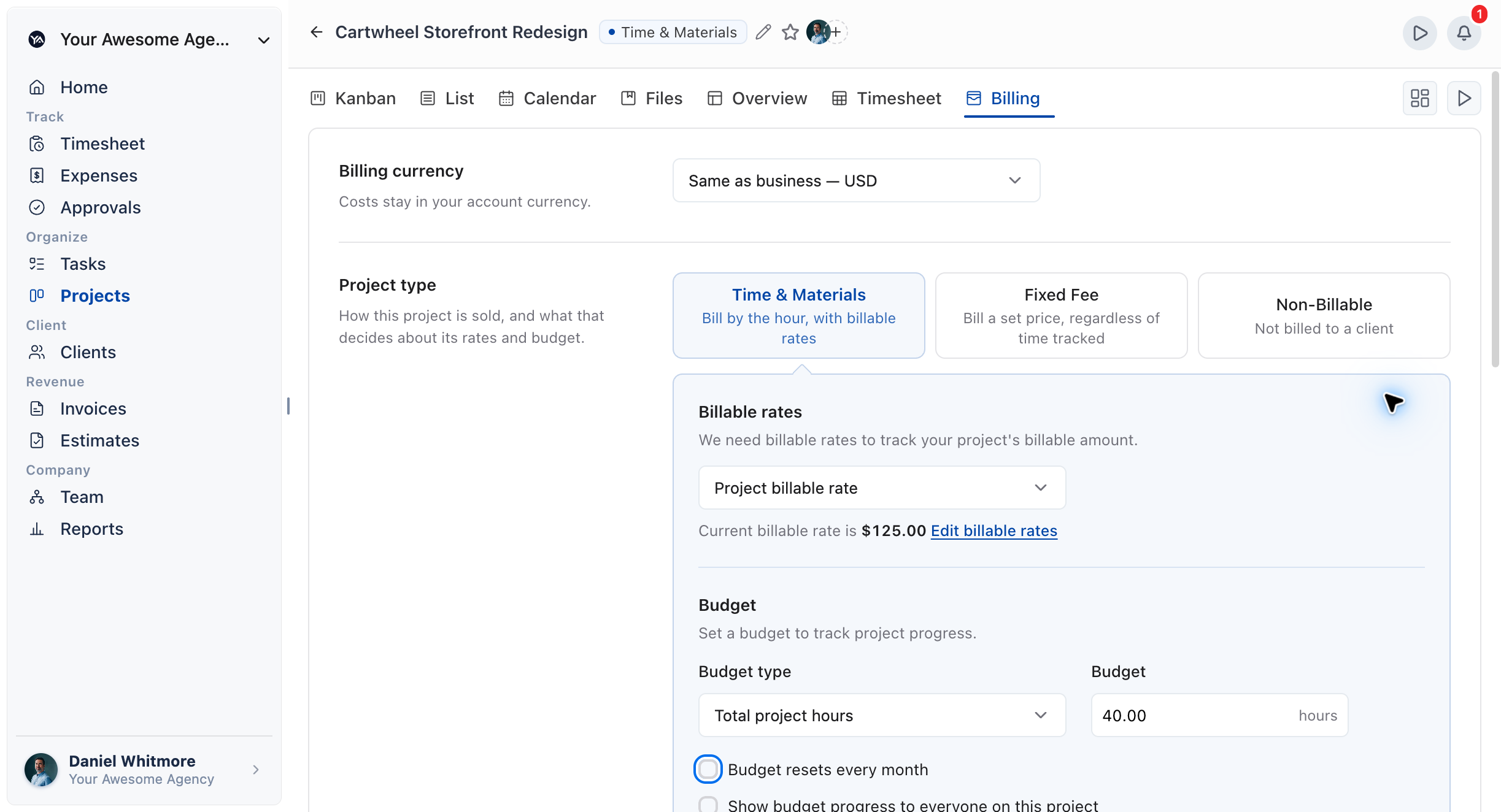
| Billable rate | The hourly price a client pays for work. A project takes it from one source: No billable rate, Project billable rate, Person billable rate or Work type billable rate. |
| Billing currency | The currency of a project’s rates, fees and budget. Costs always use your account currency. |
| Budget | A limit you track a project against. The types are Total project fees, Fees per work type, Total project hours, Hours per work type and Hours per person, or No budget. |
| Budget alert | An alert sent when a project passes a percentage of its budget, set with Send email alerts if project exceeds. People who can edit the project get a notification, and the project’s managers get the email. |
| Budget remaining | The share of the budget not yet used, shown on the project Timesheet tab. |
| Cost rate | What a person’s hour costs your business. It feeds internal costs and profitability and is never billed to a client. |
| Fixed Fee | A project type billed at a set price, regardless of time tracked. The fee is a Single fee or Monthly. |
| Internal costs | What the time and expenses on a project cost your business, shown on its Timesheet tab. Only people who can see cost rates see it. |
| Non-Billable | A project type that is not billed to a client. Rates are hidden, and expenses on it start as not billable. |
| Project type | How a project is sold: Time & Materials, Fixed Fee or Non-Billable. It decides what the project’s rates and budget can do. |
| Rate override | A custom rate for one person on one project, set under Team rates with Apply custom rate. Everywhere else, the person keeps their own rate. |
| Time & Materials | A project type billed by the hour, using billable rates. |
| Who can track | The setting on a project’s work types that allows Everyone on the project or Only these people to log time to each work type. |
CRM
| Term | Definition |
|---|---|
| Company | An organization in your CRM. A company can have many people and many opportunities linked to it. |
| Convert to Client | The action on a person, company or opportunity record that turns it into a client. |
| CRM | The module for your sales pipeline, with the tabs Opportunities, Companies, People and Tasks. |
| Industry | A category that describes a company’s or person’s line of business. You manage the list in CRM, Customize. |
| Opportunity | A deal you are pursuing, with an Amount, a Close Date, a Stage, a company, a point of contact and an owner. |
| Opportunity Automation | A setting that creates an opportunity automatically when a new contact is added, and names it by the rule you choose. |
| Owner | The team member responsible for a person, company or opportunity. |
| People | The individual contacts in your CRM, each with their own record. |
| Pipeline | Your opportunities laid out by stage, shown as a Kanban board or a table. |
| Point of Contact | The person at a company you deal with first on an opportunity. You link a company before you can pick one. |
| Source | Where a person or company came from. You manage the list in CRM, Customize. |
| Stage | A step in your pipeline. Stages are yours to add, rename, recolour, reorder and delete, and a stage that still has opportunities can’t be deleted. |
| Tag | A label you attach to people, companies or opportunities to group them. |
Clients
| Term | Definition |
|---|---|
| Client | A customer you bill. You add one in Clients, or convert a CRM person, company or opportunity. |
| Client profile | A client’s full record, with tabs such as Timeline, Projects, Invoices, Contracts, Notes, Files and Emails. |
| Client type | Whether a client is a Company or an Individual. A company client can have several people and a point of contact. |
| Notes | Written records your team adds to a client, kept on the Notes tab. |
| Timeline | A chronological feed of activity on a client’s profile. |
Client Portal
| Term | Definition |
|---|---|
| Access preset | A reusable set of portal access rights you assign to clients. Editing a preset updates every client on it. |
| Client access level | Whether clients have View Only Access or Create or Update Access in the portal. |
| Client portal | The area where your clients sign in to see what you share with them, such as projects, invoices, contracts and files. |
| Portal access | Permission for a client to sign in to the portal. You grant it with Invite to client portal and manage it on the client’s Portal access tab. |
| Portal user | A client who has been invited to the portal and can sign in. |
Contracts
| Term | Definition |
|---|---|
| Audit Log | A record of every action on a document, such as who viewed or signed it and when, which you can download. |
| Contracts | The module for writing or uploading proposals, contracts and agreements and sending them for electronic signature. |
| Document | A proposal, contract or agreement in Contracts, written in the editor or uploaded as a PDF. |
| Document status | Where a document stands, such as Draft, Sent, Viewed, Partially Signed or Completed. |
| Document variables | Placeholders in the signing email that fill in for each recipient,
such as {{account.name}}, {{document.title}},
{{recipient.email}} and {{recipient.link}}.
Keep {{recipient.link}}, because it carries the signing
link. |
| eSignature | Signing a document electronically in the browser. Signers don’t need a OneSuite account. |
| Party | A person who receives and signs a document. A document can have up to 10 parties. |
| Send Parties to Sign | The button that sends a document to every party for signature. |
| Signature Certificate | A downloadable record of a document’s signatures, kept for verification. |
| Signature fields | The fields you place for each party to fill in: Signature, Initials, Date, Text and Checkbox. |
| Template Library | The collection of ready-made document templates you can start a document from. |
Invoices
| Term | Definition |
|---|---|
| Closed | An invoice that was written off. Nothing further is due on it. |
| Configure | The Invoices tab that holds your invoice settings in seven pages: Company & brand, Document, New invoice defaults, Taxes, Item types, Emails and Getting paid. |
| Draft | An invoice that is still being edited. You save it before you can send it. |
| Invoice | A bill for your work, built from tracked time, expenses and fees or written by hand. |
| Invoice status | Where an invoice stands: Draft, Open, Partial, Paid or Closed. An open invoice also shows whether it was Saved, Sent or Viewed. |
| Item type | The category a line item carries, such as the default for hours or for expenses. |
| Letterhead | Your business name, address, phone and email at the top of an invoice. It comes from Settings, General and is styled in Company & brand. |
| Line item | One row on an invoice, with a description, quantity, unit price and amount. |
| Open | An invoice that is no longer a draft and has no payment recorded yet. |
| Overdue | An open or partial invoice past its due date. It counts in calendar days, so an invoice due today is not late until tomorrow. |
| Partial | An invoice that has received some payment but not all of it. |
| Payment terms | When payment is due after the issue date: Upon receipt, Net 15, Net 30, Net 45, Net 60 or Custom. |
| PO number | The purchase order number your client uses to match an invoice to their own approval. |
| Recurring invoice | An invoice set to repeat on a schedule, from Daily to Every year, until you stop it or an end date arrives. |
| Record payment | The action that logs money received against an invoice. It starts at the full balance, so you edit the amount for a partial payment. |
| Reminder | An email that chases an unpaid invoice a set number of days after its due date. |
| Second tax | An optional Tax 2 on an invoice. Compound charges it on the subtotal plus Tax 1. |
| Uninvoiced | Billable time and expenses that are not on an invoice yet. Hours on a draft invoice are held out of it, and non-billable time never counts. |
Retainers
| Term | Definition |
|---|---|
| Add funds | The retainer action that raises a retainer invoice for the client to pay. The funds become available to draw once its payment is recorded. |
| Balance | The money left on a retainer, shown with Funded and Drawn. |
| Draw | A retainer invoice that pays down from the balance instead of billing the client in full. You choose Draw from retainer when you create the invoice. |
| Retainer | Money a client pays up front for all of their projects or for one project, which later invoices draw from. You find retainers in Invoices, Retainers. |
Estimates
| Term | Definition |
|---|---|
| Estimate | A priced proposal of work you send before the work starts. You turn an accepted estimate into an invoice with Create the invoice. |
| Estimate status | Where an estimate stands: Draft, Sent, Accepted or Declined. The client can accept or decline from their link without signing in. |
Team
| Term | Definition |
|---|---|
| Capacity | The hours per week a person is expected to be available. New members start from the Default weekly capacity in Preferences, and you set each person’s own on Team. |
| Department | A group of people in your business, such as a design team, used to organize the roster. |
| Employee or Contractor | A person’s Type. Employees and contractors are grouped separately on the roster, and contractors have their own report. |
| Permission | A single access right, such as viewing a module. Profiles bundle permissions, and you can also change them per person. |
| Profile | A set of permissions that decides what someone can see and do. You pick one when you invite someone, and you can create custom profiles. |
| Role | A label that describes a person, such as Designer or Senior. Roles organize the Team section and reports, and they grant no access. |
| Team member | Anyone on your internal team who has joined your business in OneSuite. |
Reports
| Term | Definition |
|---|---|
| Activity log | The Reports tab that lists what changed, when and who did it, for timesheets, approvals, projects, expenses, invoices and clients. |
| Detailed report | A report that lists every time entry or expense behind a total, opened from New report. |
| Period | The date range a report covers, such as Week, Month, Quarter or Custom. |
| Profitability | The Reports tab that compares revenue, costs and profit by client, project, team or work type. Cost and margin columns need permission to see cost rates. |
| Receivables | The money still owed on sent invoices, shown on Reports, Invoicing. |
| Saved report | A report you store with its name, settings and sharing choice: Don’t share this report or Share with team. |
| Scheduled report | A saved report with a Recurring schedule that emails an export Daily, Weekly or Monthly. If you leave Send to empty, it goes to you. |
| Utilization | A contractor’s tracked hours compared with their weekly capacity, shown on the Contractor tab. |
Email Inbox
| Term | Definition |
|---|---|
| Connected account | A mailbox linked to OneSuite in Settings, Integrations, Email Inbox. The number you can connect depends on your plan, and you can add more as an add-on. |
| Email template | A saved subject and message you reuse when you write an email, with dynamic fields that fill in from the record. |
| Inbox | The icon in the top bar that opens your email. Email has no sidebar row. |
Integrations
| Term | Definition |
|---|---|
| Accounting integration | A connection to QuickBooks Online or Xero that copies your invoices and records payments. A business can connect only one at a time. |
| API key | A key that gives your own code full API access to your business. Keys have no scopes, and you can reveal a key again at any time. |
| Incoming webhook | An address another tool sends events to, so OneSuite creates, updates or deletes clients and CRM records. OneSuite has no outgoing webhooks. |
| Integration | A connection between OneSuite and another tool, set up in Settings, Integrations. |
| Payment gateway | A service that lets clients pay invoices online: Stripe, PayPal, QuickPay, Razorpay, HitPay or CHIP. |
| SMTP provider | An email sending service, such as SendGrid or Brevo, that OneSuite sends your workspace’s mail through. Only one can be connected at a time. |
| Webhook secret | The value another tool sends in the X-Webhook-Signature
header to prove a webhook request is genuine. |
Settings and Billing
| Term | Definition |
|---|---|
| Account menu | The menu that opens when you click your name at the bottom of the sidebar. It holds My Profile, Theme, Language, Settings, Billing, Get Support and Sign Out. |
| Add-on | Extra capacity bought on top of your plan, such as more email inboxes or calendars. |
| Billing | Your OneSuite subscription, opened from the account menu. Its page, Manage Billing, has the tabs My Plan and Invoices. |
| Custom domain | Your own web address for your client portal, set up in Settings, White Label, Domain. |
| Customize Navigation | The settings page where an admin switches modules on or off under Modules this business uses, and where you arrange your own sidebar. |
| Seat | A paid place on your plan for one team member. If every seat is in use, inviting someone asks you to add a seat. |
| Settings | Your business-wide configuration, opened from the account menu. It covers modules, the client portal, email templates, white label, workspace, time tracking and integrations. |
| White Label | The settings that put your own brand on OneSuite: Domain, Sign-in Page, SEO and Email. |
| Workspace | The settings group with General, Profiles & Permissions, API Keys and Delete Business. |
Not using OneSuite yet? Start your free trial →
FAQs
What is the difference between a role and a profile in OneSuite?
A profile controls what someone can see and do, and a role does not. Roles are labels, such as Designer, that organize the Team section and reports. Profiles bundle permissions and are assigned when you invite someone.
What is the difference between a billable rate and a cost rate?
A billable rate is what a client pays for an hour of work, and a cost rate is what that hour costs your business. Billable rates build invoices. Cost rates feed internal costs and the Profitability report.
What does uninvoiced mean in OneSuite?
Uninvoiced means billable time and expenses that are not on an invoice yet. Hours sitting on a draft invoice are held out of it, and non-billable time never counts.
What is the difference between approving and locking a timesheet?
Approving says the entries are right, and locking freezes a date range so nobody can edit or delete it. An approval can be withdrawn by an approver. A lock applies to every entry in its range, whatever its status.
What is a draw on a retainer?
A draw is a retainer invoice that pays down from the retainer’s balance. If the balance covers the whole invoice, the invoice is marked paid. Otherwise you send the client the remainder.
Can I call things by my own names instead?
Yes, for many of them. You name your own pipeline stages, industries, sources, tags, project categories, work types and expense categories, and you can rename any label an invoice prints in Invoices, Configure, Document.
What to do next
See every capability: Find what each module does and where to find it in All OneSuite Capabilities.
Follow the flow: See how leads, projects, time and invoices connect in How Solutions Work Together.
Start tracking time: Put work types, timers and entries to use in Time Tracking in OneSuite.