
The Approvals page is where you review your team’s tracked time and expenses before they count as final. You approve a period, send it back with a reason, chase people who have not submitted, and lock the period once the numbers are settled.
In this guide you’ll learn how to:
- Open the approvals queue and choose a period
- Approve time and expenses, one row or many at once
- Send a period back for changes
- Chase and force submit unsubmitted timesheets
- Lock a period so the numbers stop moving
Before you start
- If you don’t see Approvals in the sidebar, an admin can switch it on in Settings, Customize Navigation.
- The Approvals row also depends on Timesheet approvals in Settings, Time Tracking, Approval Policy. While that switch is off, there is no Approvals row in the sidebar and nothing can be submitted. See Approval Policy.
- You need permission to approve timesheets and to see your team’s time. Who appears in your queue depends on those permissions.
How to open the approvals queue
Click Approvals in the sidebar to open the queue.
You can also get there from Home: when timesheets are waiting, the Needs you queue shows how many and a Review link. Old links to the Team page’s approvals tab still work and open the Approvals page.
How to choose what the queue shows
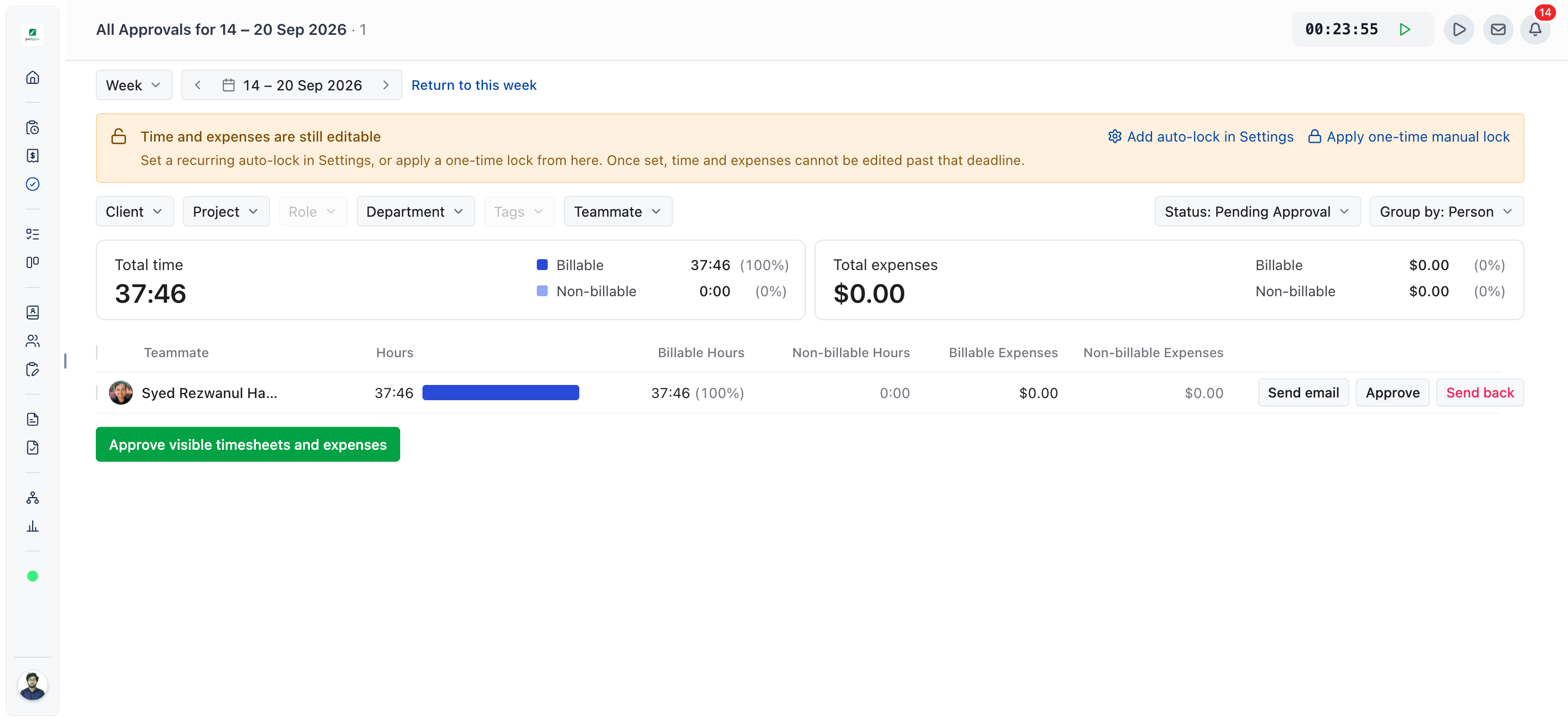
You narrow the queue with the period control, the Status selector, Group by and the filters. The page has no tabs.
- Choose a period length: Day, Week, Semimonth, Month, Quarter, Custom or All time.
- Use the arrows to move to the previous or next period. A link such as Return to this month brings you back to the current one.
- Set Status to Unsubmitted, Pending Approval or Approved.
- Set Group by to Person, Project or Client. With All time selected, Group by is hidden and rows are grouped by week.
- Narrow the rows with the Client, Project, Role, Department and Teammate filters.
- Click Clear filters to start again.
Above the rows, the totals show Total time and Total expenses, each split into Billable and Non-billable. Each row shows Hours, Billable Hours, Non-billable Hours, Billable Expenses and Non-billable Expenses.
How to look inside a row
Click the name on a row to open its entries.
- Switch between Time and Expenses.
- On Time, switch between List and Table, and use Group by to group the entries by Date, Project, Client or Person, depending on the row you opened.
- On Expenses, the expenses are counted in the totals but not listed one by one. Click Open this period in Expenses to check them.
- Click Back to Approvals to return to the queue.
How to approve time and expenses
You approve a period by clicking Approve on its row, or approve everything on screen from the action bar.
- Set Status to Pending Approval.
- Choose the period and filters so the queue shows what you want to review.
- Check the entries.
- Click Approve on a row.
To approve every row on screen, click Approve visible timesheets and expenses. To approve only some, tick their rows and click Approve N timesheets, where N is the number you ticked. The bulk action follows your filters, so check them first.
Approved entries are signed off: the person who tracked them can no longer change them. If something was approved too early, click Withdraw approval to send the period back to pending approval.
How to send a period back
You send a period back when something needs fixing, and you must give a reason.
- On a Pending Approval row, click Send back.
- In Send back to, enter a Reason. The reason is sent to the person with the entries.
- Click Send back.
Be specific about which entry is wrong and why. The person sees the week as Sent back, fixes it and resubmits it.
How to chase people who have not submitted
Set Status to Unsubmitted to see whose time is still outstanding, then remind them or submit on their behalf.
- Click Send reminder on a row to nudge one person.
- Click Force submit on a row to submit that person’s time as it stands.
- Use the action bar for many people at once: Send reminders to all and Force submit all timesheets, or the same actions for the rows you ticked.
Force submit is greyed out when nothing can be submitted. A sent-back period has to be reopened by the person who logged it.
Row and bulk actions by status
| Status | Row actions | Bulk actions |
|---|---|---|
| Unsubmitted | Send reminder, Force submit | Force submit all timesheets, Send reminders to all |
| Pending Approval | Send email, Approve, Send back | Approve visible timesheets and expenses |
| Approved | Withdraw approval | Withdraw approval |
- Send email opens your email app with a message to the person, subject “Timesheet for” and the period.
- Rows grouped by Project or Client only offer Approve or Withdraw approval.
- On your own row, if managers cannot approve their own time, you see Needs another reviewer instead of the buttons.
How to lock a period
Approving says the time is right. Locking stops anyone changing it.
- On the Approvals page, find the banner above the rows. It reads Time and expenses are still editable or Time and expenses are locked through a date.
- Click Apply one-time manual lock, or Change the manual lock if one is set.
- In One-time lock, pick the last date to lock.
- Click Apply lock.
Everything on or before that date is frozen: no edits and no deletions, for everyone. Approving and sending back still work. To lift a manual lock, open the same dialog and click Remove.
For a lock that moves forward on its own, click Add auto-lock in Settings (or Auto-lock settings if one is already on) and set it up in Approval Policy.
Not using OneSuite yet? Start your free trial →
FAQs
Why can I only see some people in OneSuite Approvals?
The people in your queue depend on your permissions, which an admin sets in Settings, Workspace, Profiles & Permissions. Your filters also hide rows, so click Clear filters first.
Why does my own timesheet say Needs another reviewer?
Manager self-approval is switched off, so someone else has to approve your time and expenses. An admin can switch it on in Settings, Time Tracking, Approval Policy.
Does approving a timesheet stop people editing it?
Yes. Approved time and expenses can no longer be changed by the person who tracked them. To reopen a period, click Withdraw approval. A lock goes further: locked entries cannot be edited or deleted by anyone.
Can I approve time and expenses separately?
No. A week is reviewed as one package, so Approve covers the period’s time and expenses together. Open the row and check Time and Expenses before you approve.
Can I just check the reports instead of using approvals?
You can, but reports only show what was tracked. Approvals record that someone accepted it, give you a way to send work back, and let an invoice pull approved time only.
What happens if I force submit someone’s timesheet?
OneSuite submits their unsubmitted time on their behalf, as it stands, so you can review it. Use it when a period has to close and the person is unavailable.
What to do next
Set the rules: Turn approvals on, allow self-approval and set up automatic locking in Approval Policy.
Bill the approved time: Turn approved hours and expenses into an invoice with Sending Your First Invoice.
Check the numbers: Compare time, cost and revenue across projects in Reports Overview.