
A profile is a named set of permissions that decides what someone can see and do in OneSuite. Giving each person the right profile keeps sensitive areas, such as rates, invoices and settings, open only to the people who need them.
In this guide you’ll learn how to:
- Tell roles, profiles and permissions apart
- See which profiles your business has and what each one grants
- Create, edit and delete a custom profile
- Assign a profile to one person or to many people at once
- Change the permissions of one person without changing their profile
Before you start
- To open Settings, click your name at the bottom of the sidebar, then Settings.
- Profiles & Permissions only appears under Workspace if your profile can view profiles and permissions. The same access is needed for the Profiles and Assign Users sections on Team, Assignments.
- Creating, editing and deleting profiles each need their own permission. If a button described here is missing, ask an admin.
What is the difference between roles, profiles and permissions?
A permission allows one action, a profile bundles permissions together, and a role is only a label that grants no access.
| Term | What it is | Grants access? |
|---|---|---|
| Permission | One thing a person may see or do. Permissions are grouped by module. | Yes |
| Profile | A named set of permissions. Each person holds one profile, and it is their starting point: “A profile decides what someone can do. Permissions can also be changed per person.” | Yes |
| Role | A label that describes a person, such as Designer or QA. Roles “organise the Team section and the reports, and they grant no access.” | No |
Departments also grant no access. They only group people on the roster.
Built-in and custom profiles
- Built-in profiles come with your business. On Team, Assignments, Profiles they are listed under Base profiles. You can’t edit or delete them.
- Custom profiles are the ones your business creates. They are listed under Custom profiles, and you can edit or delete them.
How to see your profiles and what they grant
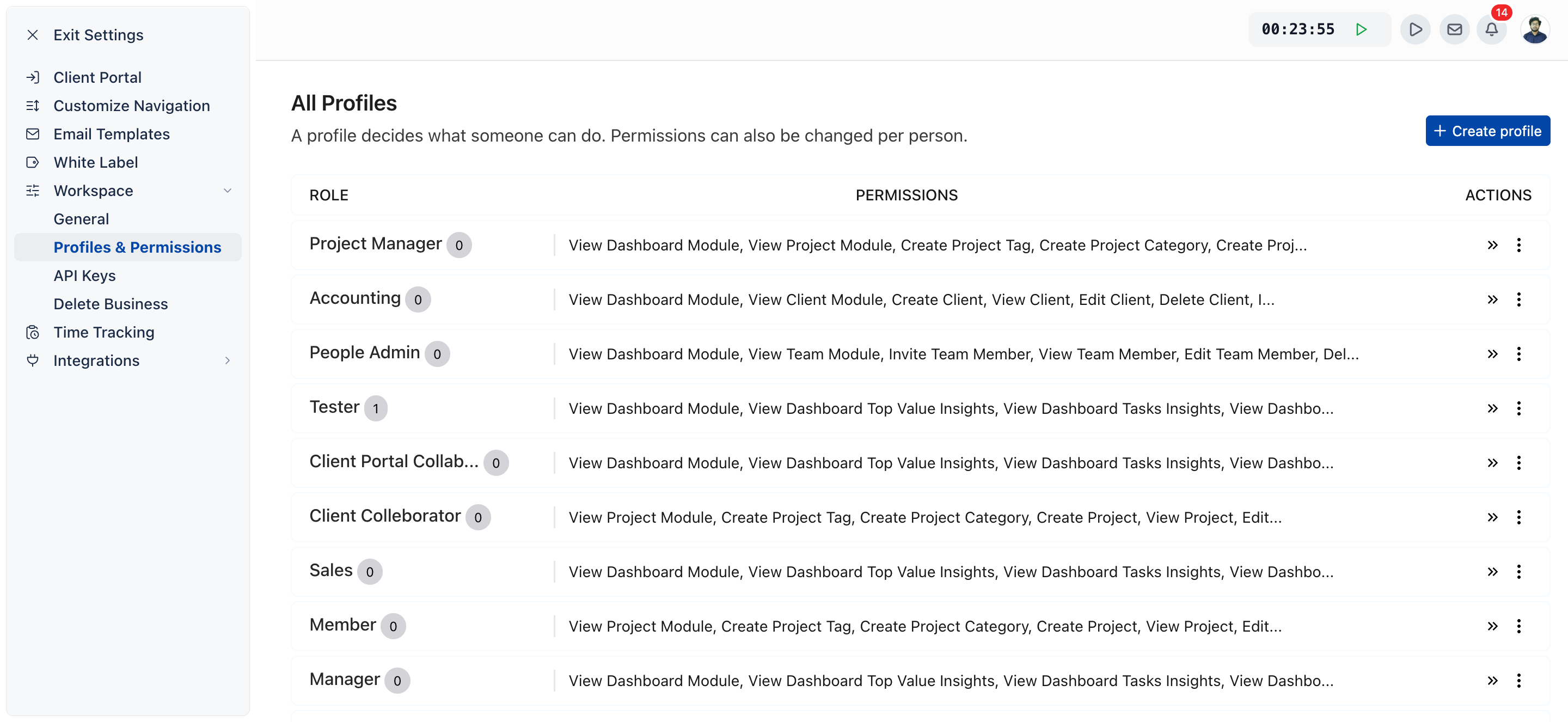
You see every profile in Settings, Workspace, Profiles & Permissions, and you open one to see its permissions ticked by module.
The profiles and the list of permissions are set up for your account, so this guide does not list them. Check them in the app:
- Click your name at the bottom of the sidebar, then Settings.
- Under Workspace, click Profiles & Permissions. The page is titled All Profiles.
- Read the list. The ROLE column shows each profile’s name and how many people hold it, and PERMISSIONS shows what it grants.
- Click a profile to open it. The permissions it grants are ticked, grouped under each module’s name.
You can also check on Team, Assignments, Profiles. Each row shows the profile’s People and its number of Permissions. Where the number is clickable, click it to see the profile’s permissions broken down by module.
How to create a profile in Settings
You create a profile on All Profiles with Create profile, tick its permissions, and save it with Create Role.
- On Settings, Workspace, Profiles & Permissions, click Create profile.
- Type the profile’s name in the box at the top of the dialog (Type role name).
- Optional: click Description and type a short description (Type role description).
- Tick the permissions the profile grants:
- All Permissions ticks every permission.
- Select All next to a module ticks every permission in that module.
- Or tick permissions one by one.
- Click Create Role. OneSuite confirms with Role created successfully.
If you leave out the name or tick nothing, OneSuite shows Role name is required or Role permissions are required.
How to create a custom profile from Team
You can also create a profile on Team, Assignments, Profiles, starting from a built-in profile and adding or removing permissions.
- Click Team in the sidebar, then the Assignments tab.
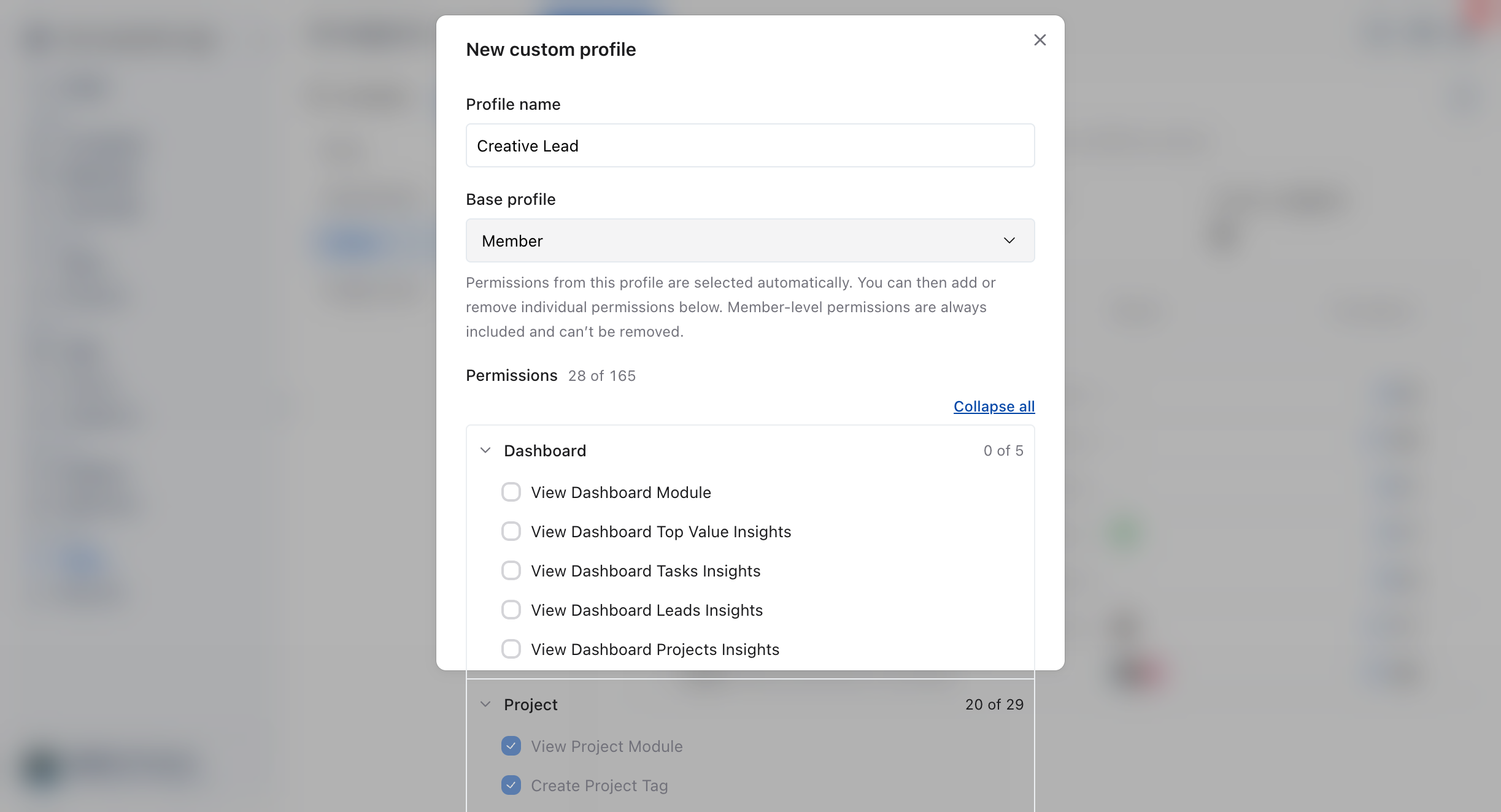
- Open Profiles and click New profile. The New custom profile dialog opens.
- Enter a Profile name, such as “Marketing Lead”.
- Choose a Base profile. Its permissions are ticked for you.
- Add or remove permissions. The header shows how many are on, as
Permissions followed by
enabled of total. - Click Create profile.
Member-level permissions are always included and can’t be removed. If the name is empty or no permission is ticked, you see Name is required or Pick at least one permission.
How to edit or delete a custom profile
You edit or delete a custom profile from its row, in Settings or on Team, Assignments, Profiles. Built-in profiles can’t be changed or deleted.
In Settings:
- On All Profiles, click the profile.
- Change its name, description or permissions.
- Click Update Role. OneSuite confirms with Role updated successfully.
To delete it, open the ⋮ menu on its row, click Delete and confirm. Built-in profiles have no ⋮ menu, and their permissions can’t be ticked or unticked.
On Team, Assignments, Profiles:
- Open the row’s actions menu and click Edit, change the profile, then click Update profile.
- Or click Delete in the same menu. OneSuite asks Delete {name}? and tells you how many people hold the profile. Click Delete profile to confirm.
People who held a deleted profile are left without one, and lose the permissions it granted until you move them to another profile. Right after deleting, click Undo in the list to bring the profile back.
How to assign a profile
You assign a profile when you invite someone, on one person’s page, or to many people at once on Assign Users. Each person holds one profile, so assigning a new one replaces the old one.
When you invite someone
Step 2 of the invite, What can they do?, asks you to pick a profile under Profiles or Custom Profiles. See Inviting Collaborators in OneSuite.
For one person
- Click Team in the sidebar, then the person’s name on Members.
- Click Edit profile, then open Permissions.
- Select the profile the person should hold.
- Click Update permissions.
For many people at once
- On Team, Assignments, open Assign Users.
- Select the people you want to change.
- Click Assign profile.
- Choose a profile under Profile (Select a profile…).
- Click Assign profile.
How to change one person’s permissions
You change one person’s permissions in the Permissions section of their profile, on top of the profile they hold.
- On Team, click the person’s name, then Edit profile, then Permissions.
- Switch individual permissions on or off below the profile list.
- Click Update permissions.
The change applies to that person only, and their profile shows a Customised badge. The profile itself, and everyone else on it, stays the same.
There are two limits:
- You can’t change your own permissions. You see You cannot change your own permissions. Ask another administrator.
- The Account Owner’s permissions can’t be changed by anyone.
Not using OneSuite yet? Start your free trial →
FAQs
What permissions does each OneSuite profile include?
It depends on your account, because the profiles and permissions are set up for each business. Open Settings, Workspace, Profiles & Permissions and click a profile to see its permissions ticked by module.
Can I edit the built-in profiles in OneSuite?
No. Built-in profiles can’t be edited or deleted. Create a custom profile from Team, Assignments, Profiles, choose the built-in one as its Base profile, and change the permissions you need.
Why can’t I change my own permissions in OneSuite?
OneSuite blocks it so nobody can lock themselves out by mistake. Ask another administrator to make the change for you.
Do roles or departments control what someone can access?
No. Roles and departments only label and group people. Access comes from the person’s profile and any permissions changed for them alone.
Can I just give everyone the same profile instead?
You can, but then everyone sees and does the same things, including rates, invoices and settings if the profile allows them. Separate profiles let you keep those areas to the people who need them.
What happens to people when I delete a profile?
They are left without a profile and lose the permissions it granted. Move them to another profile with Assign profile on Team, Assignments, Assign Users, or click Undo straight after deleting.
What to do next
Invite with the right access: Pick a profile for each new person with Inviting Collaborators in OneSuite.
Look after your team: Edit people, rates and projects with Managing Team Members in OneSuite.
Choose your modules: Decide which modules your business uses with How to Set Up Your Workspace.