
Departments let you group your team into broad categories, such as Marketing, Development or Sales, each with its own label colour. Assigning people to departments gives you a clear overview of your team’s make-up and expertise, which helps teams with diverse roles stay organized and work together.
In this guide you’ll learn how to:
- Open the Departments section
- Create a department with a name that fits your team structure
- Choose a colour for each department’s label
How to create a department
You create a department from the Departments section with the Create Department button.
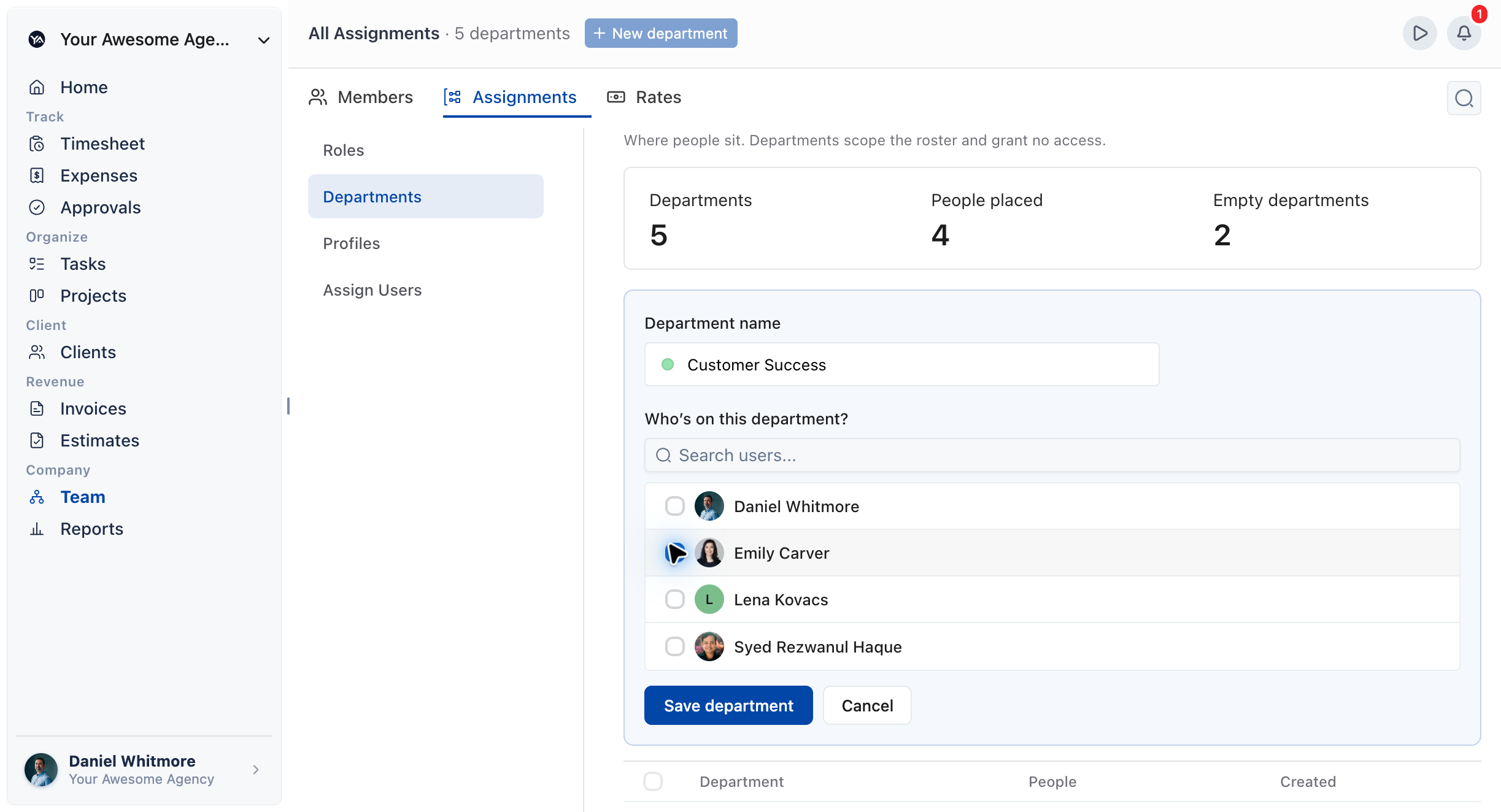
- Go to the Departments section in OneSuite. This is where you define your team structure.
- Click Create Department.
- Enter a department name that reflects your team structure. Think of departments as broad categories, for example “Marketing”, “Development” or “Sales”.
- Assign team members to the relevant departments, so you get a clear overview of your team’s make-up and expertise.
How to choose a department colour
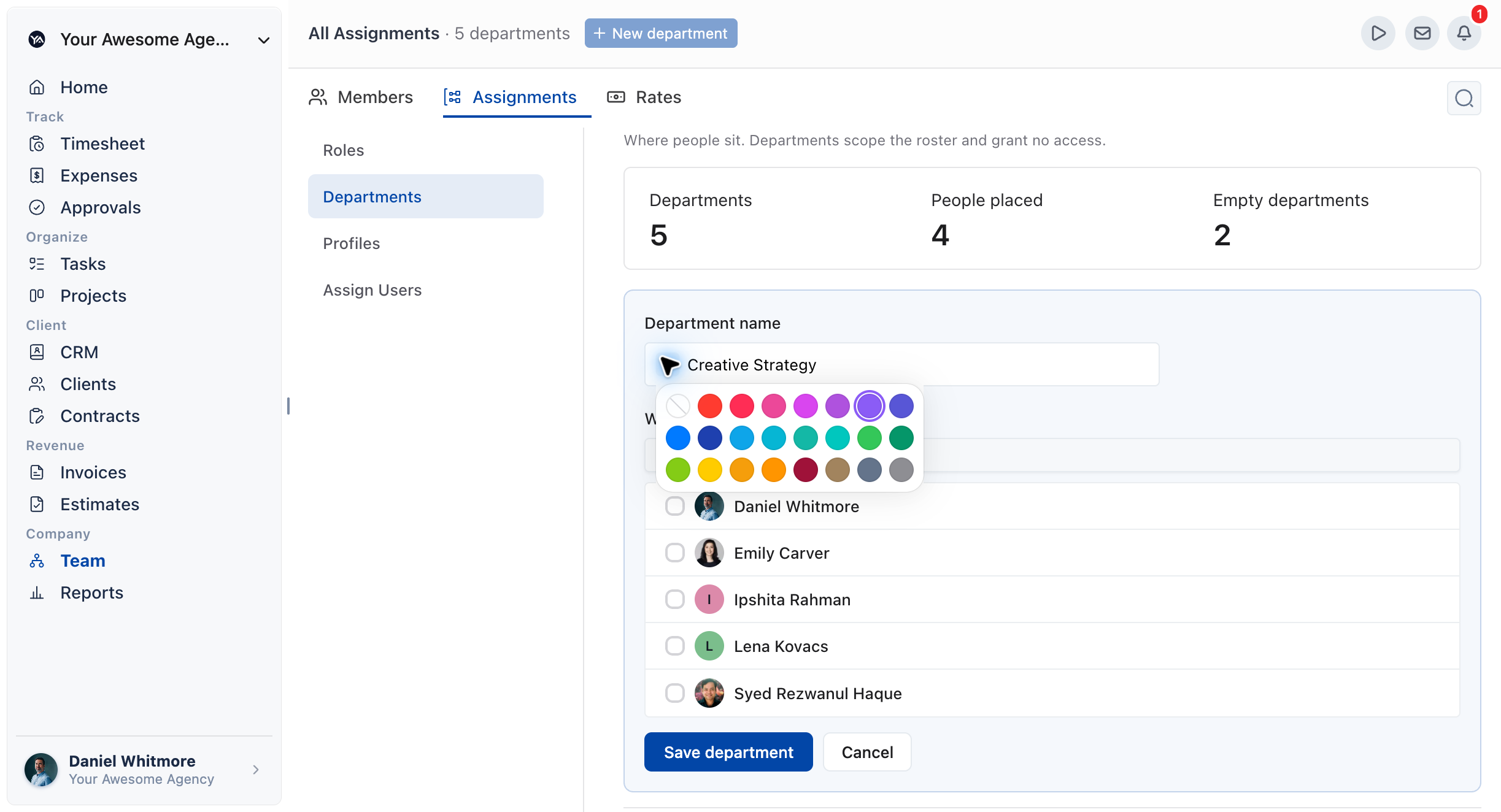
You choose a colour for each department’s label while you create the department.
- While creating the department, pick a colour for its label.
- Use a different colour for each department, so you can tell them apart at a glance.
Not using OneSuite yet? Start your free trial →
FAQs
What is a department in OneSuite?
A department is a broad category for your team, such as “Marketing”, “Development” or “Sales”. Assigning people to departments shows your team’s make-up and expertise at a glance.
Can I give each department its own colour?
Yes. While you create a department, you can choose a colour for its label, so departments are easy to tell apart.
Where do I create departments?
In the Departments section. Click Create Department to start a new one.
How should I name my departments?
Use names that reflect your own team structure. Keep them broad, such as “Marketing”, “Development” or “Sales”, rather than one per person.
Can I just use roles instead of departments?
You can describe people in other ways, but departments give you broad team categories with coloured labels. They show at a glance how your team is made up and where its expertise sits.
What to do next
Bring people in: Add teammates you can place in departments with Inviting Collaborators in OneSuite.
Organize your team: Edit people’s details and access with Managing Team Members in OneSuite.
Control access: Decide what each person can see and do with How to Set Up Profiles and Permissions.