
A recurring invoice repeats on a schedule you set, so OneSuite issues a new invoice to the same client every week, month, quarter or year. Use it for monthly retainer agreements, subscriptions, maintenance contracts and any other ongoing service, so you never forget to bill.
In this guide you’ll learn how to:
- Make an invoice repeat and choose its frequency and end
- Find your recurring invoices on the Recurring tab
- Pause, resume or delete a recurring invoice
- Edit a recurring template, including a custom frequency and a set number of invoices
- Choose whether each invoice is sent automatically or saved for you to review
Before you start
- You need permission to create invoices.
- The client must exist in OneSuite.
- Set up your letterhead, defaults and taxes first, because every invoice in the series uses them. See Invoice Settings & Customization.
- If you don’t see Invoices in the sidebar, an admin can switch it on in Settings, Customize Navigation.
How to make an invoice repeat
You make any invoice recurring by setting Repeats in the side panel of the invoice editor, then choosing a Frequency and when it stops.
- Click Invoices in the sidebar.
- Start the invoice in either of these ways:
- On the Overview tab, click Create and set up the invoice as usual. See Create One-time Invoices.
- On the Recurring tab, click Create. The New invoice dialog notes that this invoice will repeat, and you pick how often in the next step.
- In the invoice editor, find Repeats in the side panel and change Does not repeat to Repeats.
- Choose a Frequency. A new schedule starts on Every month.
- Choose Until:
- I manually stop it: invoices keep coming until you stop them.
- A specific date: then set the End date.
- Fill in the client, line items and dates, then click Save.
Once the invoice has a recurring template, the Repeats section shows a Recurring settings & history link.
Frequency options
| Frequency | How often a new invoice is issued |
|---|---|
| Daily | Every day |
| Every week | Weekly |
| Every two weeks | Every 2 weeks |
| Every four weeks | Every 4 weeks |
| Every month | Monthly |
| Every two months | Every 2 months |
| Every quarter | Every 3 months |
| Every six months | Twice a year |
| Every year | Yearly |
For any other interval, use Custom in the recurring template, as described in the section on editing a recurring template below.
Where do I find my recurring invoices?
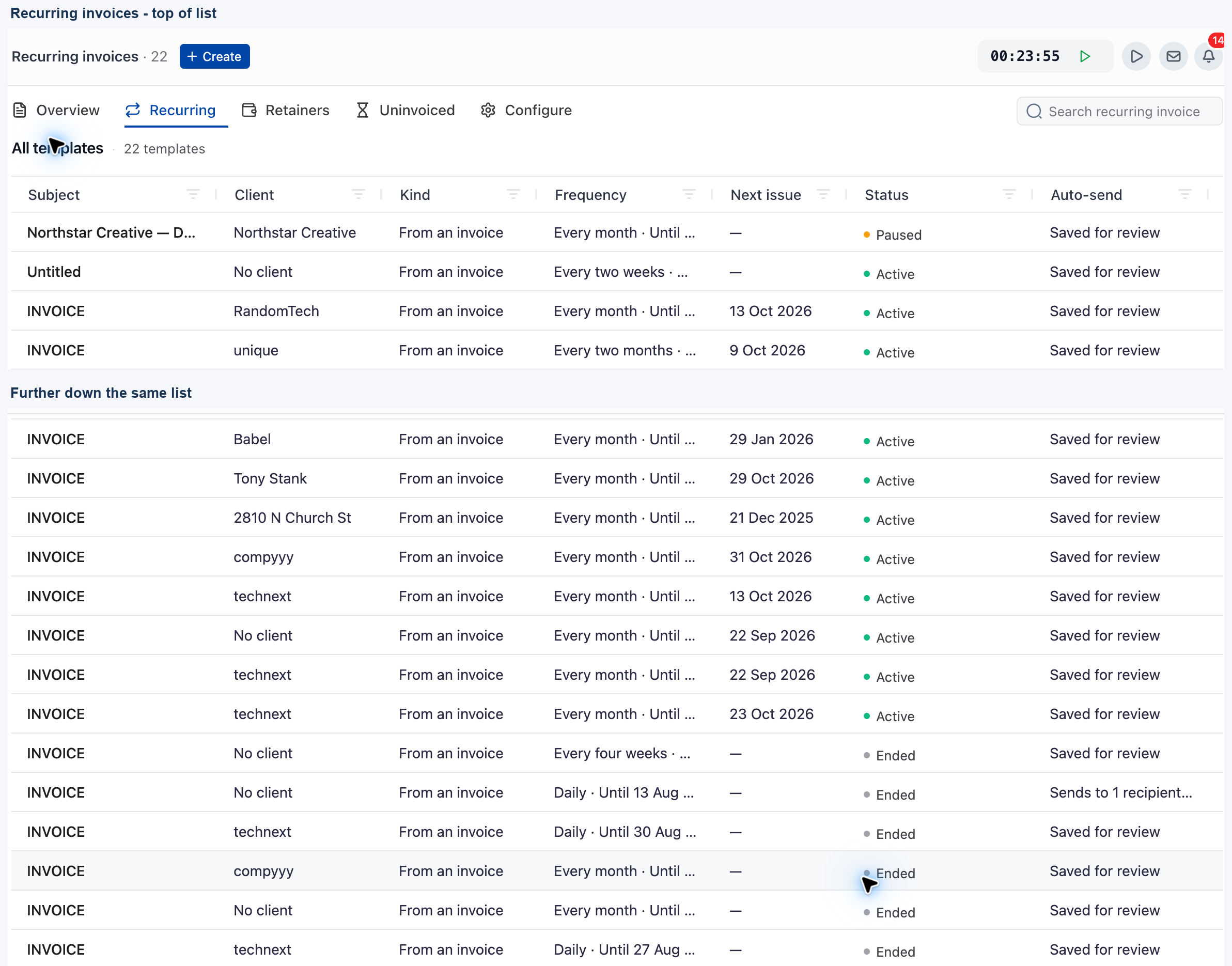
Every recurring invoice is listed on the Recurring tab of the Invoices module, under the title Recurring invoices.
- Click Invoices in the sidebar.
- Click the Recurring tab.
- Type in Search recurring invoices… to find one.
- Click a row to open its template page.
| Column | What it shows |
|---|---|
| Subject | The invoice subject. |
| Client | The client billed. |
| Kind | Tracked time & expenses, From an invoice or Free form. |
| Frequency | How often a new invoice is issued. |
| Next issue | When the next invoice will be issued. |
| Status | Active, Paused or Ended. |
| Auto-send | Sends to N recipient(s) when invoices go out automatically, or Saved for review. |
| Amount | The amount of each invoice. |
| Status | What it means |
|---|---|
| Active | New invoices are being issued on schedule. |
| Paused | You paused it. No new invoices are issued until you resume it. |
| Ended | The schedule has finished and no further invoices are issued. An ended recurring invoice can’t be paused or resumed. |
How to pause, resume or delete a recurring invoice
You pause, resume or delete a recurring invoice from the buttons at the top of its template page.
- On the Recurring tab, click the recurring invoice.
- Click Pause to stop new invoices. The Next issue date reads Paused.
- Click Resume to start issuing invoices again.
- Click Delete to remove the recurring invoice.
The template page also shows:
- Schedule: Frequency, Duration, First issue date, Next issue date and Last generated.
- Sending: either Sent automatically, with the recipients and subject, or Saved for you to review and send. Saved invoices appear under Invoices, Overview and in the list on this page.
- Amount: the amount per invoice and how many Invoices generated so far.
- Generated invoices: every invoice the template has issued, with its Issue date, Invoice, Status, Amount and Balance due.
How to edit a recurring template
You change a recurring invoice by clicking Edit recurring template on its template page. Changes apply to future invoices only.
- Open the recurring invoice from the Recurring tab.
- Click Edit recurring template. The Edit recurring invoice form opens.
- Under What kind of recurring invoice is this?,
choose:
- Free form: the same line items every time.
Variables like
%month%fill in the dates. - Tracked time and expenses: each invoice pulls in the uninvoiced billable hours and expenses tracked since the last one.
- Free form: the same line items every time.
Variables like
- Under When should this invoice be issued?, set the First issue date and the Frequency. For a custom interval, choose Custom, then set Every to a number and the Unit to days, weeks or months.
- Choose a Duration:
- Until I stop it: invoices keep coming until you pause or delete the template.
- Until a specific date: the last invoice is issued on or before this date.
- For a number of occurrences: the template stops after this many invoices.
- Under How should each invoice be handled?, choose Send automatically or Save as a draft for me.
- Fill in what goes on each invoice (see below), then click Save recurring invoice.
The client of a recurring invoice can’t be changed. To bill another client, stop this one and start a new recurring invoice for them.
On a monthly schedule, an invoice set for the 31st is issued on the last day of shorter months.
If the template was created from an invoice, the page tells you that editing it converts it to a free form template. Its existing invoices are kept.
Sending automatically or saving for review
| Choice | What happens to each new invoice |
|---|---|
| Send automatically | It is sent from your account the moment it is generated. Set the Recipients, and optionally Sender, CC, BCC, Message subject and Message body. Leave the body blank to use your default invoice message. |
| Save as a draft for me | It waits under Invoices, Overview for you to review and send. |
What goes on each invoice
For a Free form template, fill in What goes on each invoice?:
- Invoice subject, for example
Retainer for %month% %year% - PO number (optional)
- Line items with Item type, Description, Quantity and Unit price. Click Add item for another line.
- Invoice notes, Payment term, Tax, Tax 2 and Discount as a Percentage or Fixed amount
For a Tracked time and expenses template, choose Which projects would you like to invoice?, then set the hours and expenses to bill each time: All uninvoiced billable hours or No hours, and All uninvoiced billable expenses or No expenses. You also set Which hours and How to display hours, as in the invoice wizard. See Invoice Generation from Billable Hours.
Title variables
Use these variables in the subject and line items so each invoice shows the right dates:
| Variable | What it fills in |
|---|---|
%month% |
Month the invoice is generated in |
%year% |
Year the invoice is generated in |
%last_month% |
The month before |
%last_month_year% |
Year of the month before |
%next_month% |
The month after |
%last_year% |
The previous year |
%client_name% |
The client’s name |
%business_name% |
Your business name |
Can a recurring invoice draw from a retainer?
No. Recurring invoices don’t draw from retainers. To pay an invoice down from a client’s retainer balance, use a one-time invoice instead. See How to Use Retainers.
Not using OneSuite yet? Start your free trial →
FAQs
How do I set up a recurring invoice in OneSuite?
Open or create an invoice, then set Repeats in the side panel of the invoice editor and choose a Frequency and Until. You can also click Create on the Recurring tab, and the new invoice is set to repeat.
How do I stop a recurring invoice?
Open it from the Recurring tab and click Pause to stop new invoices for now, or Delete to remove it. You can also give it an end date or a number of occurrences so it ends on its own.
Can recurring invoices be sent automatically?
Yes. In the recurring template, choose Send automatically under How should each invoice be handled? and add the recipients. Choose Save as a draft for me if you want to check each invoice before it goes out.
Can a recurring invoice bill the hours tracked each month?
Yes. Choose Tracked time and expenses in the recurring template. Each invoice then pulls in the uninvoiced billable hours and expenses tracked since the last one.
Can I set a recurring invoice to run a fixed number of times?
Yes. In the recurring template, set Duration to For a number of occurrences and enter how many invoices to issue. The template stops after that many.
Can I just copy last month’s invoice instead?
You can use Make a copy on any invoice, but you
would have to remember to do it every month. A recurring invoice issues
each one on schedule, fills in the dates with variables like
%month%, and can send it for you.
What to do next
Write your invoice emails: Set the message automatic invoices go out with in How to Customize Invoice Email Messages.
Bill ongoing work in advance: Collect funds up front and draw them down with How to Use Retainers.
Record the payment: When a client pays, follow How to Record Invoice Payments.