
Inviting a collaborator emails them a link to join your business in OneSuite, with their access, projects and reporting line already set. Setting these up in the invitation means the person can start tracking time and working on projects as soon as they accept.
In this guide you’ll learn how to:
- Open the invite page from Team
- Enter a new person’s details, capacity and rates
- Choose a profile and adjust permissions for the invitation
- Add the person to projects and assign the people who report to them
- Handle a full plan when you invite someone
Before you start
- You need permission to invite team members. Without it, the Invite button does not show on Team.
- Rates and weekly capacity only appear in the form if you are allowed to set them. See the tables below.
- Decide which profile the person should start on. Profiles decide what someone can see and do. See How to Set Up Profiles and Permissions.
How to open the invite page
You invite someone from the Invite button on the Members tab of Team.
- Click Team in the sidebar, under Company.
- On the Members tab, click Invite.
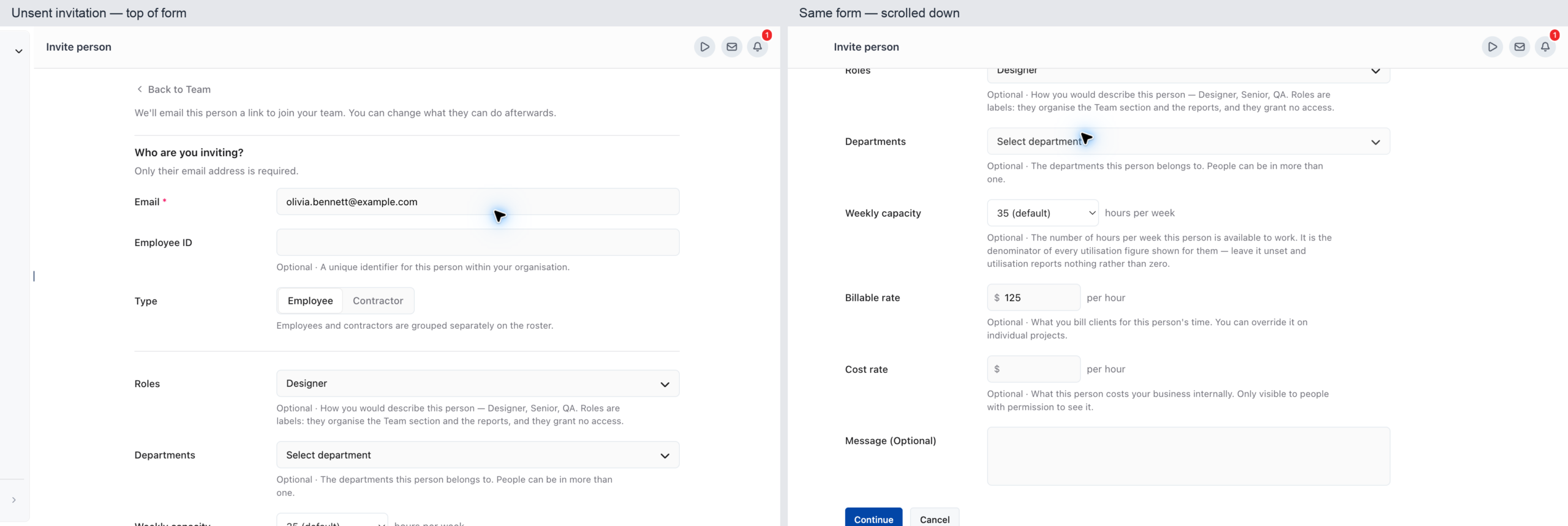
The Invite person page opens with a Back to Team link and the note “We’ll email this person a link to join your team. You can change what they can do afterwards.” The invitation takes four steps. It is sent at the end of step 2, and steps 3 and 4 are optional.
Step 1: Who are you inviting?
You enter the person’s email and, if you want, their employee details, roles, departments, capacity and rates. Only the email is required.
- Enter the Email.
- Fill in any optional fields from the table below.
- Click Continue.
When you click Continue, OneSuite checks the address before moving on. If there is a problem, you stay on step 1 and the message shows under Email:
| Message | What to do |
|---|---|
| Email is required | Enter an email address. |
| Please enter a valid email | Fix the address. It needs a name, an @ and a domain with a dot, such
as name@example.com. |
{email} is already a member of this
team |
This person is already on your team. Find them on Members instead. |
{email} has already been invited. Resend or
cancel it from the Team list |
An invitation is already waiting. Resend or cancel it from the person’s row menu on Members. |
Step 1 fields
| Field | Required | Notes |
|---|---|---|
| Yes | The address the invitation is sent to. | |
| Employee ID | No | “A unique identifier for this person within your organisation.” Up to 64 characters. |
| Type | Always set | Employee (the default) or Contractor. Employees and contractors are grouped separately on the roster. |
| Roles | No | Labels such as Designer, Senior or QA. Pick existing roles or type a new one and click Create “…”. Roles grant no access. |
| Departments | No | Pick existing departments or create a new one the same way. |
| Weekly capacity | No | 0 to 60 hours per week, in half-hour steps, or Not set. Shown only if you can view team capacity. |
| Billable rate | No | Per hour. Shown only if you can edit team rates. |
| Cost rate | No | Per hour. Shown only if you can edit team rates and view cost rates. |
| Message (Optional) | No | A personal note for the invitation. |
Weekly capacity starts on your business’s default, marked (default) in the list. The default comes from Default weekly capacity in Settings, Time Tracking, Preferences. If none is set, the picker starts at 35.
A rate must be a number of 0 or more. If you type something else, the field shows Enter a rate, Rate can’t be negative or Rate is too large, and Continue keeps you on step 1 until you fix it.
Step 2: What can they do?
You choose the profile the person starts on and, if needed, add extra permissions on top of it, then send the invitation.
- Under Profiles, select the profile closest to what the person needs. One profile is already selected when you arrive.
- Or select one of your business’s saved profiles under Custom Profiles. The person is invited on the profile you pick.
- Optional: use the permission list that opens under the selected profile to tick extra permissions. The profile then shows a badge such as +1 permission or +3 permissions.
- Click Send Invitation. Click Back to return to step 1 without losing what you typed.
The list of profiles and the permissions inside them are set up for your business, so they are not listed here. To create or edit profiles, see How to Set Up Profiles and Permissions.
Adjusting permissions for one invitation
- Reset to {profile} defaults removes the extra permissions you ticked and returns to the profile as it is.
- Save as custom profile turns the profile plus your extra permissions into a new profile. Enter a Custom profile name, such as “Marketing Lead”, and click Save custom profile. OneSuite selects the new profile for this invitation, and it appears under Custom Profiles for everyone you invite next.
- Both links appear once you have ticked at least one extra permission.
- Some of the selected profile’s permissions are locked and can’t be unticked here. You can fine-tune the person’s permissions after they accept, from their page on Team.
What happens if your plan has no free seat?
If your plan has no room for another member, OneSuite either stops the invitation or asks you to add a seat, depending on your plan.
- Your plan has a member limit and you’ve reached it: OneSuite shows You have reached the maximum number of members invitations allowed in your current plan. and does not send the invitation.
- Your plan charges per seat and every seat is used: the Add a seat? dialog opens. It says You’ve used all your seats., then shows what the extra seat costs now and on later bills. Click Add seat & invite to add the seat and send the invitation, or Cancel to go back to step 2 without sending.
After Cancel, you can change the profile or click Send Invitation again. For plan and seat details, see How to Manage Your OneSuite Subscription.
Step 3: What project are they working on?
You add the person to the projects they will work on, so they can track time on them as soon as they join.
- Search in Find and select projects to assign… and select each project.
- For each selected project, choose whether they manage it under Manages this project?. Use All or None to set every project at once.
- Click Assign projects. The button shows the count, such as Assign 3 projects.
To skip, click Skip. OneSuite asks Are you sure you want to skip? and warns that “Skipping this step means they will not be able to track time.” Click Assign projects now to stay, or Assign projects later to move on. You can add projects later from the person’s page on Team.
Step 4: Does anyone report to them?
You pick the people whose work this person oversees, which finishes the invitation.
- Search in Find and select people to assign… and select each person who reports to them.
- Click Assign people, or the count version such as Assign 2 people.
Click Skip if nobody reports to them. The note on this step explains that a profile on the managed tier sees the time, expenses and approvals of the people listed here, and of the projects the person leads.
When you finish, OneSuite shows {email} has been
invited and opens the invitation’s edit page. There you can
still change Basic info, Rates,
Assigned projects and Permissions
before the person accepts.
Not using OneSuite yet? Start your free trial →
FAQs
How do I invite a team member to OneSuite?
Click Team in the sidebar, then Invite on the Members tab. Enter their email, click Continue, choose a profile and click Send Invitation. Assigning projects and reports afterwards is optional.
Why can’t I continue past the first step of the invite?
The email is missing, not valid, already belongs to a member, or already has an invitation waiting. A rate below 0 or an Employee ID over 64 characters also keeps you on step 1. The message under the field tells you which.
How do I resend or cancel an invitation?
Open the person’s row menu on the Members tab of Team. For someone who hasn’t accepted yet, the menu offers Edit, Resend invitation and Cancel invitation.
Can I change someone’s permissions after I invite them?
Yes. The invitation’s edit page has a Permissions section, and once the person has joined you can change their profile and permissions from their page on Team. See Managing Team Members in OneSuite.
Can I import my whole team from a spreadsheet instead?
Yes. On the Team roster, open the menu and choose Import people to upload a CSV or Excel file matched on email. Use the invite page when you want to set up each person’s profile and projects one at a time.
What to do next
Look after your team: Edit people, capacity, rates and projects with Managing Team Members in OneSuite.
Shape access: Create the profiles you invite people on with How to Set Up Profiles and Permissions.
Group your people: Organize the team into departments with Creating Personalized Departments in OneSuite.