
OneSuite’s modules share the same records, so a client, project or hour you enter once is available everywhere it is needed. This guide follows the main chains from start to finish, so you know which step hands work to the next and where you still act yourself.
In this guide you’ll learn how to:
- Follow a lead through to a client and a project
- Turn tracked time and expenses into an invoice
- Convert an accepted estimate into an invoice
- Fund a retainer and draw on it from invoices
- See where Reports gets its numbers
What links records together in OneSuite?
Records in OneSuite point at each other: a project names its client, an invoice names its client and projects, and an opportunity names its company and point of contact.
- You enter details once. When you pick a client on a project or an invoice, OneSuite uses the client record you already have.
- The client is the hub. A client profile has tabs such as Projects, Invoices and Contracts, so you see the work for that client in one place. You choose which tabs show in the customization drawer under Client Profile Tabs.
- Each step is still yours to take. OneSuite links the records, but you decide when to convert an opportunity, create a project or send an invoice.
How does a lead become a client and a project?
A lead becomes an opportunity in CRM, the opportunity becomes a client with Convert to Client, and the client’s work runs as a contract and a project.
Lead, then opportunity, then client, then contract, then project
- Lead. Add the person or company on the People or Companies tab in CRM. If opportunity automation is on, OneSuite creates an opportunity for you when a contact is added. See How to Set Up Opportunity Automation.
- Opportunity. Track the deal on the Opportunities tab and move it through your pipeline stages. Link a company and a Point of Contact to it.
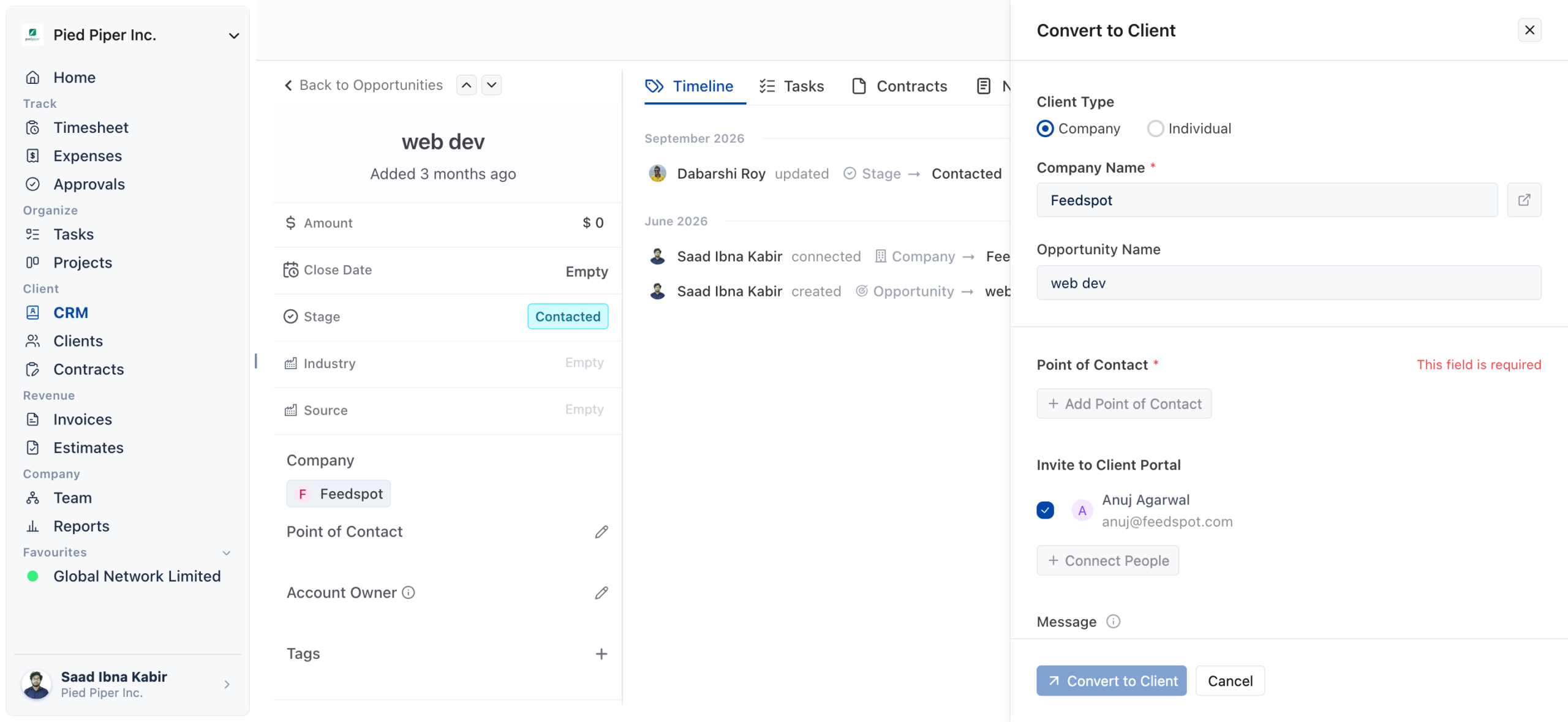
- Client. On the opportunity’s page, click Convert to Client. In the drawer, choose the Client Type, Company or Individual, and tick Invite to Client Portal for anyone who should get portal access. Then click Convert to Client.
- Contract. Create the agreement in Contracts and choose the client in the Client Or Lead field. You can also start a contract earlier from the opportunity’s Contracts tab, once the opportunity has a company or point of contact linked.
- Project. In Projects, click Create and pick the client in Client (optional). The project then appears with the client’s other work.
The Convert to Client button disappears once the opportunity’s company, or its point of contact when there is no company, is already a client.
How do time and expenses become an invoice?
Your team tracks time and expenses against a project, a manager approves them, and the invoice wizard offers the billable items that are not yet invoiced.
Time and expenses, then approval, then invoice
- Track. Log hours in Timesheet and costs in Expenses, each against a project. Mark them billable if the client should pay.
- Submit. If your business uses timesheet approvals, each person submits the week with Submit week for approval. Expenses are submitted a week at a time with Submit for approval.
- Approve. A manager opens Approvals and approves the week or sends it back with a reason.
- Invoice. In Invoices, click Create, choose the client and keep From tracked time & expenses. The wizard offers only billable hours and expenses that are not already on an invoice.
Which hours in the wizard starts on All hours. Choose Approved only or Approved + pending approval to narrow it. If you start the invoice from a project’s Timesheet tab instead, only approved time is pulled when approvals are on.
Non-billable time never reaches an invoice. Hours already on another draft invoice are left off; delete that draft to release them.
How does an estimate become an invoice?
Once an estimate is accepted, you turn it into an invoice draft with one click.
Estimate, then invoice
- In Estimates, click New estimate, add your lines and send it with Save and send….
- The client accepts it with Accept estimate on their estimate page, or you click Mark accepted when they tell you.
- Click Create the invoice on the accepted estimate. OneSuite creates an invoice draft and opens it in the invoice editor.
Once the invoice exists, the estimate shows View invoice with its number instead. An estimate that has been converted can’t be deleted.
How does a retainer fund future invoices?
A retainer holds money a client pays in advance, and later invoices draw it down.
Retainer funding, then draws
- In Invoices, open Retainers and click New retainer. Choose the client and All projects or One project, then click Create retainer.
- On the retainer, click Add funds, enter the Amount to add and click Create retainer invoice. A draft retainer invoice opens for you to complete and send.
- When the client pays, record the payment on that retainer invoice. The funds become available to draw from once the payment is recorded.
- When you next invoice that client, tick Draw from retainer in the New invoice dialog, or accept the wizard’s retainer prompt. The balance is applied when the invoice is saved.
If the balance covers the whole invoice, the invoice is marked paid. If it does not, you send the client the remainder. The retainer page shows Balance, Funded and Drawn, plus every retainer invoice. See How to Use Retainers.
How does everything feed Reports?
Reports reads the same time entries, expenses, projects and invoices that the other modules create, so there is nothing to export or re-enter.
| Reports tab | What it shows |
|---|---|
| Time | Tracked hours by Clients, Projects, Work types or Teammates. |
| Profitability | Revenue against costs by Clients, Projects, Team or Work types. |
| Contractor | Hours tracked by contractors, with their utilization and cost. |
| Invoicing | Invoiced, Payments received, Receivables and Uninvoiced amounts. |
| Activity log | What changed and who changed it, across timesheets, approvals, projects, expenses, invoices and clients. |
| Saved reports | The reports you have saved or that colleagues have shared with you. |
The Uninvoiced tab on Invoices also opens the Uninvoiced view in Reports, so you can see what is waiting to be billed before you create invoices.
Not using OneSuite yet? Start your free trial →
FAQs
What happens when I convert an opportunity to a client?
The company or person you choose in the Convert to Client drawer becomes a client, and the button disappears from the opportunity. You pick Company or Individual as the Client Type, and you can invite people to the client portal in the same step.
Can I invoice time that hasn’t been approved yet?
Yes, from Invoices, Create. The wizard’s Which hours starts on All hours, which includes unapproved time. Only the project Timesheet tab route limits you to approved time when approvals are on.
Can I just keep my CRM, timesheets and invoices in separate tools instead?
You can, but you then copy clients, projects and hours between them by hand, and your reports only see part of the picture. In OneSuite the invoice pulls the project’s billable time and expenses, and Reports reads the same records.
Why doesn’t my tracked time show up on a new invoice?
The wizard only offers billable time that is not already on an invoice. Time is left off when it is non-billable, when it is already on another draft invoice, or when you chose Approved only and it isn’t approved yet.
What happens to an estimate after I create the invoice?
The estimate shows View invoice with the invoice’s number in place of Create the invoice. A converted estimate can no longer be deleted.
Do retainer funds count as soon as I raise the retainer invoice?
No. Funds count once a payment is recorded on the retainer invoice. Until then there is nothing to draw from.
What to do next
Start with your pipeline: Learn how records connect inside the CRM in How Opportunities, Companies, and People Work Together.
Bill your tracked time: Walk through the invoice wizard in Invoice Generation from Billable Hours.
Read the results: See what each report shows in Reports Overview.