
You manage your people in Team, which has three tabs: Members for the roster, Assignments for roles, departments and profiles, and Rates for billable and cost rates. Keeping this page current means your capacity, reports and invoices use the right people, projects and prices.
In this guide you’ll learn how to:
- Edit a team member’s details and weekly capacity
- Assign people to projects
- Organize people with roles, departments and profiles
- Set billable and cost rates from a chosen date
- Archive and restore people who leave
Before you start
- You need access to the Team module. Each tab and action also needs its own permission, so you may not see every option below.
- To add someone new, invite them first. See Inviting Collaborators in OneSuite.
- Timesheet approvals are no longer a Team tab. They have their own Approvals row in the sidebar.
How to open the Team page
You open Team from the Company group in the sidebar.
- Click Team under Company in the left sidebar.
- Pick a tab: Members, Assignments or Rates.
| Tab | What it is for | Who sees it |
|---|---|---|
| Members | The roster: each person’s departments, hours, utilization and capacity for the chosen week | People who can view team members |
| Assignments | Roles, Departments, Profiles and Assign Users | People who can view team members |
| Rates | Each person’s default Billable and Cost rates | People who can view team rates |
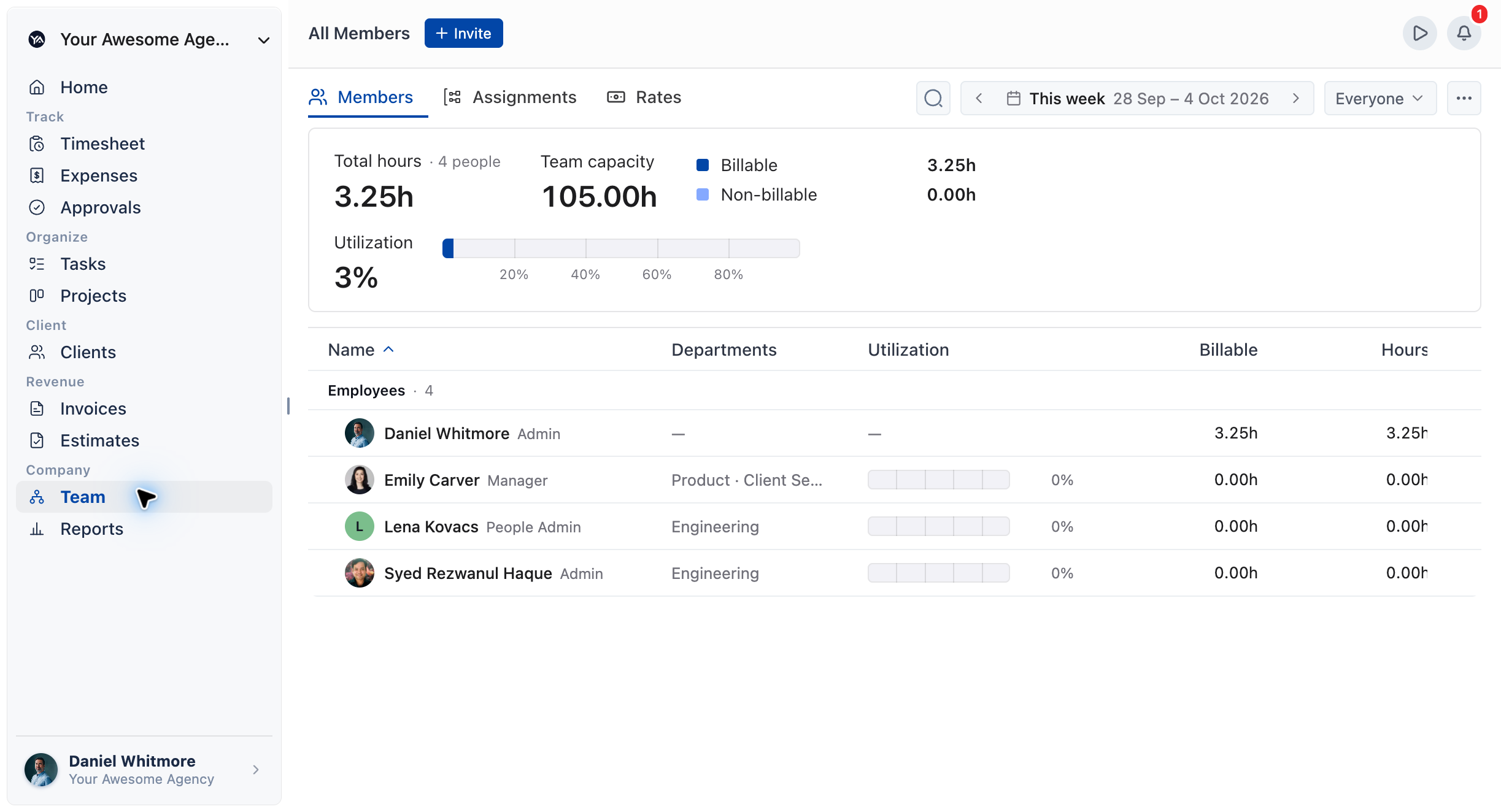
On Members, use Search people, the week picker and the scope menu (Everyone, My pins, a department or a role) to narrow the roster. Open a row’s ⋯ menu and choose Pin to keep someone under My pins.
How to edit a team member
You edit a person from their profile: click their name on Members, then Edit profile.
- On the Members tab, click the person’s name.
- Click Edit profile.
- Choose a section from the left:
- Basic info: name, Employee ID, Type (Employee or Contractor), Job title, Roles, Departments, Capacity, Timezone and notifications
- Rates: their dated billable and cost rates
- Assigned projects: the projects they work on
- Assigned people: the people they manage
- Permissions: their profile and individual permissions
- Security: Reset password
- Make your changes and click Update info in Basic info, or the save button of the section you are in.
For a quicker edit, open the row’s ⋯ menu on Members and choose Edit. For someone who has not accepted their invitation yet, the same menu offers Edit, Resend invitation and Cancel invitation.
Note: you cannot change your own permissions. Someone else with permission has to do it. To learn what profiles and permissions control, see How to Set Up Profiles and Permissions.
How to set someone’s weekly capacity
Weekly capacity is the number of hours a person is available each week, and it is what their utilization is measured against.
- On the Members tab, click into the person’s Capacity cell.
- Type the hours per week and press Enter, or click away, to save.
You can also set Capacity in Basic info on their profile. Capacity must be between 0 and 60 hours and goes in half-hour steps. If you leave it unset, the person uses your business default, which you set in Settings, Time Tracking, Preferences, Default weekly capacity.
How to assign people to projects
You assign one person to projects from their profile, or several people at once with a bulk action.
One person:
- Open the person’s profile and click Edit profile.
- Open Assigned projects.
- Use Find projects to assign to pick the projects.
- Turn on Manages this project? for any project they manage.
- Click Assign projects.
Changes in the project list are saved as you make them. To take someone off every project, use Remove from all projects.
Several people:
- On the Members tab, open the ⋯ (More actions) menu above the roster.
- Choose Assign to projects.
- Work through Select people and Select projects, then confirm.
If you haven’t picked anyone, OneSuite tells you: Choose at least one person first.
How to organize people with roles, departments and profiles
You organize people on the Assignments tab, which has four sections.
| Section | What it does | Main button |
|---|---|---|
| Roles | Labels that describe a person, such as Designer or QA. Roles organize Team and reports and grant no access. | New role |
| Departments | Where people sit. Departments scope the roster and grant no access. | New department |
| Profiles | What people may do. A profile is a starting point, and permissions can differ per person. | New profile |
| Assign Users | Select people, then give them a role, department or profile in one go. | Assign role, Assign department, Assign profile |
To create a department:
- Open Assignments, then Departments.
- Click New department.
- Enter a Department name and choose people under Who’s on this department?
- Click Save department.
How to set rates
A Billable rate is what you charge clients for a person’s time, and a Cost rate is what that time costs your business.
From today, on the Rates tab:
- Open the Rates tab.
- Find the person in the Member column.
- Enter the rate in the Billable or Cost column.
A change here records a new rate from today. Earlier work keeps the rate it was priced at. If you clear someone’s last rate, OneSuite asks you to confirm before it leaves that person with no rate.
From another date, on the person’s profile:
- Open the person’s profile, click Edit profile, and open Rates.
- Under Billable rates or Cost rates, click New billable rate or New cost rate.
- Enter the Hourly rate and the Start date.
- Click Add billable rate or Add cost rate.
A rate cannot start more than ten years from now or before the year 2000. A project can override a person’s default rates for the work done on it.
For several people at once:
- On the Members tab, open the ⋯ (More actions) menu and choose Set rates.
- In Rate setup, choose Billable rate or Cost rate, and Default rate or Project rate.
- For a project rate, pick the projects in Select projects. Then pick the people in Select people.
- In Set rates, use Bulk apply with Set to or By %, then Apply to all, and set Effective from.
If someone in the selection has no rate yet, a percentage change can’t raise it, and OneSuite says so: 1 person has no rate to raise.
How to archive someone who has left
You archive a person from the ⋯ menu on their row or profile, and you can restore them at any time.
- On the Members tab, open the ⋯ menu on the person’s row.
- Choose Archive.
Archived people keep every hour they tracked, but they are left out of team totals and no longer use a seat. To see them, open the ⋯ (More actions) menu above the roster and choose Archived people. Click Restore to bring someone back.
To archive several people, use Archive people in the same menu. Delete also appears in a row’s menu for people with permission, but archiving keeps the person’s history in place.
Not using OneSuite yet? Start your free trial →
FAQs
How do I edit a team member in OneSuite?
Click the person’s name on the Team, Members tab, then click Edit profile. Their profile has sections for Basic info, Rates, Assigned projects, Assigned people, Permissions and Security.
What is the difference between a billable rate and a cost rate?
A billable rate is what you charge clients for a person’s time. A cost rate is what that person’s time costs your business. You need both for profitability reports to show a real margin.
Should I delete or archive a team member who leaves?
Archive them. Archived people keep every hour they tracked, stop using a seat, and can be restored from Archived people if they return.
Why can’t I see the Rates tab on Team?
Your profile does not have permission to view team rates. Ask an admin to grant it, or to make the rate change for you.
Why didn’t a new rate change an old invoice?
Rates are dated, so a new rate applies from its start date forward. Earlier work keeps the rate it was priced at.
Can I use departments instead of profiles to control access?
No. Departments and roles only organize people and grant no access. What a person can see and do comes from their profile and permissions.
What to do next
Bring people in: Send invitations and set their access with Inviting Collaborators in OneSuite.
Control what people can do: Build and assign profiles with How to Set Up Profiles and Permissions.
Price your team’s work: Override rates per project with How to Set Up Project Billing and Budgets.