
Setting up your business in OneSuite means creating your account, filling in your business details, and then preparing the lists that time, expenses and invoices depend on. Doing it in the order below means each step finds what it needs already in place, so your first invoice comes out right.
In this guide you’ll learn how to:
- Create your account and add your business
- Fill in your workspace details and switch on the modules you need
- Create work types and expense categories
- Add clients and create projects with billing
- Set team rates and capacity, then start tracking time
Before you start
- Most of these steps are admin tasks. You need permission to change settings, switch modules and edit rates.
- You open Settings from the account menu: click your name at the bottom of the sidebar, then Settings.
How to create your account and add your business
You sign up with your email address or Google account, then add your business by name.
- On the sign-up page, enter your email address and a password, or click Sign up with Google.
- If you signed up with email, enter the verification code that OneSuite sends to your inbox.
- Enter your business name when asked. On the Add your business page, Name of your business is the only required field.
- Optionally add your website, email, phone, business address and a logo.
- Click Add Business.
OneSuite then takes you into your new business. Everything else is set up from inside the app, in the order below, and every setting can be changed later.
What is the recommended setup order?
Set up the lists and records that other features rely on first, and start tracking time last.
| Step | What you set up | Where |
|---|---|---|
| 1 | Workspace details | Settings, General |
| 2 | Module switches | Settings, Customize Navigation |
| 3 | Work types | Settings, Time Tracking, Work Types |
| 4 | Expense categories | Settings, Time Tracking, Expense Categories |
| 5 | Clients | Clients |
| 6 | Projects with billing | Projects, then the project’s Billing tab |
| 7 | Team rates and capacity | Team and Settings, Time Tracking, Preferences |
| 8 | Tracking time | Timesheet |
Step 1: How to fill in your workspace details
Your workspace details are the business name, contact details, timezone and currency that OneSuite uses across the app.
- Open the account menu and click Settings.
- Under Workspace, click General.
- Check the Business name. It is required.
- Add the Business email (optional), Business website link (optional) and Business phone (optional).
- Choose your timezone in Select Timezone and your currency in Select Currency.
- Fill in the Business address lines and upload your logo.
- Click Update Business.
Your invoice letterhead starts from these details. You style it in Invoices, Configure, Company & brand.
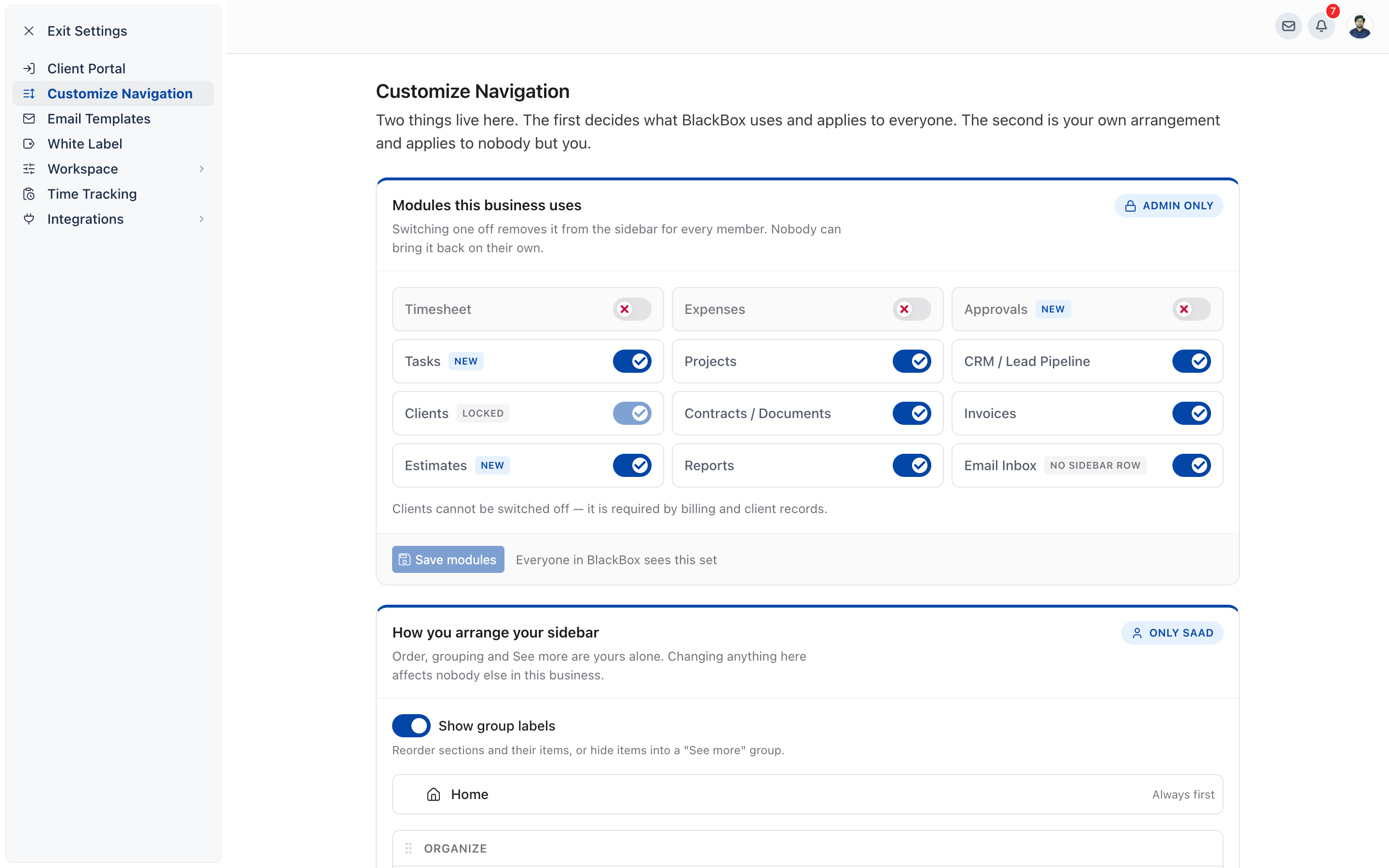
Step 2: How to switch on the modules you need
Module switches decide which modules appear in the sidebar for everyone in your business.
- Open the account menu and click Settings.
- Click Customize Navigation.
- In the Modules this business uses block, switch each module on or off. This block is for admins only.
- Click Save modules.
Switching a module off removes it from the sidebar for every member. Clients always stays on. If you plan to track time and bill for it, keep Timesheet, Projects and Invoices on, and Expenses and Approvals if you use them.
Step 3: How to create your work types
Work types are the kinds of work your team tracks time against, such as design or consulting, and each can carry a default hourly rate.
- In Settings, open Time Tracking, then Work Types.
- Click New work type.
- Enter a Name and, if you bill by work type, a Default rate.
- Leave Billable by default on for work you charge clients for.
- Switch on Add to new projects if every new project should offer this work type.
- Click Create.
If a project offers work types, every time entry on it needs one. A project with no work types accepts time without one. Setting them up now means your projects are ready when your team starts tracking. See How to Set Up Work Types.
Step 4: How to create your expense categories
Expense categories are the kinds of cost your team claims, such as travel or software, and every expense needs one.
- In Settings, open Time Tracking, then Expense Categories.
- Click New category.
- Enter a Name.
- For costs counted in units, such as mileage, add a Unit name and a Unit price. People then enter a quantity instead of an amount.
- Save the category.
See How to Set Up Expense Categories.
Step 5: How to add your clients
You add clients in Clients, so your projects and invoices have someone to belong to.
- Click Clients in the sidebar.
- Click Add New. The Add New Client drawer opens.
- Choose the Client Type if you are asked, then enter the name and Primary Email.
- To give portal access now, tick Invite to client portal for the client, or for each person on a company client.
- Click Create Client, or Create & Send Invite if you invited someone.
To bring in a list of clients at once, use Options, Import on the clients table. See Adding Clients.
Step 6: How to create projects with billing
You create a project for each piece of client work, then set how it is billed on its Billing tab.
- Click Projects in the sidebar, then Create.
- Enter the Project Name and choose the client in Client (optional).
- Under Choose view for your project, keep Timesheet and Billing selected.
- Click Create Project.
- Open the project and click the Billing tab.
- Choose the project type: Time & Materials, Fixed Fee or Non-Billable.
- Choose where billable rates come from, add the work types the project offers, and set a budget if you want one.
The Billing tab has no save button. Each change saves as you make it. See How to Set Up Project Billing and Budgets.
Step 7: How to set team rates and capacity
Rates price your team’s time on invoices and reports, and capacity sets how many hours each person is available each week.
- Invite your team from Team, Invite. See Inviting Team Members.
- Open the Rates tab on Team and enter each person’s Billable and Cost rate. A project can override these rates for work done on it.
- In Settings, Time Tracking, Preferences, set the Default weekly capacity that new team members start with.
- To change one person’s capacity, click into their Capacity cell on the Members tab.
Step 8: How to start tracking time
With projects and work types in place, your team tracks time in Timesheet with a timer or by entering a duration.
- An entry you type in must be at least 2 minutes long, and no entry can be longer than 24 hours.
- A running timer stops at 8 hours. You then keep it or discard it.
- If approvals are on, each person submits their week for review when it is complete.
See Tracking Your First Hours.
Not using OneSuite yet? Start your free trial →
FAQs
Do I need to create work types before my team can track time?
Only on projects that offer work types. If a project offers work types, every entry on it needs one. On a project with none, time is tracked without one.
Can I change my business details after setup?
Yes. Open the account menu, click Settings, then General, change the details and click Update Business.
Why can’t I see Settings in my account menu?
Settings appears only if your profile has permission to open it. Ask an admin of your business to change your profile or make the change for you.
Can I just keep using spreadsheets for time and billing instead?
You can, but you then copy hours and rates into every invoice by hand. In OneSuite, time tracked against a project with billing set up is priced for you and offered on the next invoice.
Can I skip steps and set them up later?
Yes. Every step can be done or changed later. Just set up work types and billing before you invoice, because they decide how hours are priced.
Where do I set my invoice letterhead?
In Invoices, Configure, Company & brand. The letterhead takes your business name, address, phone and email from Settings, General, and you upload the invoice logo in Company & brand itself.
What to do next
Bring in your team: Send your first invitations with Inviting Team Members.
Price your work: Set project types, rates and budgets in How to Set Up Project Billing and Budgets.
Log your first hours: Start the timer or type in an entry with Tracking Your First Hours.