
Send, reply, and track client emails without leaving OneSuite. Every email is automatically linked to the correct People, Company, Opportunity, or Client record, ensuring your entire team always has full context.
What is OneSuite’s Email Inbox?
OneSuite’s Email Inbox connects your existing email account directly to your CRM. Instead of switching between your inbox and your CRM to manage client communication, you can send, receive, and track emails from inside OneSuite. Every email is automatically added to the contact’s record.
Which email providers are supported?
Each business supports up to 2 connected email accounts in OneSuite. You can mix providers.
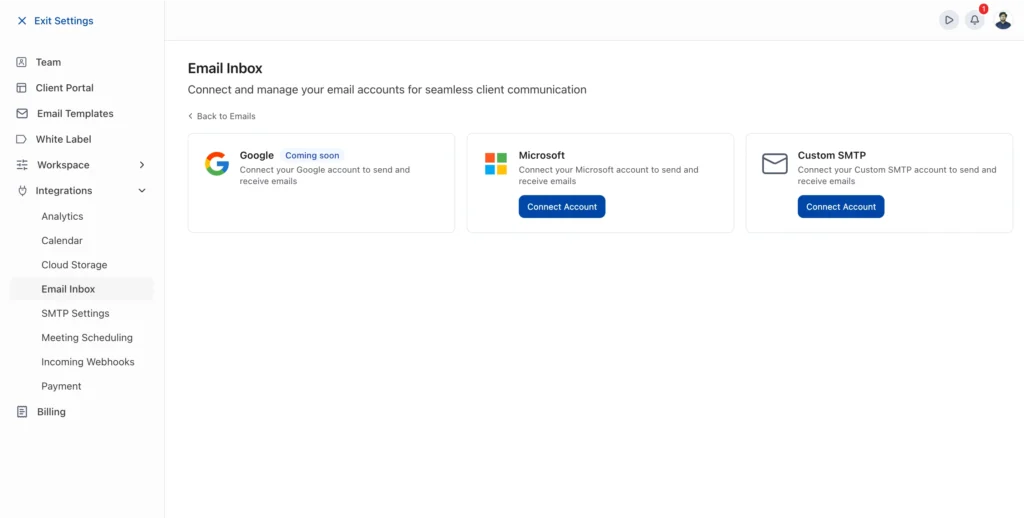
OneSuite right now supports three connection methods:
Microsoft Outlook: Connect your Microsoft 365 or Outlook.com account in one click using secure OAuth. You can also import contacts into your CRM during setup. → Full setup guide
Custom SMTP/IMAP (Gmail and Zoho): Connect Gmail or Zoho using SMTP and IMAP credentials. The connection form pre-fills server settings when you select your provider. For Gmail, you’ll need a Google App Password. → Full setup guide
Google OAuth *(coming soon):* Direct one-click Google sign-in is in development.
Where can I send emails from?
You can compose and read emails from several different places, and the experience is identical in all of them:
Email module: This is the primary destination for using emails in OneSuite.
First, click Email from the sidebar to see your full contact list. You can filter the list by All, Client, or Opportunity to separate your clients from your leads. Click a contact to view the thread and compose. → Learn about navigating OneSuite
Apart from the email module, you can also send an email from the following tabs:
- CRM → People: Open any person’s record and click the Emails tab.
- CRM → Companies: Open any company’s record and click the Emails tab.
- CRM → Opportunities: Open any opportunity’s record and click the Emails tab.
- Clients module: Open any client’s record and click the Emails tab.
Not sure how People, Companies, and Opportunities relate? See How Opportunities, Companies, and People Work Together.
What can I do with the Email Inbox?
Apart from sending and receiving tracked emails with rich text, links, and inline images, you can also
- Use templates that auto-fill both subject and body with one click (up to 10 templates per workspace)
- Insert dynamic fields across Contact, Business, Owner, and Other categories that auto-populate with record data
- Attach files: images and documents, up to 2MB each
- Add CC recipients: up to 5 per email
- Schedule emails for a future date, time, and timezone
- Reply to emails directly from the thread view
- Filter contacts by All, Client, or Opportunity in the Email module
- Search contacts by name or email address
Get started
Connect Microsoft Outlook: One-click OAuth setup
Connect Gmail to OneSuite: Via Custom SMTP with App Password
Send and Receive Emails: Compose, reply, schedule, and attach files
Create and Use Email Templates: Build reusable templates with dynamic fields
Not using OneSuite yet? Start your free trial →
FAQ
Can I connect both Gmail and Outlook at the same time?
Yes. Each workspace supports up to 2 connected accounts, and you can mix providers.
Do my team members see the emails I send?
Yes. Emails sent through OneSuite are visible on the contact’s record to anyone with access to that record.
Can I just use Gmail or Outlook directly?
You can, but emails sent from your regular inbox won’t appear on CRM records, won’t be visible to your team, and won’t support OneSuite’s templates or dynamic fields. Sending from OneSuite automatically links every email to the right record.
Is Google sign-in available?
Direct Google OAuth is coming soon. You can connect Gmail now using the Custom SMTP option with a Google App Password.
What is the attachment size limit?
Each attachment can be up to 2MB. Images and documents are supported.
How many templates can I create?
Each workspace supports up to 10 email templates.
What to do next
Track time and invoice from the same place: Log billable hours on client projects with Time Tracking, then generate invoices from those hours with Invoice Generation from Billable Hours.
Send proposals and get them signed: Create documents with e-signatures in the Documents module and link them to the same CRM records where your emails live.
Give clients a branded portal: Set up the Client Portal so clients can view projects, invoices, and communication in one place.
Customize your dashboard: Add CRM, revenue, and project widgets to your Dashboard for a daily overview of client activity.