
Configure is the settings area of the Invoices module, where you decide how every invoice looks, what it says and what a new invoice starts with. Setting it up before you send your first invoice means each invoice arrives with the right branding, wording, terms and defaults, so you don’t retype them every time.
In this guide you’ll learn how to:
- Open Configure and find any setting with its search
- Brand your invoices with a logo, banner and colours
- Choose the layout, columns and wording the invoice prints
- Set what a new invoice starts with, including greeting and terms
- Manage the item types your line items use
Before you start
- If you don’t see Invoices in the sidebar, an admin can switch it on in Settings, Customize Navigation.
- Your business name, address, phone and email come from Settings, Workspace, General. Fill them in there first, because Configure shows them but does not edit them.
How to open Configure
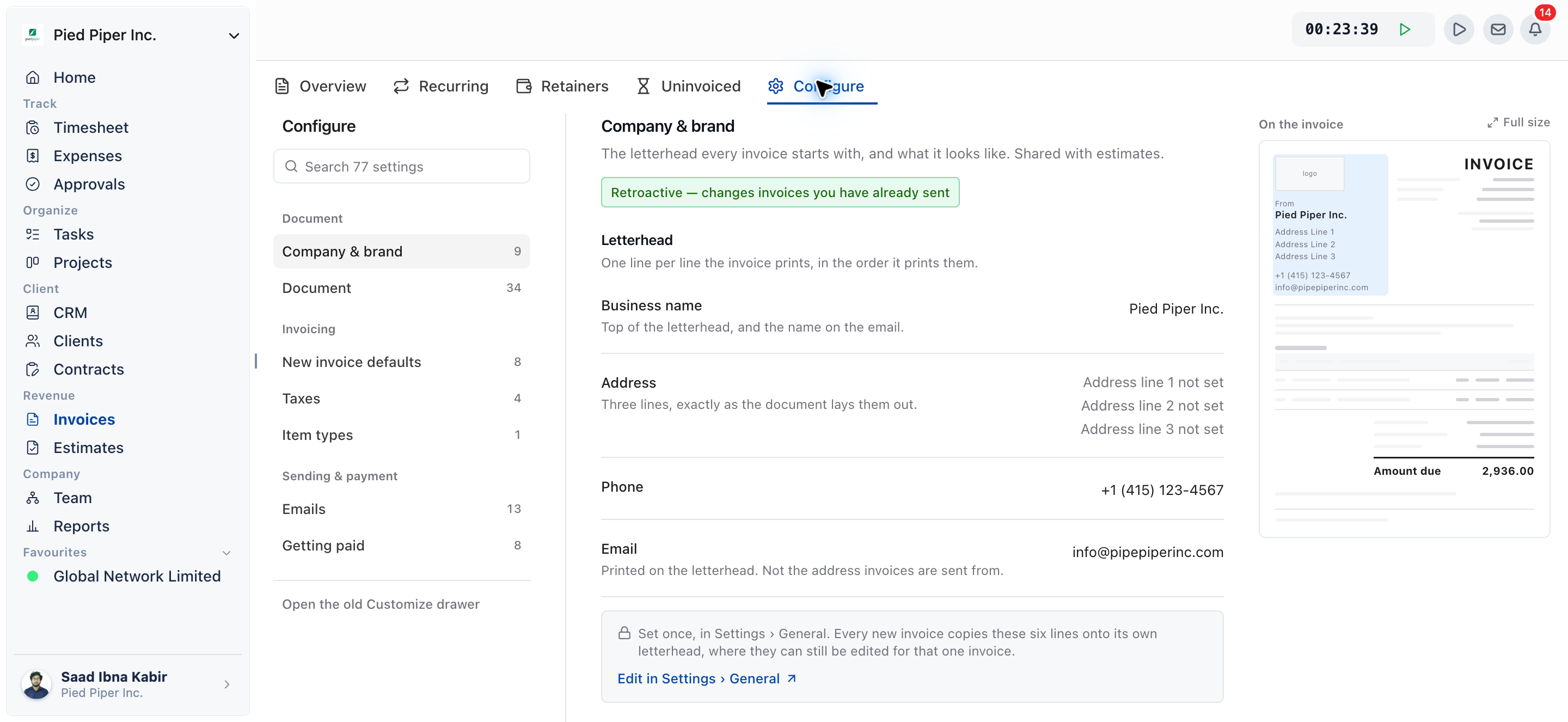
Click Invoices in the sidebar, then the Configure tab, and the first page, Company & brand, opens.
- Click Invoices in the sidebar.
- Click the Configure tab in the tab strip.
- Pick a page in the side rail on the left.
Configure replaces the old Customize button on the invoice list. If you still need the old panel, the rail has a link at the bottom: Open the old Customize drawer.
What’s in Configure?
Configure has seven pages in three groups, and each page in the rail shows how many settings it holds.
| Group | Page | What you set there |
|---|---|---|
| Document | Company & brand | The letterhead, logo, banner and colours |
| Document | Document | Layout, printed columns and the wording of every label |
| Invoicing | New invoice defaults | Payment due, total hours, invoice name, greeting and terms |
| Invoicing | Taxes | Your tax rates and the two taxes a new invoice starts with |
| Invoicing | Item types | The categories a line item can carry |
| Sending & payment | Emails | The sender, the invoice message, reminders and the thank-you message |
| Sending & payment | Getting paid | Online payment gateways, bank details and client access |
This page covers Company & brand, Document, New invoice defaults and Item types. The other three have their own guides:
- Taxes: How to Set Taxes on Your Invoices
- Emails: How to Customize Invoice Email Messages
- Getting paid: How to Add Direct Bank Transfer Instructions to Your Invoices
How to find a setting with search
Type in the Search N settings box at the top of the rail, where N is the number of settings in Configure. Each match shows the page and section it belongs to. Click one to jump to that setting. If nothing matches, the rail says No setting matches followed by your search.
How the live preview works
Company & brand and Document show a preview called On the invoice beside the settings. It updates as you change them.
- Click Full size, or click the preview sheet itself, to open a larger version.
- The larger preview is a sample document with your letterhead and brand. Its figures are sample figures, not a real invoice.
- Click Close to return to the settings.
How saving works
When you change a setting, a bar appears with Save changes and Discard. Nothing is stored until you click Save changes. Uploading or removing a logo or banner is the exception: it saves straight away.
How to set up your letterhead and brand
You brand your invoices on Company & brand, which sets the letterhead every invoice starts with and what it looks like. The same settings are shared with estimates.
Changes on this page apply to invoices you have already sent, as well as new ones.
Letterhead
The Letterhead section is read-only here. It shows the lines your invoice prints, in the order it prints them:
| Line | What it is |
|---|---|
| Business name | Top of the letterhead, and the name on the email. |
| Address | Three lines, exactly as the document lays them out. |
| Phone | Your business phone number. |
| Printed on the letterhead. This is not the address invoices are sent from. |
To change any of these, click Edit in Settings › General. You set them once there, and every new invoice copies them onto its own letterhead. You can still edit the letterhead on a single invoice, and that change affects only that invoice.
Look and feel
- Under Logo, click Upload and choose an image. Use a JPG, PNG or GIF, at least 1500px wide and up to 5MB. The invoice prints it at up to 104 × 52. Click Replace or Remove to change it later.
- Under Banner, click Upload to add an image printed at the foot of every invoice and email.
- Under Style, choose Standard, or
choose Custom to reveal two colour fields:
- Brand colour: used for headings, the total row and the pay button.
- Background colour: the sheet behind the document.
- Click Save changes.
The logo and banner are what your client sees on the invoice page, the PDF and the public link.
How to set the document layout, columns and wording
You shape the printed and web invoice on the Document page: what goes where, which columns print and every word it prints. Like Company & brand, changes here also apply to invoices you have already sent.
- Click Document in the rail.
- Under Layout, choose the options you want:
- Show the document title: prints the word INVOICE above the header.
- Client address on the left: moves the client address for window envelopes.
- Under Columns, tick which columns the line-item table prints: Item type, Quantity, Unit price and Amount. Description is always shown.
- Under Wording, rename any label the invoice prints. Leave a field blank to restore the default.
- Click Save changes.
Wording first shows Document title, Invoice ID, Due date, Tax and Notes. Click Show the other N labels to see every label, grouped as Header, Line items, Totals and Footer and email.
| Group | Labels you can rename (default wording in brackets where it differs) |
|---|---|
| Header | Document title (Invoice), From, For, Invoice ID, PO number, Issue date, Due date, Upon receipt, Net days (Net [days]), Subject |
| Line items | Item type, Description, Quantity, Unit price, Amount |
| Totals | Subtotal, Tax, Tax 2, Discount, Amount due, Total hours, Payments, Retainer payments, Paid |
| Footer and email | Notes, File attachments, Invoice link (View Invoice), Client message (Thank you for your payment.) |
When you rename Net days, keep [days]
in the label, because the invoice fills in the number.
A label you rename on a single invoice keeps that invoice’s own name. The labels on this page are the defaults every other invoice prints.
How to set what a new invoice starts with
You set invoice defaults on New invoice defaults, whose page heading reads What a new invoice starts with. Each value is copied onto an invoice when it is created, and you can change any of them on that invoice afterwards.
- Click New invoice defaults in the rail.
- Under Money, choose Payment due: Upon receipt, Net 15, Net 30, Net 45 or Net 60. This sets the due date from the issue date.
- Switch on Show total hours to print a total-hours row under the line items.
- Under Standing text, fill in:
- Invoice name: fills the Subject row on the document and the title in the invoice list.
- Greeting: the block between the letterhead and Items.
- Terms & conditions: the block under the total. Use it for payment terms, tax notes or anything else the client should read.
- Click Save changes.
Two rows on this page are read-only summaries:
- Round billed hours shows your time rounding: Do not round, To the nearest or Up to the nearest a number of minutes. It is one account-wide setting that rounds summary time reports and invoices alike, while detailed reports and timesheets are never rounded. Click Edit in Time tracking settings to change it.
- Tax, Applied to new invoices shows Tax 1, Tax 2 and whether they are Simple or Compound. Click Manage taxes to change them on the Taxes page.
Defaults only affect invoices created after you save them. An invoice you already created keeps the values it started with.
How to manage item types
You manage the categories your line items carry on Item types. Exports depend on them, so exactly one type is the default for hours and one is the default for expenses.
- Click Item types in the rail.
- Under Your item types, rename a type in its name field.
- Click Add an item type to add a new one.
- Mark one type Default for hours and one Default for expenses.
- Use the move up and move down arrows to reorder the list. The order sets the picker in the invoice editor.
- Click Save changes. The new order saves with the page, not on each arrow press.
Item types apply to new lines, and you can still change the type on each line. A business needs at least one item type, so the page won’t save with none.
Not using OneSuite yet? Start your free trial →
FAQs
Where are the invoice settings in OneSuite?
They are on the Configure tab of the Invoices module. Click Invoices in the sidebar, then Configure, and choose one of the seven pages in the side rail.
How do I change the business name and address on my invoices?
Change them in Settings, Workspace, General. Configure, Company & brand shows them read-only and links there with Edit in Settings › General. To change them on one invoice only, edit the letterhead on that invoice.
Does changing my logo or colours update invoices I already sent?
Yes. Changes on Company & brand and Document apply to invoices you have already sent as well as new ones. New invoice defaults only apply to invoices created after you save them.
How do I add a default greeting or payment terms to every invoice?
Add them on New invoice defaults, under Standing text. Greeting prints between the letterhead and the items, and Terms & conditions prints under the total. Both can be changed on each invoice.
Where did the Customize button go?
Invoice settings moved to the Configure tab. If you need the old panel, click Open the old Customize drawer at the bottom of the Configure rail.
Can I just design my own invoice template in a word processor instead?
You can, but you would copy client details, totals and taxes into it by hand for every invoice. Configure applies your brand and wording to every invoice OneSuite builds, including the ones created from tracked time, and shows the result in a live preview.
What to do next
Add your taxes: Set your rates and the two taxes a new invoice starts with in How to Set Taxes on Your Invoices.
Write your invoice emails: Set the sender, message and reminders with How to Customize Invoice Email Messages.
Create an invoice: Put your settings to work with Create One-time Invoices.