
Work types are the kinds of work your team tracks time against, such as design, development or consulting. Each one can be billable by default and carry a default hourly rate, so the same person can bill one rate for strategy work and another for production work.
In this guide you’ll learn how to:
- Create a work type in Settings
- Set its default rate and billable behaviour
- Add work types to projects and choose who can track to them
- Archive or delete a work type you no longer use
Before you start
- Work types live in Settings, Time Tracking, Work Types, and the page is marked Admin only. You need permission to open Settings.
- To open Settings, click your name at the bottom of the sidebar, then Settings.
- The list is shared by the whole business. Each project then chooses which work types it offers, on its Billing tab.
How to create a work type
You create a work type once in Settings, and every project can then use it.
- Click your name at the bottom of the sidebar, then Settings.
- Click Time Tracking, then Work Types.
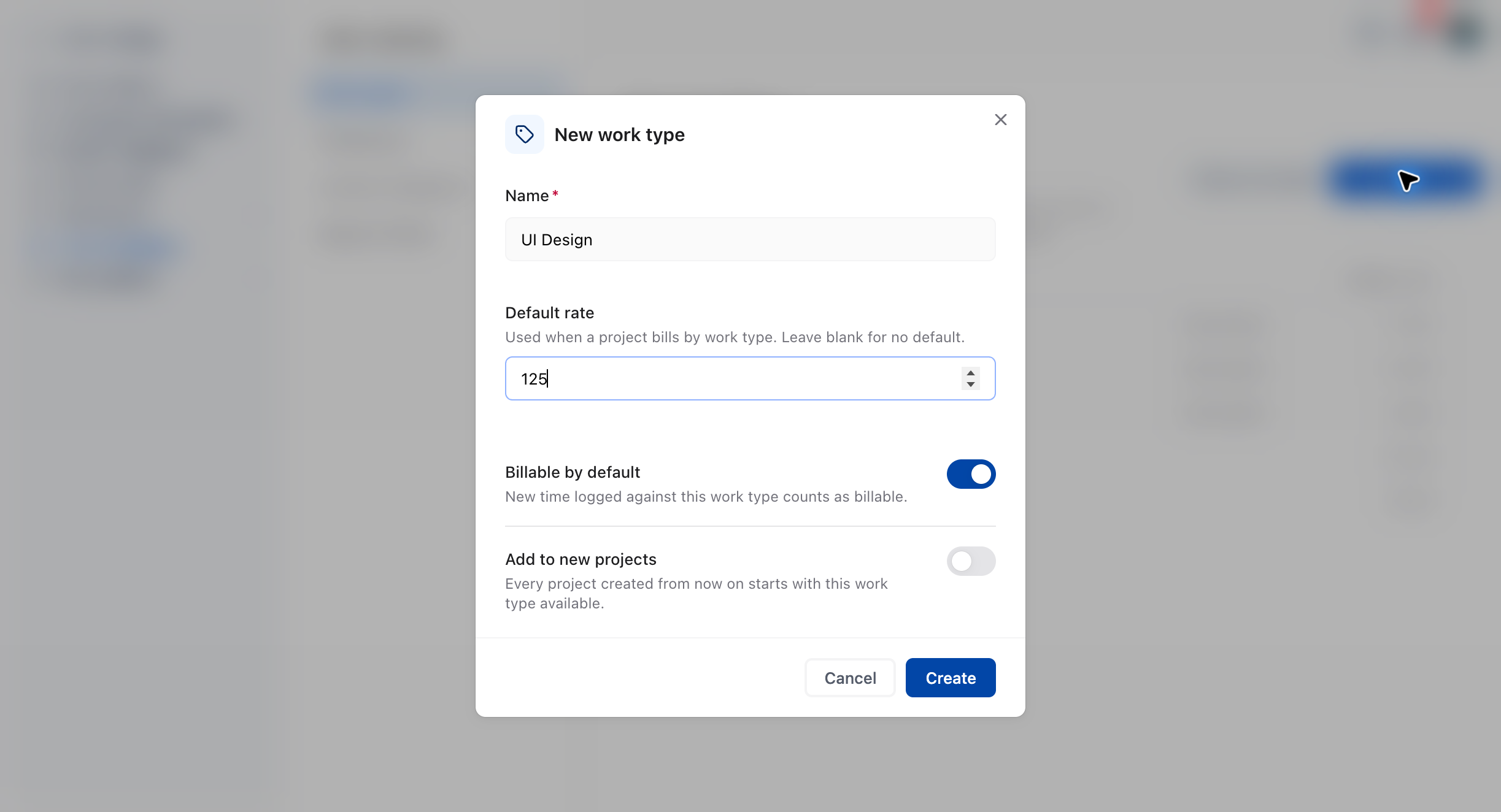
- Click New work type.
- Enter a Name, for example
UI Design. - Enter a Default rate if this kind of work has a standard hourly price. Leave it blank for no default.
- Leave Billable by default on if time logged to this work type should count as billable.
- Turn on Add to new projects if every project created from now on should start with this work type.
- Click Create.
What each field does
| Field | What it controls |
|---|---|
| Name | The label your team picks when logging time. Required, up to 120 characters. |
| Default rate | The hourly rate used when a project bills by work type. Must be 0 or more. Leave blank for no default. |
| Billable by default | New time logged against this work type counts as billable. On for a new work type. |
| Add to new projects | Every project created from now on starts with this work type available. Existing projects don’t change. Off for a new work type. |
In the list, each row shows tags for its behaviour: Non-billable, Auto-added or Archived. You can drag rows to reorder them.
How to edit a work type
- Go to Settings, Time Tracking, Work Types.
- Open the menu on the row and click Edit.
- Change the name, rate or switches.
- Click Save changes.
How to archive or delete a work type
Archive a work type when your team should stop choosing it but its history should stay.
- Go to Settings, Time Tracking, Work Types.
- Open the menu on the row and click Archive.
- To see archived work types again, turn on Show archived. To bring one back, open its menu and click Restore.
Delete is only available for a work type that isn’t in use. If time or projects already use it, the option is disabled and OneSuite explains why, for example This work type is in use. Archive it instead.
How to add work types to a project
A project offers only the work types on its Billing tab. Work types set to Add to new projects are added to new projects for you.
- Open the project and click the Billing tab.
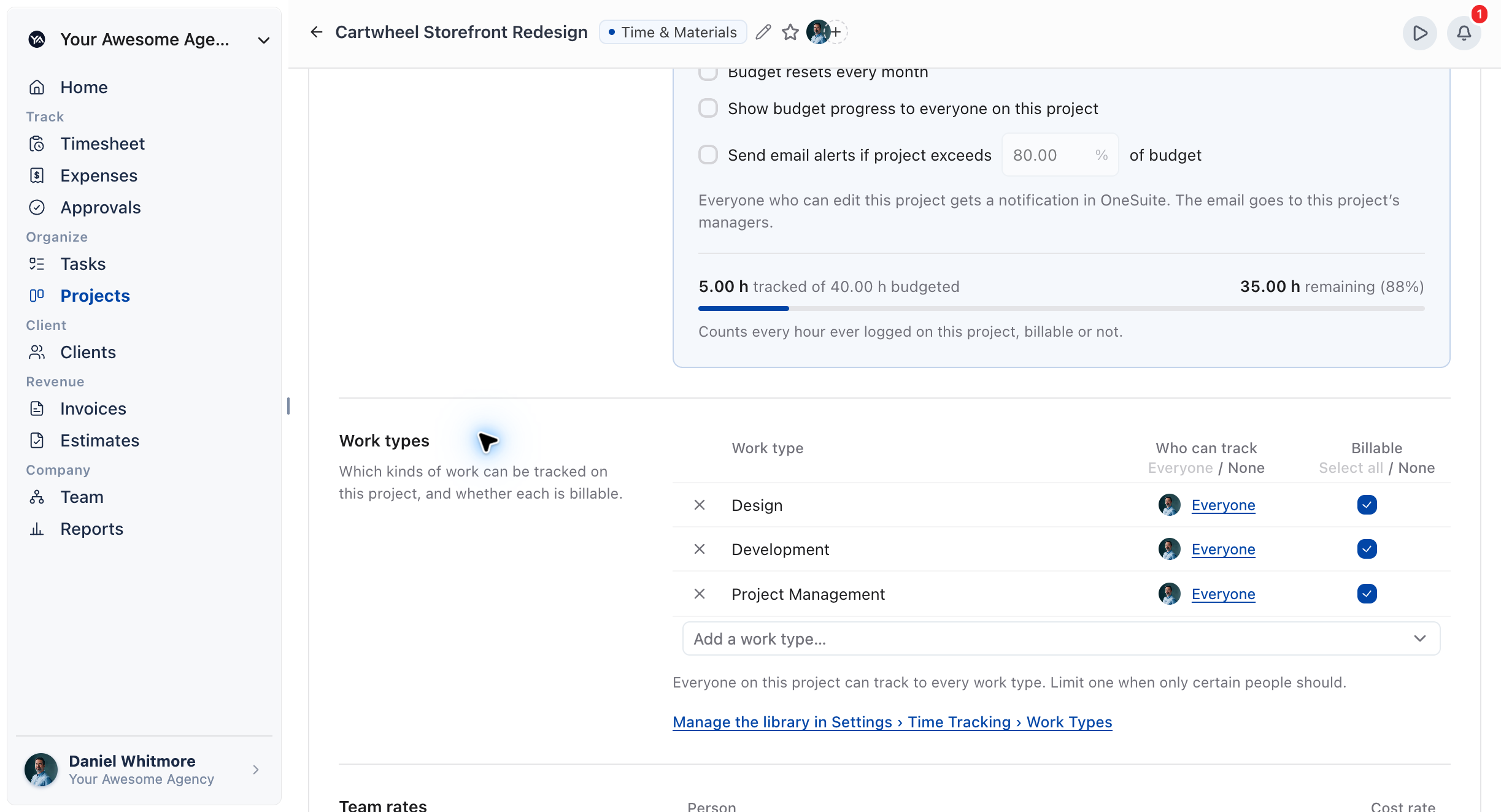
- Find the Work types card.
- Click Add a work type… and pick one from the list. If you type a name that doesn’t exist yet, you can create it here, and it is added to Settings, Work Types too.
- Use the Billable column to choose which work types bill on this project.
A work type with time tracked to it can’t be removed from a project. Untick Billable instead.
How to choose who can track to a work type
Who can track is set per project on the Billing tab, not in Settings.
- On the project’s Billing tab, find the Work types card.
- Click the Who can track cell for a work type.
- Choose Everyone on the project, or choose Only these people and tick the people from the project’s team.
Use Everyone or None at the top of the column to set every row at once. If you limit every work type to nobody, OneSuite warns that no one can track time to the project.
When does a time entry need a work type?
A time entry needs a work type only when its project offers work types. On such a project, saving without one shows Choose the kind of work this time was spent on. On a project with no work types, the picker says No work types on this project and time saves without one.
For project rates, budgets and billing setup, see How to Set Up Project Billing and Budgets.
Not using OneSuite yet? Start your free trial →
FAQs
Do I have to use work types in OneSuite?
Only on projects that offer them. If a project has work types, every time entry on it needs one. If it has none, time saves without a work type.
Where do I set who can track time to a work type?
On each project’s Billing tab, in the Who can track column of the Work types card. Work types in Settings have no such field.
Why can’t I delete a work type?
It is already in use by time entries or projects, so Delete is disabled. Archive it instead, which keeps its history.
Can I just use one project rate instead of work types?
Yes, if everyone on a project bills at the same rate. Set a project billable rate on the project’s Billing tab. Work types are useful when the same person bills differently depending on the kind of work.
Where do work types show up in reports?
In Reports, the Time tab and the Profitability tab each have a Work types view. When you invoice tracked hours, you can also show them By work type.
What to do next
Set up project billing: Choose the rate source and budget for each project in How to Set Up Project Billing and Budgets.
Set your tracking rules: Decide how time is entered and shown in How to Set Timesheet Preferences.
Log the first hours: Walk your team through their first entry with Tracking Your First Hours.