
OneSuite lets you create, customize and send proposals, contracts and NDAs with built-in eSignatures, all in one place. Instead of juggling Word documents, PDFs and separate signature tools, you build the proposal, collect signatures and track its progress from Contracts.
In this guide you’ll learn how to:
- Choose a proposal template from the library
- Customize it for your lead
- Add signature fields for all parties
- Send it for signature
- Track when it’s viewed and signed
How to start a proposal from a template
Click Contracts in the left sidebar, then Create from template. Contracts is where all your proposals live, and it offers three ways to start a new document.
- Click Contracts in the left sidebar.
- Choose one of the three options to start a new document. For your first proposal, use Create from template, the fastest way to get started.
Templates are pre-formatted and professionally designed, so you only need to add your specific details. OneSuite also lets you start from blank or upload an existing PDF. This guide focuses on templates.
How to choose a template
Pick a template from the Template Library and click Use This Template. OneSuite provides a library of pre-built proposal templates organized by type and industry.
- Click Create from template. The Template Library opens, showing all available templates.
- Browse templates in one of two ways:
- By Type: Proposal, Quote, Contract, Agreement, NDA and more
- By Industry: Marketing Agencies, Design Agencies, Consulting, Development and more
- Hover over any template to see a preview.
- Click Use This Template when you find one that fits your business.
The template opens in OneSuite’s built-in document editor, ready for you to customize.
How to customize your proposal
Replace the template’s placeholder content with your lead’s information and project details. The editor toolbar at the top gives you formatting options like bold, italic, headers and alignment.
| What to update | What to do |
|---|---|
| Document Title | At the top, change the title to something specific, for example “Website Redesign Proposal: ABC Company”. |
| Company Information | Your business details are often filled in from your settings, but double-check them. |
| Client Information | Replace placeholder text with your lead’s company name, contact details and relevant information. |
| Project Scope | Describe exactly what you’ll deliver. |
| Pricing | Add your rates, line items and total project cost. |
| Timeline | Include the start date, milestones and delivery dates. |
| Terms and Conditions | Review and adjust payment terms, cancellation policies or other legal details. |
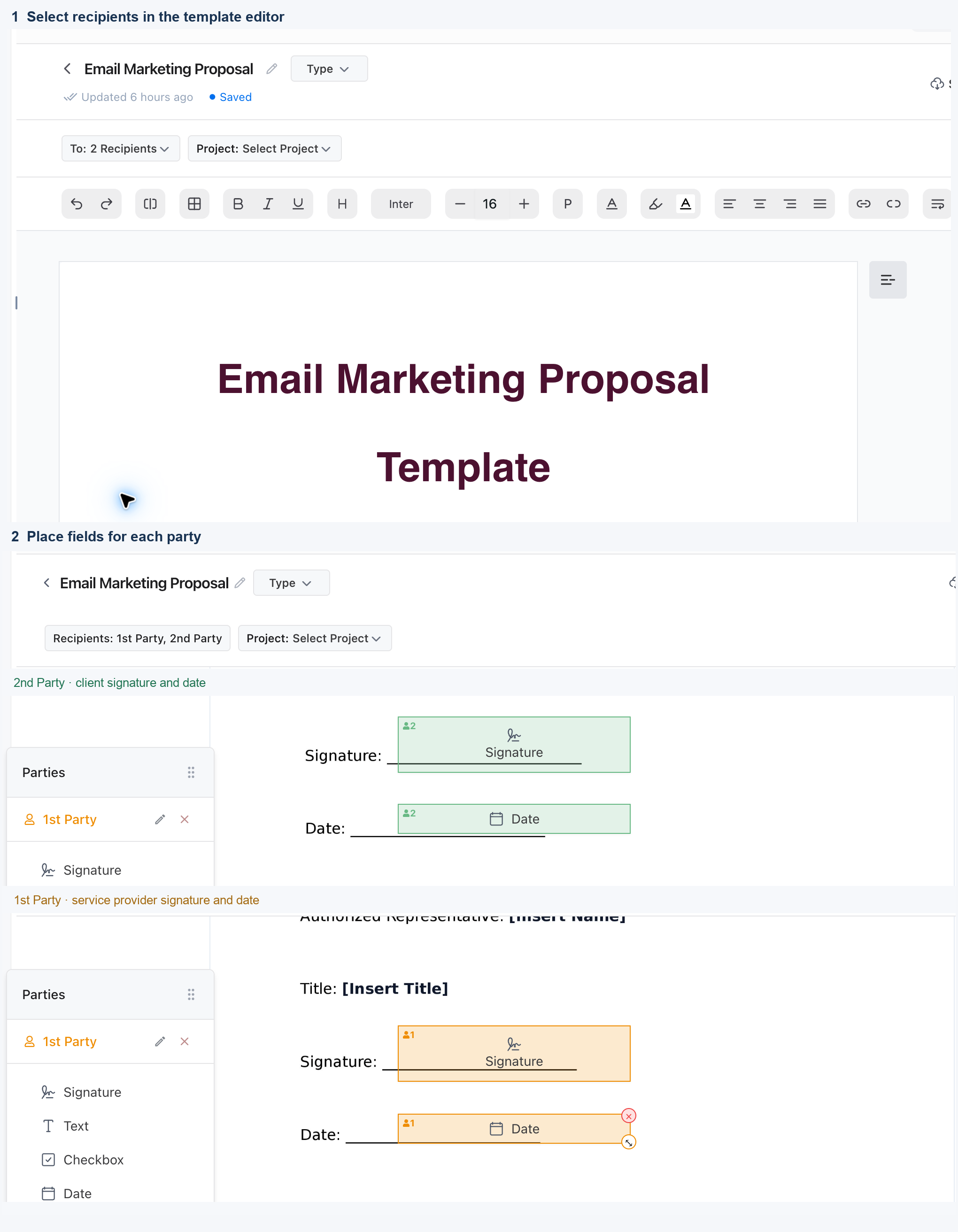
Select your recipient:
- At the top of the editor, click To: Select Recipients.
- Choose the lead you want to send this proposal to. OneSuite uses this person as one of the parties who needs to sign.
Optional project assignment: You’ll also see Project: Select Project. If you haven’t created a project yet, you can skip this for now.
How to add parties and signature fields
Add a party for each signer, then drag signature fields onto the document for each one. These eSignature fields make your proposal legally binding.
Parties:
- Look at the floating navigation where it says
Parties. Two default parties are listed:
- 1st Party: you, the provider and sender
- 2nd Party: your client, the recipient and signer
- The lead you selected earlier should already appear as the 2nd Party.
- If you need more signers, click Add new party at the bottom.
Signature fields:
- In the left panel, under the party names, choose a field type from the table below.
- Click the field type, for example Signature, and drag it to its position in the document. Your cursor changes so you can place the field anywhere.
- Click where you want the field to appear, usually at the end of the proposal.
- The field appears color-coded by party, with different colors for the 1st Party and the 2nd Party.
| Field | Use it for |
|---|---|
| Signature | Electronic signatures |
| Text | Typed information like names |
| Checkbox | Agreement confirmations |
| Date | Signing dates |
| Initials | Initialing specific sections |
In the document, signature fields are highlighted with party indicators showing who signs where. Most templates already have signature sections at the end, which makes placing your fields easy.
Tip: Add a Text field for “Signer Name” and a Date field next to each signature field. This creates a complete signing section with name, signature and date.
How to save and send your proposal
Click Save, then Share (or Send), confirm your signers and click Send Parties to Sign.
- Click Save in the top right to save your progress.
- When you’re ready to send, click Share (or the Send button). You’re taken to the signer confirmation screen.
- Check that the lead you selected earlier appears as the 2nd Party, and review their Name (the recipient’s full name) and Email (where they receive the signing link).
- To change the signer, click in the name or email field to edit it, or select a different person from your CRM or client list.
- If you have multiple signers, add them all here. You can have up to 10 parties.
- Optionally, check Customize Email and write a personal message explaining the proposal. It appears in the email your lead receives, which makes it more personal than a generic notification.
- Click Send Parties to Sign at the bottom.
OneSuite emails all parties a link to view and sign the proposal. They don’t need an account or registration.
What does my lead see?
Your lead gets an email from your business name with a View Document button, then reviews and signs in their browser.
- They get an email notification from your business name. If you don’t customize the email text, a default email is sent. You can change the default email message from document customization.
- They click the View Document button, and a preview window opens in their browser.
- They review the entire proposal. Signature fields are highlighted and easy to find.
- They click Click to sign on the signature field and choose how to sign: draw, type or upload.
- After signing all required fields, they click Complete.
Once they sign, they see a confirmation screen and can download the signed document. You receive an automatic notification that the proposal was signed.
How to track your proposal
Check the Status column in Contracts, or open the audit log for a full timeline.
- Go back to Contracts in the left sidebar.
- Find your proposal in the list.
- Look at the Status column.
| Status | Meaning |
|---|---|
| Sent | The document was delivered to the lead’s inbox. |
| Viewed | The lead opened and viewed the proposal. |
| Partially Signed | Some parties have signed, others haven’t. |
| Completed | All parties completed their signatures. |
View the audit log:
- Click the Action menu (three dots) next to your document.
- Select Audit log.
- You’ll see a complete timeline: when the document was saved, when it was sent, when each party viewed it and when each party signed it, with exact timestamps for every action.
This tracking tells you when to follow up. If a lead viewed your proposal but hasn’t signed, you know they’re interested and just need a gentle reminder.
Not using OneSuite yet? Start your free trial →
FAQs
Does my lead need a OneSuite account to sign a proposal?
No. OneSuite emails every party a link to view and sign the proposal, with no account or registration required on their end.
How many people can sign one proposal?
Up to 10 parties. Add extra signers with Add new party in the editor, and confirm them all on the signer confirmation screen.
How do I know if my lead has opened my proposal?
Check the Status column in Contracts. Viewed means the lead opened the proposal. For exact timestamps, open Audit log from the document’s Action menu.
How can my lead sign the proposal?
They click Click to sign on the signature field and choose to draw, type or upload their signature, then click Complete once all required fields are signed.
Can I just send a PDF and a separate signature tool instead?
You can, but you’d juggle Word documents, PDFs and separate signature tools. OneSuite keeps the proposal, the eSignatures and the tracking in one place, so you can see when each party views and signs it.
What to do next
Send to more signers: Learn the full signer flow with Sending Documents to Parties to Sign.
See the signer’s side: Walk through what signers do with Signing a Document.
Win the deal, then bill: Turn your signed proposal into paid work with Sending Your First Invoice.