
Send, reply, and schedule client emails from anywhere in OneSuite. The compose experience is identical whether you start from the Email module, a CRM record, or a Client record, and every email is automatically linked to the contact’s record.
Before you start
You need at least one connected email account. See Connect Microsoft Outlook or Connect Gmail to OneSuite ( if you haven’t set this up yet )
Where can I send emails from?
OneSuite is designed to help you send and track emails with utmost convenience. That’s why we have
Email module: Click Email in the sidebar to see your contact list. Use the filter tabs (All, Client, Opportunity) to narrow the list, or search by name or email. Click a contact, then click Compose.
CRM → People: Open any person’s record. Click the Emails tab (alongside Timeline, Tasks, Contracts, Meetings, Notes, and Files). Click Compose.
CRM → Companies: Open any company’s record. Click the Emails tab. The email thread shows all communication with contacts at that company.
CRM → Opportunities: Open any opportunity’s record. Click the Emails tab. Email the contact associated with this deal without leaving the opportunity view.
Clients module: Open any client’s record. Click the Emails tab. Click Compose.
The compose form, templates, dynamic fields, attachments, and scheduling work identically in all five locations. The only difference is which contact’s email is pre-filled in the To field.
Learn how these record types connect in How Opportunities, Companies, and People Work Together.
How to compose and send an email
- Navigate to a contact via the Email module, a CRM record, or a Client record.
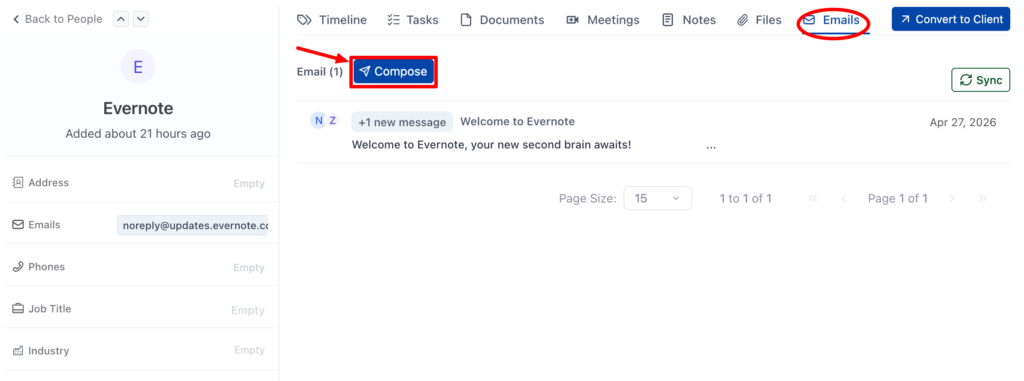
2. Click Compose to open the compose window.
3. Check the From field: your connected email address appears automatically. If you have multiple accounts connected, select which one to send from.
4. Verify the To field: the recipient’s address is pre-filled from the record.
5. *(Optional)* Click Cc to add CC recipients (up to 5 per email).
6. Enter a Subject (required).
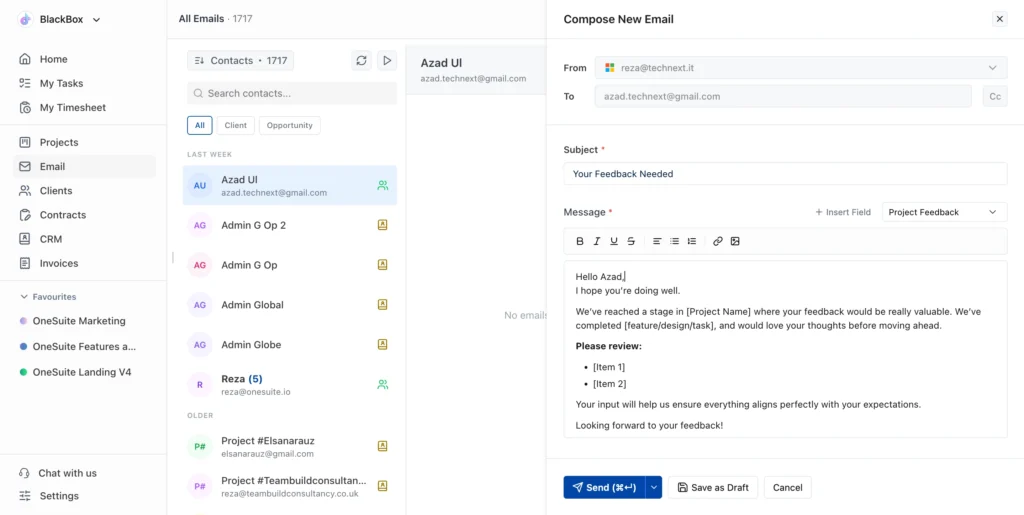
7. Write your Message (required) using the rich text editor:
- Bold, *italic*, underline, and ~~strikethrough~~ formatting
- Text alignment
- Bullet lists and numbered lists
- Hyperlinks (link icon)
- Inline images (image icon)
8. Click Send (⌘↵) to send immediately, Save as Draft to finish later, or Cancel to discard.
How to schedule an email for later
- Click the dropdown arrow (⌵) next to the Send button.
2. Select Schedule send.
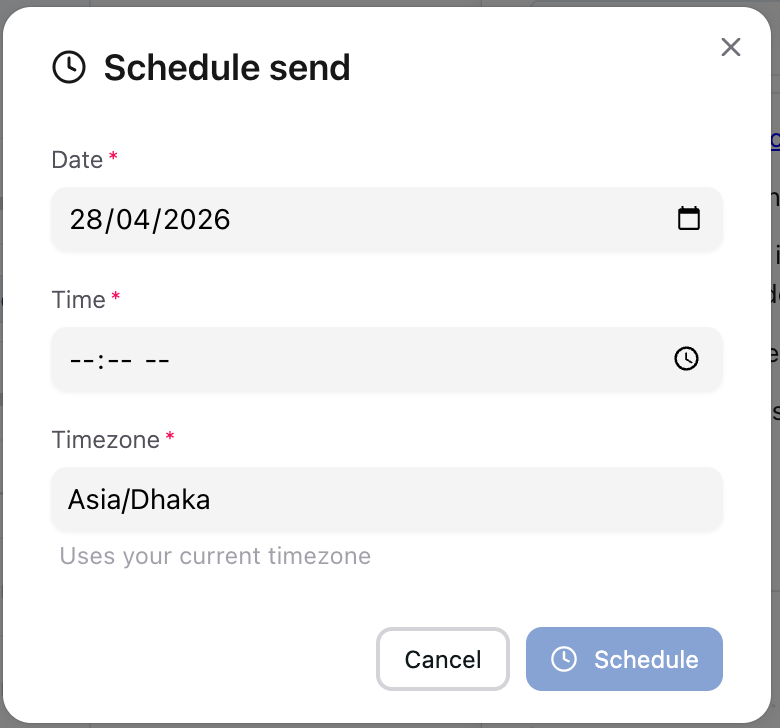
3. In the Schedule send dialog:
- Date *: Pick a date using the calendar picker
- Time *: Pick a time using the time selector (24-hour format)
- Timezone *: Shows your current timezone (e.g., “Asia/Dhaka”). This auto-detects from your settings.
4. Click Schedule.
5. Scheduled emails appear in the contact’s email thread with a “Scheduled” badge showing the date and time.
How to attach files to an email
Scroll below the message editor to click the Attachments section.
- Drag and drop files into the upload area, or click it to browse your computer
- Supported file types: images and documents
- Maximum file size: 2MB per file
- Attached files appear under Attached files with their name and size
- Click × next to any file to remove it before sending
How to filter contacts in the Email module
The Email module includes three filter tabs:
- All: Every contact you’ve exchanged emails with
- Client: Only contacts who are Clients in your system
- Opportunity: Only contacts associated with active Opportunities
Use the Search contacts bar at the top to find a specific person. The contact count (e.g., “Contacts · 1712”) shows the total for the active filter.
How to view and reply to emails
Incoming emails from contacts appear automatically in their records. Every reply stays in the same email thread.
From the Email module: Click Email in the sidebar → click a contact → view the full thread. Conversations are grouped by Today, Last Week, and Older.
From a record: Open any People, Companies, Opportunities, or Client record → click Emails → view all correspondence.
To reply, click Reply next to any message in the thread.
How to personalize emails with dynamic fields
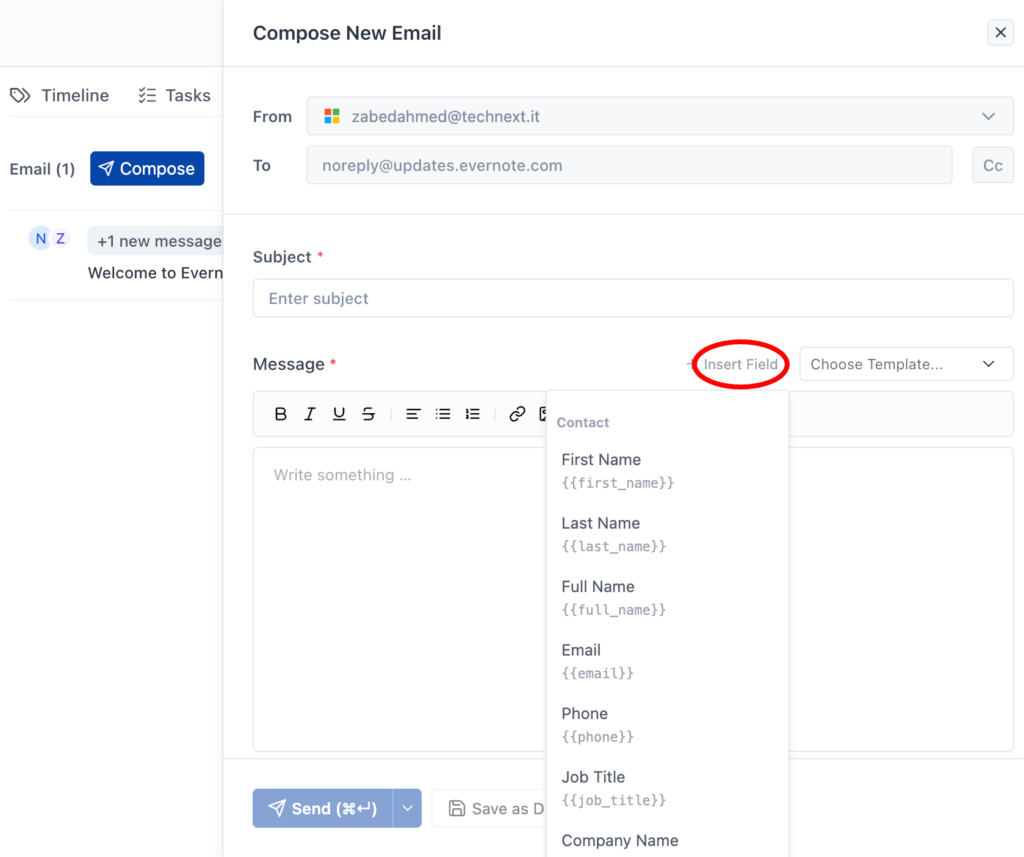
Click + Insert Field above the message editor to insert fields that auto-populate with data from the contact, your business, or the record owner. You can use these in both the subject line and message body.
Note: Dynamic fields only populate when the corresponding data exists on the record. For example, `{{company_name}}` will show the company name if one is assigned to the contact. If the field is empty on the record, the variable appears as-is in the sent email.
Contact fields
| Field | Variable | What it inserts |
| First Name | {{first_name}} | Contact’s first name |
| Last Name | {{last_name}} | Contact’s last name |
| Full Name | {{full_name}} | Contact’s full name |
| {{email}} | Contact’s email address | |
| Phone | {{phone}} | Contact’s phone number |
| Job Title | {{job_title}} | Contact’s job title |
| Company Name | {{company_name}} | Contact’s company name |
Business fields
| Field | Variable | What it inserts |
| Business Name | {{business.name}} | Your OneSuite business name |
| Business Email | {{business.email}} | Your business email address |
| Business Phone | {{business.phone}} | Your business phone number |
| Business Website | {{business.website}} | Your business website URL |
Owner fields
| Field | Variable | What it inserts |
| Owner Name | {{owner.name}} | Record owner’s name |
| Owner Email | {{owner.email}} | Record owner’s email |
Other fields
| Field | Variable | What it inserts |
| Current Date | {{current_date}} | Today’s date |
[Screenshot: Insert Field dropdown showing Contact, Business, Owner, and Other categories]
For reusable emails with dynamic fields built in, see Create and Use Email Templates.
Not using OneSuite yet? Start your free trial →
FAQs
Can I send emails to contacts not in my CRM?
Yes. You can type any email address in the To field. The email thread will only appear on a CRM record if the address matches an existing People contact.
Is there a daily sending limit?
Sending limits are determined by your email provider (Gmail, Outlook), not by OneSuite. Check your provider’s daily limits if sending in high volume.
Can I just use Gmail or Outlook directly?
You can, but emails sent from your regular inbox won’t appear on CRM records, won’t be visible to your team, and won’t support templates or dynamic fields. Sending from OneSuite automatically links every email to the right People, Company, or Opportunity record.
How many email accounts can I connect?
Each workspace supports up to 2 connected email accounts.
Can my team see emails I send?
Yes. Emails are visible on the contact’s record to anyone with access. Your team can see the full conversation without being CC’d. Learn more about team access in Managing Team Members.
Why did a dynamic field show as {{variable}} in my sent email?
Dynamic fields only populate when the corresponding data exists on the record. If the contact doesn’t have a company name set, {{company_name}} will appear as literal text. Make sure the relevant fields are filled in on the People or Company record before sending.
What to do next
Set up templates: Save time with reusable email templates in Create and Use Email Templates.
Track time and bill clients: Log hours with Time Tracking, then create invoices with Invoice Generation from Billable Hours.
Send proposals: Create documents with e-signatures in the Documents module and link them to the same records where your emails live.
Give clients a portal: Set up the Client Portal so clients can view projects, invoices, and communication in one branded space.