
Skip to content
OneSuite Logo
  • ProductExpand
    • Client Portal

      Ensure transparency & gain trust

      Invoice

      Create invoices in minutes & get paid

      Project Management

      Manage tasks smartly & deliver timely

      CRM

      Nurture leads and win more clients

      Document & E-Signature

      Create & sign documents easily

      Team & Collaborators

      Work together, stay aligned

      Email Inbox

      Manage client emails in one place

      Time Tracking

      Track hours and boost productivity

      Productized Service

      Package and sell services easily

  • Use CasesExpand
    • Marketing Agency

      Manage campaigns, clients, and billing in one place so you can focus on delivering results.

      SEO Agency

      Track projects, share reports, and invoice clients without juggling five different tools.

      Video Editing

      Streamline approvals, revisions, and payments so you spend more time in the timeline.

      Local SEO

      Organize multi-location clients, automate invoicing, and keep every project on track.

      Photography

      From booking to final delivery, manage your entire client workflow in a single dashboard.

      Event Management

      Coordinate timelines, vendors, and client communications without anything slipping through the cracks.

      Creative Agency

      One workspace for briefs, feedback, and billing so your creative energy stays on the work.

      Consulting

      Proposals, project tracking, and invoicing unified so you look as professional as your advice.

      IT Services

      Manage tickets, retainers, and client portals without duct-taping a dozen SaaS tools together.

  • ResourcesExpand
    • Documentation

      Read guides and help docs

      Affiliate

      Partner and earn together

      Integrations

      Connect tools effortlessly

      Roadmap

      See what’s coming next

      Changelog

      Stay updated with the latest

      Support

      Get help whenever you need it

      Compare

      See how OneSuite stacks up

      Case Study

      Real results, real teams

      FAQ

      Find answers to common questions

  • Pricing
  • For Agency

Start free trial

Help Center

  • Documentation
  • Public Roadmap
  • Book a demo
  • Get Support
OneSuite Logo
intro to onesuite

OneSuite 101

6
  • Introduction to OneSuite
  • Understanding OneSuite’s Structure
  • How Solutions Work Together
  • Navigating OneSuite
  • All OneSuite Capabilities
  • OneSuite Glossary
quick start guide

Quick Start Guide

9
  • Sending Your First Invoice
  • Tracking Your First Hours
  • Setting Up Your Business
  • Adding Your Payment Methods
  • Inviting Team Members
  • Adding Your First Leads
  • Adding Your First Client
  • Giving Your Client Portal Access
  • Sending Your First Proposal

CRM

9
  • Opportunity Automation
  • Customizing Your CRM
  • Customizing Your Opportunities View
  • CRM Overview
  • Adding People
  • Adding Companies
  • Creating Opportunity
  • How Opportunities, Companies, and People Work Together
  • Understanding Pipeline Stages
client

Client Management

6
  • Adding Clients
  • Client Profiles
  • Client Portal Customization 
  • Understanding the Clients Solution
  • The OneSuite Client Portal
  • Video Documentation : Client Management
pm

OneSuite Project Management

12
  • How to Track Project Hours and Costs
  • How to Set Up Project Billing and Budgets
  • Laying the Groundwork: Project Creation in OneSuite
  • Customize the Project Management Module
  • Managing Project Boards in OneSuite
  • Subtask Behavior & Movement Management
  • Custom Categories, Tags, and Labels in Projects
  • Adding Tasks to Boards in OneSuite
  • Custom Fields
  • Task Templates
  • Project Templates
  • Video Documentation : Project Management

Documents

5
  • Overview
  • Creating a Document from Scratch
  • Uploading a PDF Document
  • Sending Documents to Parties to Sign
  • Signing a Document
team

OneSuite's Team Management

4
  • Inviting Collaborators in OneSuite
  • Creating Personalized Departments in OneSuite
  • Managing Team Members in OneSuite
  • Video Documentation : Team Collaboration
Invoices & Payments

Invoices & Payments

9
  • How to Use Retainers
  • How to Record Invoice Payments
  • Access & Navigation
  • Invoice Settings & Customization
  • Create One-time Invoices
  • Creating Recurring Invoices
  • How to set taxes on your invoices
  • How to Add Direct Bank Transfer Instructions to Your Invoices
  • How to Customize Invoice Email Messages

Time Tracking & Timesheets

6
  • Timesheet Preferences
  • Work Types
  • Time Tracking in OneSuite
  • Invoice Generation from Billable Hours
  • Timesheet Management & Approval
  • Time Tracking & Timesheets 

Email Inbox

5
  • Email Inbox Overview
  • Connect Microsoft Outlook
  • Integrate Gmail in OneSuite 
  • Send and Receive Email in OneSuite 
  • Create and Use Email Templates in OneSuite

Calendar View

1
  • Calendar View

Dashboard

7
  • Overview 
  • How to Customize Your Dashboard
  • Client Portal Dashboard 
  • Monitor Documents, Contracts & Marketing Lead Sources
  • CRM, Client & Pipeline Widgets — OneSuite Dashboard Guide
  • Track Tasks, Deadlines & Project Activity in OneSuite
  • Track Revenue Trends, Forecasts & Top Projects in OneSuite

Expenses

2
  • Expense Categories
  • Tracking Expenses

Approvals

2
  • Approval Policy
  • Approving Timesheets and Expenses

Estimates

1
  • Estimates

Reports

2
  • Saving and Scheduling Reports
  • Reports Overview

Integrations

5
  • How to Use Webhooks and API Keys
  • How to Connect Analytics Tools
  • How to Connect Calendar, Files and Meeting Tools
  • How to Connect Accounting and Payment Tools
  • Integrations Overview

Settings & Billing

4
  • Imports, Exports, and Search
  • Managing Your OneSuite Subscription
  • Setting Up Profiles and Permissions
  • Setting Up Your Workspace
View Categories
  • Home
  • Docs
  • CRM
  • Customizing Your CRM

Customizing Your CRM

The CRM Customize drawer controls which CRM tabs your business sees, the order they appear in, and the Industry, Source and Tag lists your team picks from when filling in records. Setting it up early keeps your CRM focused and your records consistent enough to filter.

In this guide you’ll learn how to:

  • Open the CRM Customize drawer
  • Turn CRM tabs on and off, and reorder them
  • Add, edit and delete Industry, Source and Tag entries
  • Set a default Industry or Source

Before you start

Your profile needs the client settings permission (view-clients-settings). Without it, the Customize icon does not appear.

How to open the Customize drawer

Click the Customize icon in the toolbar on any CRM tab.

  1. Click CRM in the sidebar.
  2. On any tab, click the Customize icon in the toolbar on the right of the tab row. Its tooltip reads Customize.

The drawer opens on a list of five sections: Tab Settings, Industry, Source, Tag and Opportunity Automation. Click a section to open it, and use the back arrow to return to the list.
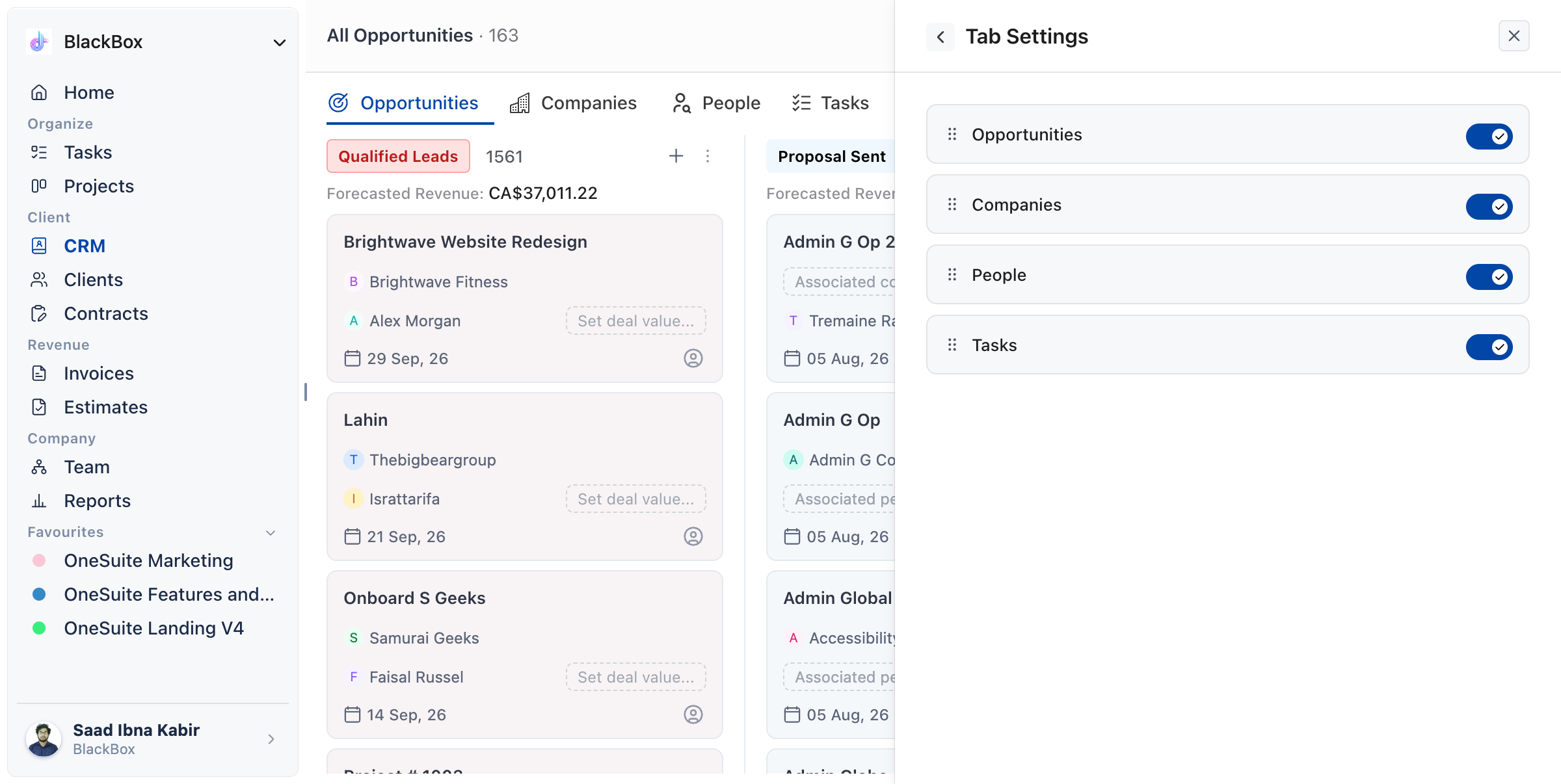
CRM page with the Customize drawer open on Tab Settings, showing the drag handles and a switch per tab

How to choose which tabs your CRM shows

Use Tab Settings to switch tabs on or off and drag them into the order you want. Each change saves as soon as you make it.

  1. Open the Customize drawer.
  2. Click Tab Settings.
  3. Use the switch beside a tab to turn it off or back on.
  4. Drag a tab by its handle to change where it sits in the tab row.
Tab What it holds
Opportunities Your deals, in a table or a Kanban board.
Companies The organizations you work with.
People Individual contacts.
Tasks Your CRM tasks.

Important: at least one tab has to stay on. If you try to switch off the last one, OneSuite shows At least one CRM tab must remain active.

Note: a tab also hides for anyone whose profile lacks its permission, whatever your tab settings say. Opportunities and Companies need view-company, People needs view-lead, and Tasks needs view-lead-task. If no tab is left for someone, they see: No CRM tabs are enabled. Enable at least one tab from CRM customization to continue.

How to manage your Industry, Source and Tag lists

Each list works the same way: add entries with the Add New button, and change or remove them from the menu beside each entry.

  1. Open the Customize drawer.
  2. Click Industry, Source or Tag.
  3. To add an entry, click Add New Industry, Add New Source or Add New Tag. Pick a colour, type the name and click Add Industry, Add Source or Add Tag.
  4. To change an entry, open the menu beside it and click Edit. Change the name and click Update.
  5. To remove an entry, open the menu beside it and click Delete, then confirm.

Industry is the sector a company, person or opportunity belongs to. Source is where a record came from, for example a referral, your website or an outbound campaign. Tags are free labels for grouping records however your team thinks about them.

Keep these lists short. A dropdown with 60 entries gets filled in carelessly, which makes filtering by industry or source useless later.

How to set a default Industry or Source

You can mark one Industry and one Source as the default. Tags have no default.

  1. Open Industry or Source in the Customize drawer.
  2. Open the menu beside the entry you want.
  3. Click Set as default. The entry shows a Default badge.

Note: the default entry cannot be deleted. Set another entry as the default first.

Not using OneSuite yet? Start your free trial →

FAQs

Does switching off a CRM tab delete its records?

No. The switch only hides the tab. Switch it back on and the tab returns.

Why can’t I see the Customize icon?

Your profile does not have the client settings permission. Ask an admin to grant it, or to make the change for you.

Does my tab order apply to everyone?

Yes. Tab settings belong to your business, so every member sees the same tabs in the same order, minus any tab their permissions hide.

Can I add a CRM tab of my own?

No. The four tabs are fixed. You control which of them appear and in what order.

Can I just use Tags instead of Industry and Source?

You can, but you lose something. Industry and Source hold one value per record, which makes them reliable to filter on. Tags allow many per record, which suits working groups and suits clean segmentation poorly.

What to do next

Automate your deal names: Create and name opportunities automatically with How to Set Up Opportunity Automation.

Set up your pipeline: Add, rename and reorder your stages with Understanding Pipeline Stages.

Arrange your deals: Choose how the Opportunities tab looks with Customizing Your Opportunities View.

Updated on October 1, 2026
OneSuite Logo

Streamline your agency's workflow while you focus on growth—manage clients, projects, teams, proposals, contracts, and invoices effortlessly with OneSuite!

product hunt

Follow Us On

  • Facebook
  • X
  • Instagram
  • LinkedIn

Join Our Community

  • Facebook
  • WhatsApp

Features

Projects

Lead Pipeline

Documents

Invoices

Client Portal

Teams

Resources

Contact

Support

Docs

Blog

Branding

Become an affiliate

Agency Partner Program

Public roadmap

Book a demo

Compare

OneSuite vs. Kitchen Co

OneSuite vs. Moxie

OneSuite vs. Flowlu

OneSuite vs. Plutio

OneSuite vs. Bonsai

OneSuite vs. ClientManager

  • Terms of use
  • Privacy policy
  • Cookie policy
  • Refund policy
  • Acceptable use policy
  • Data processing terms
  • Product
    • Client Portal

      Ensure transparency & gain trust

      Invoice

      Create invoices in minutes & get paid

      Project Management

      Manage tasks smartly & deliver timely

      CRM

      Nurture leads and win more clients

      Document & E-Signature

      Create & sign documents easily

      Team & Collaborators

      Work together, stay aligned

      Email Inbox

      Manage client emails in one place

      Time Tracking

      Track hours and boost productivity

      Productized Service

      Package and sell services easily

  • Use Cases
    • Marketing Agency

      Manage campaigns, clients, and billing in one place so you can focus on delivering results.

      SEO Agency

      Track projects, share reports, and invoice clients without juggling five different tools.

      Video Editing

      Streamline approvals, revisions, and payments so you spend more time in the timeline.

      Local SEO

      Organize multi-location clients, automate invoicing, and keep every project on track.

      Photography

      From booking to final delivery, manage your entire client workflow in a single dashboard.

      Event Management

      Coordinate timelines, vendors, and client communications without anything slipping through the cracks.

      Creative Agency

      One workspace for briefs, feedback, and billing so your creative energy stays on the work.

      Consulting

      Proposals, project tracking, and invoicing unified so you look as professional as your advice.

      IT Services

      Manage tickets, retainers, and client portals without duct-taping a dozen SaaS tools together.

  • Resources
    • Documentation

      Read guides and help docs

      Affiliate

      Partner and earn together

      Integrations

      Connect tools effortlessly

      Roadmap

      See what’s coming next

      Changelog

      Stay updated with the latest

      Support

      Get help whenever you need it

      Compare

      See how OneSuite stacks up

      Case Study

      Real results, real teams

      FAQ

      Find answers to common questions

  • Pricing
  • For Agency
  • Documentation
  • Public Roadmap
  • Book a demo
  • Get Support