
Reports is where OneSuite reads your time, expenses, projects, people and invoices together. Use it to see what your team worked on, whether a project made money, and what you have done but not yet billed or collected.
In this guide you’ll learn how to:
- Open Reports and move between its six tabs
- Pick the period a report covers
- Open the time entries behind an hours total
- Export or print a report
Before you start
- If you don’t see Reports in the sidebar, an admin can switch it on in Settings, Customize Navigation.
- You need permission to view reports. Without it, Reports does not appear in the sidebar.
- Profitability, Contractor and Invoicing each need a permission of their own. Without it, the tab shows a message that you can’t open it.
- Cost and profit columns appear only for people who can see cost rates.
How to open Reports
Click Reports in the sidebar. It sits in the Company group, after Team, and the page opens with the six report tabs across the top.
The six report tabs
Each tab answers one question, and most tabs split into sub-tabs that change what each row represents.
| Tab | What it shows | Sub-tabs |
|---|---|---|
| Time | Hours your team tracked, with billable hours and amounts | Clients, Projects, Work types, Teammates |
| Profitability | Revenue against costs, and the profit left over | Clients, Projects, Team, Work types |
| Activity log | What changed, when, and who did it | Timesheets, Approvals, Projects, Expenses, Invoices, Clients |
| Contractor | Hours tracked by contractors, their utilization and cost | None |
| Invoicing | What you invoiced, what was paid, what is owed and what is not billed yet | Invoiced, Payments received, Receivables, Uninvoiced |
| Saved reports | Reports you and your team have saved | None |
Time
The Time tab shows totals such as Total hours, Billable amount and Uninvoiced amount at the top, then a table grouped by the sub-tab you pick. Each row shows its Hours and Billable hours.
- Tick Active projects only to hide archived projects.
- Tick Include Fixed Fee projects to include fixed fee projects. This option shows only if you can see rates.
- Click Detailed report to open every time entry behind the tab.
Profitability
The Profitability tab charts Revenue, Costs and Profit over the period. For people who can see cost rates, the table adds Cost, Profit, Margin and Return on cost columns. Use Assign fixed fee revenue to choose how fixed fee revenue is counted.
Activity log
The Activity log lists each change with its Time, the Activity itself and who performed it. Pick a sub-tab to see changes to one kind of record, such as Timesheets or Invoices.
Contractor
The Contractor tab lists each contractor with Total hours, Utilization and Cost. Tick Approved hours only to count only approved time. If a contractor has no weekly capacity, the utilization cell says “No weekly capacity is set for this contractor.”
Invoicing
The Invoicing tab has four sub-tabs:
- Invoiced: each invoice in the period with its Status, Invoiced, Paid and Balance amounts.
- Payments received: the payments recorded in the period.
- Receivables: what is still Outstanding, plus an Aging by client table that starts with Not yet due.
- Uninvoiced: Uninvoiced hours, Uninvoiced expenses and Uninvoiced amount per client and project. Tick Projects with balance only to hide projects with nothing to bill.
The Uninvoiced tab on the Invoices page opens this same sub-tab.
Saved reports
The reports you have saved and the ones your team shared with you. See How to Save and Schedule Reports.
How to set the period
Every summary report covers one period, which you pick from the period selector at the top of the tab.
- Open the period selector.
- Choose Week, Semimonth, Month, Quarter, Year, All time or Custom.
- For Custom, choose Pick a date range and set the start and end dates.
- Use the arrows beside the selector to step to the previous or next period of the same length.
Utilization needs a period with a start and an end. If the period has none, the Contractor tab says so in the utilization cell.
How to see the entries behind a total
Click an hours value in the Time table to open the Detailed time report for that row. You can also open a detailed report from the New report menu at the top of the page:
- Detailed time opens the Detailed time report. Click Show filters to set the Timeframe, Clients, Projects and Work types, then click Update report.
- Detailed expense opens the Detailed expense report. Set the Timeframe, Clients, Projects, Categories and Approval status, then click Run report.
The Timeframe list in the detailed reports offers This week, Last week, This semimonth, Last semimonth, This month, Last month, This quarter, Last quarter, This year, Last year, All time and Custom.
How to export or print a report
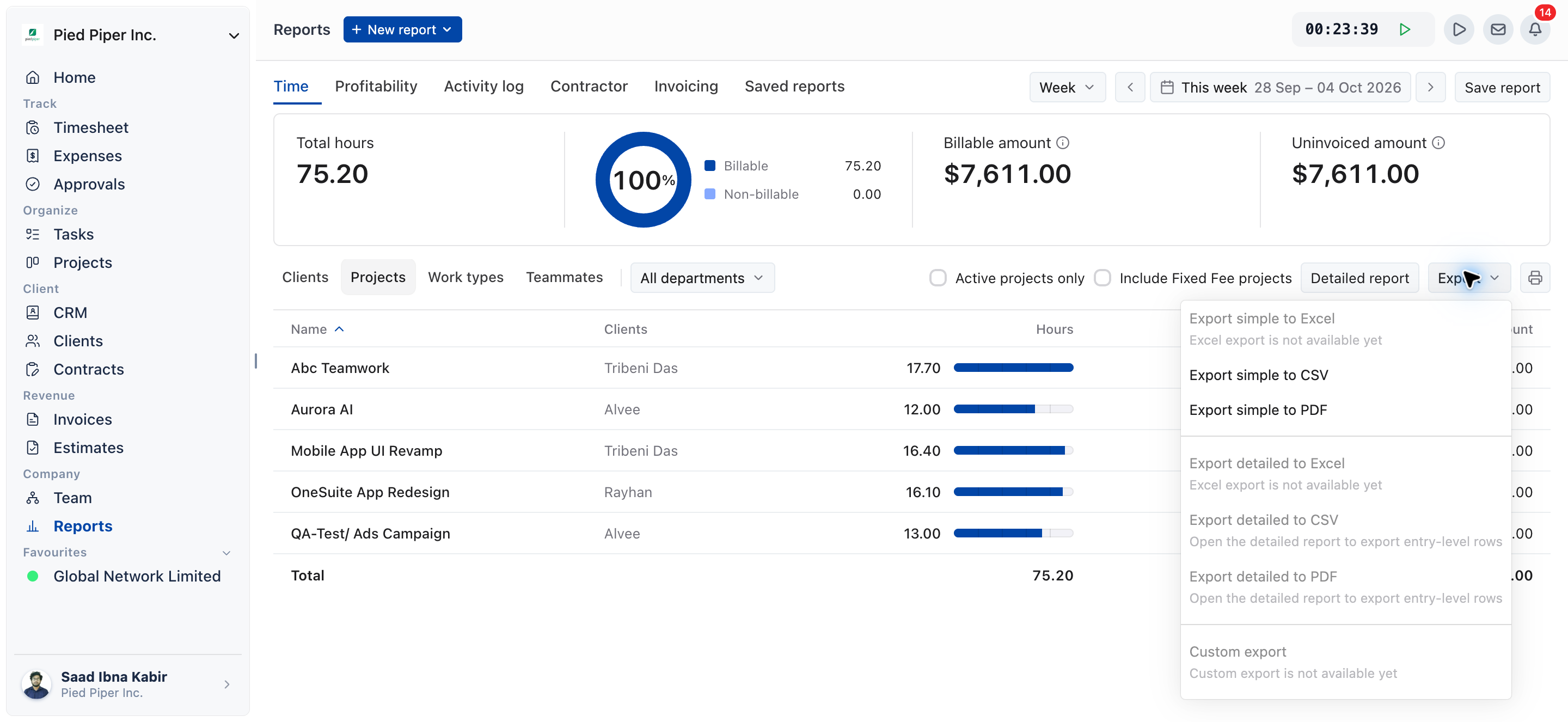
Click Export on the tab you are viewing and pick a format.
| Option | Available |
|---|---|
| Export simple to CSV | Yes, on every summary tab |
| Export simple to PDF | Yes, on every summary tab |
| Export line items to CSV | On Invoicing, Invoiced |
| Export detailed to CSV, Export detailed to PDF | Greyed out on the summary tabs. Open a detailed report instead. |
| Export simple to Excel, Export detailed to Excel | Greyed out: Excel export is not available yet |
| Custom export | Greyed out: not available yet |
On the detailed reports, the menu reads CSV and PDF, and Excel and Custom are greyed out. Click Print on the Time and Contractor tabs, or on a detailed report, for a paper copy.
Not using OneSuite yet? Start your free trial →
FAQs
What reports are available in OneSuite?
OneSuite has six report tabs: Time, Profitability, Activity log, Contractor, Invoicing and Saved reports. You can also open a Detailed time or Detailed expense report, or build a Custom report, from the New report menu.
Why can’t I open the Profitability, Contractor or Invoicing tab?
Each of those tabs needs a reports permission of its own, on top of access to Reports. Ask an admin to check your profile in Settings, Workspace, Profiles & Permissions.
What is the difference between uninvoiced and outstanding?
Uninvoiced is work you have done but not billed yet. Outstanding is money you have billed but not been paid yet. One is a gap in your invoicing, the other is a gap in your collections.
Can I export a report to Excel?
Not yet. The Excel options in the Export menu are greyed out. Use Export simple to CSV and open the file in your spreadsheet app.
Can I just export everything to a spreadsheet and work it out there instead?
You can, and the CSV export is there for exactly that. Reports save you the step when the question is a standard one, and clicking an hours value lets you check the entries behind it without rebuilding anything.
Why does a report show nothing when I know time was tracked?
Check the period and the filters first. A period that misses the dates, or a checkbox such as Active projects only or Approved hours only, is the usual cause.
What to do next
Keep a report you use often: Save it and email it on a schedule with How to Save and Schedule Reports.
Fix what the numbers reveal: Set rates and budgets per project with How to Set Up Project Billing and Budgets.
Bill the uninvoiced work: Turn open hours into an invoice with Invoice Generation from Billable Hours.