Skip to content
OneSuite Logo
  • SolutionsExpand
    • Client Portal

      Ensure transparency & gain trust

      Invoice

      Create invoices in minutes & get paid

      Project Management

      Manage tasks smartly & deliver timely

      CRM

      Nurture leads and win more clients

      Document & E-Signature

      Create & sign documents easily

      Team & Collaborators

      Work together, stay aligned

      Email Inbox

      Manage client emails in one place

      Time Tracking

      Track hours and boost productivity

      Productized Service

      Package and sell services easily

  • Use CasesExpand
    • Marketing Agency

      Manage campaigns, clients, and billing in one place so you can focus on delivering results.

      SEO Agency

      Track projects, share reports, and invoice clients without juggling five different tools.

      Video Editing

      Streamline approvals, revisions, and payments so you spend more time in the timeline.

      Local SEO

      Organize multi-location clients, automate invoicing, and keep every project on track.

      Photography

      From booking to final delivery, manage your entire client workflow in a single dashboard.

      Event Management

      Coordinate timelines, vendors, and client communications without anything slipping through the cracks.

      Creative Agency

      One workspace for briefs, feedback, and billing so your creative energy stays on the work.

      Consulting

      Proposals, project tracking, and invoicing unified so you look as professional as your advice.

      IT Services

      Manage tickets, retainers, and client portals without duct-taping a dozen SaaS tools together.

  • ResourcesExpand
    • Documentation

      Read guides and help docs

      Affiliate

      Partner and earn together

      Integrations

      Connect tools effortlessly

      Roadmap

      See what’s coming next

      Changelog

      Stay updated with the latest

      Support

      Get help whenever you need it

      Compare

      See how OneSuite stacks up

      Case Study

      Real results, real teams

      FAQ

      Find answers to common questions

  • Pricing
  • For Agency

Start free trial

Help Center

  • Documentation
  • Public Roadmap
  • Book a demo
  • Get Support
OneSuite Logo
intro to onesuite

OneSuite 101

6
  • Introduction
  • Understanding OneSuite’s Structure
  • How Solutions Work Together
  • Navigating OneSuite
  • All OneSuite Capabilities
  • OneSuite Glossary
quick start guide

Quick Start Guide

7
  • Setting Up Your Business
  • Adding Your Payment Methods
  • Inviting Team Members
  • Adding Your First Leads
  • Adding Your First Client
  • Giving Your Client Portal Access
  • Sending Your First Proposal

CRM

7
  • Customizing Your Opportunities View
  • CRM Overview
  • Adding People
  • Adding Companies
  • Creating Opportunity
  • How Opportunities, Companies, and People Work Together
  • Understanding Pipeline Stages
client

Client Management in OneSuite

7
  • Adding Clients
  • Client Profiles
  • Client Portal Customization 
  • Understanding the Clients Solution
  • Imports, Exports, and Search
  • The OneSuite Client Portal
  • Video Documentation : Client Management
pm

Manage your Projects Effortlessly

7
  • Subtask Behavior & Movement Management
  • Laying the Groundwork: Project Creation in OneSuite
  • Managing Project Boards in OneSuite
  • Adding Tasks to Boards in OneSuite
  • Lifesaver:Templates in OneSuite
  • Custom Categories, Tags, and Labels in Projects
  • Video Documentation : Project Management

Documents

5
  • Overview
  • Creating a Document from Scratch
  • Uploading a PDF Document
  • Sending Documents to Parties to Sign
  • Signing a Document
team

OneSuite's Team Management

4
  • Inviting Collaborators in OneSuite
  • Creating Personalized Departments in OneSuite
  • Managing Team Members in OneSuite
  • Video Documentation : Team Collaboration
Invoices & Payments

Invoices & Payments

7
  • Access & Navigation
  • Invoice Settings & Customization
  • Create One-time Invoices
  • Creating Recurring Invoices
  • How to set taxes on your invoices
  • How to Add Direct Bank Transfer Instructions to Your Invoices
  • How to Customize Invoice Email Messages

Time Tracking & Timesheets

4
  • Invoice Generation from Billable Hours
  • Timesheet Management & Approval
  • Time Tracking in OneSuite
  • Time Tracking & Timesheets 

Email Inbox in OneSuite

5
  • Gmail and Outlook integration
  • How to Integrate Microsoft Outlook in OneSuite 
  • How to Use Email Templates in OneSuite 
  • How to Integrate Gmail in OneSuite 
  • How to Send and Receive Email in OneSuite 

Calendar View

1
  • Calendar View

Dashboard

7
  • Overview 
  • How to Customize Your Dashboard
  • Client Portal Dashboard 
  • Monitor Documents, Contracts & Marketing Lead Sources
  • CRM, Client & Pipeline Widgets — OneSuite Dashboard Guide
  • Track Tasks, Deadlines & Project Activity in OneSuite
  • Track Revenue Trends, Forecasts & Top Projects in OneSuite
View Categories
  • Home
  • Docs
  • Time Tracking & Timesheets
  • Time Tracking & Timesheets 

Time Tracking & Timesheets 

Track billable hours, manage timesheets, and generate invoices from time entries 

Overview  #

OneSuite’s Time Tracking and Timesheet feature allows you and your team to log hours against projects and tasks. Time entries can be marked as billable, approved, and used to automatically generate client invoices – making it especially useful for contracts billed on an hourly basis. 

Enabling the Timesheet Module  #

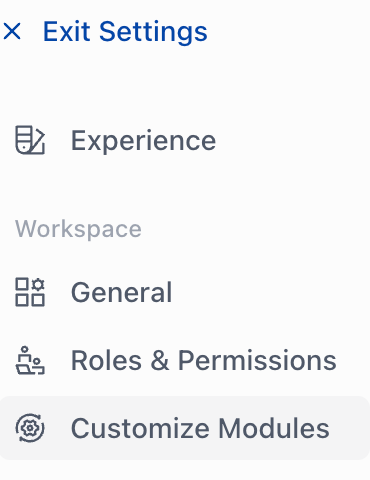
If you do not see the Timesheet module in your OneSuite account, you need to enable it from Settings. 

  1. Go to Settings. 
  2. Select Customise Modules. 
  3. Click on Timesheet to toggle it on. 
  4. Click Save Changes. 

Note: To disable the module at any time, return to Customise Modules, turn off Timesheet, and save. 

Starting a Timer  #

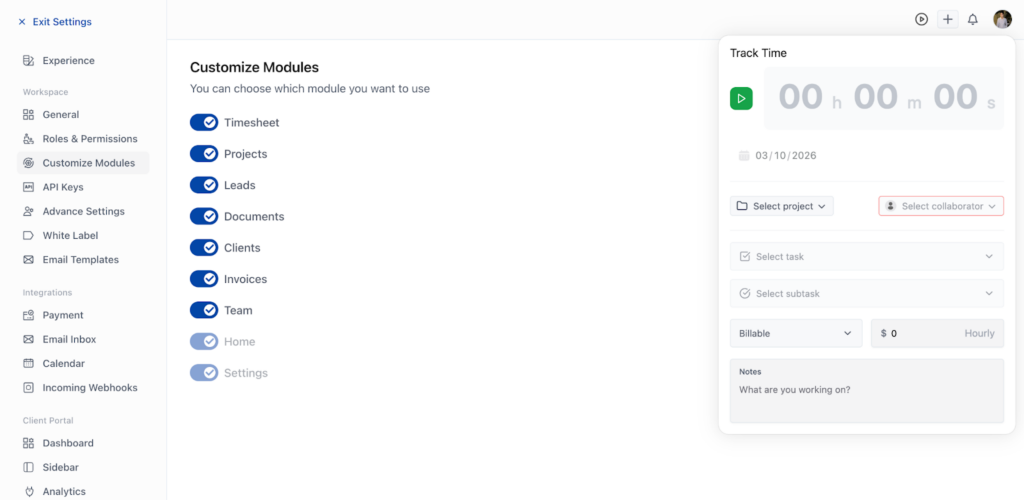
The Timer control is accessible from the top-right corner of the application. 

  1. Click the timer icon in the top-right corner. 
  2. Click Start Timer. 

When starting a timer, you can configure the following fields: 

  • Project – Select the project to log time against. 
  • Collaborator – Assign the time entry to yourself or a team member. 
  • Task – Choose the specific task within the project. 
  • Availability – Set your status to Available or Not Available. 
  • Hourly Rate – Enter the billing rate per hour. If you prefer not to display the actual rate, you may enter a placeholder value (e.g., $1) and update it before invoicing. 
  • Notes – Add any relevant notes about the work being performed. 
Note: The minimum loggable duration per entry is 1 hour. The maximum is 8 hours. If you forget to stop the timer, it will automatically stop after 8 hours. 

Timer Controls  #

While a timer is running, the following actions are available: 

  • Pause – Temporarily pause the running timer. 
  • Keep Entry – Save the current time entry to your timesheet. 
  • Discard – Delete the current time entry without saving. 
  • Reset – Reset the timer to zero. 

Logging Time from a Task  #

You can also start a timer directly from within a project task. 

  1. Open any project and switch to the List view. 
  2. Click on a task to open its detail panel on the right side. 
  3. Locate the Time Tracking icon in the task panel. 

The timer works the same way as the main application timer described above. 

Managing Timesheets  #

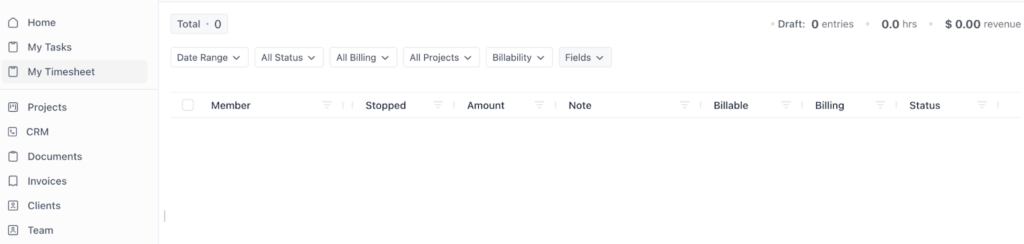
The Timesheet view gives you a consolidated view of all time entries across all projects. 

  1. Navigate to Timesheet from the main menu. 

In the Timesheet view you can: 

  • View all time entries across all projects in one place. 
  • Update availability status for each entry. 
  • Update billing status – mark entries as Billable or Non-Billable. 
  • Approve hours – Change the status of an entry to Approved. 
Note: Only time entries that are marked as Billable and have an Approved status – and have not already been invoiced – are eligible to be added to an invoice. 

Creating an Invoice from Timesheet Data  #

Once billable hours have been approved, you can use them to generate a client invoice automatically. 

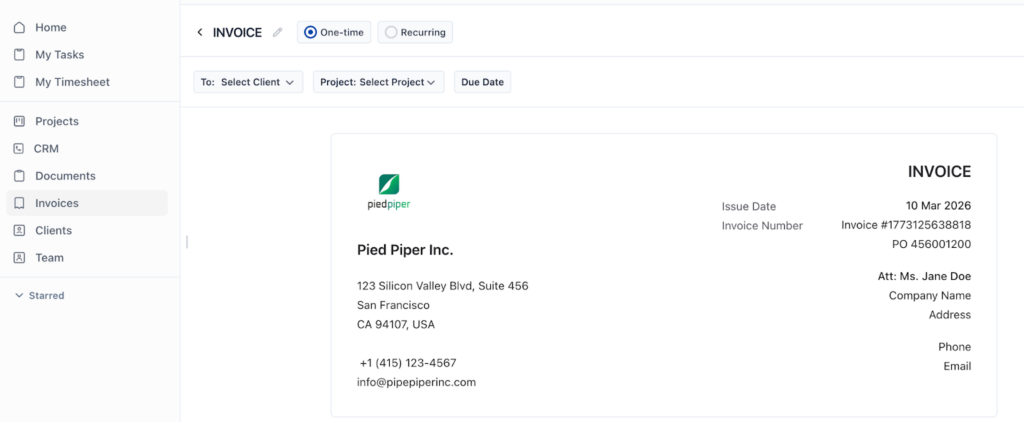
  1. Go to Invoices and click Create New. 
  2. Select One-Time Invoice as the invoice type. 
  3. Select the Project you want to invoice for. 
  4. Below the item description area, click Add from Timesheet. 
  5. Select the date range for the time entries you want to include. 

OneSuite will pull in all eligible time entries (billable, approved, and not yet invoiced) within that date range. 
Reviewing Invoice Line Items  #

  • Each task logged is shown as an individual line item in the invoice. 
  • Expand any line item to view the individual time tracking rows that make it up. 
  • If a placeholder hourly rate was entered during tracking, update the rate here to reflect the correct billing amount before sending the invoice. 

Note: Time entries are grouped per task. The expanded view lets you verify the detail before finalising the invoice. 

Summary  #

This guide covers the complete Time Tracking and Timesheet workflow in OneSuite: 

  • Enable the Timesheet module from Settings > Customise Modules. 
  • Start a timer from the top-right corner or directly from a project task. 
  • Manage and approve time entries from the Timesheet view. 
  • Generate invoices from approved billable hours via Invoices > Create New > Add from Timesheet. 

If you have feedback or suggestions for improving this feature, please reach out to the OneSuite support team. 

Updated on March 10, 2026

Did this article answer your question?

  • Happy
  • Sad
Time Tracking in OneSuiteInvoice Generation from Billable Hours

Leave a Reply Cancel reply

Your email address will not be published. Required fields are marked *

This site uses Akismet to reduce spam. Learn how your comment data is processed.

Table of Contents
  • Overview 
    • Enabling the Timesheet Module 
    • Starting a Timer 
    • Timer Controls 
    • Logging Time from a Task 
    • Managing Timesheets 
    • Creating an Invoice from Timesheet Data 
    • Reviewing Invoice Line Items 
  • Summary 
OneSuite Logo

Streamline your agency's workflow while you focus on growth—manage clients, projects, teams, proposals, contracts, and invoices effortlessly with OneSuite!

product hunt

Follow Us On

  • Facebook
  • X
  • Instagram
  • LinkedIn

Join Our Community

  • Facebook
  • WhatsApp

Features

Projects

Lead Pipeline

Documents

Invoices

Client Portal

Teams

Resources

Contact

Support

Docs

Blog

Branding

Become an affiliate

Agency Partner Program

Public roadmap

Book a demo

Compare

OneSuite vs. Kitchen Co

OneSuite vs. Moxie

OneSuite vs. Flowlu

OneSuite vs. Plutio

OneSuite vs. Bonsai

OneSuite vs. ClientManager

  • Terms of use
  • Privacy policy
  • Cookie policy
  • Refund policy
  • Acceptable use policy
  • Data processing terms
  • Solutions
    • Client Portal

      Ensure transparency & gain trust

      Invoice

      Create invoices in minutes & get paid

      Project Management

      Manage tasks smartly & deliver timely

      CRM

      Nurture leads and win more clients

      Document & E-Signature

      Create & sign documents easily

      Team & Collaborators

      Work together, stay aligned

      Email Inbox

      Manage client emails in one place

      Time Tracking

      Track hours and boost productivity

      Productized Service

      Package and sell services easily

  • Use Cases
    • Marketing Agency

      Manage campaigns, clients, and billing in one place so you can focus on delivering results.

      SEO Agency

      Track projects, share reports, and invoice clients without juggling five different tools.

      Video Editing

      Streamline approvals, revisions, and payments so you spend more time in the timeline.

      Local SEO

      Organize multi-location clients, automate invoicing, and keep every project on track.

      Photography

      From booking to final delivery, manage your entire client workflow in a single dashboard.

      Event Management

      Coordinate timelines, vendors, and client communications without anything slipping through the cracks.

      Creative Agency

      One workspace for briefs, feedback, and billing so your creative energy stays on the work.

      Consulting

      Proposals, project tracking, and invoicing unified so you look as professional as your advice.

      IT Services

      Manage tickets, retainers, and client portals without duct-taping a dozen SaaS tools together.

  • Resources
    • Documentation

      Read guides and help docs

      Affiliate

      Partner and earn together

      Integrations

      Connect tools effortlessly

      Roadmap

      See what’s coming next

      Changelog

      Stay updated with the latest

      Support

      Get help whenever you need it

      Compare

      See how OneSuite stacks up

      Case Study

      Real results, real teams

      FAQ

      Find answers to common questions

  • Pricing
  • For Agency
  • Documentation
  • Public Roadmap
  • Book a demo
  • Get Support