
Project boards in OneSuite give you a customizable way to organize your project, track tasks and see progress at a glance. They act as a visual roadmap, so your team stays focused on deadlines.
In this guide you’ll learn how to:
- Open your project board
- Get a quick overview of your projects
- Choose between the Kanban board and the List view
How to open your project board
Your project board lives inside each project.
- Click Projects in the left sidebar.
- Open the project you created.
- Your dedicated project board is there, ready to be customized to your project’s needs.
How to get a quick overview of your projects
Open a project to see its updates and changes in one place.
When you have many projects, the updates and changes are shown as you open each one. This gives you a quick read on where every project stands.
Should I use the Kanban board or the List view?
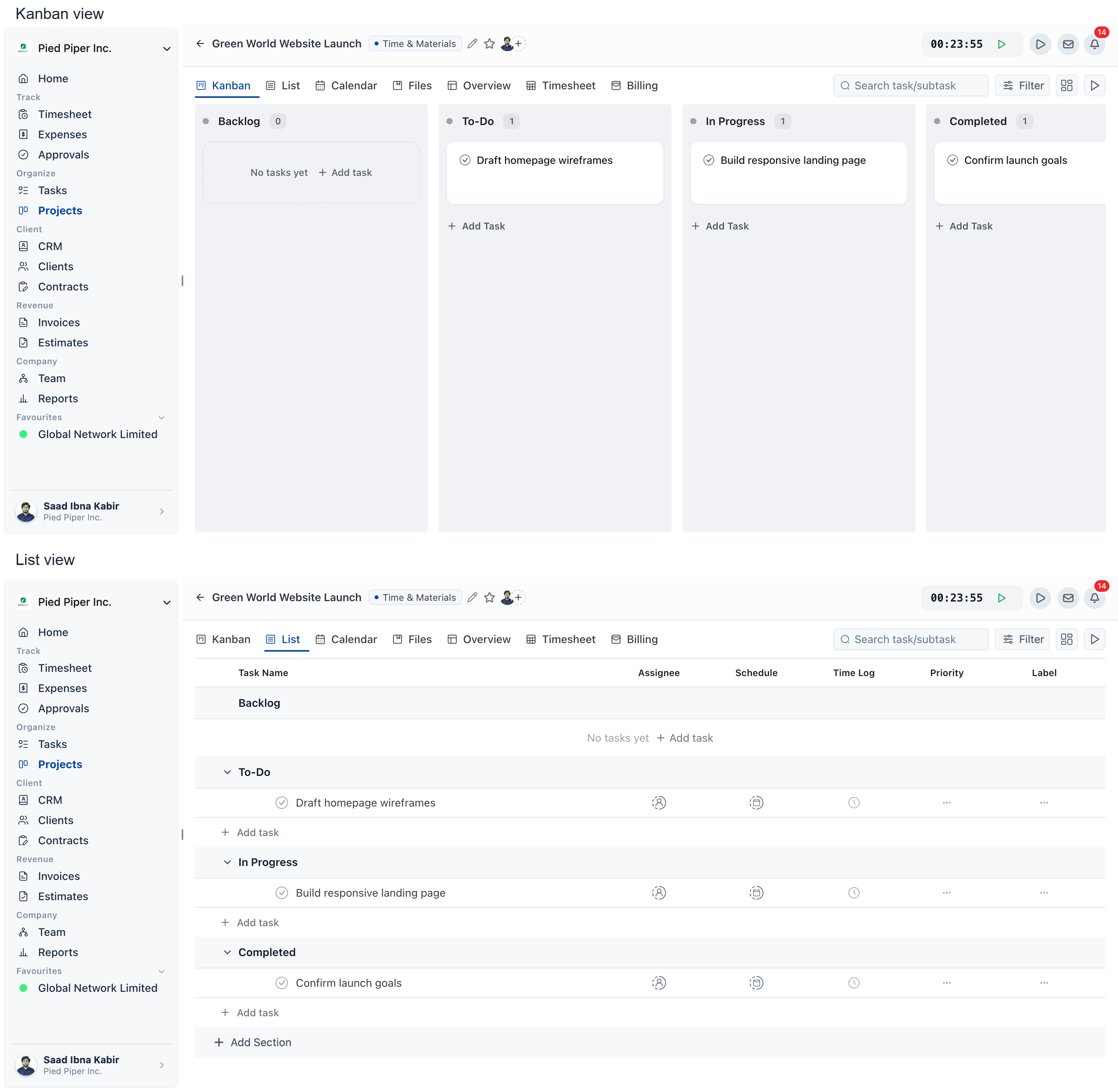
Use Kanban to see work move through stages, and List for a simpler view of your tasks. The choice is optional.
| View | How it works | Best for |
|---|---|---|
| Kanban | Columns represent task stages, for example “To Do”, “In Progress” and “Done”. | A clear visual picture of workflow progress. |
| List | A simpler list of your tasks. | A compact view of everything in the project. |
The choice depends on your project’s nature and your team’s preferences. Pick the view that best supports clear communication, task management and efficient project execution.
Not using OneSuite yet? Start your free trial →
FAQs
Where do I find my project board in OneSuite?
Open the project from Projects in the left sidebar. Every project has its own board, ready to be customized to that project’s needs.
What is a Kanban board in OneSuite?
A Kanban board uses columns to represent task stages, for example “To Do”, “In Progress” and “Done”. It shows your workflow progress visually.
Can I use a list instead of a Kanban board?
Yes. You can choose between the Kanban board and a simpler List view, depending on your project and your team’s preferences.
How do I get a quick update on all my projects?
Open each project. Its updates and changes are shown as you access it, so you get a quick read without digging through tasks.
Can I just track project tasks in a spreadsheet instead?
You can, but a spreadsheet won’t show stages visually or keep your team’s updates next to the tasks. A project board shows progress and deadlines in one place.
What to do next
Start a project: Set up the project behind your board with Laying the Groundwork: Project Creation in OneSuite.
Fill your board: Add and manage tasks with Adding Tasks to Boards in OneSuite.
See tasks by date: Plan work on a calendar with Calendar View.