
The Billing tab on a project decides how that project is sold, what each hour is worth, how much the project may spend and what a new invoice for it starts from. Set it up before your team tracks time, so every hour is priced and measured against the budget from day one.
In this guide you’ll learn how to:
- Choose the billing currency and project type
- Pick where billable rates come from
- Set a budget and a budget alert
- Choose the work types and team rates for the project
- Set the invoice values a new invoice starts from
Before you start
- You need permission to edit the project. Without it, you can read the Billing tab but not change it.
- To offer work types on the project, create them first in Settings, Time Tracking, Work Types. See How to Set Up Work Types.
How does the Billing tab save my changes?
The Billing tab saves every change as soon as you make it, so there is no save button.
Each section shows its own status while it saves:
| Status | What it means |
|---|---|
| Saving… | The change is being written. |
| Saved | The change is stored. It shows briefly, then clears. |
| Not saved | The change failed, and the section goes back to what was stored before. |
How to open the Billing tab
- Click Projects in the sidebar.
- Open the project.
- Click the Billing tab.
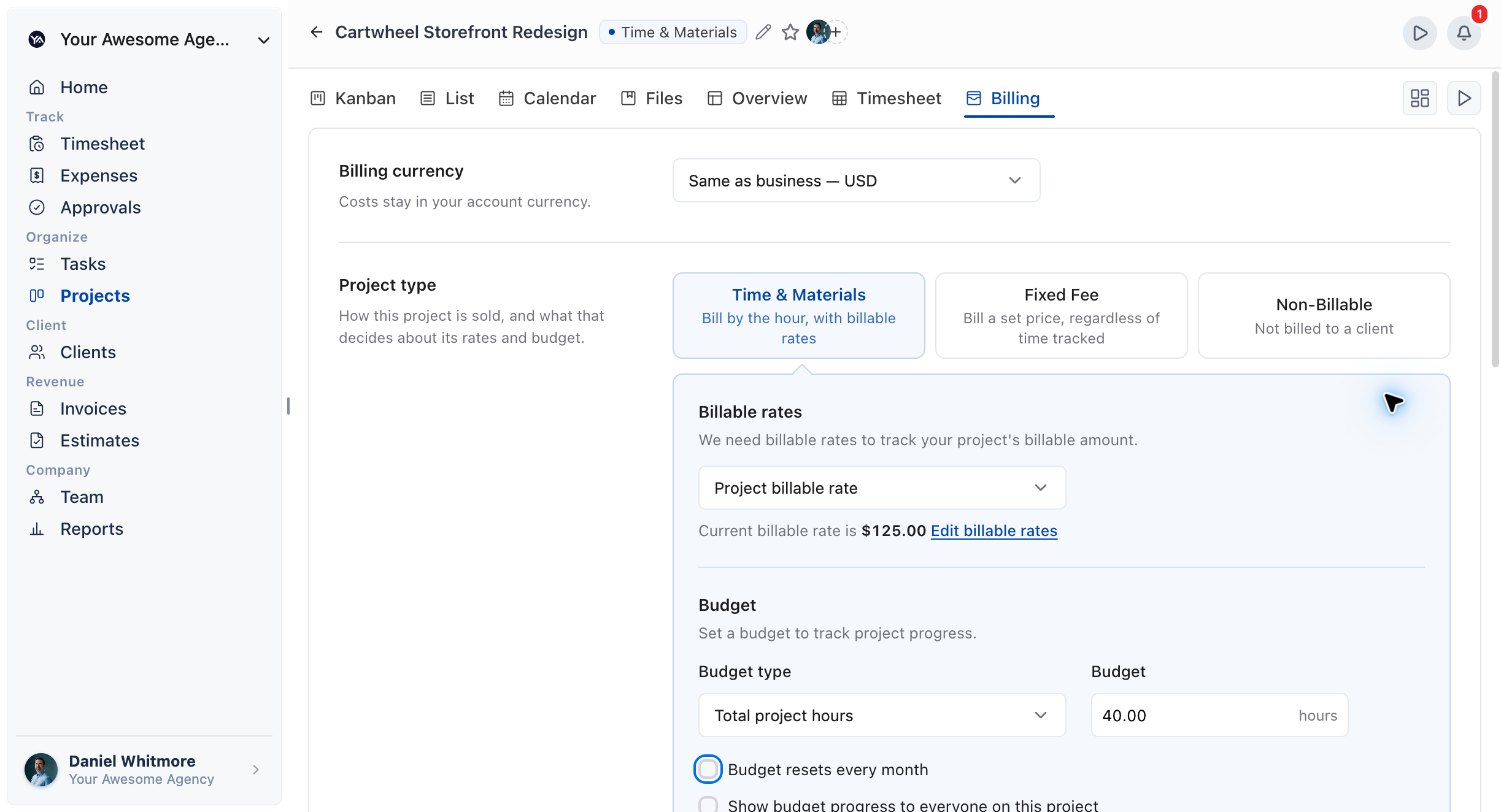
The tab runs from top to bottom: Billing currency, Project type with its fees, rates and budget, then Work types, Team rates and Invoice values.
How to set the billing currency
Billing currency sets the currency for the project’s billable rates, fees and budgets. It is optional, and costs always use your account currency.
- Open the Billing currency list.
- Choose the first option to inherit a currency, or pick any currency from the list.
The first option depends on the client:
- If the project’s client has a currency, the option reads Same as client, followed by that currency’s code.
- Otherwise, it reads Same as business, followed by your business currency’s code.
Every other currency follows, listed by name and code. The list has a search box.
Changing the currency relabels the project’s existing rates without converting the amounts. A rate of 100 in USD becomes 100 in EUR, so check your rates after you switch.
How to choose a project type
The project type says how the project is sold, and it decides which rate and budget options you see.
- Under Project type, choose one of the three options.
- For Fixed Fee, fill in Project fees as described below.
| Project type | What it means | What changes on the tab |
|---|---|---|
| Time & Materials | Bill by the hour, with billable rates. | Billable rates comes first, then Budget. |
| Fixed Fee | Bill a set price, regardless of time tracked. | Project fees appears. The budget follows from the fee, and Billable rates comes last. |
| Non-Billable | Not billed to a client. | Billable rates is hidden, the fee budget types are hidden, and the Billable column leaves the Work types card. |
Project fees on a Fixed Fee project
When you choose Fixed Fee, OneSuite starts the fee as a Single fee.
- Under Project fees, choose Single fee or Monthly.
- Enter the fee amount.
- For Single fee, enter the amount you plan to invoice.
- For Monthly, enter the amount you plan to invoice each month. It accrues month by month into the project’s budget.
How to choose where billable rates come from
The Billable rates card sets which rate prices each billable hour on the project. It is hidden on a Non-Billable project.
On a Time & Materials project, the rate gives the project its billable amount. On a Fixed Fee project, the rate measures how much of the budget has been spent.
- Open the rate type list on the Billable rates card.
- Choose one of the options below.
| Rate type | Where the rate is set |
|---|---|
| No billable rate | No rate is applied. |
| Project billable rate | One rate for everyone on the project, set on this card. |
| Person billable rate | Each person’s own rate, shown in the Team rates section lower on the tab. |
| Work type billable rate | A rate per work type, shown in the Work types section lower on the tab. |
A project may also show Automatic if it was saved with that option before. It isn’t offered for new choices.
How to set a project billable rate
- Choose Project billable rate. The card shows No project rate set yet. or Current billable rate is, followed by the rate.
- Click Edit billable rates. The Edit project billable rates panel opens.
- Click New billable rate.
- Enter the Hourly rate and pick the date the rate starts.
- Click Add billable rate.
Each rate has a start date, so you can plan a rate change ahead. If you leave a field empty, OneSuite asks you to Enter an hourly rate. or Choose the date this rate starts.
How to set a project budget
A budget sets how many hours or how much money the project may use, and OneSuite measures tracked work against it.
- On the Budget card, open Budget type.
- Choose a budget type from the table below.
- Enter the amount in the Budget field, or against each work type or person.
- Choose the options under the amount: monthly reset, expenses and the email alert.
| Budget type | Measured in | Amount entered as |
|---|---|---|
| No budget | Nothing | No amount. |
| Total project fees | Money | One amount for the project. |
| Fees per work type | Money | An amount against each work type. |
| Total project hours | Hours | One amount for the project. |
| Hours per work type | Hours | An amount against each work type. |
| Hours per person | Hours | An amount against each person on the project. |
- On a Non-Billable project, the two fee types are hidden.
- On a Fixed Fee project with Total project fees, there is no amount field. OneSuite uses the project fee as the budget.
- On a Fixed Fee project with a Monthly fee, Total project fees reads Fees accrued to date. The budget grows by one month’s fee in each active month rather than holding the whole contract up front.
Budget options
| Option | When you see it | What it does |
|---|---|---|
| Budget resets every month | Hours budget types only | The budget amount applies per month. per month appears beside the amount. |
| Budget includes billable and non-billable project expenses | Total project fees only | Counts the project’s expenses against the budget as well as its billable work. |
| Send email alerts if project exceeds N% of budget | Any budget type | Sends an alert when the project passes the percentage you set. |
The alert percentage starts at 80 and accepts a value from 0 to 100. A number outside that range is not kept, and the field goes back to its last value. You can edit the percentage only while the alert is ticked.
Everyone who can edit the project gets a notification in OneSuite, and the email goes to the project’s managers.
Why won’t my budget save?
A budget is stored only when it has an amount above 0. Until then, OneSuite tells you what is missing and stores nothing:
| Budget type | What OneSuite asks for |
|---|---|
| Total project fees or an hours total | A budget above 0. |
| Fees per work type or Hours per work type | At least one work type with an amount above 0. |
| Hours per person | At least one person with an amount above 0. |
| Fixed Fee with Total project fees | A project fee above 0. |
The rule about the last allocation
A stored budget always keeps at least one amount above 0. If an edit would set the last remaining amount to 0, OneSuite doesn’t save it, puts the stored amounts back, and shows a Not saved notice. The notice tells you to choose No budget if you want to remove the budget itself.
The same rule applies to a single budget amount and to a Fixed Fee project whose fee is its budget. To stop measuring a project against a budget, choose No budget instead of clearing the amounts.
Reading the budget meter
Once a budget is stored, a meter on the Budget card shows how much is tracked against how much is budgeted. It reads remaining, with the percentage left, or over budget, and it marks Alert at your alert percentage.
Allocation rows show an Allocated and a Used column. Time tracked outside every allocation is listed separately and counts against none of the rows.
Example: cap a project at 40 hours with an alert at 80%
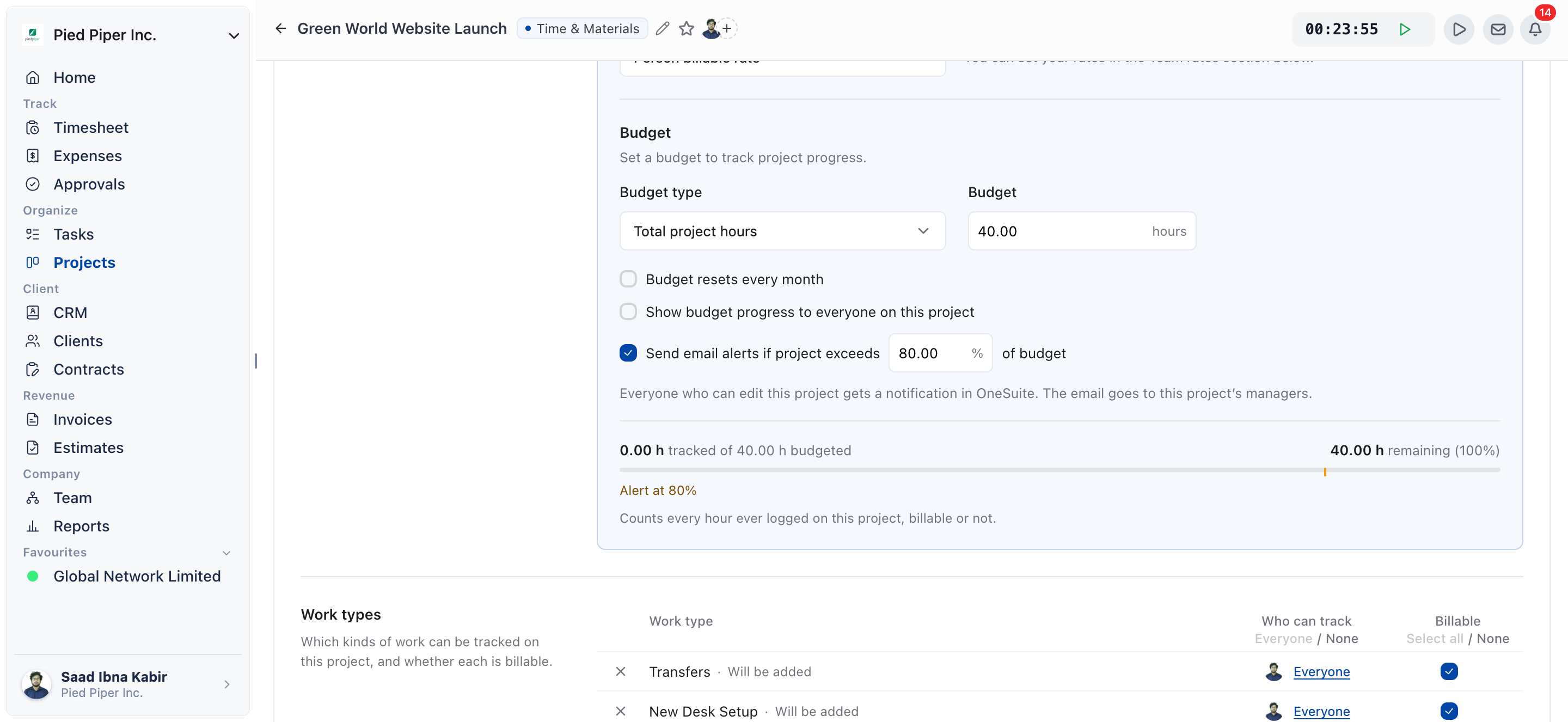
This setup limits a project to 40 hours and warns you once it passes 32 of them.
- Open the project and click the Billing tab.
- On the Budget card, set Budget type to Total project hours.
- Enter
40in the Budget field. The field shows hours as its unit. - Leave Budget resets every month unticked, so the 40 hours cover the whole project.
- Tick Send email alerts if project exceeds.
- Enter
80in the percentage field, if it doesn’t already show 80.
The card shows Saved when the change is stored. The meter then reads tracked hours of 40 budgeted and marks Alert at 80%. When the project passes 80% of its budget, everyone who can edit the project is notified in OneSuite and the project’s managers get an email.
An hours budget counts both billable and non-billable hours.
How to choose the work types on the project
The Work types card sets which kinds of work can be tracked on the project, and whether each is billable.
- Find the Work types card on the Billing tab.
- Click Add a work type… and pick a work type. If you type a name that doesn’t exist yet, you can create it here. OneSuite adds it to Settings, Work Types as well as to this project, billable by default and with no rate yet.
- In the Billable column, tick the work types that bill on this project. Use Select all or None to set every row at once. This column is hidden on a Non-Billable project.
- If the rate type is Work type billable rate, enter a rate in the Billable rate (per hour) column.
- In the Who can track column, choose who can log time to each work type.
If a work type is billable and has no rate, OneSuite warns that hours tracked under it bill at nothing.
Who can track
Click the Who can track cell for a work type and choose:
- Everyone on the project: anyone on the project can log time to it.
- Only these people: only the people you tick can log time to it.
Use Everyone or None at the top of the column to set every row at once. If you pick Only these people and tick nobody, OneSuite warns that no one can track to that work type. If every work type is limited to nobody, it warns that no one can track time to the project at all.
Removing a work type
You can remove a work type from the project only if no time is tracked to it. If time is tracked, OneSuite says Work types with time tracked can’t be removed. Untick Billable instead.
For the full work type setup, see How to Set Up Work Types.
How to set a custom rate for one person
The Team rates section shows what each person on the project is priced at. A custom rate applies on this project only, and everywhere else the person keeps their own rate.
- Find Team rates on the Billing tab. It lists each Person with their Billable rate and Cost rate.
- On the person’s row, click Apply custom rate. For a person who already has one, the link reads Edit rate.
- Choose Custom billable rates. Choose Default billable rates to go back to the person’s own rates.
- Click New billable rate, enter the Hourly rate and its start date, then click Add billable rate.
A row with an override shows Custom. A row with no rate shows Missing rate, and hours tracked by that person price at nothing until someone adds one.
What you see depends on the project and your access:
- The Billable rate column shows only when the rate type is Person billable rate, and never on a Non-Billable project.
- The Cost rate column shows only if you can see cost rates. Cost overrides work the same way, with Default cost rates and Custom cost rates.
How to set the invoice values
Invoice values sets what a new invoice for this project starts from. Every value can still be changed on the invoice itself.
| Field | Options and limits |
|---|---|
| Invoice due date | Upon receipt, Net 15, Net 30, Net 45, Net 60 or Custom. Upon receipt is the default. |
| Days until due | Shown for Custom. From 1 to 365 days after the invoice issue date. It starts at 30. |
| PO Number | Up to 191 characters. |
| Tax | A percentage from 0 to 100. |
| Second tax | Click Enable second tax to show it. A percentage from 0 to 100. Click Disable second tax to hide it again. |
| Discount | A percentage from 0 to 100. |
If you clear Days until due, the field goes back to its last value.
Not using OneSuite yet? Start your free trial →
FAQs
Where do I set a project budget in OneSuite?
On the project’s Billing tab, in the Budget card. Choose a Budget type, enter the amount, and the tab saves it straight away. There is no save button.
How do I get an alert when a project is close to its budget?
Tick Send email alerts if project exceeds on the Budget card and set the percentage, which starts at 80. Everyone who can edit the project gets a notification in OneSuite, and the project’s managers get an email.
Does changing a project’s currency convert its rates?
No. Changing the Billing currency relabels the project’s existing rates without converting the amounts. Update the rates yourself after you switch currency.
Why can’t I set a budget amount to 0?
A stored budget needs at least one amount above 0, so OneSuite refuses an edit that would leave none and puts the stored amounts back. Choose No budget to remove the budget.
Can I just track the budget in a spreadsheet instead?
You can, but you would copy hours across by hand and find out about an overrun late. A budget on the Billing tab measures tracked time as it is logged, and the alert tells you before the project runs over.
Why do some hours on my project bill at zero?
Those hours have no rate. Check that the project’s rate type has a rate behind it: a project rate, a rate for each person in Team rates, or a rate for each billable work type.
What to do next
Watch the budget: See hours, costs and what is left to invoice in How to Track Project Hours and Costs.
Set up work types: Create the kinds of work your projects offer with How to Set Up Work Types.
Bill the work: Turn tracked hours into an invoice with Invoice Generation from Billable Hours.