
Direct bank transfer prints your bank account details on an invoice so your client can pay you straight from their bank. It gives clients who prefer SWIFT or IBAN transfers, or cannot pay by card, a clear way to pay, even if you use no online payment gateway.
In this guide you’ll learn how to:
- Add your bank account details in Configure
- Show or hide bank details on a single invoice
- Fix the bank details on an invoice you already created
- Check what your client sees on the invoice
- Record a bank transfer once the money arrives
When should you offer bank transfer?
Offer bank transfer when a client or an invoice does not suit online payment. Common cases:
- Your client does not use online payment gateways.
- You do not have access to gateways such as Stripe, PayPal or Razorpay in your region.
- You work with international clients who prefer SWIFT or IBAN transfers.
- Your invoices are large, or your client’s accounts team pays them.
Bank transfers happen outside OneSuite. Clear instructions on the invoice make sure your client knows how and where to pay.
How to add your bank details
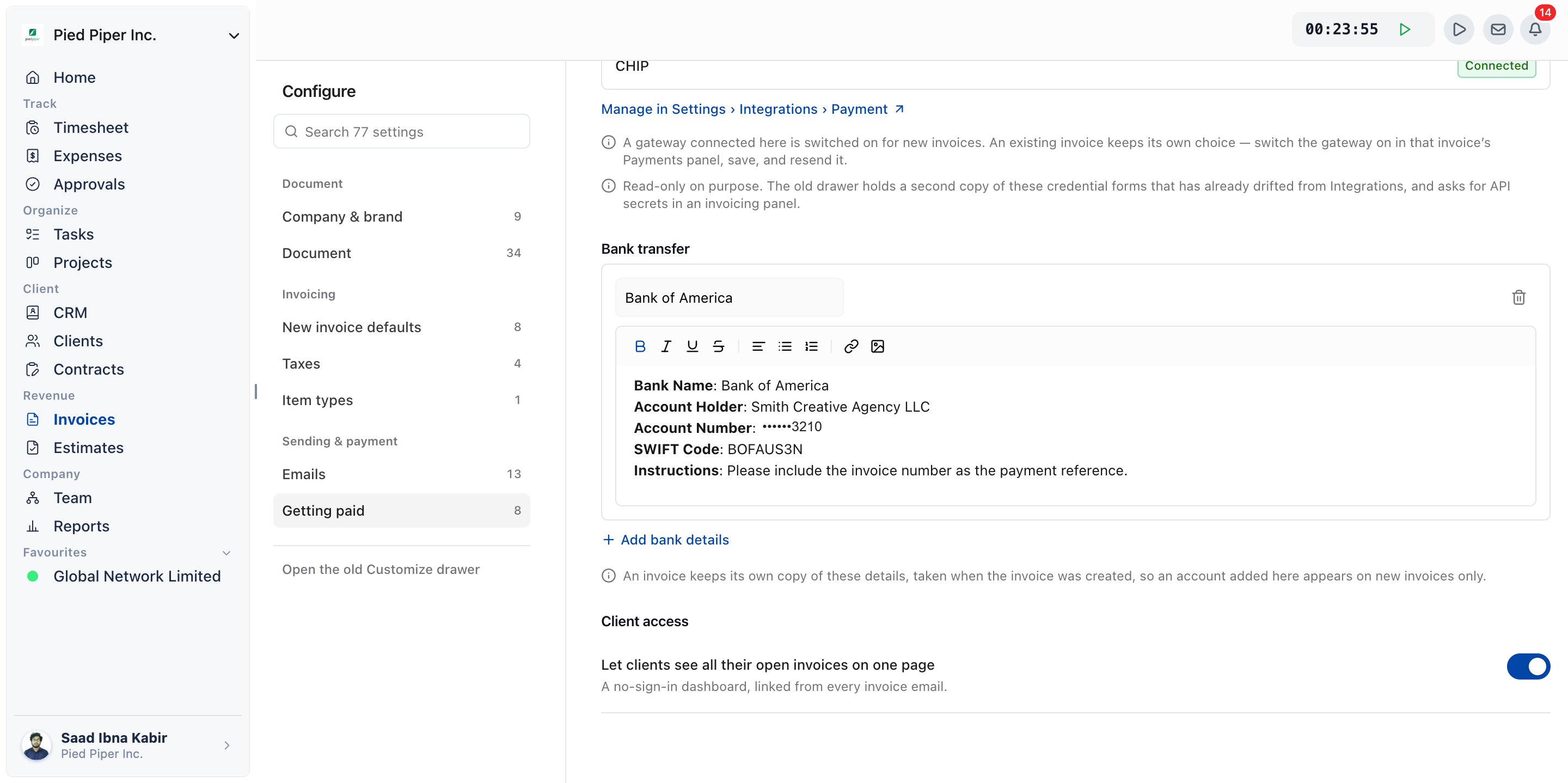
You add bank accounts in Invoices, Configure, Getting paid, under Bank transfer.
- Click Invoices in the sidebar.
- Click the Configure tab.
- Click Getting paid in the Configure rail. It sits in the Sending & payment group.
- Under Bank transfer, click Add bank details.
- Enter an Account name, for example
HSBC · Business current. Your client sees this as the heading for the account. - In the box below it (Enter your bank details), type everything your client needs: account holder, account number, IBAN, SWIFT or BIC code, and any payment instructions.
- Add another account the same way if you take payment into more than one.
- Click Save changes.
Every account needs a name. If one is blank, OneSuite blocks the save with Give every bank account a name. To remove an account, click Delete bank details on it, then click Save changes.
An invoice keeps its own copy of these details, taken when the invoice was created, so an account added here appears on new invoices only.
How to show or hide bank details on one invoice
You control bank details per invoice in the Payments group of the invoice editor’s rail.
- Open the invoice in the editor.
- In the rail, open Payments and find Bank transfer.
- Switch Print bank details on to print your bank details on the invoice, or off to leave them out.
- Use the switch beside each account to choose which accounts this invoice shows.
- Save the invoice.
Click the arrow beside an account to see its details. From there, Copy copies them with their formatting, and Edit changes this invoice’s copy only.
Manage bank accounts opens your business’s list of accounts instead. As the rail notes, this invoice prints the copy taken when it was created, so changes there reach new invoices only. To correct an invoice you already created, use the account’s Edit link in the rail.
What does your client see?
Your client sees a Direct Bank Details section in the Make Payment card on the web invoice, below Online Payment Methods if you offer online payment.
- Each account you left switched on appears under its Account name. Your client opens it to read the details and can copy them with one click.
- If no account is shown, the section reads No bank details found.
- Once the invoice is paid in full, written off or not yet ready for payment, the card offers no way to pay, and the bank details are withdrawn with the online options.
Here is how a client typically pays:
- They open the invoice you sent.
- Under Make Payment, they find Direct Bank Details.
- They open their online banking app.
- They send a transfer using the account details shown.
- They include the invoice number in the transfer reference, if you asked them to.
How to record a bank transfer as paid
You record a bank transfer yourself with Record payment, because OneSuite cannot see your bank account.
- Check that the money has arrived in your bank account.
- Open Invoices and find the invoice.
- Open the row’s actions menu, or the actions menu on the invoice itself, and click Record payment.
- Check Amount received. It starts at the full balance, so change it if the client paid part.
- Set Date received.
- Add the bank reference in Notes (optional).
- Click Record payment.
Any amount paid moves the invoice to Partial until the balance is settled. See How to Record Invoice Payments for partial payments and removing a payment.
Tips for a better client experience
- Add a clear instruction, such as “Include the invoice number in the reference”.
- Confirm your account can receive the invoice’s currency for international transfers.
- Mention how long transfers usually take to arrive.
- If you offer both bank transfer and online payment, keep both switched on so the client can choose.
- Follow up with the client if a transfer is late.
Not using OneSuite yet? Start your free trial →
FAQs
Why don’t my new bank details show on an existing invoice?
An invoice keeps the copy of your bank details taken when it was created, so accounts you add or change in Configure reach new invoices only. To correct an existing invoice, open it in the editor and use the account’s Edit link under Payments, Bank transfer.
Can I add more than one bank account to my invoices?
Yes. Click Add bank details once for each account in Configure, Getting paid. On each invoice, you choose which accounts to show with the switch beside each one.
Why does my invoice say “No bank details found”?
The invoice has no bank account switched on. Open the invoice in the editor, switch on Print bank details under Payments, and make sure at least one account’s switch is on.
Does OneSuite detect bank transfer payments automatically?
No. OneSuite does not connect to your bank account, so it cannot see a transfer arrive. When the money lands, open the invoice and click Record payment.
Can I just put my bank details in the invoice notes instead?
You can, but the Direct Bank Details section is easier for your client to use. It sits in the Make Payment card next to any online payment options, lets the client copy the details in one click, and disappears once the invoice is paid.
What to do next
Mark transfers as paid: Learn to log full and partial payments in How to Record Invoice Payments.
Take card payments too: Connect Stripe, PayPal or another gateway with Adding Your Payment Methods.
Finish your invoice setup: Set your letterhead, wording and defaults in Invoice Settings & Customization.