
A client profile is the single record for a customer you have won: their details, their people, and every project, invoice and contract you share with them. The details sit in a panel on the left and each kind of work has its own tab, so you can answer most questions about a client without leaving the page.
In this guide you’ll learn how to:
- Open a client profile
- Read and edit the client details panel
- Manage people and the point of contact on a company client
- Use each profile tab
- Invite an individual client to the client portal
How to open a client profile
Click the client’s name in your Clients list.
- Click Clients in the sidebar.
- Click the client’s name in the list.
The profile opens with the details panel on the left and the tabs on the right. Click Back to Clients at the top to return to your list.
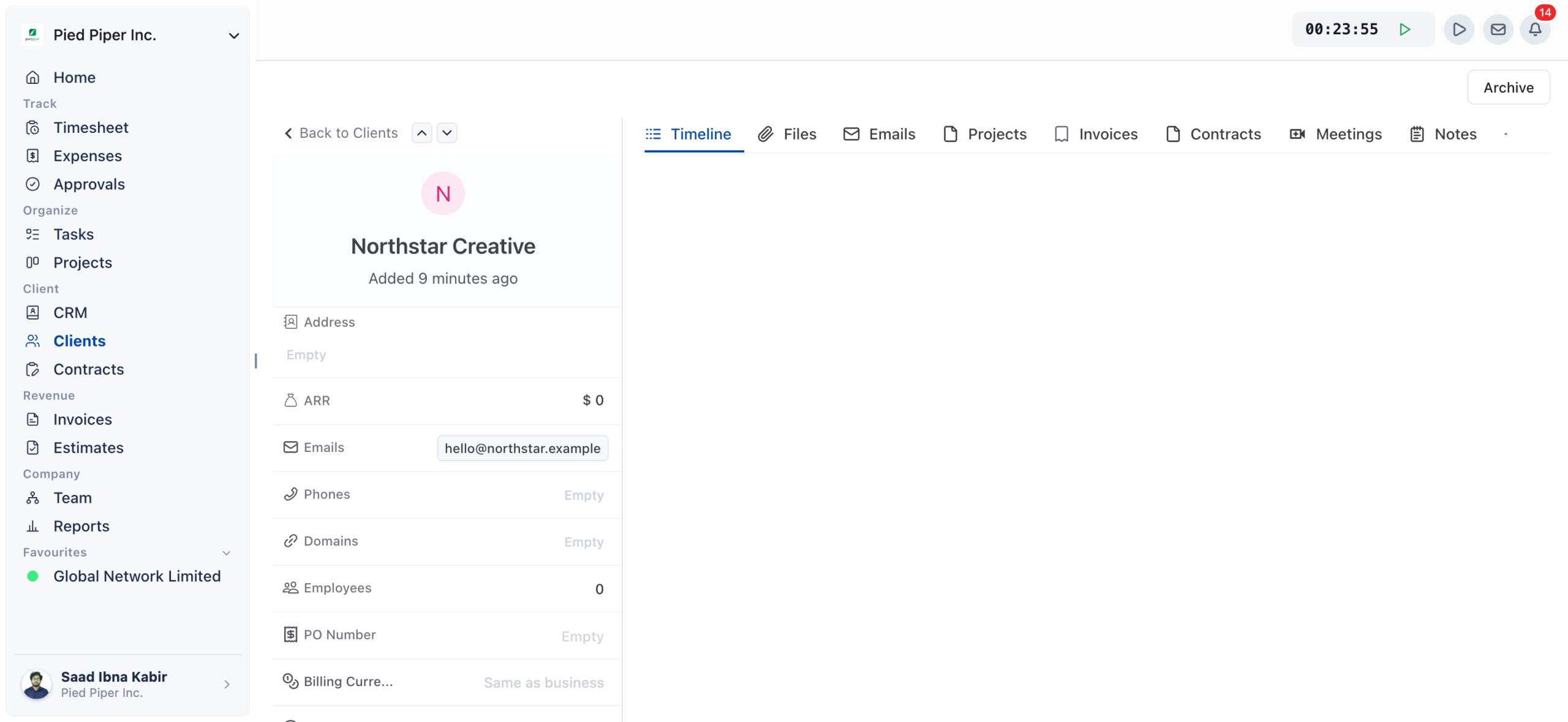
What is in the client details panel?
The panel lists everything stored about the client. If you can edit clients, click a value to change it, or click the client’s name at the top to rename them.
| Field | Company clients | Individual clients | What it holds |
|---|---|---|---|
| Address | Yes | Yes | The postal address. |
| ARR | Yes | No | Annual recurring revenue. |
| Emails | Yes | Yes | One or more addresses. Use Set As Primary in an address’s menu to choose the main one. |
| Phones | Yes | Yes | Contact numbers. |
| Domains | Yes | Yes | Website domains. |
| Employees | Yes | No | The number of employees. |
| Job Title | No | Yes | The person’s role. |
| PO Number | Yes | Yes | A purchase order number for this client. |
| Billing Currency | Yes | Yes | Same as business, or any other currency you pick. |
| ICP | Yes | No | Whether they match your Ideal Customer Profile. |
| Industry | Yes | Yes | The client’s sector. |
| Source | Yes | Yes | How they found you. |
| Status | Yes | Yes | The relationship status, from your business’s list. |
| Priority | Yes | Yes | The priority, from your business’s list. |
| Social | Yes | Yes | Social media profile links. |
| Assigned To | Yes | Yes | The team member managing this client. |
| Created By and Last Updated | Yes | Yes | Filled in by OneSuite. |
Custom Fields appear below the standard fields if your business has created any. A client added with only a name and email shows empty fields until someone fills them in.
How to manage people on a company client
A company client has a People section and a Point of Contact section that individual clients do not.
- Open the company client.
- Under People, click Add People to add contacts. You can tick Invite to client portal for each person as you add them.
- To choose your main contact, hover over the Point of Contact heading, click the pencil icon and select one of the company’s people.
Clicking a person’s name under People opens their CRM record.
What does each profile tab show?
Each tab shows one kind of work for this client. Click a tab to switch.
| Tab | What it shows |
|---|---|
| Timeline | Activity recorded on this client. |
| Projects | The client’s projects, with Name, Status and Progress, and a View action. |
| Invoices | The client’s invoices, with Invoice No, Amount, Status and Type (One-time or Recurring). |
| Contracts | Documents shared with the client, with Document Title, Parties, Status and Type. |
| Meetings | Meetings with the client. A company client needs domains, and an individual client needs a linked person, before meetings show. |
| Notes | Notes your team has recorded about the client. |
| Files | Files attached to the client. |
| Emails | Email with the client, under Inbox. Click Compose to write a new email. |
| Portal access | What this client can see and do in the client portal. |
Note: a tab can be missing for three reasons. An admin may have hidden it or moved it under Client Profile Tabs in the Clients Customize drawer. The module it belongs to may be switched off. Or your profile may lack the permission it needs.
Note: the Emails tab needs an email account connected to OneSuite. Without one, it asks you to connect an account. See Integrate Gmail in OneSuite.
How to invite an individual client to the portal
An individual client’s details panel has an Invitation Status section where you invite them and manage their access.
- Open the individual client.
- Under Invitation Status, click Invite.
The section then shows where the invitation stands:
| Status | What you can do |
|---|---|
| Not invited yet | Click Invite to send the invitation. |
| Invited | Click Resend to send it again, or Cancel to withdraw it. |
| Accepted | Click Revoke Access to remove the client from the portal. OneSuite asks you to confirm, because this cannot be undone. |
What the client sees once they are in is set on the Portal access tab. It opens as Portal access with the client’s name, a Portal preset dropdown, and the sections Client default, People, Project access and Appearance. For an individual client, View as client shows the portal as they see it.
Not using OneSuite yet? Start your free trial →
FAQs
Why can’t I find a Tasks tab on a client profile?
The client profile has no Tasks tab. Open the client’s work from the Projects tab, or use Tasks in the sidebar.
Where did the Documents tab go?
It is called Contracts, matching the sidebar. It lists the documents shared with the client, with their status.
Why is the Emails tab empty?
Either no email account is connected to OneSuite, or the client has no email address on their profile. Connect an account, or add an address under Emails.
Can I add my own fields to a client profile?
Yes. Custom fields defined for your business appear under Custom Fields on every client.
Can I just keep client details in the CRM instead?
The CRM is for people and companies you are pursuing. A client profile is for customers you have won, and it is the record that carries their projects, invoices, contracts and portal access.
What is the difference between a company client and an individual client?
A company client can have several people, one of whom is the point of contact, and carries company fields such as ARR and Employees. An individual client is one person, with a Job Title and their own portal invitation.
What to do next
Give them portal access: Invite your client and choose what they see with Giving Your Client Portal Access.
Bill their projects: See how a client’s currency carries into project billing with How to Set Up Project Billing and Budgets.
Email from the profile: Write and reply to client emails with Send and Receive Email in OneSuite.