
Incoming webhooks let other apps send events to OneSuite that create, update or delete clients, CRM companies, people and opportunities. API keys give another system full access to OneSuite’s API for your business. Together they let you connect forms, no-code tools such as Make, Zapier or n8n, and your own code without typing the same records twice.
In this guide you’ll learn how to:
- Create an incoming webhook and find its URL and secret
- Send a correctly formatted event to OneSuite
- Check the events a webhook has received
- Generate, pause and delete API keys
- Keep your webhook secrets and API keys safe
Before you start
- Open Settings from the account menu: click your name at the bottom of the sidebar, then Settings.
- Incoming Webhooks (under Integrations) and API Keys (under Workspace) need access to your business’s admin settings. If you can’t see them, ask an admin.
- OneSuite only receives webhooks. It has no outgoing webhooks, so it can’t send events to your app.
How to create an incoming webhook
You create a webhook by giving it a name and choosing whether it works on clients or CRM records.
- Open Settings, Integrations, Incoming Webhooks.
- Click Create Webhook.
- Enter a Name, for example
Zapier Integration. - Choose the Module: Client for client records, or CRM for companies, people and opportunities.
- Add a Description if you want to note what the webhook is for.
- Click Create Webhook.
OneSuite opens the new webhook’s page, with the tabs Overview, API Reference, Events and Integrations.
What the webhooks list shows
The Incoming Webhooks page lists every webhook with its Name, Status (Active or Inactive), Events counts (Received, Success, Failed) and Last Received time. Cards above the list show Total Webhooks, Active Webhooks, Total Events Received and Success Rate. Each row’s Actions menu has View, Edit and Delete.
How to find the webhook URL and secret
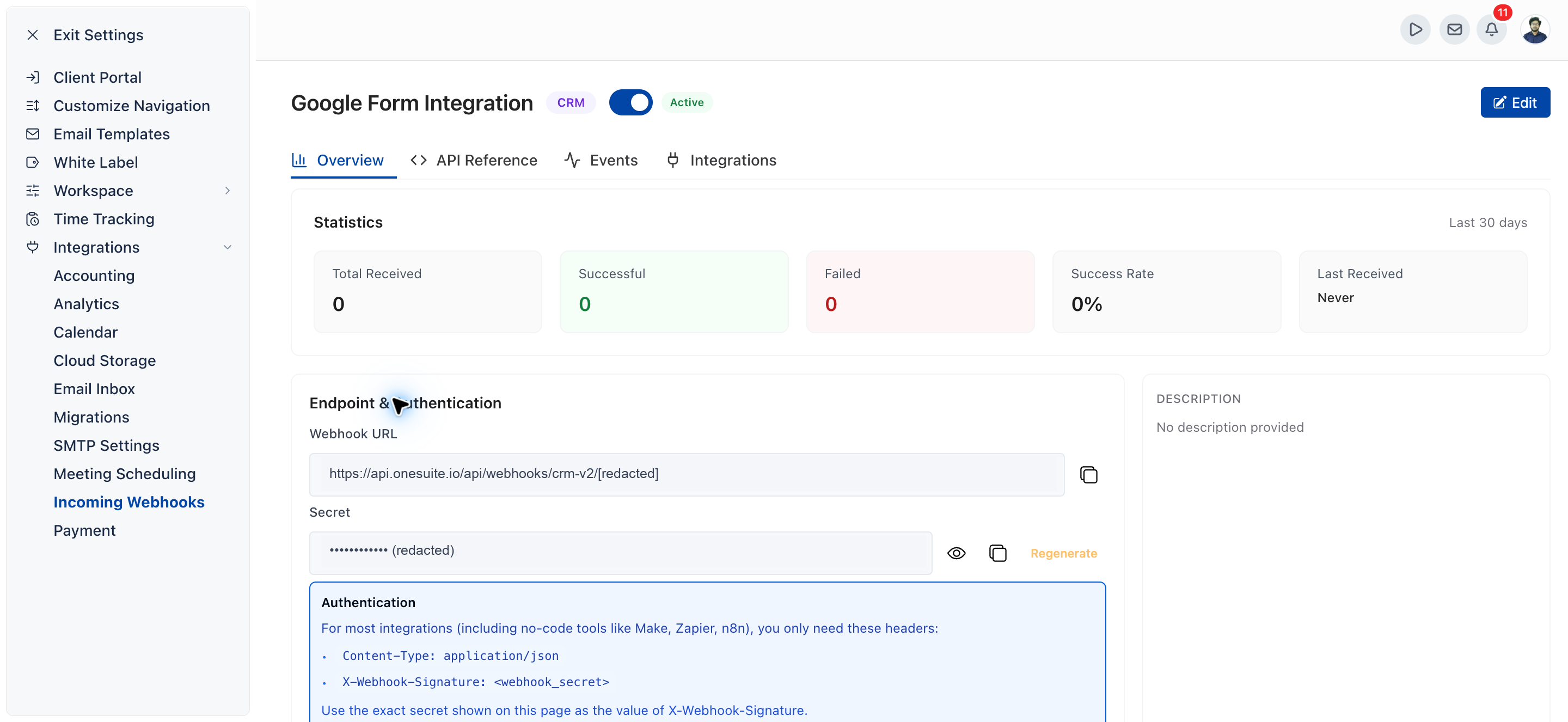
The webhook’s URL and secret are on its Overview tab, under Endpoint & Authentication.
- Open the webhook from the list with View.
- On Overview, copy the Webhook URL with the copy button. This is the address your other app sends events to.
- Under Secret, click the eye icon to show the secret, or the copy button to copy it. The secret is masked until you show it.
Send these two headers with every request:
Content-Type: application/json
X-Webhook-Signature: <webhook_secret>
Use the exact secret shown on the Overview tab as
the value of X-Webhook-Signature. The
Overview tab also shows Statistics for
the Last 30 days.
How to regenerate a webhook secret
You regenerate a secret with Regenerate on the Overview tab. The current secret stops working straight away.
- On the Overview tab, click Regenerate next to Secret.
- Read the warning, then tick I understand that the current secret will be invalidated and I need to update my external service immediately.
- Click Regenerate Secret.
- Copy the New Secret and update every app that sends to this webhook. Requests that still send the old secret fail.
- Click Done.
Which events can a webhook receive?
A webhook receives the events for its module: three for Client and nine for CRM. The API Reference tab lists them with example payloads you can copy.
| Module | Event type | What it does | Required fields |
|---|---|---|---|
| Client | client.create |
Creates a client | name, email |
| Client | client.update |
Updates a client | client_id or external_id |
| Client | client.delete |
Deletes a client | client_id or external_id |
| CRM | company.create |
Creates a company | name |
| CRM | company.update |
Updates a company | company_id or external_id |
| CRM | company.delete |
Deletes a company | company_id or external_id |
| CRM | people.create |
Creates a person | name, email |
| CRM | people.update |
Updates a person | people_id or external_id |
| CRM | people.delete |
Deletes a person | people_id or external_id |
| CRM | opportunity.create |
Creates an opportunity | name |
| CRM | opportunity.update |
Updates an opportunity | opportunity_id or external_id |
| CRM | opportunity.delete |
Deletes an opportunity | opportunity_id or external_id |
How to format a webhook payload
Each payload is a JSON object that names its event in
event_type and carries the record’s fields.
event_typenames the event, such asclient.createoropportunity.create. Every payload must include it.event_idis optional and is used for idempotency. Event Details on the Events tab shows whether an event was a Duplicate.- For CRM webhooks, you can put the record’s fields inside a
dataobject or at the top level of the payload. - For client webhooks,
typeis optional and defaults tocompany. Useindividualfor a person. - The API Reference tab lists every field key you can send for the webhook’s module, with a copy button for each.
This is the example opportunity.create payload from the
API Reference tab:
{
  "event_id": "evt_opp_1",
  "event_type": "opportunity.create",
  "name": "Enterprise Deal Q1",
  "amount": 50000,
  "currency": "USD",
  "close_date": "2025-03-31"
}
How to check the events a webhook received
The Events tab lists what the webhook has received, under Recent Events.
- Open the webhook and click Events.
- Find the event by its Event ID, Type, Status, Action or Received At time.
- Click the view icon to open Event Details.
Event Details shows the Processing Status, the Action Taken, the Signature Status (Valid or Invalid), whether the event was a Duplicate, any Error Message, and the Payload and Headers that arrived.
How to connect Google Forms
The Integrations tab has a step-by-step guide that sends Google Form submissions to the webhook.
- Open the webhook and click Integrations.
- Click Google Forms.
- Work through 1. Prerequisites. The webhook must be active, and you need owner or editor access to the form.
- In 2. Map Form Questions to Fields, choose what you want to create if asked, then match each exact question title in your form to a OneSuite field.
- In 3. Copy the Generated Script, copy the script.
- In 4. Install in Google Forms, follow the steps to
paste the script into Apps Script, select
createTriggerin the function dropdown, click Run, and authorize the script. - Submit a test response in your form and check that it arrives on the Events tab.
How to pause, edit or delete a webhook
Use the switch on the webhook’s page to make it Active or Inactive, and the list’s Actions menu to edit or delete it.
- Pause: open the webhook and turn the switch off. The status changes to Inactive.
- Edit: click Edit on the webhook’s page or in the list, change the Name, Module or Description, and click Update Webhook.
- Delete: in the list, open Actions, click Delete and confirm.
How to generate an API key
You generate an API key in Settings, Workspace, API Keys with Generate new key.
- Open Settings, Workspace, API Keys.
- Click Generate new key.
- Enter a Key Name so you know what the key is for.
- Leave Key Status set to Active.
- Click Generate.
An API key gives full access to OneSuite’s API for your business. Keys have no scopes, so you can’t limit a key to certain records or actions.
How to see and copy an API key
Each key’s card shows its name, its status and the first 3 characters of the key. Click Show to see the full key and Hide to mask it again. Click Copy, or click the key itself, to copy it. You can show and copy a key at any time.
How to pause or delete an API key
Set a key to Inactive to pause it, or delete it to remove it for good.
- Pause: open the key’s menu, click Edit Key, set Key Status to Inactive and click Update.
- Rename: use Edit Key and change the Key Name.
- Delete: open the key’s menu, click Delete Key and confirm.
Keeping secrets and keys safe
Treat every webhook secret and API key like a password, because anyone who holds one can act on your business’s data.
- Store them in your other tool’s secure settings, never in shared documents or public code.
- If a webhook secret leaks, click Regenerate straight away and update the apps that use it.
- If an API key leaks, delete it and generate a new one.
- Set keys and webhooks you no longer use to Inactive, or delete them.
- Give each app its own key and webhook, so you can pause one without breaking the others.
Not using OneSuite yet? Start your free trial →
FAQs
Can OneSuite send webhooks to my app?
No. OneSuite only has incoming webhooks, which receive events from other apps; it doesn’t send outgoing webhooks.
What headers does a OneSuite incoming webhook need?
It needs Content-Type: application/json and
X-Webhook-Signature set to the webhook’s secret. Copy the
secret from the webhook’s Overview tab.
Why is my webhook showing failed events?
Open the Events tab and view the event. Event Details shows the Signature Status, which tells you whether the secret matched, plus the Error Message and the payload that arrived.
Can I limit what an API key can access?
No. Every API key has full API access and there are no scopes. Give each app its own key and delete any key you no longer need.
Can I just import a spreadsheet instead of using webhooks?
For a one-off batch, an import works well. A webhook suits records that keep arriving from another tool, because each new form entry or deal reaches OneSuite on its own.
What to do next
See all integrations: Compare every tool OneSuite connects to in Integrations Overview.
Import records in bulk: Bring in existing clients and contacts with Imports, Exports, and Search.
Know your CRM records: See how companies, people and opportunities connect in How Opportunities, Companies, and People Work Together.