
The OneSuite Client Portal gives your clients their own login where they see their projects, documents and invoices on a personal dashboard. It replaces long email threads and scattered files with one central hub, so you and your clients stay on the same page.
In this guide you’ll learn how to:
- Invite new or existing clients to the Client Portal
- Explain how clients accept their invitation
- Describe what clients can see and do in the portal
- Show clients how they view, sign and download documents and invoices
Why use the Client Portal?
The portal gives clients one place to follow their work with you, at any time.
- Clearer communication: clients have 24/7 access to a central repository of project information, including documents, invoices and their own dashboard. This transparency builds trust.
- Better client experience: clients take an active part in the project. They can track progress, access files and manage communication in one place.
- Shared collaboration: clients can add tasks, give feedback and stay up to date on project developments, instead of waiting for email updates.
How to invite clients to the Client Portal
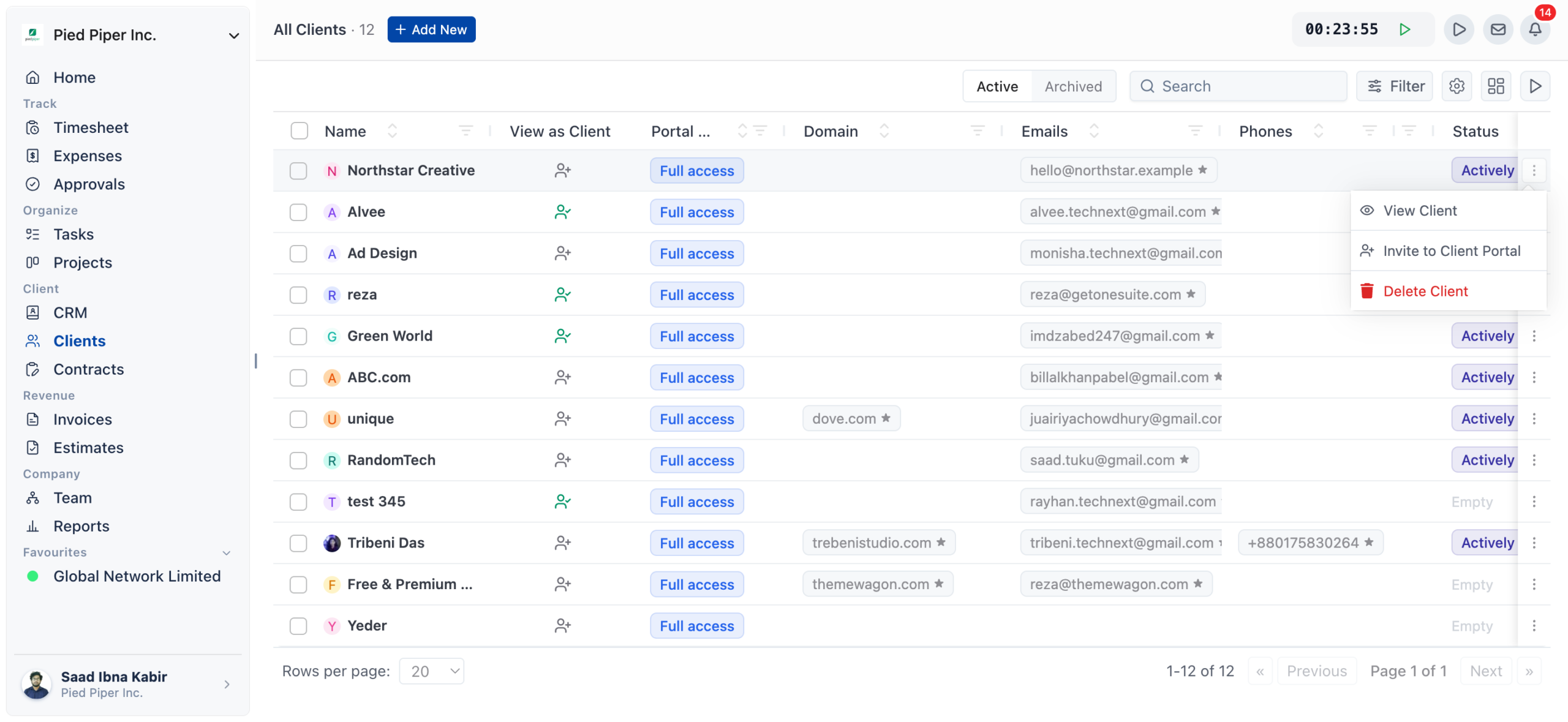
Invite a client from the Clients section: create the client there, or pick one you’ve already added, and send an invitation by email.
- Click Clients in the sidebar.
- Create a new client from scratch, or open a client you have already added.
- Invite the client to the Client Portal.
- OneSuite sends the invitation to the client by email.
How do clients accept an invitation?
Clients accept the invitation from their email, which takes them to their dashboard in the Client Portal.
- The client opens the invitation email.
- The client accepts the invitation.
- OneSuite redirects them to their personalized dashboard in the Client Portal.
What can clients see and do in the portal?
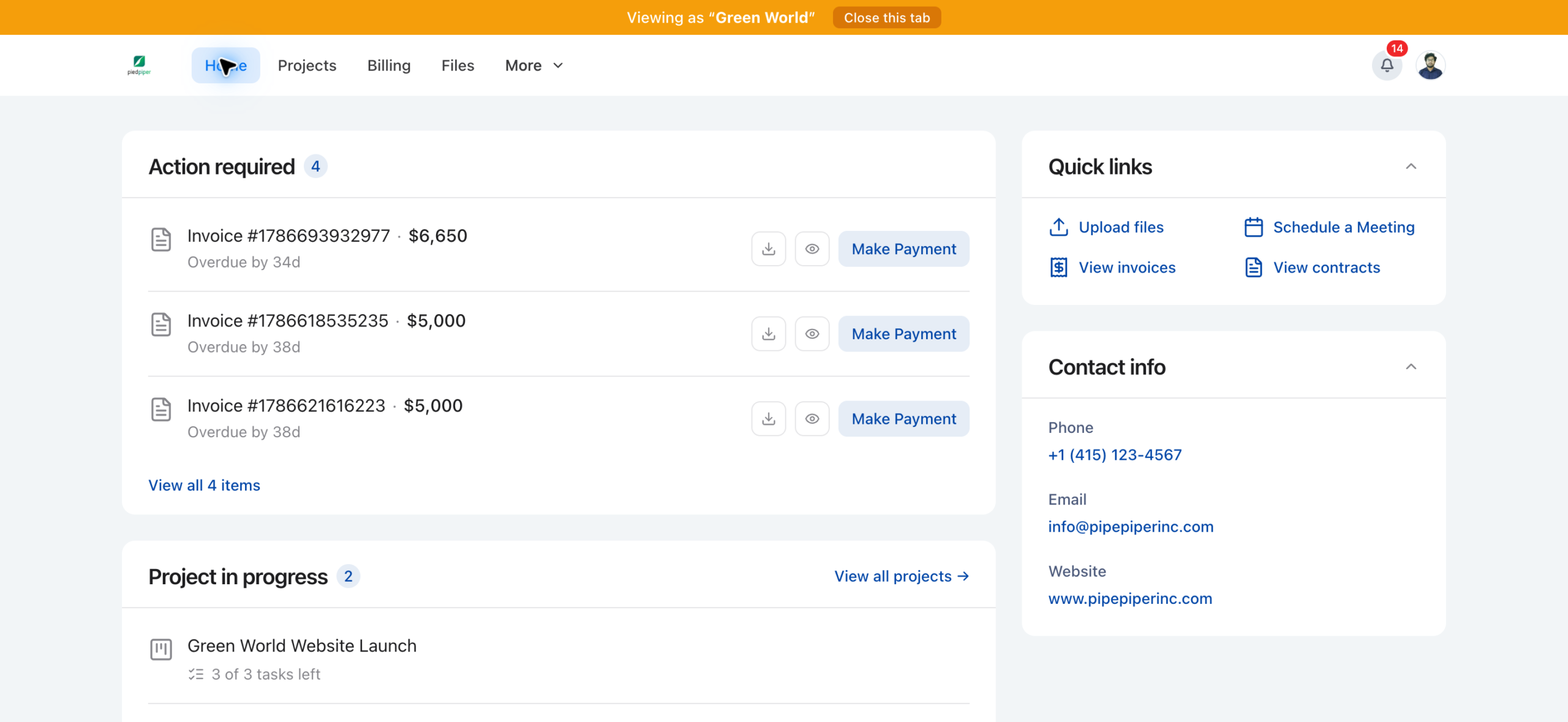
Clients get a dashboard that shows their projects, documents and invoices, and they can work on their projects with your team.
| Feature | What clients can do |
|---|---|
| Project visibility | Understand ongoing projects, their documents and invoices through the dashboard. |
| Progress tracking | Follow project progress through a visual view of completed tasks, which helps them plan and decide. |
| Project management | View assigned projects, add new tasks, track progress and collaborate with your team. |
| Document access | Review and download project documents when they need them, without emailing you. |
| Invoice management | View and download their invoices directly in the portal. |
How do clients view and sign documents?
Clients can view, download and add signatures to the documents you share with them in the portal.
How do clients access their invoices?
Clients can view every invoice created for them in the Client Portal and download it for their records.
- Invoice access: clients see all invoices generated for them directly in the portal, so they don’t search through emails or wait for physical copies.
- Downloadable records: clients can download invoices in various formats for record-keeping or sharing, so they always have a copy for their accounting.
Not using OneSuite yet? Start your free trial →
FAQs
How do I invite a client to the OneSuite Client Portal?
Go to Clients, create the client or open one you’ve already added, and invite them. OneSuite sends the invitation by email.
What happens when a client accepts the portal invitation?
Accepting the invitation from their email takes the client to their personalized dashboard in the Client Portal.
Can clients add tasks in the Client Portal?
Yes, clients can view assigned projects, add new tasks, track progress and collaborate with your team.
Can clients sign documents in the portal?
Yes, clients can view, download and add signatures to the documents you share with them.
Can clients download their invoices?
Yes, clients can view and download their invoices directly in the portal, in various formats, for their records.
Can I just email clients their files and invoices instead?
You can, but they’ll end up searching through threads to find them. The portal keeps projects, documents and invoices in one place that clients can open at any time.
What to do next
Add your first clients: Set up the records you’ll invite with Adding Clients.
Tailor the portal: Choose what clients see and add your own links with Client Portal Customization.
Share documents for signing: Send contracts to clients with Sending Documents to Parties to Sign.