
The CRM Customize drawer controls which CRM tabs your business sees, the order they appear in, and the Industry, Source and Tag lists your team picks from when filling in records. Setting it up early keeps your CRM focused and your records consistent enough to filter.
In this guide you’ll learn how to:
- Open the CRM Customize drawer
- Turn CRM tabs on and off, and reorder them
- Add, edit and delete Industry, Source and Tag entries
- Set a default Industry or Source
Before you start
Your profile needs the client settings permission
(view-clients-settings). Without it, the
Customize icon does not appear.
How to open the Customize drawer
Click the Customize icon in the toolbar on any CRM tab.
- Click CRM in the sidebar.
- On any tab, click the Customize icon in the toolbar on the right of the tab row. Its tooltip reads Customize.
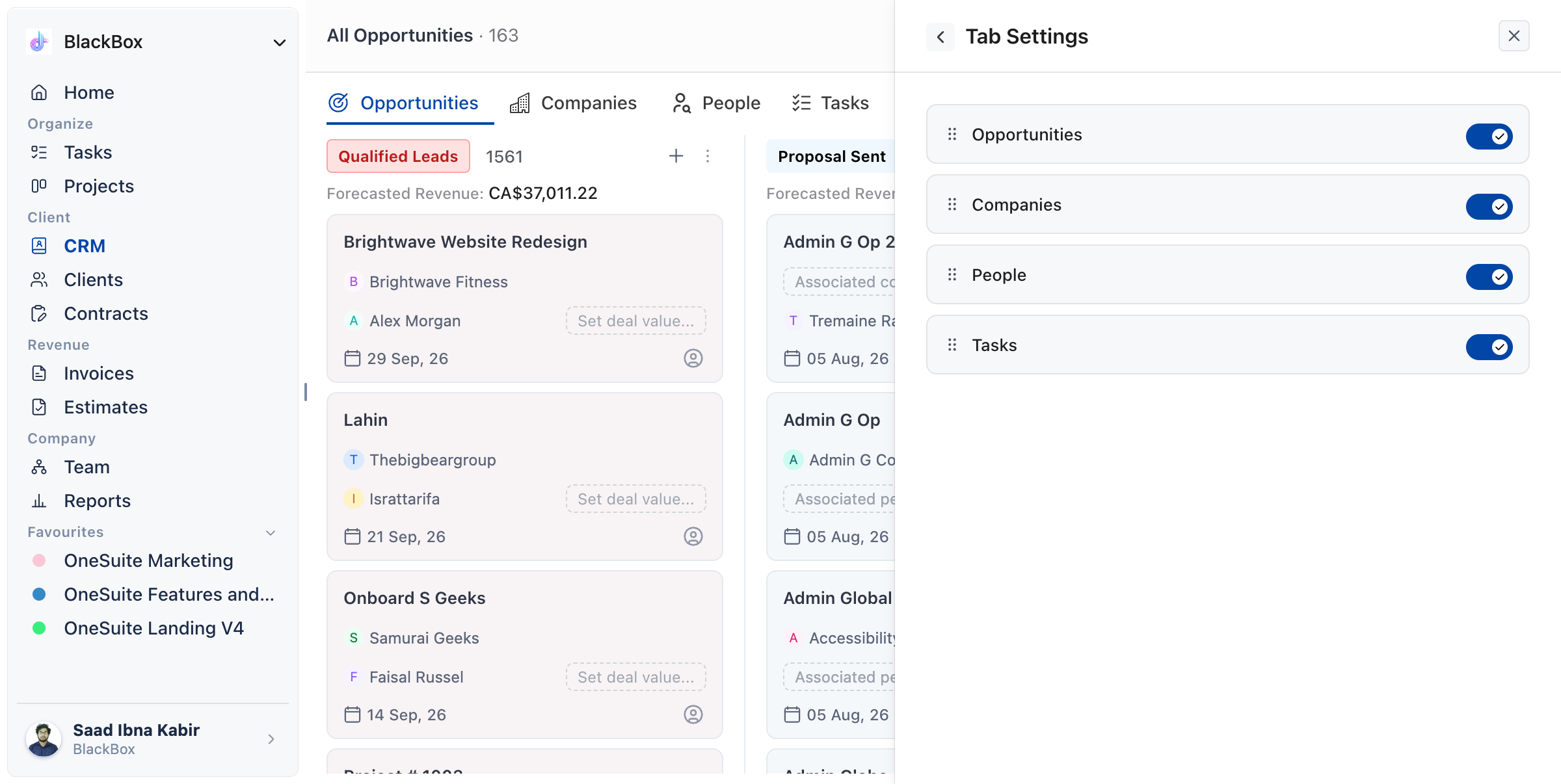
The drawer opens on a list of five sections: Tab Settings, Industry, Source, Tag and Opportunity Automation. Click a section to open it, and use the back arrow to return to the list.
How to choose which tabs your CRM shows
Use Tab Settings to switch tabs on or off and drag them into the order you want. Each change saves as soon as you make it.
- Open the Customize drawer.
- Click Tab Settings.
- Use the switch beside a tab to turn it off or back on.
- Drag a tab by its handle to change where it sits in the tab row.
| Tab | What it holds |
|---|---|
| Opportunities | Your deals, in a table or a Kanban board. |
| Companies | The organizations you work with. |
| People | Individual contacts. |
| Tasks | Your CRM tasks. |
Important: at least one tab has to stay on. If you try to switch off the last one, OneSuite shows At least one CRM tab must remain active.
Note: a tab also hides for anyone whose profile
lacks its permission, whatever your tab settings say.
Opportunities and Companies need
view-company, People needs
view-lead, and Tasks needs
view-lead-task. If no tab is left for someone, they see:
No CRM tabs are enabled. Enable at least one tab from CRM
customization to continue.
How to manage your Industry, Source and Tag lists
Each list works the same way: add entries with the Add New button, and change or remove them from the menu beside each entry.
- Open the Customize drawer.
- Click Industry, Source or Tag.
- To add an entry, click Add New Industry, Add New Source or Add New Tag. Pick a colour, type the name and click Add Industry, Add Source or Add Tag.
- To change an entry, open the menu beside it and click Edit. Change the name and click Update.
- To remove an entry, open the menu beside it and click Delete, then confirm.
Industry is the sector a company, person or opportunity belongs to. Source is where a record came from, for example a referral, your website or an outbound campaign. Tags are free labels for grouping records however your team thinks about them.
Keep these lists short. A dropdown with 60 entries gets filled in carelessly, which makes filtering by industry or source useless later.
How to set a default Industry or Source
You can mark one Industry and one Source as the default. Tags have no default.
- Open Industry or Source in the Customize drawer.
- Open the menu beside the entry you want.
- Click Set as default. The entry shows a Default badge.
Note: the default entry cannot be deleted. Set another entry as the default first.
Not using OneSuite yet? Start your free trial →
FAQs
Does switching off a CRM tab delete its records?
No. The switch only hides the tab. Switch it back on and the tab returns.
Why can’t I see the Customize icon?
Your profile does not have the client settings permission. Ask an admin to grant it, or to make the change for you.
Does my tab order apply to everyone?
Yes. Tab settings belong to your business, so every member sees the same tabs in the same order, minus any tab their permissions hide.
Can I add a CRM tab of my own?
No. The four tabs are fixed. You control which of them appear and in what order.
Can I just use Tags instead of Industry and Source?
You can, but you lose something. Industry and Source hold one value per record, which makes them reliable to filter on. Tags allow many per record, which suits working groups and suits clean segmentation poorly.
What to do next
Automate your deal names: Create and name opportunities automatically with How to Set Up Opportunity Automation.
Set up your pipeline: Add, rename and reorder your stages with Understanding Pipeline Stages.
Arrange your deals: Choose how the Opportunities tab looks with Customizing Your Opportunities View.