
Opportunities are specific deals you’re pursuing. Each one tracks a potential project with revenue attached, which stage it’s in, and when you expect to close it.
In this guide you’ll learn:
- When to create opportunities
- How to add opportunities
- Required and important fields
- Linking opportunities to companies and people
When to Create Opportunities
Create an opportunity when you discuss specific paid work with someone. Not “maybe someday” conversations, but actual projects being discussed with potential dollar amounts.
Create opportunities for:
- Specific projects with defined scope
- Retainer agreements being discussed
- Any work with a potential revenue amount
- Deals with realistic timelines
Don’t create opportunities for:
- General “let’s stay in touch” conversations
- Website visitors with no contact
- People who download resources but show no buying intent
How to Add an Opportunity
- Click CRM V2 in the left sidebar
- Click the Opportunities tab at the top
- Click + Add New in the top left corner
- Add the opportunity name and amount. The opportunity will be saved automatically.
- Click the name to open details and fill in additional information
Required and Important Fields
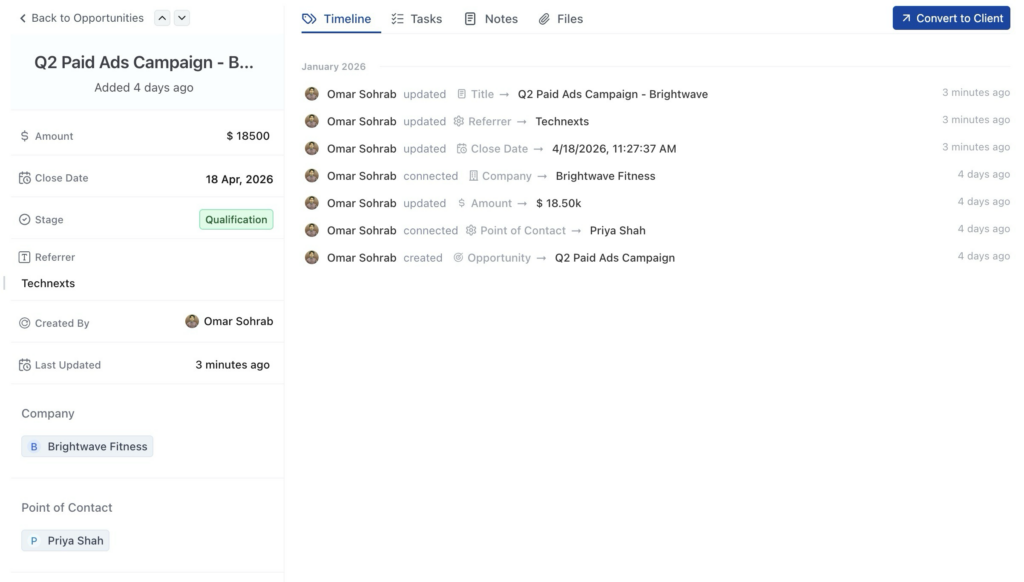
Required
Name – Clear deal name. Use format: “Project Type – Company Name”
Examples: “Website Redesign – Brightwave Fitness” or “Brand Refresh – Oak & Stone Coffee”
Important Optional Fields
Amount – The dollar value of this deal. Enter the number without currency symbols.
Close Date – When you expect to win or lose this deal. Click the calendar icon to select a date.
Stage – Where this deal is in your sales process. Default stages include:
- Contacted
- Testimonial Request
- Follow Up Needed
- Won
- Testimonial Given
Company – Search and select the company this opportunity is for. Leave blank if working with a solo freelancer.
Point of Contact – After selecting a company, choose which person at that company is your main contact. If no company, select the person directly.
Owner – The team member responsible for this opportunity. Defaults to you.
Linking Opportunities to Companies
When creating an opportunity for a business:
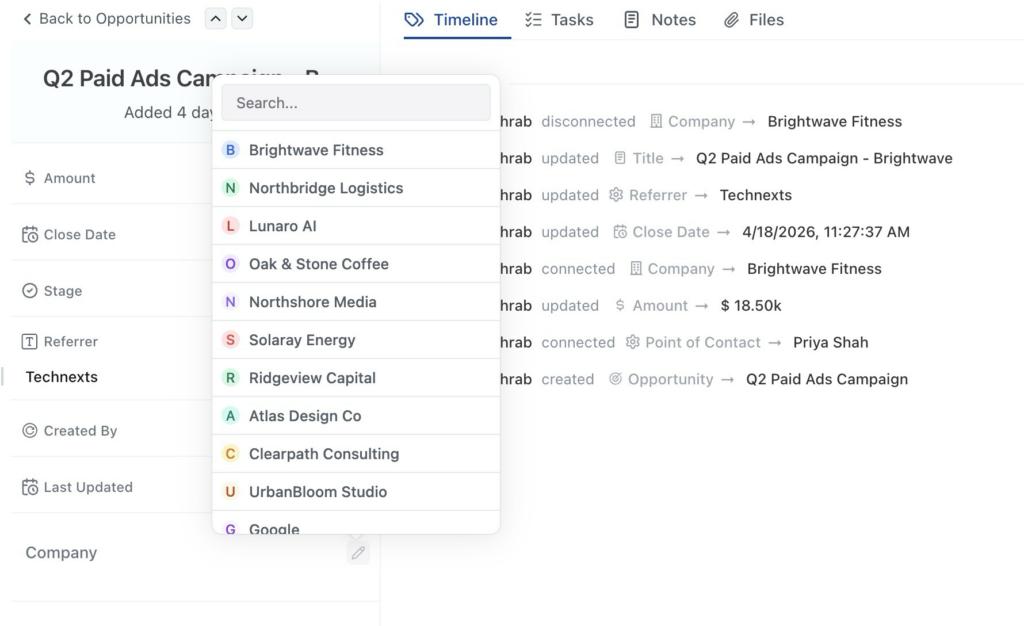
- Scroll down to find the company
- Click on the pencil icon
- Search and select the company you want to link.
- Opportunity is linked to the company.
Linking Point of Contact
When creating an opportunity for a business:
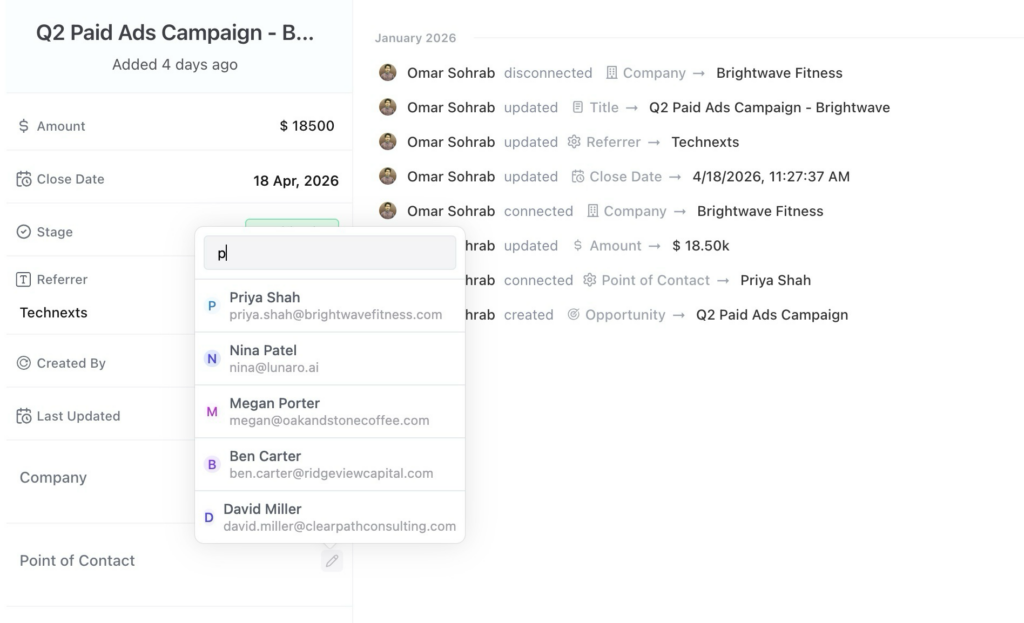
- Scroll down to find the point of contact section
- Click on the pencil icon
- Search and select the people you want to link.
- The point of contact is now added to the opportunity.
Editing Opportunity Information
To update information later:
- Click on the opportunity name to open detail view
- Click the pencil icon next to any field
- Make your changes
- Changes save automatically
FAQ
Q: Can I create an opportunity without a company?
Yes. If you’re working with a solo freelancer or consultant, leave the company field blank and select the person as point of contact.
Q: What if I don’t know the exact amount yet?
Enter your best estimate. You can update it later as you learn more about the project scope.
Q: Do I need to set a close date?
Not required, but highly recommended. It helps you track timelines and forecast when deals will close.
Q: Can I change the point of contact later?
Yes. Open the opportunity detail view, click the pencil icon next to point of contact, and select a different person.
Q: What if the person I want as point of contact doesn’t appear in the dropdown?
They need to be linked to the company first. Go add them as a person at that company, then come back and select them.
Q: Can one company have multiple opportunities?
Yes. Create separate opportunities for each deal. For example, Brightwave Fitness might have one opportunity for a website project and another for a marketing campaign.