
Once you place the signature fields in your document, you send it to the relevant parties for signing. The document can be a contract, NDA, proposal or any other agreement. You confirm the signers, customize the email if needed, and send the document for signature.
In this guide you’ll learn how to:
- Confirm the signers for each party
- Change or add signers from your contacts
- Create a new signer who isn’t in your database
- Customize the invitation email
- Review and send the document to sign
Before you start
- Place the signature fields in your document and click Send. See Creating a Document from Scratch or Uploading a PDF Document.
How to confirm the signers
If you chose signers earlier, this screen shows their names and emails pre-filled for each party.
- Check that each signer’s name and email are correct.
- If everything looks right, move on and send the document.
How to change or add signers from your list
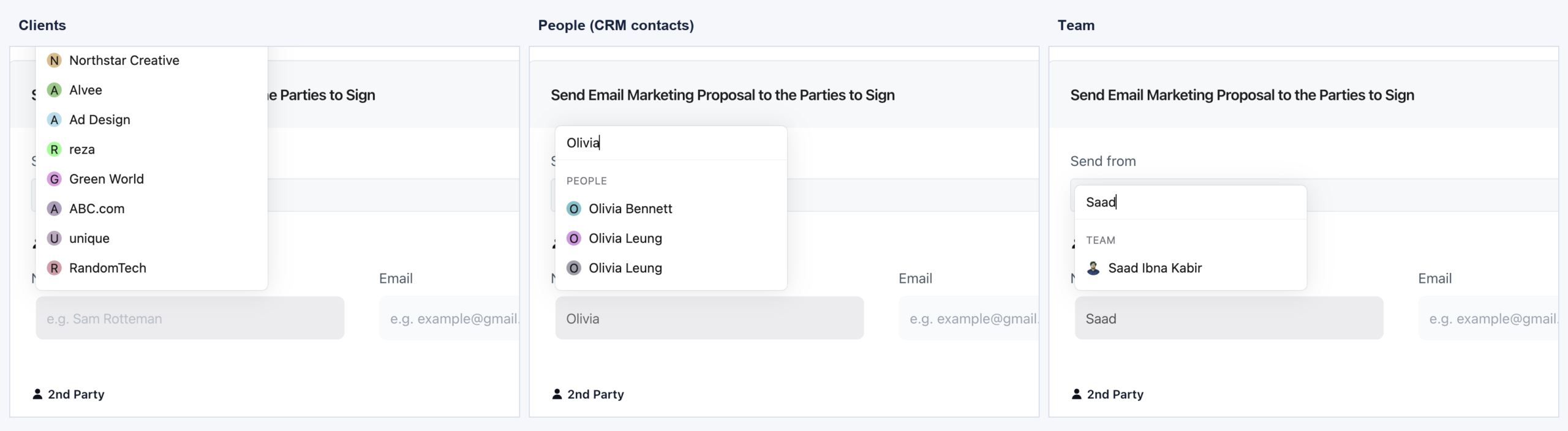
To add or replace a signer, start typing a name in the signer field and pick the person OneSuite suggests.
- Start typing a name in the signer field. OneSuite suggests people from your Clients, Leads and Team database.
- Click the correct person in the list. Their name and email fill in automatically.
How to create a new signer
If the signer is not in your database, which is very common, you add them manually.
- Enter the signer’s email address.
- Type their name in the name field.
- Click Create as new. OneSuite adds the signer to the document.
How to change the email content
You can customize the email each signer receives before you send the document.
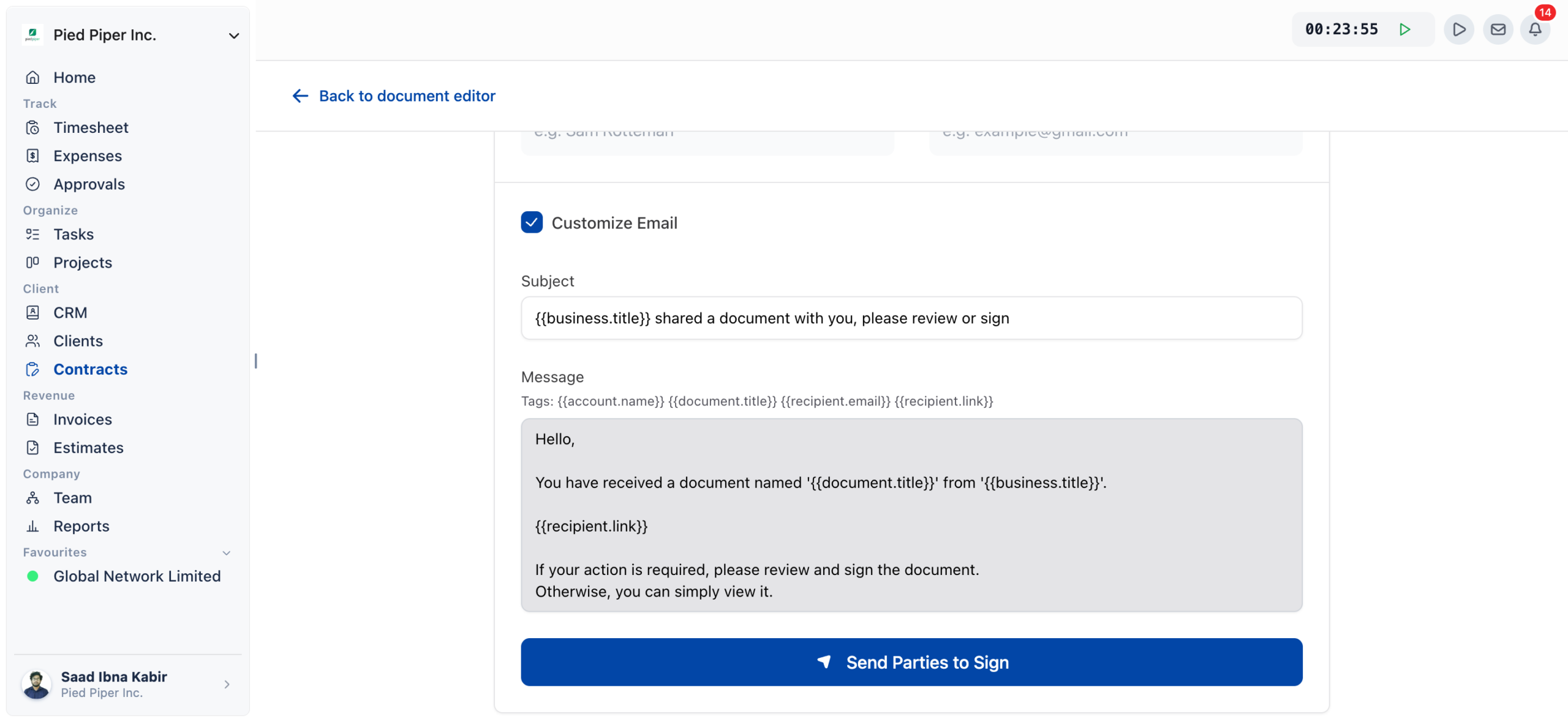
- Check the Customize Email box to edit the email subject and message.
- Personalize the subject line.
- Edit the message body. You can use dynamic tags
such as
{{account.name}},{{document.title}},{{recipient.email}}and{{recipient.link}}.
Keep the {{recipient.link}} tag in the message. It
generates the unique signing link for each recipient, and without it the
signer can’t access the document.
How to review and send the document to sign
After you confirm the signers and customize the email, do a final review and click Send Parties to Sign.
- Check that all signer names and emails are correct.
- Make sure all required fields are placed.
- Make sure the email content includes
{{recipient.link}}so signers can access the document. - Click Send Parties to Sign to deliver the document.
Each signer receives a secure email with their own signing link. No login is required.
Not using OneSuite yet? Start your free trial →
FAQs
Can I send a document without assigning it to a project?
Yes. Linking a document to a project is optional, and you can skip project selection if it isn’t relevant.
Why can’t I edit a document after sending it?
Once a document is sent for signature, it is locked and cannot be edited. To make changes, create a new version or duplicate the document.
What happens if I forget to include the signing link in the email?
The signer can’t access the document. Always include
{{recipient.link}} in the email body when you customize the
message.
How many signers can I add to a document?
You can add up to 10 signers (parties) per document.
Can I just email the document to signers myself instead?
The OneSuite invitation does the work for you. Each signer gets a
secure email with their own unique signing link from the
{{recipient.link}} tag, and no login is required to
sign.
What to do next
See what signers see: Walk through the recipient’s view in Signing a Document.
Prepare another document: Add fields to a file you already have with Uploading a PDF Document.
Know the module: Review statuses, roles and features in Contracts Overview.