
Skip to content
OneSuite Logo
  • SolutionsExpand
    • Client Portal

      Ensure transparency & gain trust

      Invoice

      Create invoices in minutes & get paid

      Project Management

      Manage tasks smartly & deliver timely

      CRM

      Nurture leads and win more clients

      Document & E-Signature

      Create & sign documents easily

      Team & Collaborators

      Work together, stay aligned

      Email Inbox

      Manage client emails in one place

      Time Tracking

      Track hours and boost productivity

      Productized Service

      Package and sell services easily

  • Use CasesExpand
    • Marketing Agency

      Manage campaigns, clients, and billing in one place so you can focus on delivering results.

      SEO Agency

      Track projects, share reports, and invoice clients without juggling five different tools.

      Video Editing

      Streamline approvals, revisions, and payments so you spend more time in the timeline.

      Local SEO

      Organize multi-location clients, automate invoicing, and keep every project on track.

      Photography

      From booking to final delivery, manage your entire client workflow in a single dashboard.

      Event Management

      Coordinate timelines, vendors, and client communications without anything slipping through the cracks.

      Creative Agency

      One workspace for briefs, feedback, and billing so your creative energy stays on the work.

      Consulting

      Proposals, project tracking, and invoicing unified so you look as professional as your advice.

      IT Services

      Manage tickets, retainers, and client portals without duct-taping a dozen SaaS tools together.

  • ResourcesExpand
    • Documentation

      Read guides and help docs

      Affiliate

      Partner and earn together

      Integrations

      Connect tools effortlessly

      Roadmap

      See what’s coming next

      Changelog

      Stay updated with the latest

      Support

      Get help whenever you need it

      Compare

      See how OneSuite stacks up

      Case Study

      Real results, real teams

      FAQ

      Find answers to common questions

  • Pricing
  • For Agency

Start free trial

Help Center

  • Documentation
  • Public Roadmap
  • Book a demo
  • Get Support
OneSuite Logo
intro to onesuite

OneSuite 101

6
  • Introduction
  • Understanding OneSuite’s Structure
  • How Solutions Work Together
  • Navigating OneSuite
  • All OneSuite Capabilities
  • OneSuite Glossary
quick start guide

Quick Start Guide

7
  • Setting Up Your Business
  • Adding Your Payment Methods
  • Inviting Team Members
  • Adding Your First Leads
  • Adding Your First Client
  • Giving Your Client Portal Access
  • Sending Your First Proposal

CRM

7
  • Customizing Your Opportunities View
  • CRM Overview
  • Adding People
  • Adding Companies
  • Creating Opportunity
  • How Opportunities, Companies, and People Work Together
  • Understanding Pipeline Stages
client

Client Management in OneSuite

7
  • Adding Clients
  • Client Profiles
  • Client Portal Customization 
  • Understanding the Clients Solution
  • Imports, Exports, and Search
  • The OneSuite Client Portal
  • Video Documentation : Client Management
pm

Manage your Projects Effortlessly

7
  • Subtask Behavior & Movement Management
  • Laying the Groundwork: Project Creation in OneSuite
  • Managing Project Boards in OneSuite
  • Adding Tasks to Boards in OneSuite
  • Lifesaver:Templates in OneSuite
  • Custom Categories, Tags, and Labels in Projects
  • Video Documentation : Project Management

Documents

5
  • Overview
  • Creating a Document from Scratch
  • Uploading a PDF Document
  • Sending Documents to Parties to Sign
  • Signing a Document
team

OneSuite's Team Management

4
  • Inviting Collaborators in OneSuite
  • Creating Personalized Departments in OneSuite
  • Managing Team Members in OneSuite
  • Video Documentation : Team Collaboration
Invoices & Payments

Invoices & Payments

7
  • Access & Navigation
  • Invoice Settings & Customization
  • Create One-time Invoices
  • Creating Recurring Invoices
  • How to set taxes on your invoices
  • How to Add Direct Bank Transfer Instructions to Your Invoices
  • How to Customize Invoice Email Messages

Time Tracking & Timesheets

4
  • Invoice Generation from Billable Hours
  • Timesheet Management & Approval
  • Time Tracking in OneSuite
  • Time Tracking & Timesheets 

Email Inbox in OneSuite

5
  • Gmail and Outlook integration
  • How to Integrate Microsoft Outlook in OneSuite 
  • How to Use Email Templates in OneSuite 
  • How to Integrate Gmail in OneSuite 
  • How to Send and Receive Email in OneSuite 

Calendar View

1
  • Calendar View

Dashboard

7
  • Overview 
  • How to Customize Your Dashboard
  • Client Portal Dashboard 
  • Monitor Documents, Contracts & Marketing Lead Sources
  • CRM, Client & Pipeline Widgets — OneSuite Dashboard Guide
  • Track Tasks, Deadlines & Project Activity in OneSuite
  • Track Revenue Trends, Forecasts & Top Projects in OneSuite
View Categories
  • Home
  • Docs
  • Documents
  • Creating a Document from Scratch

Creating a Document from Scratch

OneSuite includes a Notion-like rich text editor that makes writing and formatting documents simple and intuitive. You can create contracts, proposals, NDAs, or any custom document directly within your workspace—then send it for signatures in just a few steps.

Start a New Document #

Starting a document in OneSuite is simple and familiar, especially if you’ve used editors like Notion.

  1. Go to the Documents module: From the left sidebar, click Document V2 to access your Document Home.
  2. Click “Start from blank”: This opens the OneSuite document editor where you can begin writing.
  3. Enter a document title: At the top, give your document a name (e.g., “Freelance Agreement”).
  4. Select a document type: Use the dropdown next to the title to choose the appropriate type (Proposal, NDA, Contract, etc.). (You can manage these options via the “Customize” button on the main dashboard.)
  5. Link to a project (optional): Use the Project selector in the top-right to associate this document with a client project.
  6. Select recipients (optional): As you add parties, you can select existing contacts from your OneSuite Clients, Leads, or Team database.
    Don’t see the person? Click Create new to manually add them.
  7. Start writing your document: Now start writing your document.
    • Type freely using the editor
    • Press / to insert content blocks (headings, lists, tables, etc.)
    • Use the formatting toolbar to style your content

Insert Blocks with “/” Command #

In OneSuite’s editor, typing / opens a quick-insert menu that lets you add content blocks without using the toolbar. This is especially useful for building documents faster with consistent formatting.
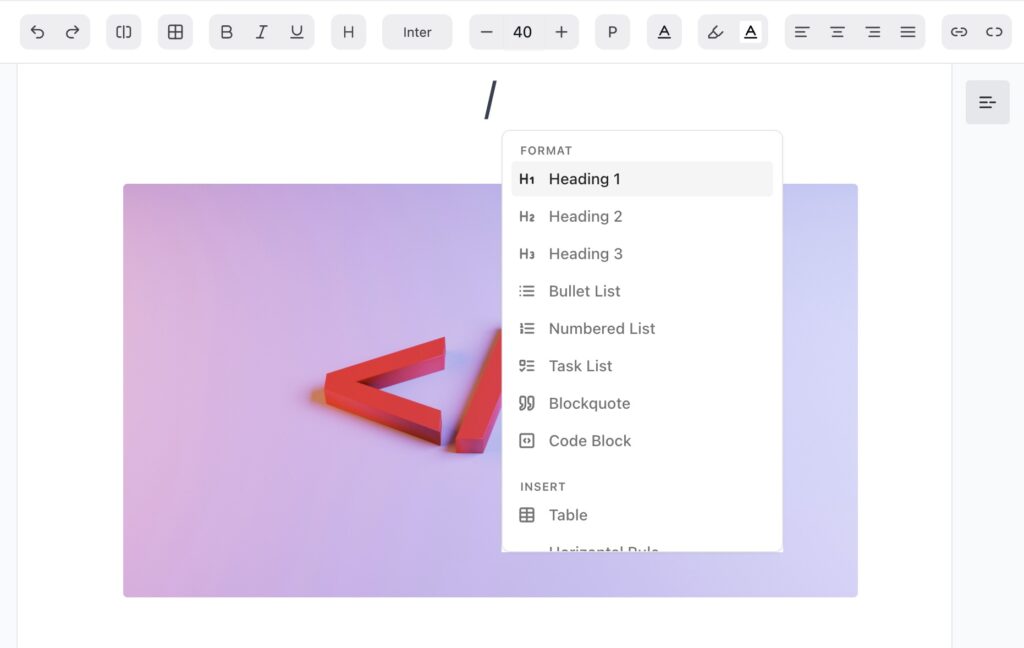
Insert Block with backslash

Available Blocks

✓ Heading 1 — Large section titles
✓ Heading 2 — Subheadings for structure
✓ Heading 3 — Smaller sub-sections
✓ Bullet List — For general item lists
✓ Numbered List — For ordered steps
✓ Task List — Interactive checkboxes (to-dos or approval items)
✓ Blockquote — For highlighting text or key statements
✓ Code Block — Display formatted code or technical notes
✓ Table — Add simple structured tables
✓ Horizontal Rule — Divider line between sections

Formatting Options #

The OneSuite editor includes all the essential formatting tools you need to make your documents look clean, professional, and easy to read.

Text Styles

Use the toolbar at the top of the editor to apply standard text formatting:

✓ Headings: Heading 1, Heading 2, Heading 3
✓ Text styles: Bold, Italic, Underline, Strikethrough
✓ Alignment: Align text to Left, Center, or Right

Lists

Add different types of lists to structure your content:

✓ Bullet List: For grouped items
✓ Numbered List: For steps or sequences
✓ Task List: Checkbox-style list, ideal for to-dos or action points

Quotes and Dividers

✓ Blockquote: Highlight important notes, statements, or quotes
✓ Horizontal Rule (Divider): Visually separate sections of your document

Links

✓ Insert Link: Highlight any text, click the link icon, and paste the URL

Add Rich Content #

You can insert additional elements to enhance your document:

Add an Image

  • Click the image icon in the toolbar.

Add a Link

  • Highlight any text and click the 🔗 icon
  • Add your link and press enter.
  • To remove a link, similarly highlight the linked text and press

Insert a Table

  • Type /table to insert a basic table
  • Use the inline menu to add/remove rows or columns

Add a Code Block

  • Type /code block for multi-line technical content
  • For inline code, use the three-dot menu

Use Advanced Block Options #

Click the three-dot menu in the toolbar to insert:

  • Divider
  • Task list
  • Superscript / Subscript
  • Strike
  • Code (inline)
  • Code block
  • Quote

Other Options #

In addition to writing and formatting your document, OneSuite provides helpful tools for version control, export, and record-keeping.

Download PDF

✓ Download your document anytime by clicking the three-dot menu (⋯) in the top-right corner of the editor.
This saves a PDF version of the current document — whether it’s a draft or signed copy.

View Audit Log

✓ Track every activity on the document using the Audit Log (also under the ⋯ menu).
You’ll see who created, edited, shared, viewed, or signed the document—helpful for compliance and internal review.
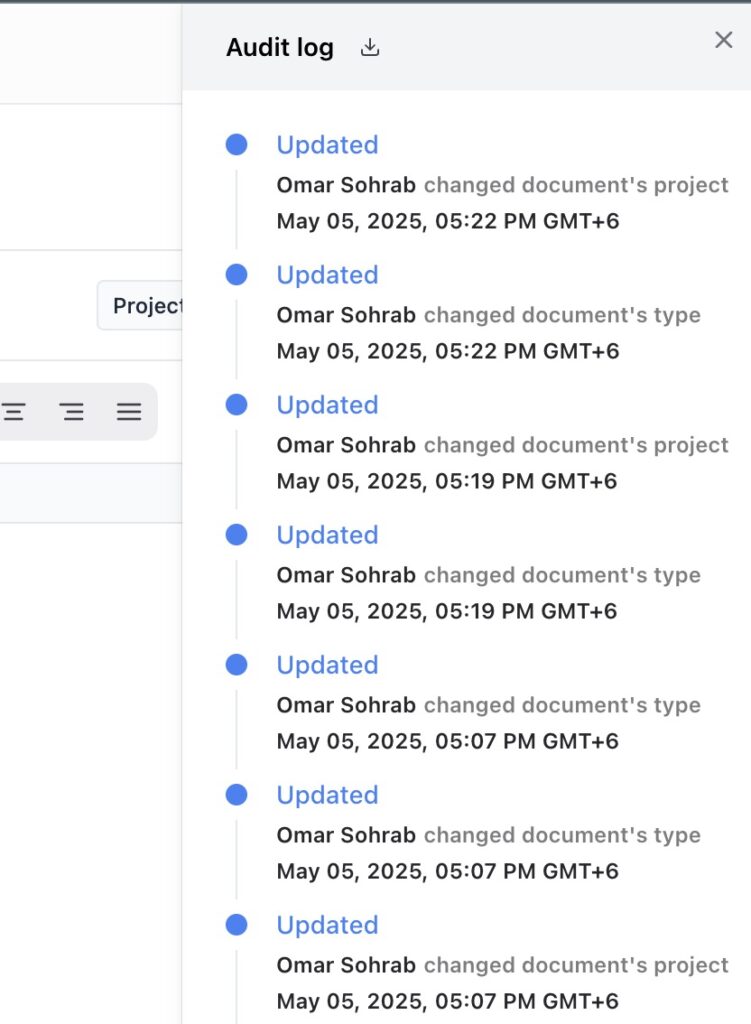
Audit Log

ur document content and field setup are complete, you can either save your work for later or move forward to add signature fields and send it.

Save as Draft

Click the “Save” button at the top-right.
This will store your document as a draft, allowing you to return to it later to continue editing, add signers, or make updates.

Share the Document

Click the “Share” button next to Save. It marks the starting point of getting your doc signed.
Clicking the “Share” button opens the signature editor, where you can add signing fields (like Signature, Date, Text, or Checkbox) for each party.
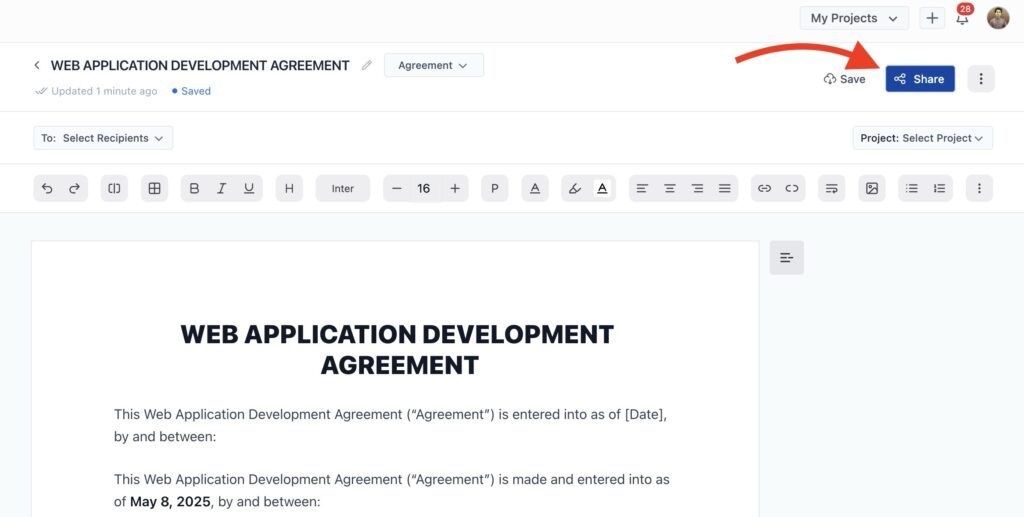
Save and share onesuite document

Adding Signer Fields #

After clicking Share, you’ll be taken to the signature field editor. This is where you define where each signer should add their input.

Go to the left side of the screen and choose the field you want to add.
Available fields include:
– Signature
– Date
– Text
– Checkbox
– Initials

Drag and drop the selected field onto the correct location in the document.
Each field is color-coded by party, so you can easily see which signer is responsible for which section.
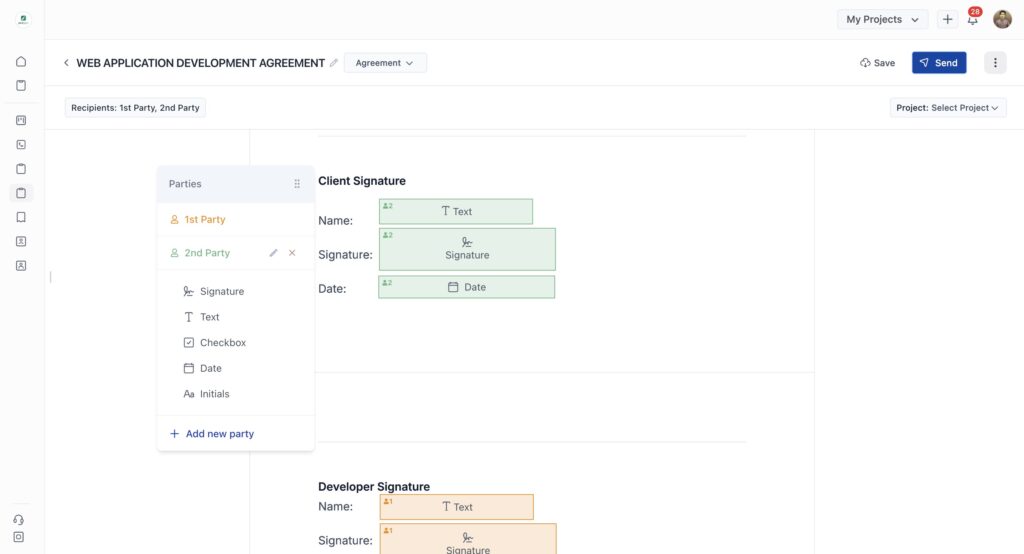
Adding signature fields of onesuite

Send for Signature #

After adding all field placements, click “Save” and then“Send” to move to the signer selection.
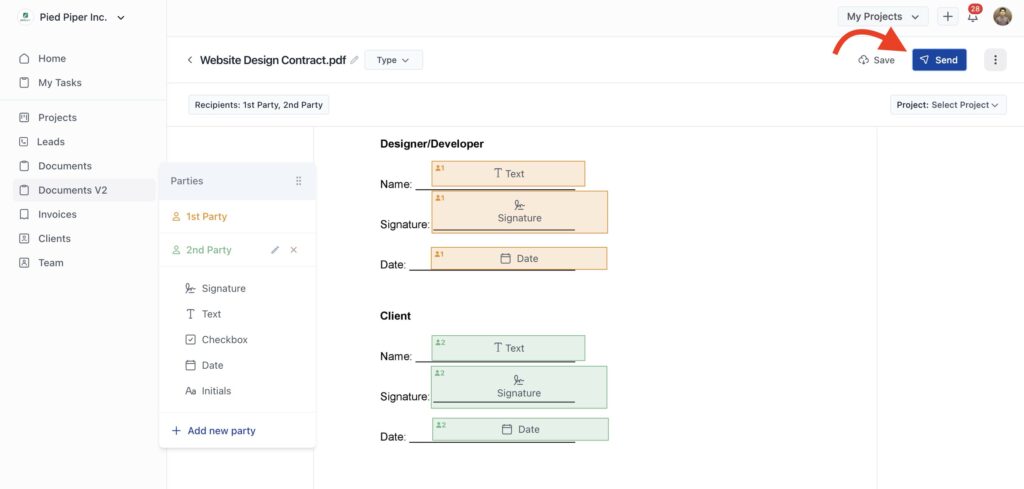
Save and send document to signers

After clicking Send, you’ll be taken to the signer confirmation and email customization screen. From here, the sending document step starts.

👉 Next Step: Sending Documents to Parties to Sign →

Frequently Asked Questions #

Yes, you can. You can copy and paste content from Docs, Word, or PDFs directly into the OneSuite editor. However, some formatting (like font sizes or spacing) may not match exactly. We recommend reviewing and adjusting the formatting using the editor toolbar for the best results.

No, linking to a project or client is optional. You can create standalone documents if you prefer. But linking helps keep everything organized and accessible for both you and your clients.

No, linking to a project or client is optional. You can create standalone documents if you prefer. But linking helps keep everything organized and accessible for both you and your clients.

After clicking Share, you’ll be taken to the signer field placement screen. From there, drag and drop fields like Signature, Date, Text, or Checkbox onto the document wherever needed.

Yes. The Audit Log (accessible from the three-dot menu) shows a complete history of document activity—who created, edited, shared, signed, or viewed the file.

Updated on May 8, 2025

Did this article answer your question?

  • Happy
  • Sad
OverviewUploading a PDF Document

Leave a Reply Cancel reply

Your email address will not be published. Required fields are marked *

This site uses Akismet to reduce spam. Learn how your comment data is processed.

Table of Contents
  • Start a New Document
  • Insert Blocks with "/" Command
  • Formatting Options
  • Add Rich Content
  • Use Advanced Block Options
  • Other Options
  • Adding Signer Fields
  • Send for Signature
  • Frequently Asked Questions
OneSuite Logo

Streamline your agency's workflow while you focus on growth—manage clients, projects, teams, proposals, contracts, and invoices effortlessly with OneSuite!

product hunt

Follow Us On

  • Facebook
  • X
  • Instagram
  • LinkedIn

Join Our Community

  • Facebook
  • WhatsApp

Features

Projects

Lead Pipeline

Documents

Invoices

Client Portal

Teams

Resources

Contact

Support

Docs

Blog

Branding

Become an affiliate

Agency Partner Program

Public roadmap

Book a demo

Compare

OneSuite vs. Kitchen Co

OneSuite vs. Moxie

OneSuite vs. Flowlu

OneSuite vs. Plutio

OneSuite vs. Bonsai

OneSuite vs. ClientManager

  • Terms of use
  • Privacy policy
  • Cookie policy
  • Refund policy
  • Acceptable use policy
  • Data processing terms
  • Solutions
    • Client Portal

      Ensure transparency & gain trust

      Invoice

      Create invoices in minutes & get paid

      Project Management

      Manage tasks smartly & deliver timely

      CRM

      Nurture leads and win more clients

      Document & E-Signature

      Create & sign documents easily

      Team & Collaborators

      Work together, stay aligned

      Email Inbox

      Manage client emails in one place

      Time Tracking

      Track hours and boost productivity

      Productized Service

      Package and sell services easily

  • Use Cases
    • Marketing Agency

      Manage campaigns, clients, and billing in one place so you can focus on delivering results.

      SEO Agency

      Track projects, share reports, and invoice clients without juggling five different tools.

      Video Editing

      Streamline approvals, revisions, and payments so you spend more time in the timeline.

      Local SEO

      Organize multi-location clients, automate invoicing, and keep every project on track.

      Photography

      From booking to final delivery, manage your entire client workflow in a single dashboard.

      Event Management

      Coordinate timelines, vendors, and client communications without anything slipping through the cracks.

      Creative Agency

      One workspace for briefs, feedback, and billing so your creative energy stays on the work.

      Consulting

      Proposals, project tracking, and invoicing unified so you look as professional as your advice.

      IT Services

      Manage tickets, retainers, and client portals without duct-taping a dozen SaaS tools together.

  • Resources
    • Documentation

      Read guides and help docs

      Affiliate

      Partner and earn together

      Integrations

      Connect tools effortlessly

      Roadmap

      See what’s coming next

      Changelog

      Stay updated with the latest

      Support

      Get help whenever you need it

      Compare

      See how OneSuite stacks up

      Case Study

      Real results, real teams

      FAQ

      Find answers to common questions

  • Pricing
  • For Agency
  • Documentation
  • Public Roadmap
  • Book a demo
  • Get Support