This guide covers the Harvest to OneSuite migration: the two methods, what gets imported, and what to check afterward.
- Connect to Harvest: Connect your Harvest account. You do not export, upload, or match files.
- Upload files: Upload files you exported from Harvest earlier.
Use Connect to Harvest if you have a Harvest Administrator account. Otherwise, use Upload files.
Before You Begin
- Connect to Harvest needs a Harvest Administrator account. OneSuite refuses other roles before it reads any data.
- Harvest connects the account you are signed in to. To use a different account, sign out of Harvest first.
- Plan time to review. OneSuite rebuilds some information instead of copying it.
Choose Your Migration Method
| Connect to Harvest | Upload files | |
|---|---|---|
| Harvest access | Administrator account | No connection needed |
| Files to export | None | Files exported from Harvest |
| Data covered | 11 record types | A different set of records |
| Review | Check your settings, then click Start the migration | OneSuite checks your files, then you review and confirm before anything is saved |
| Best for | Harvest Administrators | Customers who already have exported files |
Method 1: Connect Your Harvest Account
Follow these steps to connect Harvest to OneSuite.
Step 1: Open Migration Settings
- Log in to OneSuite.
- Click your name in the bottom-left corner.
- Open Settings, then select Migrations.
The page is titled Import from Harvest. It has two tabs: Connect to Harvest and Upload files.
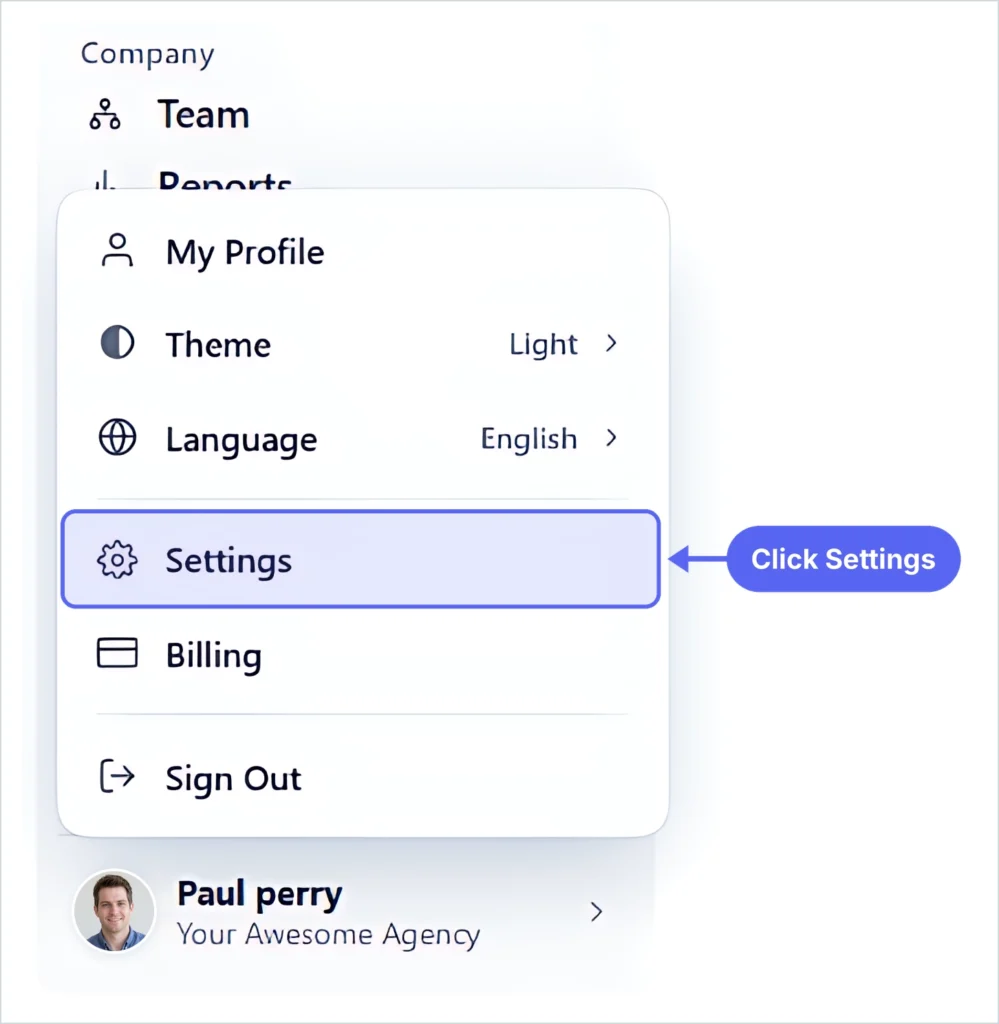
Alt text: OneSuite user menu with My Profile, Theme, Language, Settings, Billing, Get Support, and Sign Out.
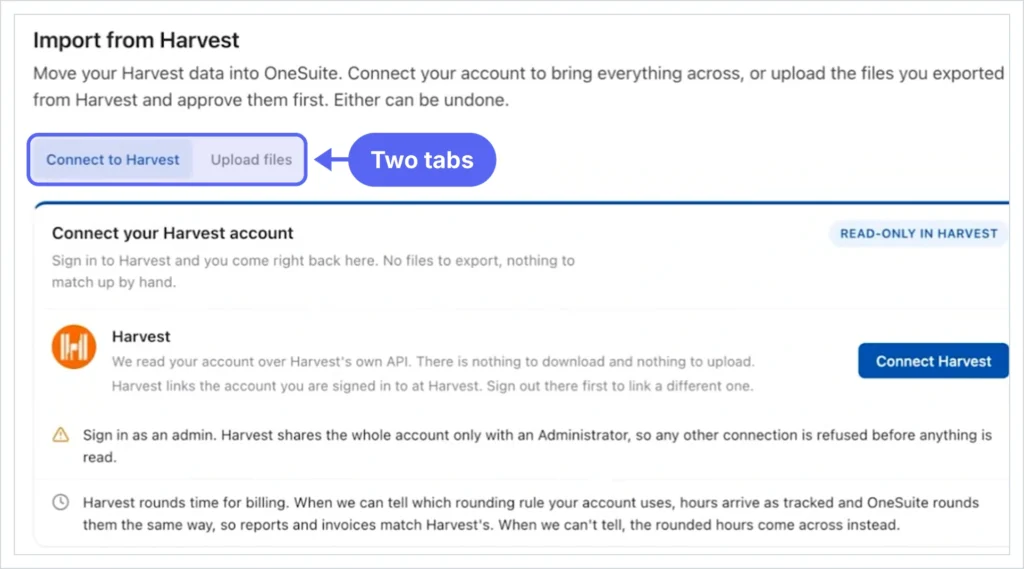
Alt text: OneSuite Migrations settings page titled Import from Harvest, with the Connect to Harvest and Upload files tabs and a Connect Harvest button.
Step 2: Connect Your Harvest Account
- Sign in to Harvest with the Administrator account you want to connect.
- In OneSuite, select Connect Harvest.
- Review Harvest’s authorization screen, then select Authorize application.
You return to OneSuite, where your connected Harvest account appears.
Note: Harvest displays the authorization screen. It may show an Unverified app warning. Read the screen carefully. If you have questions about the access it lists, contact OneSuite through the support chat before you select Authorize application.

Alt text: Connect Harvest button on the OneSuite Import from Harvest page.
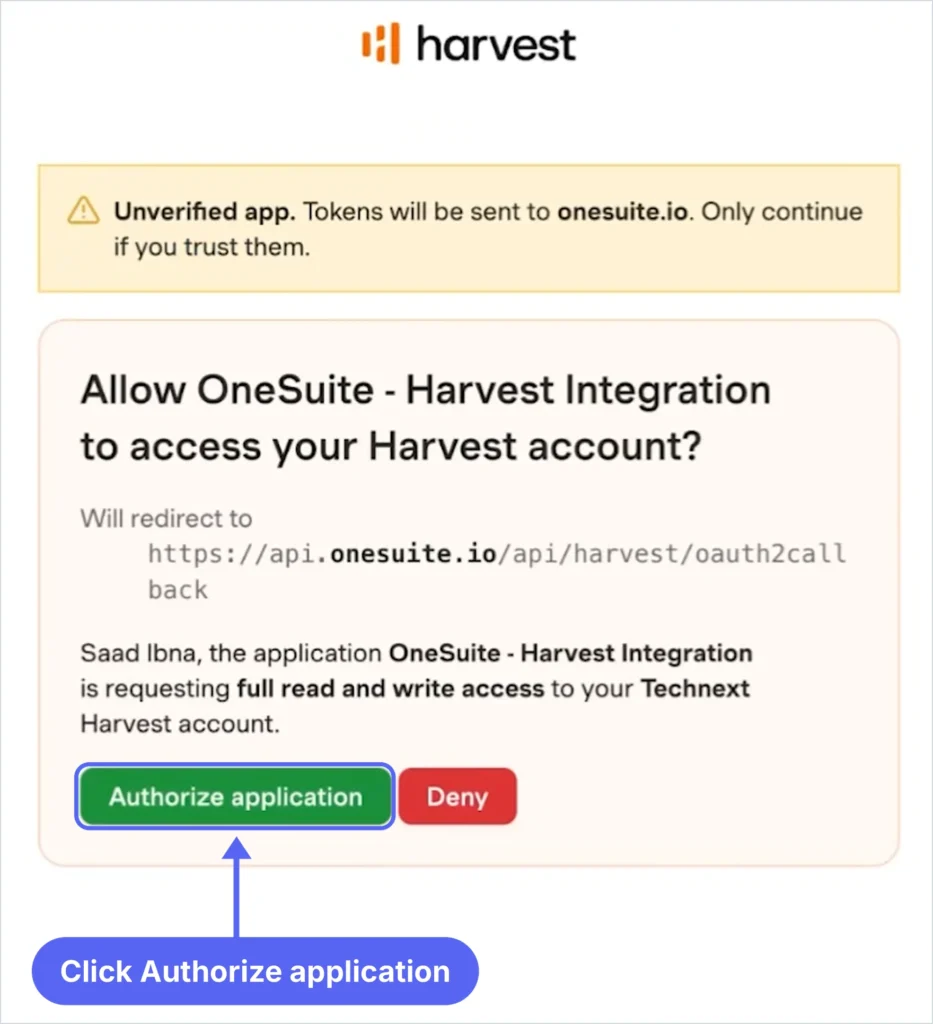
Alt text: Harvest authorization screen for connecting OneSuite, with an Authorize application button.
Step 3: Choose Your Migration Settings
Nothing is imported until you click Start the migration.
How far back
- Everything in your Harvest account: Imports supported records from your earliest time entry, expense, estimate, or invoice to your latest, including future-dated records. OneSuite sets these dates when the migration starts.
- Only between two dates: Imports the date range you select. The range may not apply to every record type in the same way.
What to bring
Select the record types you want. Connect to Harvest supports 11. See What Data Can You Import from Harvest?
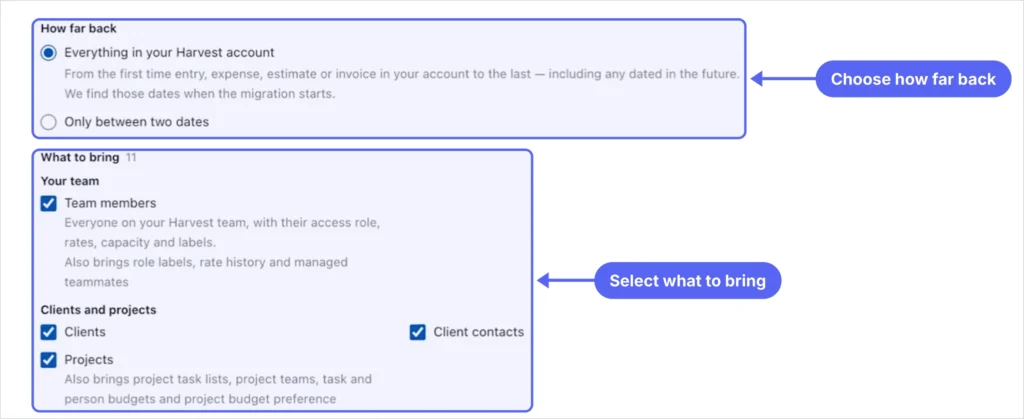
Alt text: Harvest migration settings in OneSuite showing date range options and selectable record types.
Bring archived clients, projects, tasks and people too
Archived records arrive archived, not active, and keep their history. Nobody is contacted or invited. An archived person arrives as an unclaimed team member and uses no seat until you invite them.
Important: Keep this option selected to preserve historical work tied to archived records. If you leave it unchecked, that work may be left behind. Hours and expenses must belong to someone on your team. If an archived colleague is not already in OneSuite under the same name, their tracked records are counted under Left behind in the migration report and are not imported.
Keep each invoice’s original Harvest PDF
This option is off by default. When you turn it on and the download succeeds, OneSuite attaches the PDF to the imported invoice as Harvest original.pdf. The migration can take longer because OneSuite requests one file per invoice.
Harvest does not publish this download capability, so it may refuse. The invoice is still imported, and the migration report notes the issue. No one is contacted.
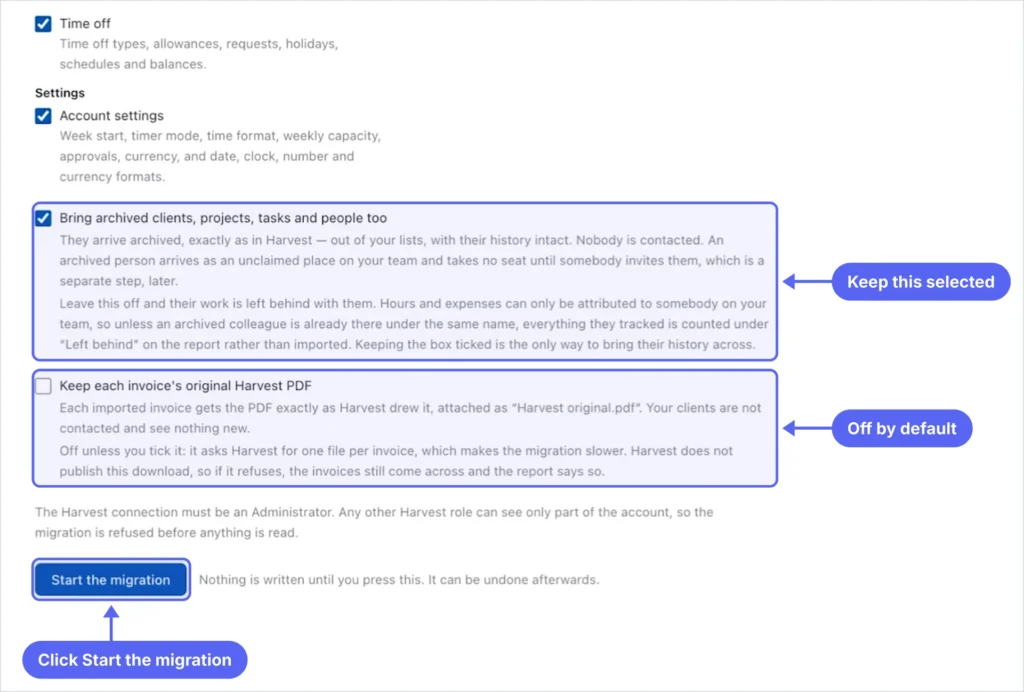
Alt text: OneSuite migration settings showing the option to bring archived clients, projects, tasks and people, the option to keep each invoice’s original Harvest PDF, and the Start the migration button.
Step 4: Start the Migration
- Review your settings.
- Click Start the migration.
OneSuite shows live progress and each processing stage under The plan. If an issue occurs, it shows the reason.
- You can close the page. The migration runs on OneSuite’s side, not in your browser. Return to the migration page to check progress.
- Stop: A Stop button is available. It is not an undo.
- Timing: It depends on how much data you have. The tutorial video mentions a migration of 13 years of Harvest data. That is an example, not a limit or a time estimate.
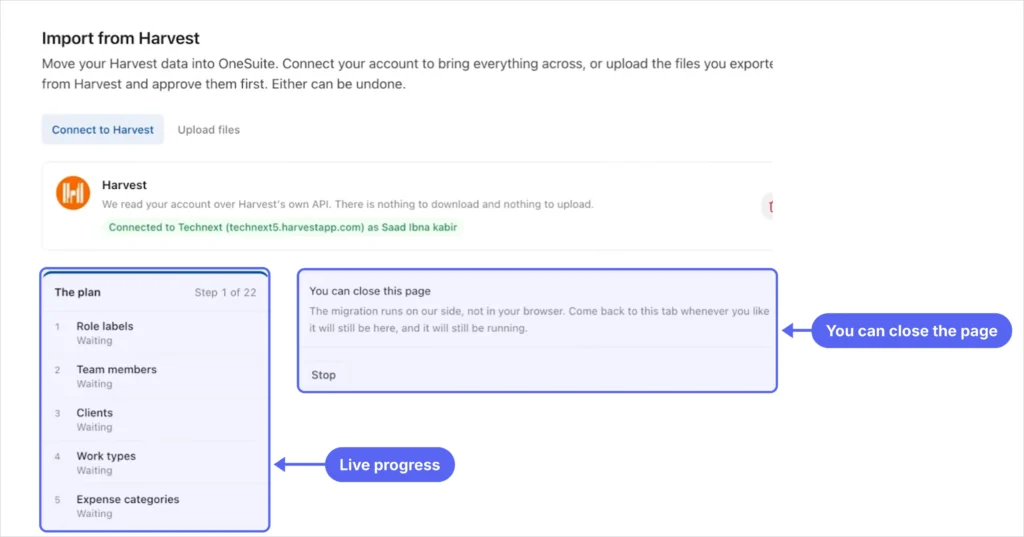
Alt text: OneSuite migration progress page showing the plan with a list of processing stages, a note that the migration continues in the background, and a Stop button.
Step 5: Review Your Migration
Read the migration report and check what is counted under Left behind. Then compare key records with Harvest and work through What to Do After Migration.

Alt text: Earlier migrations list on the OneSuite Import from Harvest page, showing a completed migration with its date and range.
Method 2: Upload Harvest CSV Files
Use Upload files if you exported your Harvest data earlier and do not want to connect your account. The tutorial video covers CSV files.
- In OneSuite, click your name in the bottom-left corner, open Settings, and select Migrations.
- Select the Upload files tab, then click Import from Harvest.
- Upload one or more exported Harvest files.
- OneSuite checks your files, works out what it can import, and sets the processing order for you.
- If OneSuite asks about information missing from your files, answer the questions.
- Review your data, then confirm. Nothing is saved before you confirm.
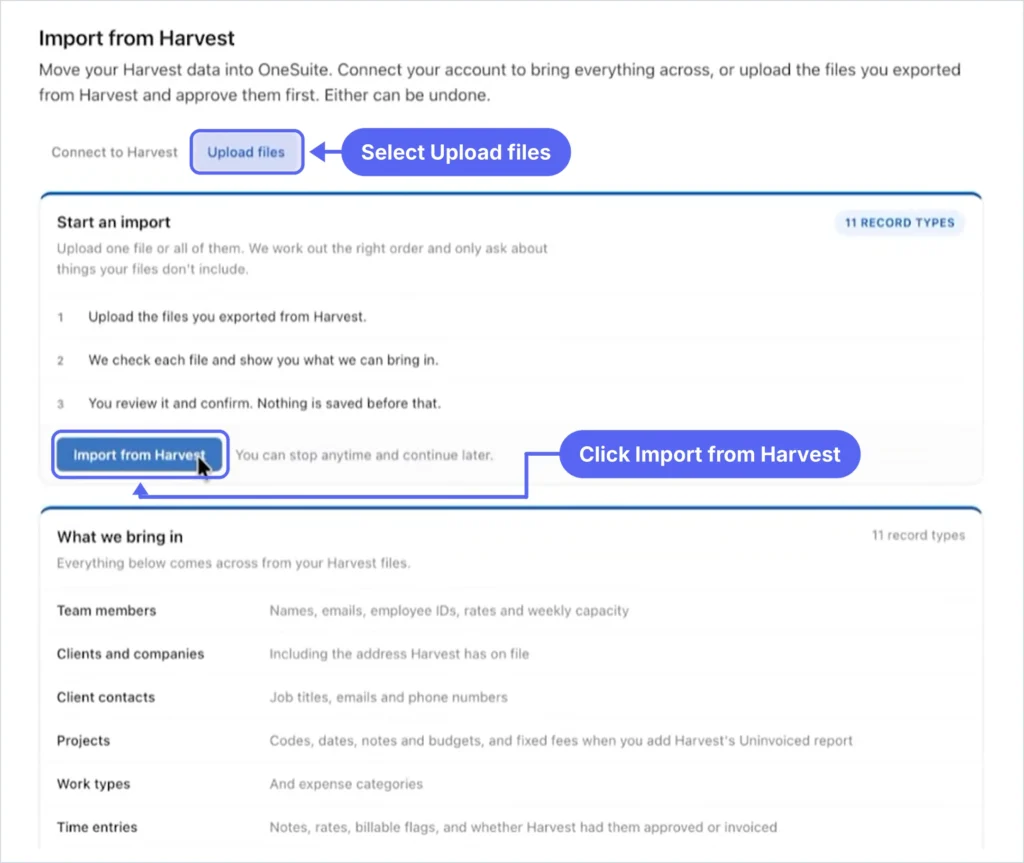
Alt text: OneSuite Migrations page with the Upload files tab selected and an Import from Harvest button.
Note: You can stop and continue later during the file import.
What Data Can You Import from Harvest?
Connect to Harvest supports 11 record types.
| Record type | What gets imported |
|---|---|
| Team members | Names and team information, profile photos, access roles, rates and rate history, capacity, role labels, managed teammates and reporting relationships, archived status. Not invited automatically. |
| Clients | Client information, billing currency, invoice recipients, archived status. |
| Work types | Harvest tasks, default rates, archived status. Harvest tasks are called Work Types in OneSuite, such as Design, Development, and Marketing. |
| Account settings | Week start (any day), timer mode, time format, default or weekly capacity, approval settings, and date, clock, number, and currency formats. |
| Client contacts | Names, job titles, email addresses, phone numbers. |
| Projects | Project information, task lists, teams, task and person budgets, budget preferences. |
| Estimates | Line items, item types, taxes, discounts, status, sent dates, notes, creator information, send history. |
| Time entries | Notes, rates, start and end times, running timers, submission, approval, and invoiced status, billing information, time rounding. |
| Expenses | Categories, category unit names and prices, amounts, units, billable status, expense state and billing information, receipt images. |
| Invoices | Lines, taxes, discounts, payments, send history, reminder history, billed hours and expenses. Retainer balances are rebuilt from invoice information. |
| Time off | Types, allowances, requests, approval status, holiday calendars, work schedules, and each person’s balance as Harvest last calculated it. |
Important: Time rounding. Harvest rounds time for billing. If OneSuite can identify Harvest’s rounding rule, it imports entries as tracked and applies the same rule, so reports and invoices can match Harvest. If it cannot, it imports the rounded hours. Compare a few reports and invoices with Harvest.
Note: File upload. Upload files supports a different set of records. It covers team members (names, emails, employee IDs, rates, weekly capacity), clients and companies (including the address Harvest has on file), and client contacts (job titles, email addresses, phone numbers). Do not assume other record types are available. For all 11, use Connect to Harvest.
Migration Limitations
Some Harvest information is rebuilt, not shared, or not yet supported. Review these after you migrate.
Rebuilt
OneSuite reconstructs these from the Harvest data available to it.
- Invoice details. Draft invoices arrive saved, not sent. Tax names use OneSuite’s defaults, and whether a second tax is compounded is calculated from available figures. Automatic reminders are disabled. Check: drafts, tax names, and totals before you send anything.
- Recurring schedules. Harvest does not share schedule settings. OneSuite rebuilds them from the dates of earlier invoices. They arrive paused. Check: each schedule against Harvest, then resume it.
- Lock date. Rebuilt from entries Harvest has locked. An existing OneSuite lock date is kept. Check: that it matches Harvest.
- Budgets. Monthly hours-based and fee-based budgets keep resetting each month. The account-wide setting to count only billable hours toward total-hours budgets is rebuilt from Harvest’s budget report. Check: a few budgets against Harvest.
- Account currency. Harvest does not share it. If your OneSuite business has no currency yet, OneSuite rebuilds it from the currencies you bill clients in. Check: that it is correct.
Not shared
Harvest does not make these available through its connection.
- Invoice appearance. Invoice design, numbering sequence, and reminder cadences are not transferred. Email wording, default payment terms, and taxes fill in OneSuite’s Configure settings only where those are empty. Check: set up design, numbering, and reminders before you send new invoices.
- PDFs and public links. Harvest invoice, estimate, and client statement links still point to Harvest. Each imported document gets a new OneSuite link. Check: use the new links. Old ones may not work after you close your Harvest account.
- Invoice and estimate attachments. Harvest does not share them through its API. They are separate from the optional original invoice PDF. Check: download what you need from Harvest.
- Who approved and when. Approval statuses transfer, but not the approver or the date. Entries show neither.
- Dated project rates. Harvest shares only current project billable rates and personal custom rates. Dated history stays in Harvest. Task rates on projects have no history. A person’s own rate history is imported. Check: keep your Harvest rate history, and review rates on older entries.
Not yet supported
OneSuite does not fully support these yet.
- Manager permissions. Project management relationships are imported. Harvest’s older manager permissions to create projects, view billable rates, create and edit clients, and edit their team’s time and expenses are granted when the person is invited. Invoice and estimate permissions are not transferred, because OneSuite’s invoice permissions cover every client. Harvest email changes are followed only until the person is invited. Check: permissions before you invite anyone.
- Time off on timesheets. Imported time off is read-only, and balances stay as Harvest last calculated them. Approved time off shows on timesheets for information only. It does not count as tracked time or reduce team capacity. A person’s allowance shows beside their balance, and people without a balance are not listed. Check: balances against Harvest.
On purpose
This is intentional behavior.
- Later deletions. Records you delete in Harvest after you migrate stay in OneSuite. Running the migration again adds and updates records but does not delete them.
What to Do After Migration
Compare your key financial and operational records with Harvest. Then check:
- [ ] Team members, timesheets, and time rounding
- [ ] Expenses and receipt images
- [ ] Approvals (approver and approval date are blank)
- [ ] Clients, contacts, projects, and budgets
- [ ] Estimates, invoices, and payments
- [ ] Reports
- [ ] Retainer balances (rebuilt, so confirm them)
- [ ] Recurring invoice schedules (paused until you resume them)
- [ ] Time off balances
- [ ] Account currency and lock dates
Then set up OneSuite:
- Invite team members. Imported team members are not invited automatically. Review each person’s roles and permissions first.
- Customize Navigation. Click your name in the bottom-left corner, then select Settings → Customize Navigation. Turn off modules you do not need.
- Configure Time Tracking. Go to Settings → Time Tracking. Review Work types and default rates, Preferences, Expense categories, and Approval policy.
- Set up invoicing. Review invoice design, numbering, reminder cadences, and the Configure settings OneSuite filled in.
Running the Migration Again or Undoing It
Run it again. OneSuite adds new records and updates existing ones. It does not delete records, so anything you deleted in Harvest stays in OneSuite. Check your data afterward.
Undo it. Both Connect to Harvest and Upload files can be undone. Stop is different: it ends a running migration and is not an undo. For help with undoing a migration, contact OneSuite through the support chat.
Frequently Asked Questions
Will migrating change my Harvest data?
The OneSuite migration page describes its operations in Harvest as read-only. The access on Harvest’s authorization screen is shown by Harvest and is separate from what the migration does. If you have questions, contact OneSuite through the support chat.
Can I migrate years of data or choose a date range?
Both. Select Everything in your Harvest account or Only between two dates. The tutorial video mentions 13 years of Harvest data as an example, not a limit. A date range may not apply to every record type in the same way.
Can I migrate without an active Harvest account?
Yes, if you already have files exported from Harvest. Use Upload files.
How long does it take, and can I close the page?
It depends on how much data you have. You can close the page, because the migration runs on OneSuite’s side.
Can I import archived records and keep original invoice PDFs?
Yes. Select Bring archived clients, projects, tasks and people too and Keep each invoice’s original Harvest PDF. Harvest may refuse a PDF download. The invoice is still imported.
Will my team members be invited automatically?
No. Imported team members are not invited automatically.
Will my imported invoices be sent automatically?
No. Draft invoices arrive saved, not sent. Automatic reminders are disabled, and recurring schedules arrive paused.
What happens if some records cannot be imported?
OneSuite shows the reason. For example, tracked records for an archived colleague who is not already in OneSuite are counted under Left behind in the migration report. Contact the support chat if you need help with a specific record.
Can I undo a migration or run it again?
Yes to both. See Running the Migration Again or Undoing It.
Can OneSuite help me migrate?
Yes. The OneSuite team can assist you through the support chat.
Need Help Migrating?
You do not have to do this alone. If you have questions or want help with your Harvest migration, contact the OneSuite team through the support chat.