Connect Razorpay so your clients can pay invoices online through Razorpay. Go to Settings > Integrations > Payment and click Connect on the Razorpay card. Paste your Key ID, Key Secret and Webhook Secret. Add the OneSuite webhook URL in Razorpay with the payment_link.paid event, then click Save.
In this guide you’ll learn how to:
- Find your Razorpay Key ID and Key Secret
- Add the webhook in Razorpay
- Connect Razorpay to OneSuite
- Switch Razorpay on for an invoice
Before you start
- You need a Razorpay account and access to its Dashboard.
- You need access to Settings. If you can’t see Integrations, ask an admin.
- Your Key ID and Key Secret are two codes from Razorpay. They let OneSuite work with your Razorpay account.
- Razorpay shows the Key Secret only once, when you generate the key. Have a place ready to save it.
- A webhook is how Razorpay tells OneSuite about a payment. It is a web address that you add in Razorpay.
- Razorpay has separate Test and Live keys. Test keys are for trying things out. Use Live keys to take real payments.
What does OneSuite ask for when you connect Razorpay?
| Field | Where to find it | Required |
|---|---|---|
| Key ID | In the Razorpay Dashboard, open Account & Settings, then API Keys. The example in the field starts with rzp_live_. | Yes |
| Key Secret | Razorpay shows it once, when you generate the key in its dashboard. | Yes |
| Webhook Secret | The secret you type when you create the webhook in Razorpay’s dashboard. | Yes |
| Currency | Starts as Indian Rupee (INR). OneSuite uses it when an invoice has no currency of its own. | No |
The dialog also shows a Webhook URL for your Razorpay dashboard box with a copy button.
How do I connect Razorpay to OneSuite?
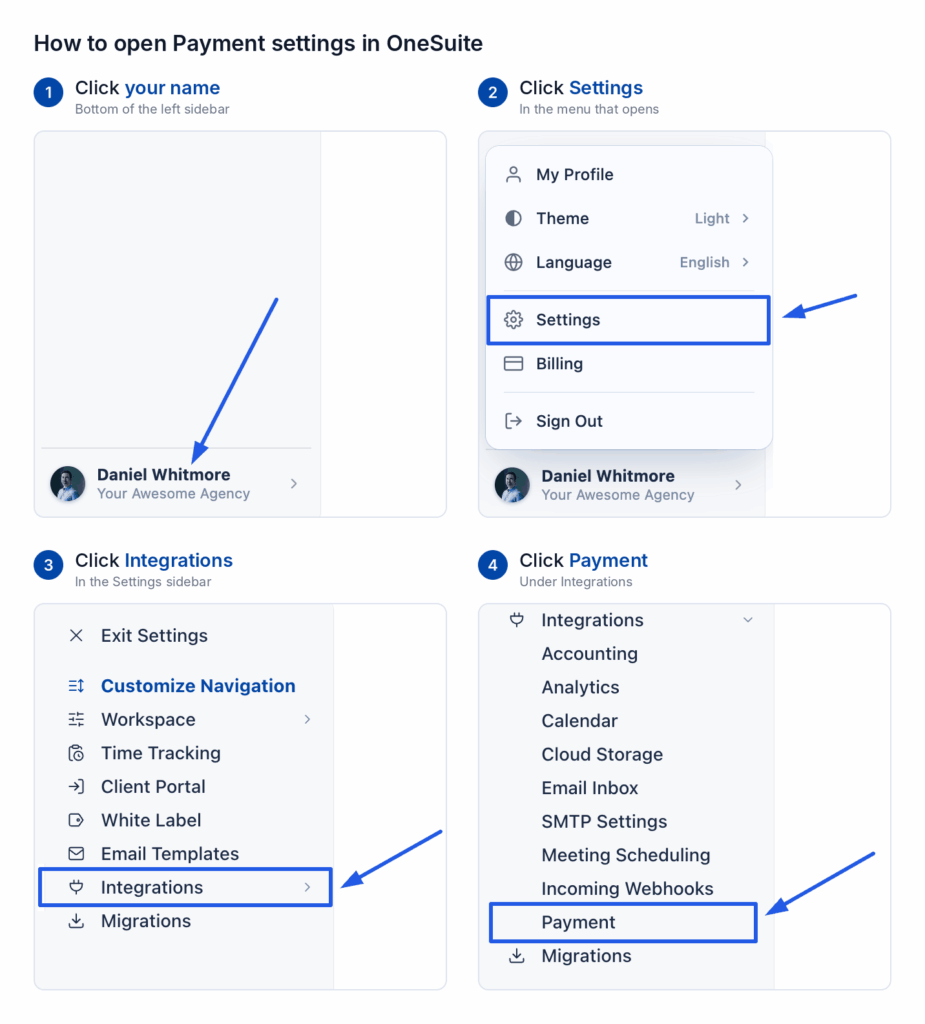
- Click your name at the bottom of the sidebar, then click Settings.
- Under Integrations, click Payment.
- On the Payment Methods page, find Razorpay and click Connect. Keep the dialog open.
- In Razorpay, open Account & Settings, then API Keys.
- Generate your key.
- Copy the Key ID and the Key Secret.
- Paste the Key ID into Key ID in OneSuite.
- Paste the Key Secret into Key Secret in OneSuite.
- Add the webhook in Razorpay. The next section shows how.
- Enter the secret you chose for the webhook in Webhook Secret.
- Check the Currency.
- Click Save.
How do I add the Razorpay webhook?
Without the webhook, payments may not be recorded on the invoice.
- In the OneSuite dialog, click the copy button beside Webhook URL for your Razorpay dashboard.
- In Razorpay, open Account & Settings, then Webhooks.
- Add a webhook.
- Paste the OneSuite URL as the webhook URL.
- Turn on the
payment_link.paidevent. - Set a secret for the webhook.
- Use the same secret in OneSuite’s Webhook Secret field.
How do I check it worked?
The Razorpay card on the Payment Methods page now says Connected instead of Not connected. You also see Razorpay marked Connected under Invoices > Configure > Getting paid > Online payments.
OneSuite switches a connected gateway on for every new invoice. An invoice you created earlier keeps its own choice. To use Razorpay on an older invoice:
- Open the invoice.
- Switch Razorpay on in its Payments panel.
- Save the invoice and send it again.
FAQs
Which Razorpay event do I turn on?
Turn on payment_link.paid. Give the webhook the same secret that you enter in OneSuite’s Webhook Secret field.
Can I see my Razorpay Key Secret again?
Razorpay shows the Key Secret only once, when you generate the key. Razorpay’s guide to API keys says only the Key ID stays visible afterwards. Save the Key Secret when you generate it.
Which currency does Razorpay use in OneSuite?
The Currency list starts as Indian Rupee (INR). OneSuite applies it to any invoice that has none of its own.
What to do next
See every gateway: Browse all the guides in Payment Integration.
Record the money that arrives: Log payments made outside a gateway with How to Record Invoice Payments.