
Integrations connect OneSuite to the accounting, payment, calendar, file, email and analytics tools your business already uses. Each connection lives in one place in Settings, so you can see what is connected, add a tool and remove it again without leaving OneSuite.
In this guide you’ll learn how to:
- Find the Integrations section in Settings
- See every tool in each of the nine integration groups
- Tell which tools connect by signing in and which need keys or IDs
- Find where each connected tool shows up in OneSuite
- Disconnect a tool you no longer use
Before you start
- Most integration pages need access to your business’s admin settings. SMTP Settings needs access to the settings module instead. If a page is missing from your Settings menu, ask an admin.
- Have an account with the tool you want to connect, and sign in to it as someone allowed to connect apps. QuickBooks, for example, only lets its admins connect apps.
Where are integrations in OneSuite?
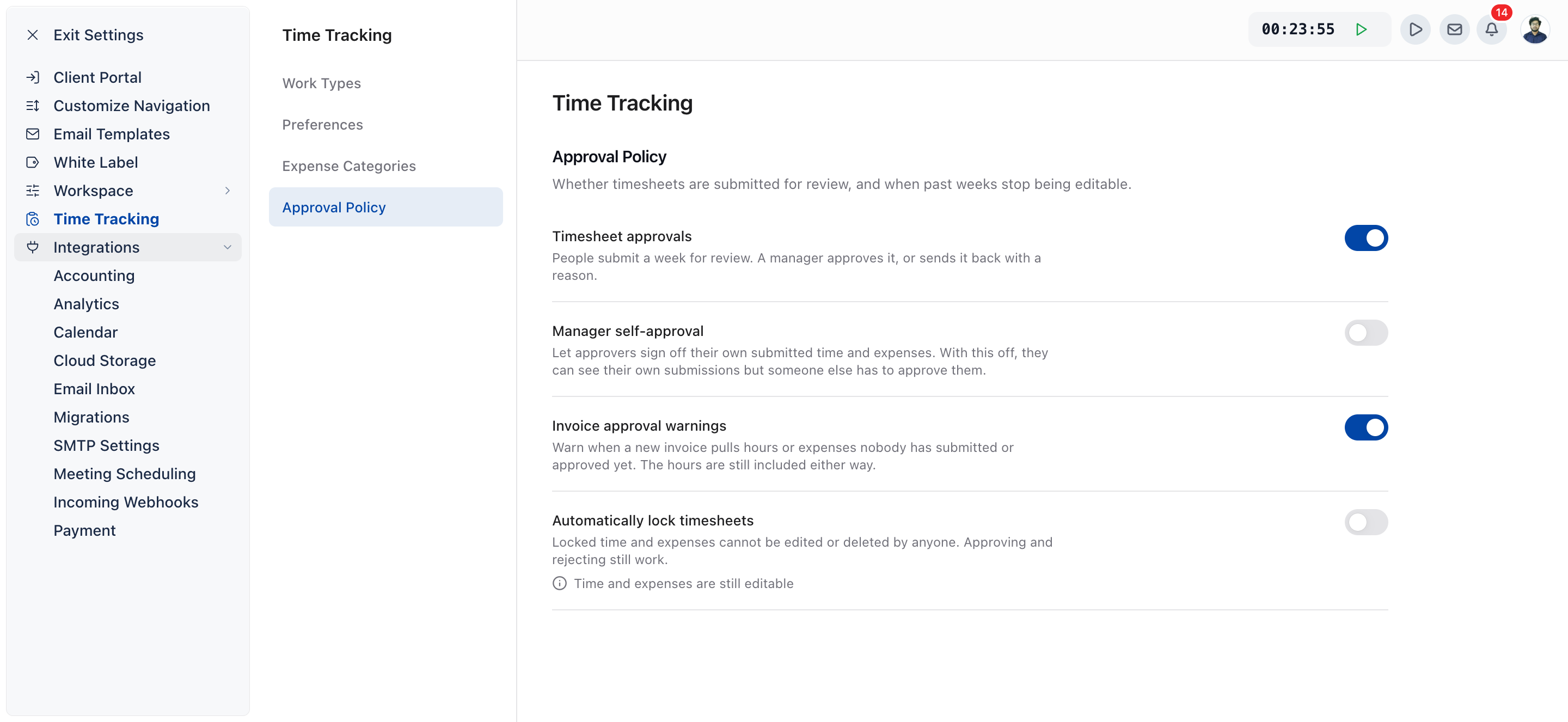
Integrations are in Settings, under the Integrations heading, which holds nine pages.
- Click your name at the bottom of the sidebar.
- Click Settings.
- Under Integrations, click the page you need: Accounting, Analytics, Calendar, Cloud Storage, Email Inbox, SMTP Settings, Meeting Scheduling, Incoming Webhooks or Payment.
What integrations does OneSuite offer?
OneSuite groups its integrations into nine pages, and most pages offer several tools. The tables below list each tool with what its page says it does.
Accounting
The Accounting page syncs your invoices, payments and products with your accounting software. You can connect one accounting tool at a time.
| Tool | What it does |
|---|---|
| QuickBooks (QuickBooks Online) | Copies your invoices to QuickBooks with mapped products and records payments when invoices are paid. |
| Xero | Copies your invoices to Xero, records payments when invoices are paid, and can fill a tracking category from the client. |
Analytics
The Analytics page adds tracking to your Client Portal. These tools track visitor activity inside the portal, not inside your own OneSuite workspace.
| Tool | What it does |
|---|---|
| Google Tag Manager | Adds your Container ID to enable tracking and analytics on the Client Portal. |
| Google Analytics | Adds your Measurement ID to enable tracking and analytics. |
| Microsoft Clarity | Adds your Project ID to enable session recordings and heatmaps for the Client Portal. |
Analytics needs a plan add-on. Without it, each analytics page shows an Upgrade button that opens the Manage Billing page.
Calendar
The Calendar page connects your calendars so their events show up in OneSuite.
| Tool | What it does |
|---|---|
| Google Calendar | Connects your Google Calendar to keep events in sync. |
| Outlook Calendar | Connects your Outlook account to keep events in sync. |
The number of calendars you can connect depends on your plan. When you reach it, OneSuite offers more calendars as an add-on.
Cloud Storage
The Cloud Storage page connects your cloud storage so you can link its files into OneSuite.
| Tool | What it does |
|---|---|
| OneDrive | Links OneDrive files from your Microsoft account into client Files tabs. |
| Google Drive | Coming soon. |
Email Inbox
The Email Inbox page connects email accounts so you can send and receive email inside OneSuite. The connect screen shows three options:
| Option | What the screen shows |
|---|---|
| Marked Coming soon. | |
| Microsoft | Connect your Microsoft account. |
| Custom SMTP | Connect an account with an app password. This is how you connect Gmail today. |
The number of inboxes you can connect depends on your plan; you can add more as an add-on. For the full steps, see Email Inbox Overview, Integrate Gmail in OneSuite and Connect Microsoft Outlook.
SMTP Settings
The SMTP Settings page connects an email provider and manages the sender addresses used to send mail from your workspace. You can connect one provider at a time.
| Tool | What OneSuite asks for |
|---|---|
| SendGrid | API key |
| Postmark | Server API token and Account-level token |
| SMTP2Go | API key |
| Brevo | API key |
| AWS SES | SMTP username, SMTP password and Region |
The page has three tabs: Provider, Senders and Documentation. Use Send test email to send a real message through the provider and confirm it works.
Meeting Scheduling
The Meeting Scheduling page lets clients book meetings with you directly from your Client Portal.
| Tool | What it does |
|---|---|
| Calendly | Shows clients the Calendly booking page you choose. |
| Google Calendar | Shows clients your Google Appointment Schedule link. |
| Outlook Calendar | Shows clients your Outlook booking page. |
| Zoom | Shows clients your Zoom Scheduler booking link. |
Incoming Webhooks
The Incoming Webhooks page lets external services send events to OneSuite that create, update or delete records. Each webhook works on one module, Client or CRM. There are no outgoing webhooks. See How to Use Webhooks and API Keys.
Payment
The Payment page, titled Payment Methods, connects payment gateways so clients can pay invoices online.
| Tool | What it does |
|---|---|
| Stripe | Takes online invoice payments through Stripe. |
| PayPal | Takes online invoice payments through PayPal. |
| Quickpay | Takes online invoice payments through Quickpay. |
| Razorpay | Takes online invoice payments through Razorpay. |
| HitPay | Takes online invoice payments through HitPay. |
| CHIP | Takes online invoice payments through CHIP. |
How does connecting an integration work?
You connect a tool in one of two ways: you sign in to the tool and approve access, or you paste keys or IDs from the tool’s own settings.
Sign in and approve access. OneSuite sends you to the tool’s own sign-in page, you approve the connection, and the tool returns you to OneSuite. This applies to:
- QuickBooks and Xero
- Google Calendar and Outlook Calendar on the Calendar page
- OneDrive
- Microsoft on the Email Inbox page
- Calendly and Zoom on the Meeting Scheduling page
Paste keys or IDs. You copy a value from the tool’s dashboard and paste it into OneSuite. This applies to:
- Every payment gateway: API keys and secrets
- Every SMTP Settings provider: API keys or SMTP credentials
- Custom SMTP on the Email Inbox page: your email address and an app password
- Every analytics tool: a Container ID, Measurement ID or Project ID
On the Meeting Scheduling page, Google Calendar, Outlook Calendar and Zoom also ask you to paste a booking link after you connect.
Where do connected tools show up in OneSuite?
Each connected tool appears in the part of OneSuite it works with.
| Integration | Where you see it |
|---|---|
| Accounting | Copy to QuickBooks or Copy to Xero in the three-dots (⋮) menu of an invoice’s row on the Invoices list, and a QuickBooks or Xero badge beside Save in the invoice editor. |
| Analytics | In your analytics tool, as visitor activity from your Client Portal. |
| Calendar | On the Tasks calendar, for each account where you switch on showing its events. |
| Cloud Storage | In the Files tab on client records. |
| Email Inbox | Behind the Inbox icon in the top bar. |
| SMTP Settings | On the Senders tab, as the verified addresses mail can be sent from. |
| Meeting Scheduling | As Schedule a Meeting in the Client Portal. |
| Incoming Webhooks | As new or updated clients and CRM records, and in each webhook’s Events tab. |
| Payment | In Invoices, Configure, Getting paid, in each invoice’s Payments panel, and as a Pay Now button on the invoice your client opens. |
How to disconnect an integration
You disconnect most tools from the same page you connected them on.
| Integration | How to disconnect |
|---|---|
| Accounting | Open the tool’s settings page and click Disconnect QuickBooks or Disconnect Xero. |
| Calendar | In the account’s row, choose Remove account. |
| Cloud Storage | Click Disconnect on the card, choose whether to tick Keep linked items (recommended), then confirm. |
| Email Inbox | In the account’s row, choose Remove account. |
| SMTP Settings | On the Provider tab, click Disconnect. This also removes every verified sender. |
| Meeting Scheduling | Click Disconnect on the tool’s card, then confirm. |
| Incoming Webhooks | Choose Delete in the webhook’s row, or switch the webhook to Inactive. |
| Payment | The Payment Methods page has no disconnect button. To stop offering a gateway on an invoice, switch it off in that invoice’s Payments panel. |
Not using OneSuite yet? Start your free trial →
FAQs
Does OneSuite integrate with QuickBooks and Xero?
Yes. OneSuite connects to QuickBooks Online and Xero from Settings, Integrations, Accounting, and copies your invoices and payments to the one you connect. You can connect only one of the two at a time.
Which payment gateways can I connect to OneSuite?
You can connect Stripe, PayPal, Quickpay, Razorpay, HitPay and CHIP. Each one connects on the Payment Methods page with keys from your gateway account, as described in How to Connect Accounting and Payment Tools.
Can I connect Gmail or Google Drive to OneSuite?
You can connect Gmail today through the Custom SMTP option with an app password, as shown in Integrate Gmail in OneSuite. The Google email option and Google Drive are both marked Coming soon.
Why can’t I see the Integrations pages in Settings?
Your profile doesn’t include the permission those pages need. Most integration pages need access to the business’s admin settings, so ask an admin to connect the tool or to change your profile.
Does OneSuite have outgoing webhooks?
No. OneSuite has incoming webhooks only, which let other services create, update or delete clients and CRM records. See How to Use Webhooks and API Keys.
Can I just re-enter invoices in my accounting software instead?
You can, but every invoice and payment then gets typed twice. With QuickBooks or Xero connected, OneSuite copies invoices and records payments for you, and you can still copy an older invoice by hand from its three-dots (⋮) menu.
What to do next
Connect your money tools: Set up QuickBooks, Xero and your payment gateways with How to Connect Accounting and Payment Tools.
Connect your calendar and files: Link calendars, OneDrive and booking tools with How to Connect Calendar, Files and Meeting Tools.
Track your portal visitors: Add Google Analytics, Tag Manager or Clarity with How to Connect Analytics Tools.