Skip to content
OneSuite – all-in-one client portal software for agencies
  • Use cases
  • vs. Harvest
  • Pricing
+1 (302) 433-6002
LoginStart free trial

Project Management

  • Time Tracking Track hours and boost productivity
  • Projects & Tasks Manage tasks smartly and deliver on time
  • Team & Collaborators Work together and stay aligned
  • Reporting See where your agency stands

Finance Management

  • Invoicing Create invoices in minutes and get paid
  • Subscriptions NewBill clients on repeat automatically
  • Expense Tracking Track costs and bill them back
  • Budgeting Plan budgets and protect margins

Client Management

  • Client Portal Ensure transparency and gain trust
  • Documents & E-Signature Create and sign documents easily
  • CRM Nurture leads and win more clients
  • Email Inbox Manage client emails in one place
  • Marketing Agency Campaigns, clients, and billing together
  • SEO Agency Projects, reports, and invoices in one
  • Video Editing Approvals, revisions, and payments simplified
  • Local SEO Multi-location clients, billing on track
  • Photography Booking to delivery in one place
  • Event Management Timelines, vendors, and clients covered
  • Creative Agency Briefs, feedback, and billing unified
  • Consulting Proposals, tracking, and invoicing together
  • IT Services Tickets, retainers, and portals managed
  • Documentation Read guides and help docs
  • Affiliate Partner and earn together
  • Integrations Connect tools effortlessly
  • Roadmap See what's coming next
  • Changelog Stay updated with the latest
  • Support Get help whenever you need it.
  • Compare See how OneSuite stacks up
  • Case Study Real results, real teams
  • FAQ Find answers to common questions
OneSuite – all-in-one client portal software for agencies
+1 (302) 433-6002
LoginStart free trial
  • Time TrackingTrack hours and boost productivityProjects & TasksManage tasks smartly and deliver on timeTeam & CollaboratorsWork together and stay alignedReportingSee where your agency standsInvoicingCreate invoices in minutes and get paidSubscriptionsBill clients on repeat automaticallyExpense TrackingTrack costs and bill them backBudgetingPlan budgets and protect marginsClient PortalEnsure transparency and gain trustDocuments & E-SignatureCreate and sign documents easilyCRMNurture leads and win more clientsEmail InboxManage client emails in one place
  • Marketing AgencyCampaigns, clients, and billing togetherSEO AgencyProjects, reports, and invoices in oneVideo EditingApprovals, revisions, and payments simplifiedLocal SEOMulti-location clients, billing on trackPhotographyBooking to delivery in one placeEvent ManagementTimelines, vendors, and clients coveredCreative AgencyBriefs, feedback, and billing unifiedConsultingProposals, tracking, and invoicing togetherIT ServicesTickets, retainers, and portals managed
  • DocumentationRead guides and help docsAffiliatePartner and earn togetherIntegrationsConnect tools effortlesslyRoadmapSee what's coming nextChangelogStay updated with the latestSupportGet help whenever you need it.CompareSee how OneSuite stacks upCase StudyReal results, real teamsFAQFind answers to common questions
  • Pricing
  • OneSuite vs. Harvest
  • Help CenterDocumentationPublic RoadmapBook a demoGet Support
+1 (302) 433-6002Login
Start free trial

No credit card required

Help Center

  • Documentation
  • Public Roadmap
  • Book a demo
  • Get Support

Help Center

intro to onesuite

OneSuite 101

6
  • Introduction to OneSuite
  • Understanding OneSuite’s Structure
  • How Solutions Work Together
  • Navigating OneSuite
  • All OneSuite Capabilities
  • OneSuite Glossary
quick start guide

Quick Start Guide

9
  • Sending Your First Invoice
  • Tracking Your First Hours
  • Setting Up Your Business
  • Adding Your Payment Methods
  • Inviting Team Members
  • Adding Your First Leads
  • Adding Your First Client
  • Giving Your Client Portal Access
  • Sending Your First Proposal

CRM

9
  • Opportunity Automation
  • Customizing Your CRM
  • Customizing Your Opportunities View
  • CRM Overview
  • Adding People
  • Adding Companies
  • Creating Opportunity
  • How Opportunities, Companies, and People Work Together
  • Understanding Pipeline Stages
client

Client Management

6
  • Adding Clients
  • Client Profiles
  • Client Portal Customization 
  • Understanding the Clients Solution
  • The OneSuite Client Portal
  • Video Documentation : Client Management
pm

OneSuite Project Management

12
  • How to Track Project Hours and Costs
  • How to Set Up Project Billing and Budgets
  • Laying the Groundwork: Project Creation in OneSuite
  • Customize the Project Management Module
  • Managing Project Boards in OneSuite
  • Subtask Behavior & Movement Management
  • Custom Categories, Tags, and Labels in Projects
  • Adding Tasks to Boards in OneSuite
  • Custom Fields
  • Task Templates
  • Project Templates
  • Video Documentation : Project Management

Documents

5
  • Overview
  • Creating a Document from Scratch
  • Uploading a PDF Document
  • Sending Documents to Parties to Sign
  • Signing a Document
team

OneSuite's Team Management

4
  • Inviting Collaborators in OneSuite
  • Creating Personalized Departments in OneSuite
  • Managing Team Members in OneSuite
  • Video Documentation : Team Collaboration
Invoices & Payments

Invoices & Payments

9
  • How to Use Retainers
  • How to Record Invoice Payments
  • Access & Navigation
  • Invoice Settings & Customization
  • Create One-time Invoices
  • Creating Recurring Invoices
  • How to set taxes on your invoices
  • How to Add Direct Bank Transfer Instructions to Your Invoices
  • How to Customize Invoice Email Messages

Time Tracking & Timesheets

6
  • Timesheet Preferences
  • Work Types
  • Time Tracking in OneSuite
  • Invoice Generation from Billable Hours
  • Timesheet Management & Approval
  • Time Tracking & Timesheets 

Email Inbox

5
  • Email Inbox Overview
  • Connect Microsoft Outlook
  • Integrate Gmail in OneSuite 
  • Send and Receive Email in OneSuite 
  • Create and Use Email Templates in OneSuite

Calendar View

1
  • Calendar View

Dashboard

7
  • Overview 
  • How to Customize Your Dashboard
  • Client Portal Dashboard 
  • Monitor Documents, Contracts & Marketing Lead Sources
  • CRM, Client & Pipeline Widgets — OneSuite Dashboard Guide
  • Track Tasks, Deadlines & Project Activity in OneSuite
  • Track Revenue Trends, Forecasts & Top Projects in OneSuite

Expenses

2
  • Expense Categories
  • Tracking Expenses

Approvals

2
  • Approval Policy
  • Approving Timesheets and Expenses

Estimates

1
  • Estimates

Reports

2
  • Saving and Scheduling Reports
  • Reports Overview

Integrations

5
  • How to Use Webhooks and API Keys
  • How to Connect Analytics Tools
  • How to Connect Calendar, Files and Meeting Tools
  • How to Connect Accounting and Payment Tools
  • Integrations Overview

Settings & Billing

4
  • Imports, Exports, and Search
  • Managing Your OneSuite Subscription
  • Setting Up Profiles and Permissions
  • Setting Up Your Workspace

Payment Integration

17
  • How to Connect Square to OneSuite
  • How to Connect Revolut Business to OneSuite
  • How to Connect Razorpay to OneSuite
  • How to Connect QuickPay to OneSuite
  • How to Connect Paystack to OneSuite
  • How to Connect Payrexx to OneSuite
  • How to Connect PayPal to OneSuite
  • How to Connect Moneris to OneSuite
  • How to Connect Mollie to OneSuite
  • How to Connect HitPay to OneSuite
  • How to Connect GoCardless to OneSuite
  • How to Connect Flutterwave to OneSuite
  • How to Connect CHIP to OneSuite
  • How to Connect Billplz to OneSuite
  • How to Connect Authorize.Net to OneSuite
  • Introduction to Payment Gateways in OneSuite
  • How to Connect Airwallex to OneSuite
View Categories
  • Home
  • Docs
  • Reports
  • Saving and Scheduling Reports

Saving and Scheduling Reports

0:00 / 6:08
  • View as Markdown Open this page as plain Markdown (opens in a new tab)
  • Open in ChatGPT Ask questions about this page (opens in a new tab)
  • Open in Claude Ask questions about this page (opens in a new tab)
  • Open in Google AI Studio Ask questions about this page (Google account required) (opens in a new tab)

A saved report keeps its period and filters so you can open it again in one click, and a scheduled report regenerates itself and emails the result. Save the reports you run every week or month so nobody has to rebuild them or remember to send them.

In this guide you’ll learn how to:

  • Save a report and share it with your team
  • Build a custom report
  • Schedule a saved report and email it as a CSV
  • Rename, duplicate and delete saved reports

Before you start

  • If you don’t see Reports in the sidebar, an admin can switch it on in Settings, Customize Navigation.
  • You need permission to view reports. Profitability, Contractor and Invoicing each need a permission of their own.
  • Everyone with access to Reports can create, view and share their own saved reports.

How to save a report

Set up the report the way you want it, click Save report, name it and choose who can see it.

  1. Click Reports in the sidebar and open the tab you want, for example Time or Invoicing.
  2. Set the period, sub-tab and filters.
  3. Click Save report. The Save report dialog opens.
  4. Enter a Report name.
  5. Under Permissions, choose Don’t share this report or Share with team. Click What will people see? to read what sharing means.
  6. Click Save report.

Once a saved report is open, the Save report button shows the report’s name instead. Clicking it opens Update report, which saves over the report. Click Save as new to keep the original and store your changes as a second report.

Note: sharing a report also shares the data it shows. The dialog says it plainly: “Granting access to a report also exposes the underlying data it displays.”

How to build a custom report

A custom report lets you pick the fields and metrics yourself. You start it from the New report menu at the top of the Reports page.

  1. Click New report, then Custom report. The builder opens as Untitled report.
  2. Click the pencil beside the name to rename it.
  3. Set the period, and narrow it with Client, Project, Role, Department or Teammate if you need to.
  4. Under Inputs, click Add beside Fields to choose what the rows are grouped by, and beside Metrics to choose the numbers to show.
  5. Choose Summary or Detailed, and Grouped or Ungrouped. Tick Include zero values to keep rows with nothing in them.
  6. To filter on a number, click Advanced. Under Rules, click Add rule, then pick a Metric, an Operator and a Value. Use Apply to to check the rule against Each row or against one of your grouping fields. Rules combine with AND. Click Done.
  7. Click Save, then name the report in the Save report dialog and click Save report.

If nothing matches, the report says “No data matches this report.” Loosen a rule or widen the period. You can collapse the Inputs panel to give the results more room.
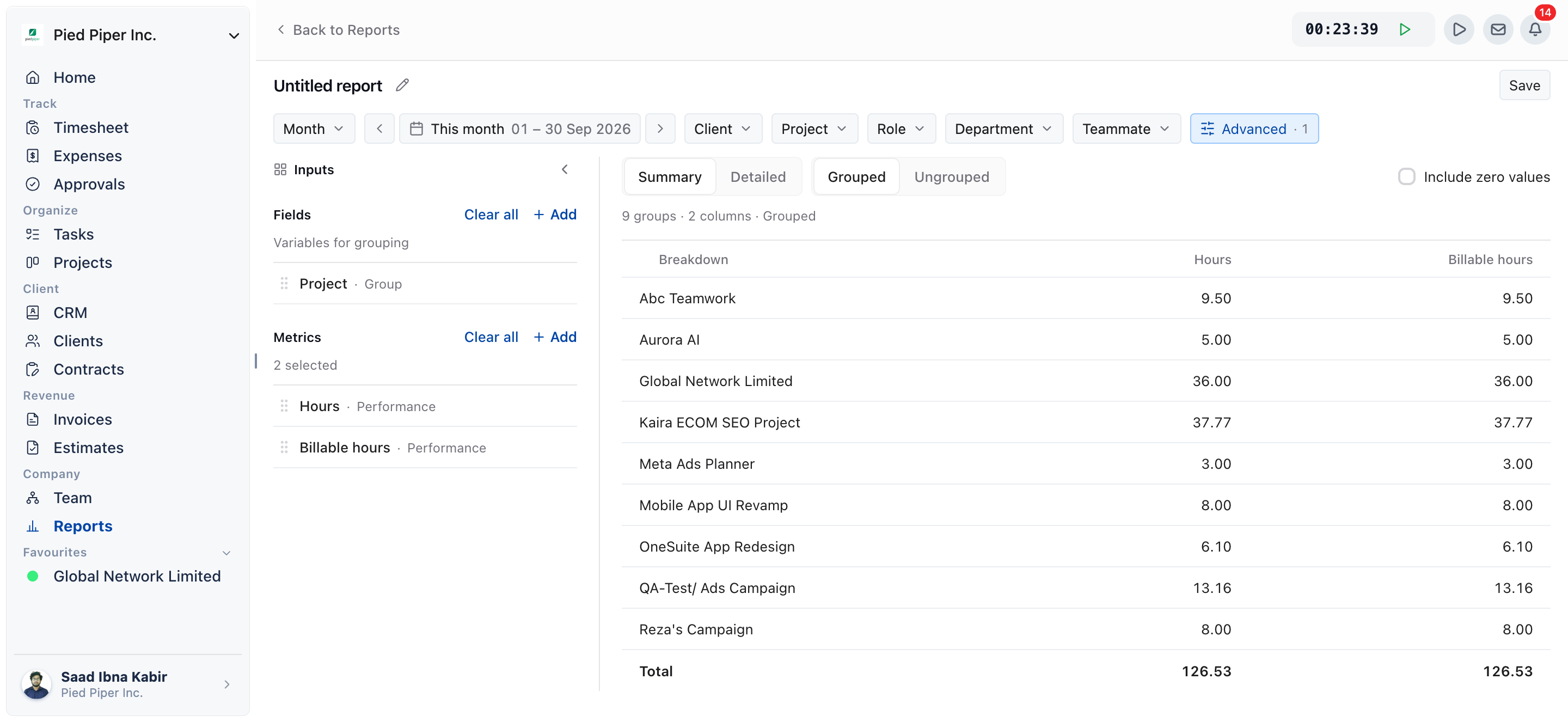
Custom report builder with the Inputs panel open, one field and two metrics added, and the Advanced button showing one rule

How to schedule a report

A scheduled report regenerates on a set cadence and can email itself as a CSV. You set it up in the same dialog you use to save.

  1. Open the report and click Save report (or the report’s name, if it is already saved).
  2. Under Recurring schedule, tick Regenerate this report on an ongoing basis.
  3. Under Repeats, choose Daily, Weekly or Monthly. The dialog shows the date the next report is generated.
  4. Under Export, tick Email an export of this report.
  5. Fill in Send to. Separate addresses with commas. Leave it empty and it goes to you. You can list up to 25 addresses.
  6. Click Save report or Update report.

Custom reports can’t be scheduled yet. Their dialog says “Custom reports are assembled in your browser, so they can’t be regenerated on a schedule yet.” Every other report can be.

Schedule field Options
Repeats Daily, Weekly, Monthly
Email an export of this report On or off. When on, the export arrives as a CSV attachment.
Send to Up to 25 email addresses, separated by commas. Empty means it goes to you.

How to manage saved reports

Open the Saved reports tab to see every report you saved and every report shared with you.

  • Filter with All, Your reports or Shared with you, and with All or Custom only.
  • Type in Search saved reports to find one by name.
  • The table shows each report’s Name, Report type, Owner, Permissions, Schedule and Created date.
  • The owner can change Permissions straight from the row.

Open a row’s menu for these actions:

Action What it does
Open Opens the report.
Rename Changes its name. Owner only.
Duplicate Makes a copy you can change.
Delete Removes it. Owner only.

The Schedule column shows the cadence, the next run date and Emailed when an export is sent. Hover over it to see who it is Sent to and when it was last sent. It can also show Has not run yet, Last run failed or Last run skipped.

Not using OneSuite yet? Start your free trial →

FAQs

Who receives a scheduled report?

Everyone listed in Send to. If you leave the field empty, the report goes to you.

Can I send a scheduled report to someone outside my business?

Yes. Send to takes any valid email addresses, up to 25. Be deliberate about it, because the email carries the report’s data to whoever receives it.

Why can’t I schedule my custom report?

Custom reports are assembled in your browser, so OneSuite can’t regenerate them on a schedule yet. Save it and open it when you need it, or schedule one of the standard report tabs instead.

Can I just export the report each month instead?

You can, and for a report you rarely run that is simpler. Schedule it when the report matters enough that forgetting to send it is the real risk.

Does sharing a report show my team data they can’t otherwise see?

It can. Granting access to a report also exposes the underlying data it displays, so check what the report contains before you choose Share with team.

What is the difference between Update report and Save as new?

Update report saves your changes over the report you opened. Save as new leaves the original alone and stores your current setup as a second report.

What to do next

Learn the tabs first: See what each report covers in Reports Overview.

Make the numbers accurate: Set rates and budgets per project with How to Set Up Project Billing and Budgets.

Bill what is waiting: Turn uninvoiced hours into an invoice with Invoice Generation from Billable Hours.

Updated on October 1, 2026

One tool to suit all your client needs — OneSuite

2810 N Church St,
Delaware, USA, 19802

call +1 (302) 433-6002+1 (302) 433-6002
product hunt

Follow Us On

  • Facebook
  • X
  • Instagram
  • LinkedIn

Join Our Community

  • Facebook

Ask AI for a summary
of Onesuite

Features

Time tracking

Expense tracking

Budgeting

Billing & invoice

Client portal

Project management

Proposal & contract

CRM & Lead pipeline

Reporting

API documentation

Resources

Documentation

Public roadmap

Become an affiliate

Agency partner program

About

Contact

Support

Blog

Branding

Book a demo

Compare

Harvest

Toggl

Assembly

Wayfront

Dubsado

HoneyBook

Hello Bonsai

Product demo

  • Terms of use
  • Privacy policy
  • Cookie policy
  • Refund policy
  • Acceptable use policy
  • Data processing terms
  • Documentation
  • Public Roadmap
  • Book a demo
  • Get Support