
OneSuite turns the billable hours your team has tracked into a client invoice and emails it for you. This is the shortest path from tracked time to a sent invoice, so you can bill your first client in a few minutes.
In this guide you’ll learn how to:
- Create an invoice from tracked time with the New invoice dialog
- Check and save the invoice in the editor
- Send the invoice to your client
- Invoice one project from its Timesheet tab
Before you start
- You need permission to create invoices.
- If you don’t see Invoices in the sidebar, an admin can switch it on in Settings, Customize Navigation.
- The client needs billable hours that are not yet on an invoice. See Tracking Your First Hours.
How to create an invoice from tracked hours
Click Invoices, Create, pick the client and keep From tracked time & expenses, and OneSuite writes the lines for you.
- Click Invoices in the sidebar.
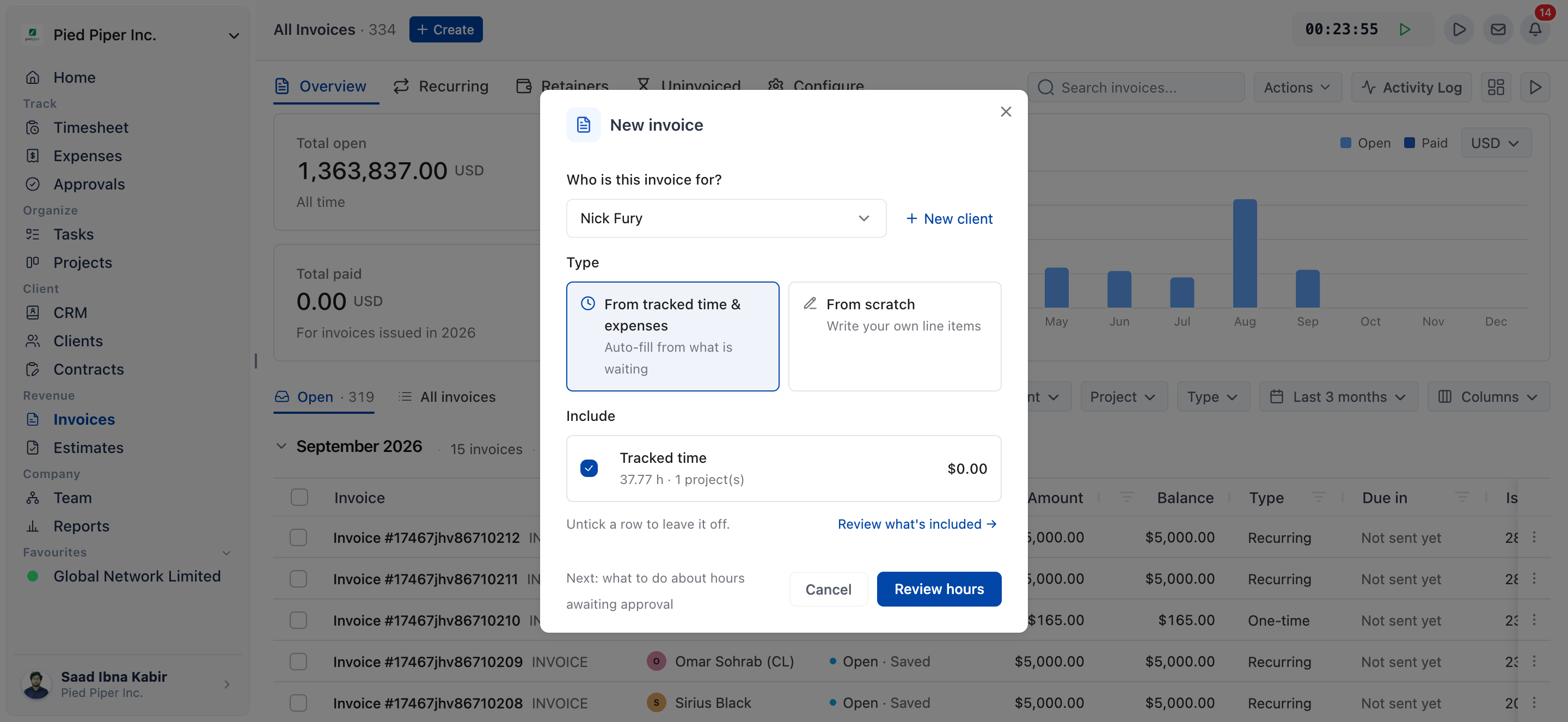
- On the Overview tab, click Create. The New invoice dialog opens.
- Under Who is this invoice for?, search for the client and select it.
- Under Type, keep From tracked time & expenses.
- Under Include, keep the tracked time row ticked. Untick Expenses if you don’t want to bill them.
- Click the button at the bottom of the dialog:
- Create invoice builds the lines and opens the invoice editor.
- Choose projects or Review hours opens the wizard first. Tick the projects, keep the hours choices as they are, and click Review invoice.
How to check and save the invoice
The editor shows the invoice as your client will see it, with the lines already filled in.
- Check the lines under Items, and the Due date under Dates in the side panel.
- Click Save at the top of the editor.
A draft can’t be sent until it is saved.
How to send the invoice to your client
Click Send invoice in the side panel’s Next block, then Send on the share page.
- In the side panel, look at the Next block. If the button reads Set up payment, choose how you want to get paid first.
- Click Send invoice. OneSuite saves the invoice and opens the Share Invoice page.
- Check the recipients. Click Add More Recipients to add someone.
- Leave Include a PDF of the invoice ticked to attach a PDF.
- Click Send.
The Next block then reads Sent. Record a payment when it arrives.
How to invoice one project from its Timesheet tab
You can also start an invoice from a single project, with its dates and hours filled in.
- Open the project and click the Timesheet tab, then Invoices.
- Click Invoice these N hours, where N is the hours ready to invoice.
- Check the Dates, Hours and Amount, then click Continue.
- Finish the wizard, then save and send the invoice as above.
When timesheet approvals are on, this route pulls in approved time only.
Not using OneSuite yet? Start your free trial →
FAQs
How do I send an invoice in OneSuite?
Save the invoice, click Send invoice in the side panel, check the recipients on the Share Invoice page and click Send. The client receives an email, with a PDF attached if Include a PDF of the invoice is ticked.
Why is the Send button greyed out?
The invoice is still a draft. OneSuite shows Save this invoice before sending it. until you click Save in the editor.
Why are some of my tracked hours missing from the invoice?
Hours are left off when they are non-billable or already on an invoice. From a project’s Timesheet tab, hours still awaiting approval are also left off when approvals are on.
Can I write an invoice without tracked hours?
Yes. Choose From scratch in the New invoice dialog and an empty invoice opens for you to fill in. See Create One-time Invoices.
Can I just send a PDF I made elsewhere instead?
You can, but OneSuite would not know the invoice exists, so it can’t track the balance or record the payment. Invoicing in OneSuite also stops the same hours being billed twice.
What to do next
Learn every invoice option: See the full wizard and editor in Create One-time Invoices.
Control which hours are billed: Choose periods, approval status and line grouping with Invoice Generation from Billable Hours.
Record the payment: When your client pays, follow How to Record Invoice Payments.