
Recording a payment tells OneSuite how much a client has paid on an invoice, so the balance and status stay correct. You need it whenever money arrives outside a connected payment gateway, such as a bank transfer or a cheque, so your open invoices and reminders reflect what is still owed.
In this guide you’ll learn how to:
- Record a full or partial payment on one invoice
- Record several invoices as paid in full at once
- Read how a payment changes the invoice status
- Check and remove payments in the Payments table
- Spot payments that came in through a payment gateway
Before you start
- You need permission to edit invoices.
- The invoice must be saved. You can’t record a payment on a draft, a closed invoice or an invoice that is already paid.
- If you don’t see Invoices in the sidebar, an admin can switch it on in Settings, Customize Navigation.
How to record a payment on an invoice
Open Record payment from the invoice’s menu, check the amount and date, then click Record payment.
- Click Invoices in the sidebar.
- Find the invoice and open its actions menu. You can also open the invoice and use the actions menu at the top of the page.
- Click Record payment. The dialog shows the invoice number and its Balance due.
- Check Amount received. It starts filled in with the full balance due.
- Check Date received. It starts on today’s date.
- Add Notes (optional), for example a bank transfer reference or a cheque number.
- Check the Balance after this payment line, then click Record payment.
Record payment only shows while the invoice has a balance due. If you don’t see it, the invoice is still a draft, is closed, or is already paid.
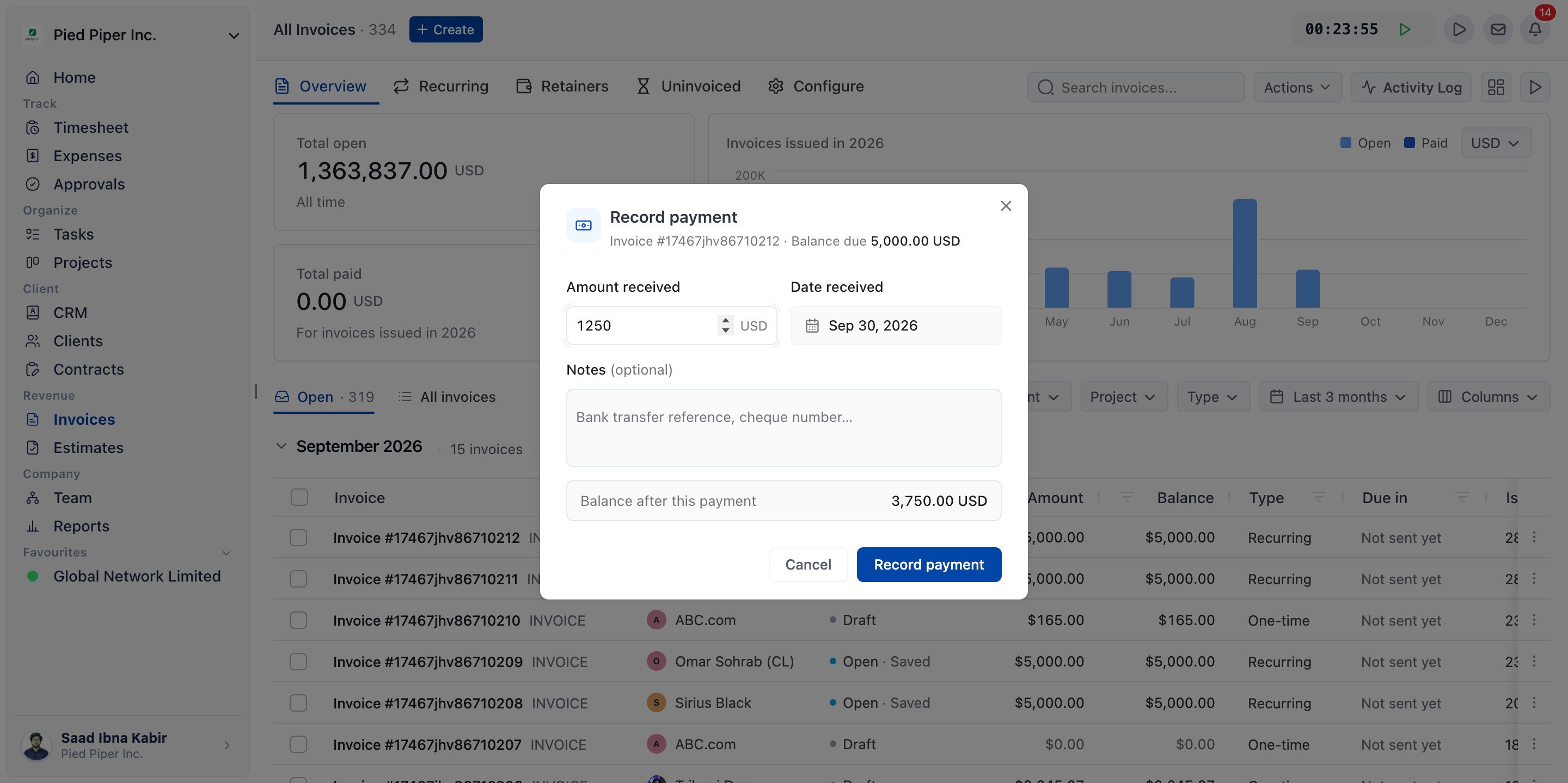
How to record a partial payment
A partial payment is the same steps with a smaller amount: replace the pre-filled Amount received with the amount the client actually paid.
- Open Record payment on the invoice.
- Change Amount received to the amount you received.
- Check that Balance after this payment shows what the client still owes.
- Click Record payment.
OneSuite confirms with Payment recorded. Balance due is now followed by the new balance. Record the next payment the same way when it arrives.
Record payment fields
| Field | Required | What to enter |
|---|---|---|
| Amount received | Yes | The amount paid, in the invoice’s currency. Starts on the full balance due. |
| Date received | Yes | The day the money arrived. Starts on today’s date. |
| Notes | No | A reference for your records, up to 2,000 characters. It shows in the Payments table. |
| Balance after this payment | Shown only | What will still be owed. It reads Paid in full when the payment clears the balance. |
Why the payment won’t save
Record payment is greyed out while the amount has a problem, and the message tells you what to fix.
| Message | What to do |
|---|---|
| Enter the amount received | Type the amount the client paid. |
| Enter an amount greater than zero | Enter an amount above 0. |
| The amount is more than the balance due | Lower the amount. You can’t record more than the invoice’s balance due. |
How to record several invoices as paid
Tick the invoices in the list and choose Record payment from the bulk actions to record each one as paid in full on one date.
- Click Invoices in the sidebar.
- Tick the box beside each invoice that has been paid.
- In the bulk actions, click Record payment. The dialog notes: Each invoice is recorded as paid in full on the date below.
- Set Date received. It can’t be a future date.
- Add Notes (optional) if you want the same note on every payment.
- Click Continue.
- Check the preview. Will be applied lists the invoices that will be paid, and Skipped lists any that can’t take a payment, with the reason.
- Click the button to record them, for example Record 3 invoices as paid.
A bulk payment always clears the full balance of each invoice. For a partial payment, record it on the invoice itself.
What does a payment change on the invoice?
A payment lowers the balance due, and the status follows: part of the balance makes the invoice Partial, and the full balance makes it Paid.
| After you record | Status you see | What else changes |
|---|---|---|
| Part of the balance | Partial | The Paid and Balance columns update. Hover over the status to see how much is paid and how much is due. |
| The full balance | Paid | OneSuite confirms Payment recorded. The invoice is paid in full. and Record payment disappears from the menu. |
A Partial invoice that passes its due date reads Partial · Overdue. For every status, see Access & Navigation.
How to check or remove a recorded payment
Every payment on an invoice is listed in the Payments table on the invoice’s page, under the invoice itself.
- Click Invoices in the sidebar and open the invoice.
- Scroll to Payments below the invoice. The table shows only once a payment exists.
- To take a payment off, click the bin icon on its row (Remove this payment) and confirm.
| Column | What it shows |
|---|---|
| Date | The date the payment was received. |
| Method | How it was paid: Manual for a payment you recorded, or the gateway name. |
| Notes | The note added with the payment. |
| Recorded by | The person who recorded it, or System for a gateway payment. |
| Amount | The amount paid. |
A payment can’t be edited. If one is wrong, remove it and record the correct one. The balance due is recalculated straight away.
How do gateway payments appear?
When a client pays online through a connected payment gateway, the payment appears in the Payments table without you recording it.
- Method shows the gateway: Stripe, PayPal, QuickPay, HitPay or CHIP.
- Recorded by shows System.
The balance and status update the same way as for a payment you record by hand. To take payments online, connect a gateway first. See Adding Your Payment Methods.
How to send a thank-you after a payment
A thank-you email goes out automatically only for online payments, so for a payment you record by hand, click Send thank-you on the paid invoice.
- Online payments: switch on Send automatically when an invoice is paid online in Invoices, Configure, Emails, on the Thank-you tab. It goes out as soon as the gateway reports the payment.
- Payments you record: open the paid invoice, click Send thank-you, then confirm Send thank-you. The message goes to the people the invoice was last shared with, or to the client email on the invoice.
To write the thank-you message, see How to Customize Invoice Email Messages.
How to write off a balance you won’t collect
Choose Write off… from the invoice’s actions menu to close an invoice whose balance won’t be paid.
- Open the actions menu on a sent invoice that is not paid.
- Click Write off….
- Add a Write-off note (optional) to explain why.
- Click Write off invoice.
The outstanding balance is recorded as written off and the status becomes Closed. Any amount already paid stays on the invoice. To undo it, choose Re-open and the balance is due again.
Not using OneSuite yet? Start your free trial →
FAQs
How do I record a partial payment on an invoice in OneSuite?
Open Record payment on the invoice and change Amount received to the amount the client paid. The invoice becomes Partial, and Balance after this payment shows what is still owed.
Can I record more than the invoice’s balance due?
No. OneSuite blocks an overpayment with The amount is more than the balance due. Record only up to the balance due.
How do I edit a payment I recorded by mistake?
You can’t edit a payment. Open the invoice, remove the payment from the Payments table with Remove this payment, then record the correct one.
Why can’t I see Record payment on an invoice?
Record payment only appears on a saved invoice that still has a balance due. It is hidden on drafts, closed invoices and invoices that are already paid.
Does recording a payment send the client a thank-you email?
No. A payment you record by hand does not send one. Click Send thank-you on the paid invoice to send it yourself.
Can I just mark invoices as paid in a spreadsheet instead?
You can, but OneSuite would still show those invoices as open and could keep sending reminders. Recording the payment in OneSuite keeps the balance, status and reminders correct.
What to do next
Take payments online: Connect a gateway so payments are recorded for you with Adding Your Payment Methods.
Say thank you: Write the thank-you and reminder messages in How to Customize Invoice Email Messages.
Bill in advance: Take payment up front and draw it down later with How to Use Retainers.