
The Timesheet tab on a project shows the hours logged on it, how much budget is left, what the work cost and how much has been invoiced. Use it to catch a project running over budget early and to see which billable hours are still waiting to be invoiced.
In this guide you’ll learn how to:
- Read each summary card on the project Timesheet tab
- Check how much of the budget is left
- See which hours are invoiced and which are still open
- Turn uninvoiced hours and expenses into an invoice
Before you start
- The Timesheet tab appears only when the Timesheet module is switched on for your business. If you don’t see Timesheet in the sidebar, an admin can switch it on in Settings, Customize Navigation.
- The Budget remaining card needs a budget on the project. Set one on the Billing tab: see How to Set Up Project Billing and Budgets.
- The Internal costs card shows only if you can see cost rates. The Invoices view and the Ready to invoice row need access to invoices.
How to open a project’s Timesheet tab
- Click Projects in the sidebar.
- Open the project.
- Click the Timesheet tab.
The summary cards sit at the top of the tab. Under them, a switch offers four views:
| View | What it shows |
|---|---|
| Summary | The project’s hours broken down, for example by work type or by person. |
| Entries | Every time entry on the project. Click Add Time to log a new one. |
| Invoices | Which hours are invoiced, which are still open, and the invoices linked to the project. |
| Expenses | The project’s expenses, with Date, Category, Person, Notes, Billable and Amount. Click Add expense to log one. |
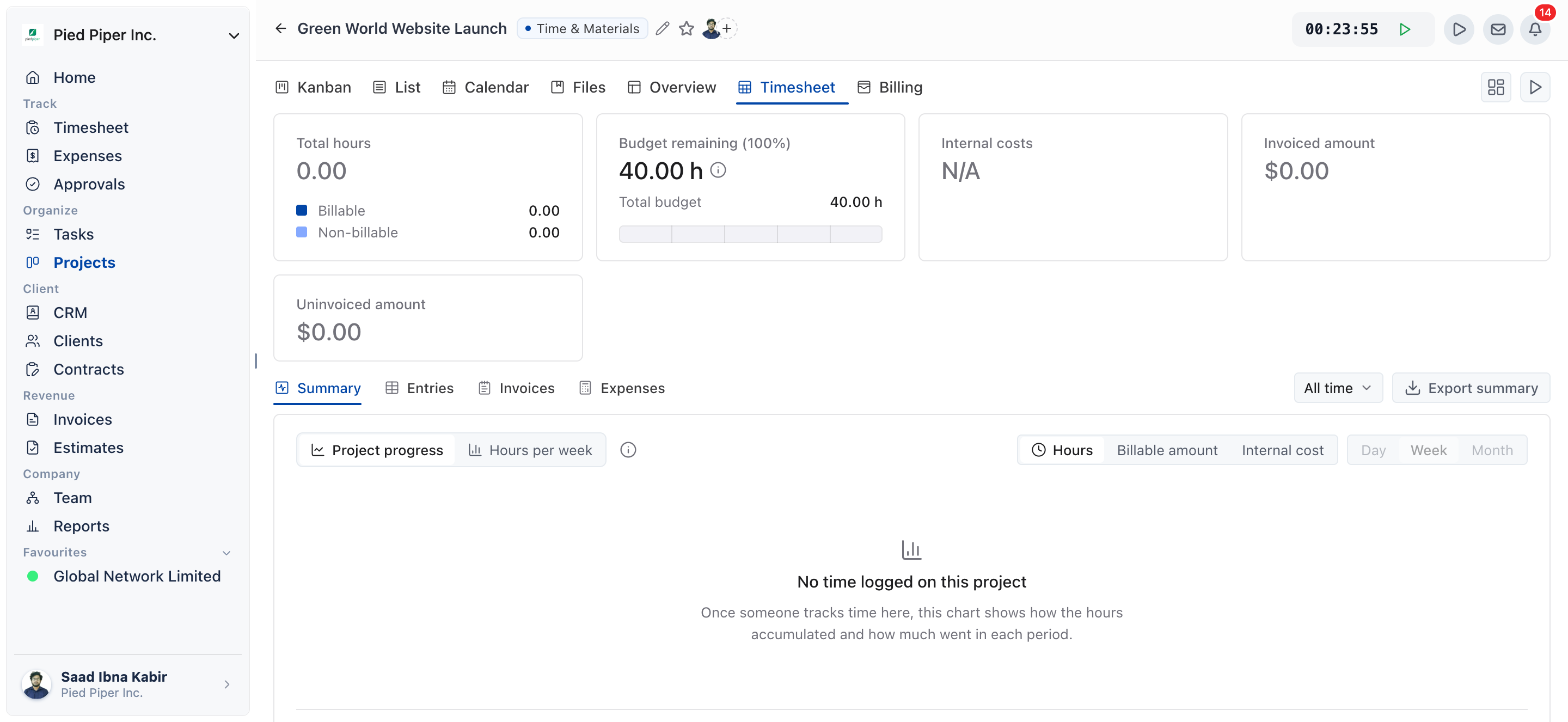
What does each summary card show?
Each card shows one total for the project, and the smaller rows under it break that total down. OneSuite’s server works out every total, and the tab displays them.
| Card | Main amount | Rows under it |
|---|---|---|
| Total hours | All hours logged on the project. | Billable and Non-billable hours. |
| Budget remaining (N%) | Hours left for an hours budget, or money left for a fee budget. | Total budget or Monthly budget, and Outside allocations when some time falls outside every allocation. |
| Internal costs | What the work cost. | Time and Expenses. Click Expenses to open the Expenses view. |
| Invoiced amount | What has been invoiced for the project. | Shown only when currencies are mixed. |
| Uninvoiced amount | Billable work and expenses not invoiced yet. | Total project fees on a project with a fee, and Ready to invoice in hours. |
If the cards don’t all cover the same span of time, each card shows a label for its own span, such as All time or a month.
Total hours
Total hours counts every hour logged on the project and splits it into Billable and Non-billable. Which work types bill on the project is set on the Billing tab.
Internal costs
Internal costs shows what the project cost you, split into Time and Expenses. Only people who can see cost rates see this card.
The card shows N/A in two cases:
- The project has no cost data yet: no time with a cost rate and no expenses.
- The costs are in different currencies, so they can’t be added up.
Invoiced amount
Invoiced amount shows what has been invoiced for the project. If invoices are in more than one currency, the card shows N/A and lists each currency on its own row, marked not converted.
Uninvoiced amount
Uninvoiced amount shows the billable work and billable expenses not yet invoiced. On a project with a fee, the Total project fees row shows the fee, so you can see how much of it is left.
- A negative amount shows in red, which means the project has been billed more than its work and fees add up to.
- Ready to invoice shows how many of the uninvoiced hours an invoice from this tab can take now. It appears only when some uninvoiced hours can’t be taken yet, for example because they are waiting for approval.
- Click New invoice on the card to start an invoice. The button is hidden when the amount is zero.
How is budget remaining calculated?
Budget remaining shows what is left of the project’s budget, and its percentage is 100 minus the percentage used. A project that has used 35% of its budget shows Budget remaining (65%).
OneSuite’s server works out how much of the budget has been spent. The card then shows the hours left for an hours budget, or the money left for a fee budget.
Click the info icon on the card to see how the budget is calculated. It lists the Total budget or Monthly budget and the Budget spent, and says what counts:
- An hours budget counts both billable and non-billable hours.
- A fee budget counts billable amounts. It also counts the project’s expenses if the budget includes them, a choice you make on the Billing tab.
The meter under the card changes colour in two cases:
- It shows an alert once the percentage used reaches your alert percentage, if the budget alert is on.
- It shows over budget once the project has spent more than its budget.
If the project has no budget, the card says No budget is set on this project. Click Set up a budget to open the Billing tab.
How to see which hours are invoiced
The Invoices view shows which of the project’s hours are on an invoice and which are still open.
- On the project’s Timesheet tab, click Invoices.
- Under Which hours are on an invoice, read the bar. It splits the hours into On an invoice, Billed by hand and Still open.
- Under Uninvoiced time, use Group by to break the open hours down. Each row shows the Dates, Hours and Amount.
- Under Invoices, see every invoice linked to the project, with its Status, Issued date and Pre-tax amount. Click Link invoice to link an existing invoice for the same client.
This ledger covers time only. The Uninvoiced amount card also includes billable expenses that haven’t been invoiced, so the two amounts can differ. Click See expenses to open the Expenses view.
Hours marked as invoiced by hand count towards the Invoiced amount, but they appear on no invoice. The period control on this view sets which invoices are listed. It doesn’t change the invoiced and uninvoiced amounts, which always cover the whole project.
How to invoice uninvoiced hours and expenses
You invoice a project’s open hours from the Invoices view, and OneSuite fills in the project and dates for you.
- On the project’s Timesheet tab, click Invoices. You can also click New invoice on the Uninvoiced amount card, which opens this view.
- Click Invoice these N hours, where N is the number of hours ready to invoice. When no hours are ready, the button reads New invoice.
- The New invoice from this project dialog shows the Dates, Hours and Amount that will come across. Nothing is created yet.
- Click Continue, or click Cancel to go back.
- The invoice wizard opens with this project selected and both hours and expenses included. Finish it as described in Invoice Generation from Billable Hours.
What this route pulls in:
- When timesheet approvals are switched on, only approved time is pulled. The dialog tells you how many hours are still waiting for approval and will be left off.
- Hours already on another draft invoice are held out of Uninvoiced amount and left off. Delete that draft to release them.
- If there is no approved time to pull, billable expenses in the dates still come across. If there are none either, start a free-form invoice instead.
- If time rounding is on, the amount billed can differ from the amount the dialog shows, because each entry is rounded.
Not using OneSuite yet? Start your free trial →
FAQs
I have tracked hours, but the project says there is nothing to invoice. Why?
The hours can’t be pulled onto an invoice yet, or they already have been. Check these causes on the project’s Timesheet tab, Invoices view:
- Approvals are on and the hours aren’t approved. Only approved time is pulled. A notice in the view splits the unapproved hours into those waiting on a manager, those never submitted and those sent back. Get them approved first.
- The hours are on another draft invoice. Hours on a draft are held out until the draft is gone. Delete the draft to release them.
- The hours are non-billable. Non-billable time is never invoiceable, whatever its status.
- Everything is already invoiced. The Uninvoiced time list then says Every billable hour on this project is on an invoice.
A missing rate is not a cause. A billable hour with no rate is tracked at 0 and still comes across, so add the rate on the Billing tab before you invoice.
Why is the Internal costs card missing or showing N/A?
The card is missing if you can’t see cost rates. It shows N/A when the project has no cost data yet, or when its costs are in different currencies.
Why is my uninvoiced amount negative?
A negative Uninvoiced amount means the project has been billed more than its work and fees add up to. Open the Invoices view to find the invoice that billed too much.
Why don’t the Invoices view and the Uninvoiced amount card match?
The Invoices view covers time only, while the Uninvoiced amount card also counts billable expenses not yet invoiced. Click See expenses to check them.
Can I just use a report instead of the project Timesheet tab?
Yes, for several projects at once. Reports compares hours, costs and invoicing across clients and projects. The Timesheet tab is faster for one project, because it shows the budget and lets you invoice from the same place.
What to do next
Bill the open hours: Walk through the invoice wizard with Invoice Generation from Billable Hours.
Clear the approvals queue: Approve waiting time so it can be invoiced with How to Approve Timesheets and Expenses.
Adjust the budget: Change rates, budgets and alerts with How to Set Up Project Billing and Budgets.