
Timesheet preferences set the rules everyone in your business tracks time under: how time is entered, whether a note is required, how entries are rounded and how durations are shown. Set them before your team starts logging hours, because two of them decide whether the Week view is available.
In this guide you’ll learn how to:
- Choose between duration and start and end time tracking
- Require a note on every time entry
- Round tracked time to a set increment
- Set the time format and the day your week starts
- Set a default weekly capacity and turn on expense reimbursement
Before you start
- Preferences live in Settings, Time Tracking, Preferences, and the page is marked Admin only. You need permission to open Settings.
- These preferences apply to everyone in the business, not just to you.
How to open timesheet preferences
- Click your name at the bottom of the sidebar, then Settings.
- Click Time Tracking, then Preferences.
- Change what you need. A footer with Discard and Save changes appears once something has changed.
- Click Save changes.
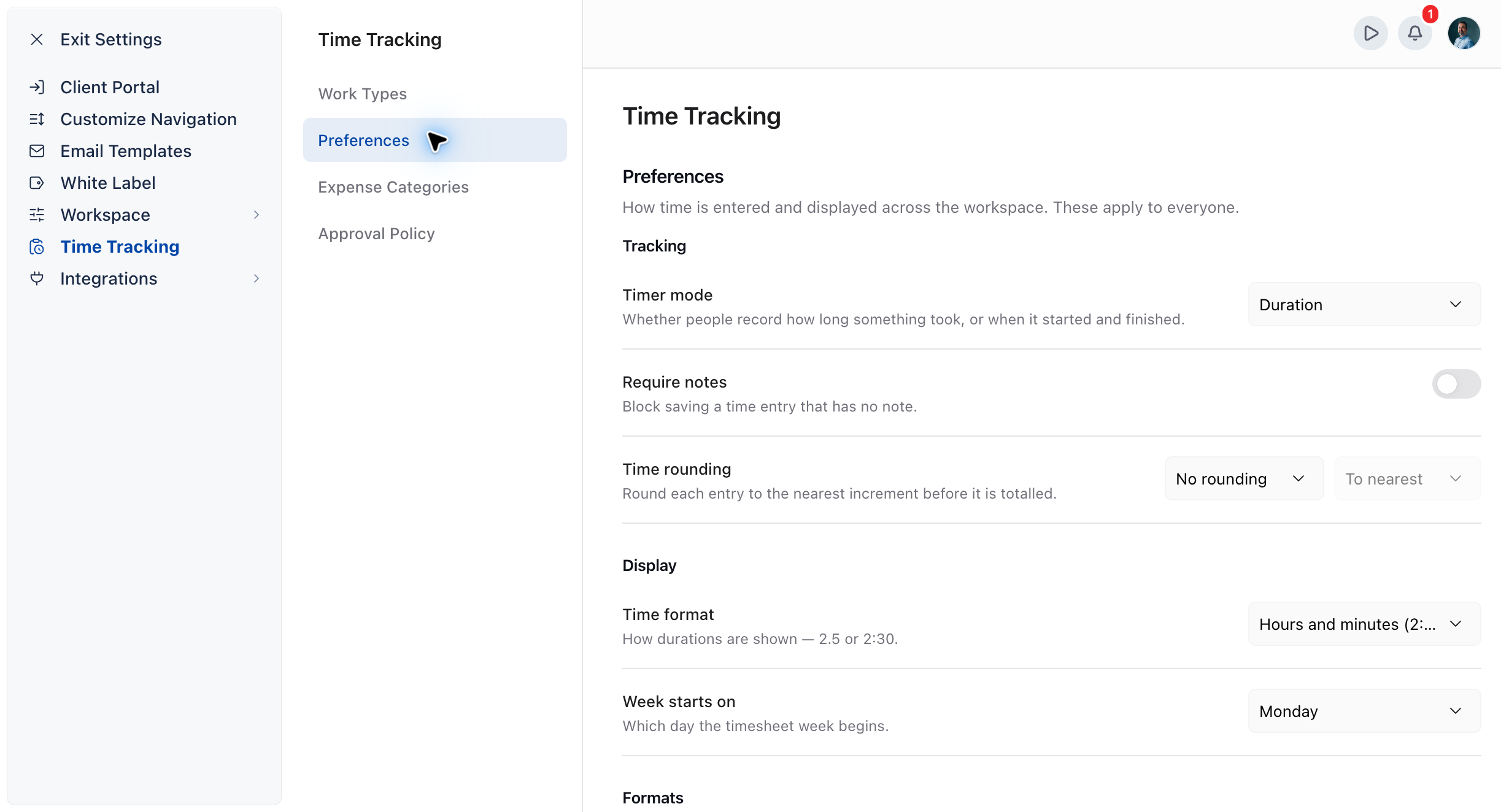
Tracking settings
Timer mode
Timer mode decides whether people record how long something took, or when it started and finished.
- Duration: people enter how long the work took, such
as
1:30or1.5. - Start and end times: people enter the clock time the work started and finished.
Important: with Start and end times, the Week view is unavailable, because a week cell has no start and end fields.
Require notes
Turn on Require notes to block saving a time entry that has no note. OneSuite then shows A note is required on every time entry. when someone tries.
Important: with Require notes on, the Week view is unavailable too, because a week cell has nowhere to write a note.
Time rounding
Time rounding rounds each entry to the nearest increment before it is totalled.
- Pick an increment: No rounding, 6 minutes, 15 minutes or 30 minutes.
- Pick a mode: To nearest or Up to nearest. The mode is unavailable while No rounding is selected.
For example, at a 15-minute increment, an entry of 1 hour 7 minutes rounds to 1 hour with To nearest and to 1 hour 15 minutes with Up to nearest.
Rounding applies to summary reports, budget calculations and new invoices. Timesheets and detailed reports keep the exact time tracked.
Display settings
Time format
Time format sets how durations are shown on the timesheet:
- Hours and minutes (2:30)
- Decimal (2.5)
Week starts on
Week starts on sets which day the timesheet week begins. Pick the day from the list. It also decides which days the 5 days span shows in the Timesheet Calendar view.
Capacity
Default weekly capacity is the number of hours per week a new team member is expected to be available. Individual capacity is set per person.
The value must be a number, can’t be negative, and can’t be more than 168, the number of hours in a week. OneSuite won’t save while one of these errors shows.
Expenses
Turn on Expense reimbursement to let team members flag expenses as needing reimbursement. With it off, the Request reimbursement for this expense option doesn’t appear on the expense form. Turning it off later doesn’t remove the flag from expenses that already have it.
What your team can type into a Week cell
When time is entered as a duration, a Week cell accepts any of these:
| What they type | What it means |
|---|---|
1:30 or 1:30:00 |
1 hour 30 minutes. A colon always means hours and minutes, whatever the time format is. |
1h30, 1h30m |
1 hour 30 minutes |
1h |
1 hour |
90m, 45min |
90 minutes, 45 minutes |
2, 1.5, .5 |
A bare number is read as hours |
| Empty | Clears the cell to zero |
Not using OneSuite yet? Start your free trial →
FAQs
Why is the Week view turned off on my OneSuite timesheet?
The Week tab is greyed out when Timer mode is Start and end times or Require notes is on. Switch Timer mode to Duration and turn Require notes off to bring it back.
Does time rounding change the hours my team tracked?
No. Timesheets and detailed reports keep the exact time tracked. Rounding applies to summary reports, budget calculations and new invoices, so at 15 minutes with Up to nearest a 2-minute entry counts as 15 minutes there.
Do timesheet preferences apply to everyone?
Yes, they apply to the whole business. Weekly capacity is the one value you can change per person: the default only sets what a new team member starts with.
Can I just let everyone pick their own time format instead?
No, the time format is one setting for the whole business. Everyone
sees durations written the same way on the timesheet, so
2:30 never gets mistaken for 2.3 hours when people compare
notes.
What is the shortest time entry OneSuite accepts?
An entry you type in must be at least 2 minutes long, and a single entry can’t be longer than 24 hours. These limits are fixed and are not part of Preferences.
What to do next
Set up work types: Sort time by kind of work and set default rates in How to Set Up Work Types.
Decide who reviews time: Turn on approvals and automatic locking in How to Set Up Timesheet Approval Policy.
Start tracking: See how your team logs hours in Time Tracking in OneSuite.