
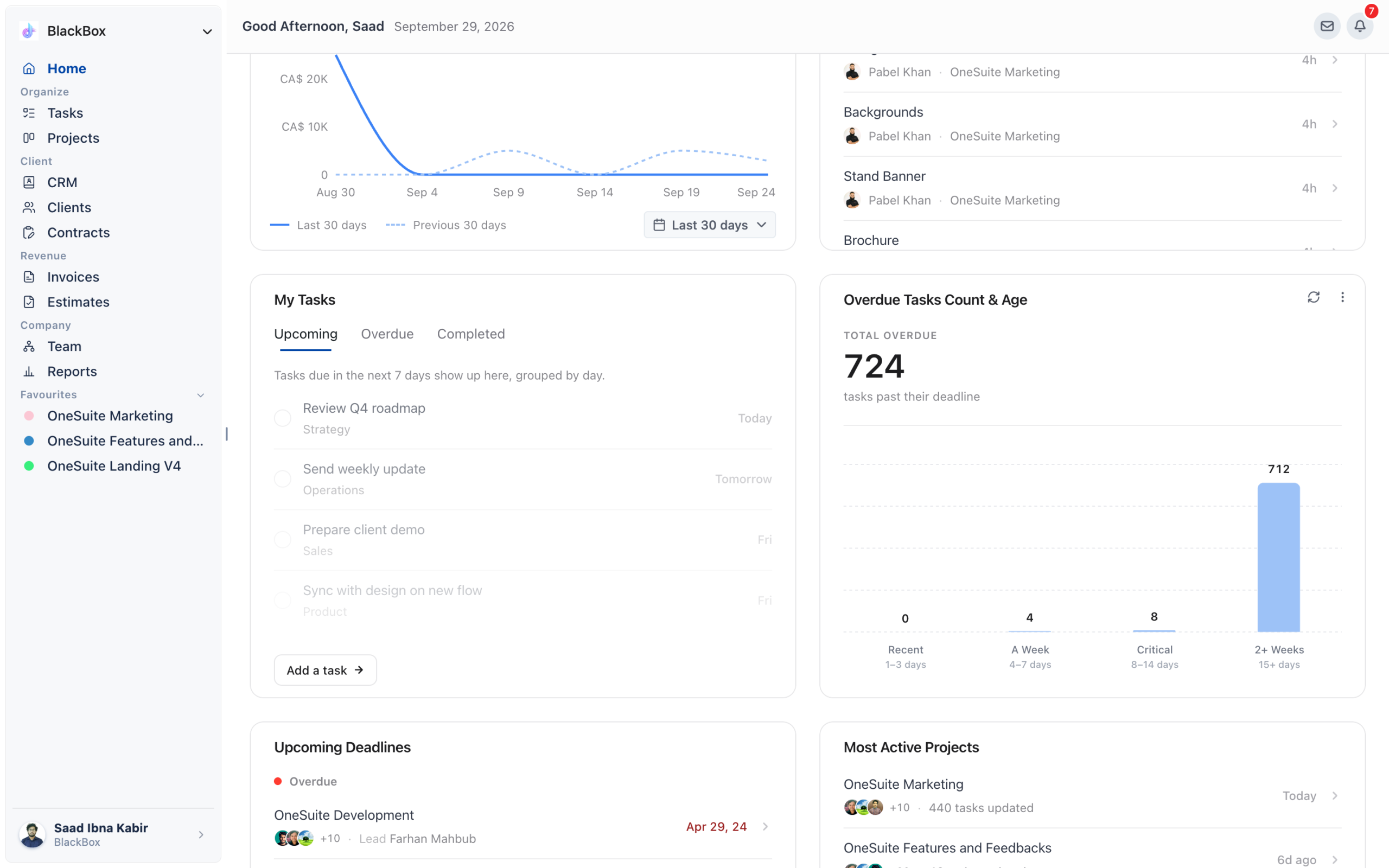
The task and project widgets on your dashboard show the tasks assigned to you, overdue work by age, what your team just finished, upcoming project deadlines and where work is most active. They surface what needs your attention across every project, so a deadline buried on one project board doesn’t slip past you.
In this guide you’ll learn how to:
- Work through the tasks assigned to you from the dashboard
- Triage overdue tasks by how late they are
- Follow team momentum in Recently Completed
- Act on Upcoming Deadlines and Most Active Projects
How to work through the tasks assigned to you
The tasks widget shows your personal task queue: every task assigned to you, across all projects. It has three tabs: Upcoming (due in the next 7 days), Overdue and Completed.
Note: in the product this widget’s title names it as your own tasks list. It is the widget covered in this section.
- Open the Upcoming tab. Tasks are grouped by day: Today, Tomorrow, then by day name for the remaining days of the week.
- Click the circle to the left of a task to mark it complete directly from the dashboard.
- Click Add a task → to create a new task without leaving the dashboard.
- Switch to Overdue to see everything past its due date, and clear these first.
How to triage overdue tasks by age
Overdue Tasks Count & Age shows the total number of tasks past their deadline, split into four age buckets.
| Bucket | Days overdue |
|---|---|
| Recent | 1 to 3 days |
| A Week | 4 to 7 days |
| Critical | 8 to 14 days |
| 2+ Weeks | 15+ days |
The older a task gets, the harder it is to recover. Tackle Critical and 2+ Weeks tasks first, because those are the most likely to affect client relationships.
- Review this widget every morning as part of your daily planning.
- Check the 2+ Weeks bucket. A large number there often means tasks are blocked, not just delayed, so investigate before reassigning.
- Click through to the relevant project to reassign, unblock or close each task.
What does Recently Completed show?
Recently Completed shows tasks your team has marked complete, grouped by when they finished: Today, Earlier, and by date for older completions. The most recent completions always appear at the top.
It’s easy to focus on what’s pending and miss what’s done. This widget shows team momentum and helps you notice when project activity slows down.
- Tasks marked complete in any project appear here automatically, with no extra action needed.
- Each entry shows the task name, the team member who completed it and the project it belongs to.
- Click View your projects → to open the full project board.
How to act on Upcoming Deadlines
Upcoming Deadlines lists projects with approaching deadlines, sorted by urgency, and flags projects past their deadline in red as Overdue.
Missing a project deadline damages client trust. With deadlines on your dashboard, you can move people around before a deadline slips.
- Read each project’s assigned team members, lead and deadline date.
- Act first on red dates, which mark overdue projects.
- Click any project row to jump straight to that project’s board.
What does Most Active Projects show?
Most Active Projects surfaces the projects with the most task activity recently, measured by the number of tasks updated. It shows the last-updated timestamp and the team members involved.
Activity is a proxy for health. Projects with no updates in weeks may be stalled without anyone flagging it.
- Use this widget to spot where your team is spending the most time.
- If a project that should be active isn’t here, it may be blocked or deprioritized, which is worth a conversation.
- Click any project to open it directly.
Not using OneSuite yet? Start your free trial →
FAQs
How do I see all tasks assigned to me across projects?
Use the tasks widget assigned to you on your dashboard. It lists every task assigned to you across all projects, on the Upcoming, Overdue and Completed tabs.
Can I complete a task from the OneSuite dashboard?
Yes. Click the circle to the left of the task in the tasks widget and it is marked complete without leaving the dashboard.
What do the overdue age buckets mean?
They group overdue tasks by how late they are: Recent is 1 to 3 days, A Week is 4 to 7 days, Critical is 8 to 14 days and 2+ Weeks is 15+ days.
Why isn’t a project showing in Most Active Projects?
It hasn’t had enough recent task activity. The widget ranks projects by the number of tasks updated, so a missing project may be blocked or deprioritized.
What do red dates mean in Upcoming Deadlines?
Red dates mark projects that are past their deadline, flagged as Overdue. Act on these first.
Can I just check each project board instead?
You can, but it’s easy to miss a deadline buried on one board. These widgets pull tasks and deadlines from every project onto one screen, so you see what needs attention first.
What to do next
Work through your tasks: Add and manage tasks on project boards with Adding Tasks to Boards in OneSuite.
Manage your boards: Keep projects moving with Managing Project Boards in OneSuite.
Arrange your widgets: Add, move and resize these cards with How to Customize Your Dashboard.