
Creating client invoices automatically from approved timesheet entries
Overview
Once billable time entries have been approved in the Timesheet view, OneSuite allows you to generate client invoices automatically from those entries. This eliminates manual data entry and ensures invoices accurately reflect the hours worked.
Prerequisites
Before generating an invoice, ensure all time entries you want to bill meet these criteria:
- Marked as Billable in the Timesheet view.
- Status set to Approved.
- Not already included in a previous invoice.
| Note: Entries that do not meet all three criteria will not appear when importing from Timesheet. |
Creating an Invoice from Timesheet Data
Follow these steps to generate an invoice from approved billable hours:
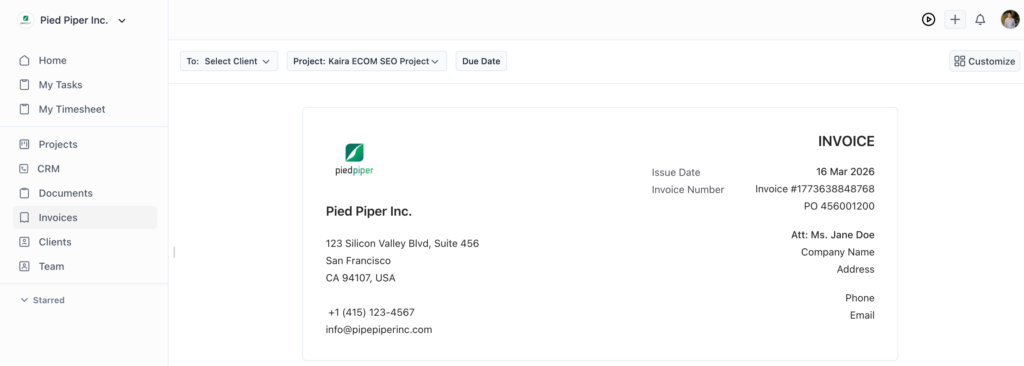
- Go to Invoices from the main menu and click Create New.
- Select One-Time Invoice as the invoice type.
- Select the Project you want to invoice for.
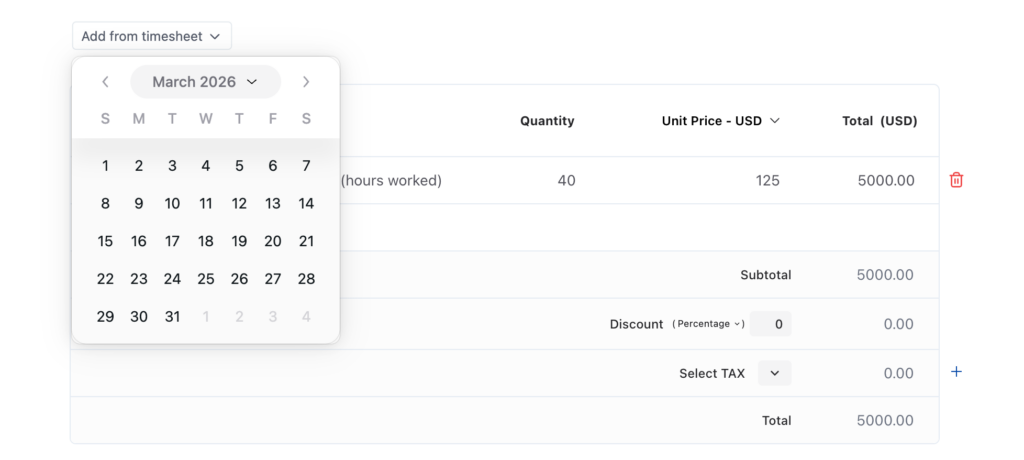
- Below the item description area, click Add from Timesheet.
- Select the date range covering the time entries you want to include.
- OneSuite will automatically pull in all eligible time entries within that range.
| Note: Eligible entries are those that are Billable, Approved, and have not previously been invoiced. |
Reviewing Invoice Line Items
After importing from Timesheet, review the invoice carefully before sending:
| Review Step | Details |
| Task-level line items | Each task is displayed as a separate line item in the invoice. |
| Expand line items | Click any line item to expand and view the individual time tracking rows that make it up. |
| Update hourly rates | If a placeholder rate (e.g., $1) was used during tracking, update it here to the correct billing amount. |
| Verify hours | Confirm that the hours and descriptions accurately reflect the work performed before finalising. |
| Note: Time entries are grouped per task. The expanded view lets you verify all details before sending the invoice to your client. |
Finalising and Sending the Invoice
- Confirm all line items, hours, and rates are correct.
- Update any placeholder hourly rates to reflect actual billing amounts.
- Add any additional notes or payment terms as required.
- Send the invoice to your client directly from OneSuite.
What Happens After Invoicing
Once time entries are added to an invoice:
- They are marked as invoiced and will no longer appear in future Timesheet imports.
- They remain visible in the Timesheet view for historical reference.
- The invoice appears in the Invoices section with its associated project and line items.
End-to-End Workflow Summary
| Step | Action |
| Step 1 | Enable the Timesheet module from Settings > Customise Modules. |
| Step 2 | Start a timer from the app header or from a project task. |
| Step 3 | Log time, set hourly rates, and add notes. |
| Step 4 | Review entries in the Timesheet view and mark as Billable. |
| Step 5 | Approve eligible entries in the Timesheet view. |
| Step 6 | Go to Invoices > Create New > Add from Timesheet. |
| Step 7 | Select a date range, review line items, update rates, and send. |
For questions or feedback, please contact the OneSuite support team.