Skip to content
OneSuite – all-in-one client portal software for agencies
  • Use cases
  • vs. Harvest
  • Pricing
+1 (302) 433-6002
LoginStart free trial

Project Management

  • Time Tracking Track hours and boost productivity
  • Projects & Tasks Manage tasks smartly and deliver on time
  • Team & Collaborators Work together and stay aligned
  • Reporting See where your agency stands

Finance Management

  • Invoicing Create invoices in minutes and get paid
  • Subscriptions NewBill clients on repeat automatically
  • Expense Tracking Track costs and bill them back
  • Budgeting Plan budgets and protect margins

Client Management

  • Client Portal Ensure transparency and gain trust
  • Documents & E-Signature Create and sign documents easily
  • CRM Nurture leads and win more clients
  • Email Inbox Manage client emails in one place
  • Marketing Agency Campaigns, clients, and billing together
  • SEO Agency Projects, reports, and invoices in one
  • Video Editing Approvals, revisions, and payments simplified
  • Local SEO Multi-location clients, billing on track
  • Photography Booking to delivery in one place
  • Event Management Timelines, vendors, and clients covered
  • Creative Agency Briefs, feedback, and billing unified
  • Consulting Proposals, tracking, and invoicing together
  • IT Services Tickets, retainers, and portals managed
  • Documentation Read guides and help docs
  • Affiliate Partner and earn together
  • Integrations Connect tools effortlessly
  • Roadmap See what's coming next
  • Changelog Stay updated with the latest
  • Support Get help whenever you need it.
  • Compare See how OneSuite stacks up
  • Case Study Real results, real teams
  • FAQ Find answers to common questions
OneSuite – all-in-one client portal software for agencies
+1 (302) 433-6002
LoginStart free trial
  • Time TrackingTrack hours and boost productivityProjects & TasksManage tasks smartly and deliver on timeTeam & CollaboratorsWork together and stay alignedReportingSee where your agency standsInvoicingCreate invoices in minutes and get paidSubscriptionsBill clients on repeat automaticallyExpense TrackingTrack costs and bill them backBudgetingPlan budgets and protect marginsClient PortalEnsure transparency and gain trustDocuments & E-SignatureCreate and sign documents easilyCRMNurture leads and win more clientsEmail InboxManage client emails in one place
  • Marketing AgencyCampaigns, clients, and billing togetherSEO AgencyProjects, reports, and invoices in oneVideo EditingApprovals, revisions, and payments simplifiedLocal SEOMulti-location clients, billing on trackPhotographyBooking to delivery in one placeEvent ManagementTimelines, vendors, and clients coveredCreative AgencyBriefs, feedback, and billing unifiedConsultingProposals, tracking, and invoicing togetherIT ServicesTickets, retainers, and portals managed
  • DocumentationRead guides and help docsAffiliatePartner and earn togetherIntegrationsConnect tools effortlesslyRoadmapSee what's coming nextChangelogStay updated with the latestSupportGet help whenever you need it.CompareSee how OneSuite stacks upCase StudyReal results, real teamsFAQFind answers to common questions
  • Pricing
  • OneSuite vs. Harvest
  • Help CenterDocumentationPublic RoadmapBook a demoGet Support
+1 (302) 433-6002Login
Start free trial

No credit card required

Help Center

  • Documentation
  • Public Roadmap
  • Book a demo
  • Get Support

Help Center

intro to onesuite

OneSuite 101

6
  • Introduction to OneSuite
  • Understanding OneSuite’s Structure
  • How Solutions Work Together
  • Navigating OneSuite
  • All OneSuite Capabilities
  • OneSuite Glossary
quick start guide

Quick Start Guide

9
  • Sending Your First Invoice
  • Tracking Your First Hours
  • Setting Up Your Business
  • Adding Your Payment Methods
  • Inviting Team Members
  • Adding Your First Leads
  • Adding Your First Client
  • Giving Your Client Portal Access
  • Sending Your First Proposal

CRM

9
  • Opportunity Automation
  • Customizing Your CRM
  • Customizing Your Opportunities View
  • CRM Overview
  • Adding People
  • Adding Companies
  • Creating Opportunity
  • How Opportunities, Companies, and People Work Together
  • Understanding Pipeline Stages
client

Client Management

6
  • Adding Clients
  • Client Profiles
  • Client Portal Customization 
  • Understanding the Clients Solution
  • The OneSuite Client Portal
  • Video Documentation : Client Management
pm

OneSuite Project Management

12
  • How to Track Project Hours and Costs
  • How to Set Up Project Billing and Budgets
  • Laying the Groundwork: Project Creation in OneSuite
  • Customize the Project Management Module
  • Managing Project Boards in OneSuite
  • Subtask Behavior & Movement Management
  • Custom Categories, Tags, and Labels in Projects
  • Adding Tasks to Boards in OneSuite
  • Custom Fields
  • Task Templates
  • Project Templates
  • Video Documentation : Project Management

Documents

5
  • Overview
  • Creating a Document from Scratch
  • Uploading a PDF Document
  • Sending Documents to Parties to Sign
  • Signing a Document
team

OneSuite's Team Management

4
  • Inviting Collaborators in OneSuite
  • Creating Personalized Departments in OneSuite
  • Managing Team Members in OneSuite
  • Video Documentation : Team Collaboration
Invoices & Payments

Invoices & Payments

9
  • How to Use Retainers
  • How to Record Invoice Payments
  • Access & Navigation
  • Invoice Settings & Customization
  • Create One-time Invoices
  • Creating Recurring Invoices
  • How to set taxes on your invoices
  • How to Add Direct Bank Transfer Instructions to Your Invoices
  • How to Customize Invoice Email Messages

Time Tracking & Timesheets

6
  • Timesheet Preferences
  • Work Types
  • Time Tracking in OneSuite
  • Invoice Generation from Billable Hours
  • Timesheet Management & Approval
  • Time Tracking & Timesheets 

Email Inbox

5
  • Email Inbox Overview
  • Connect Microsoft Outlook
  • Integrate Gmail in OneSuite 
  • Send and Receive Email in OneSuite 
  • Create and Use Email Templates in OneSuite

Calendar View

1
  • Calendar View

Dashboard

7
  • Overview 
  • How to Customize Your Dashboard
  • Client Portal Dashboard 
  • Monitor Documents, Contracts & Marketing Lead Sources
  • CRM, Client & Pipeline Widgets — OneSuite Dashboard Guide
  • Track Tasks, Deadlines & Project Activity in OneSuite
  • Track Revenue Trends, Forecasts & Top Projects in OneSuite

Expenses

2
  • Expense Categories
  • Tracking Expenses

Approvals

2
  • Approval Policy
  • Approving Timesheets and Expenses

Estimates

1
  • Estimates

Reports

2
  • Saving and Scheduling Reports
  • Reports Overview

Integrations

5
  • How to Use Webhooks and API Keys
  • How to Connect Analytics Tools
  • How to Connect Calendar, Files and Meeting Tools
  • How to Connect Accounting and Payment Tools
  • Integrations Overview

Settings & Billing

4
  • Imports, Exports, and Search
  • Managing Your OneSuite Subscription
  • Setting Up Profiles and Permissions
  • Setting Up Your Workspace
View Categories
  • Home
  • Docs
  • Time Tracking & Timesheets
  • Timesheet Management & Approval

Timesheet Management & Approval

0:00 / 6:00
  • View as Markdown Open this page as plain Markdown (opens in a new tab)
  • Open in ChatGPT Ask questions about this page (opens in a new tab)
  • Open in Claude Ask questions about this page (opens in a new tab)
  • Open in Google AI Studio Ask questions about this page (Google account required) (opens in a new tab)

Timesheet approval in OneSuite moves time through three steps: you track it, you submit it for review, and a reviewer approves it or sends it back with a reason. It gives someone the chance to check the hours before a client is billed for them, and locking the period afterwards stops them changing.

In this guide you’ll learn how to:

  • Submit your own time for approval
  • Fix and resubmit entries that were sent back
  • Review, approve or send back your team’s time on the Approvals page
  • Read each entry status
  • Lock a period so its time stops changing

Before you start

  • Timesheet approvals must be switched on. An admin does this in Settings, Time Tracking, Approval Policy, with the Timesheet approvals switch. To open Settings, click your name at the bottom of the sidebar, then Settings. With approvals off, nothing can be submitted and time is tracked with no review step.
  • To review other people’s time, your profile needs permission to approve timesheets and the Approvals module must be on. Then Approvals appears in the sidebar under Track.

How to submit your own time

You submit a complete week from your timesheet.

  1. Click Timesheet in the sidebar.
  2. Stop any running timer. An entry with a running or paused timer can’t be submitted.
  3. Click Submit week for approval.
  4. To send a single day or another span, click the arrow beside the button (More ways to submit) and choose Submit day for approval or Submit custom range for approval.

The week’s status changes to Pending approval. For the full tracking steps, see Time Tracking in OneSuite.

Note: you can’t withdraw your own submission. While an entry is Submitted you can still edit it, but you can’t delete it. If you need the whole week back, ask a reviewer to send it back.

How to fix time that was sent back

Sent-back entries show Sent back, and you reopen them before you resubmit.

  1. Open the week on your Timesheet.
  2. Click Reopen 1 entry (or Reopen N entries), or choose Reopen entry from one row’s menu.
  3. Correct the entries.
  4. Click Resubmit week for approval.

OneSuite won’t resubmit a week that still holds sent-back entries, so reopen them first.

How to review your team’s time

Reviewers work from the Approvals page, which has its own row in the sidebar.

  1. Click Approvals in the sidebar, under Track.
  2. Pick the period, for example Week or Month, and move to the dates you are reviewing.
  3. Set Status to Pending Approval to see submitted time.
  4. Use Group by (Person, Project or Client) and the filters to narrow the list.
  5. Click Approve on a row, or Approve visible timesheets and expenses to approve everything the filters show.

To return work instead, click Send back on the row, type a Reason, and click Send back. The reason is required and is sent to the person with the entries.

If self-approval is off, your own submitted row shows Needs another reviewer and someone else approves it. To undo an approval, click Withdraw approval on an approved row. For every control on the page, see How to Approve Timesheets and Expenses.
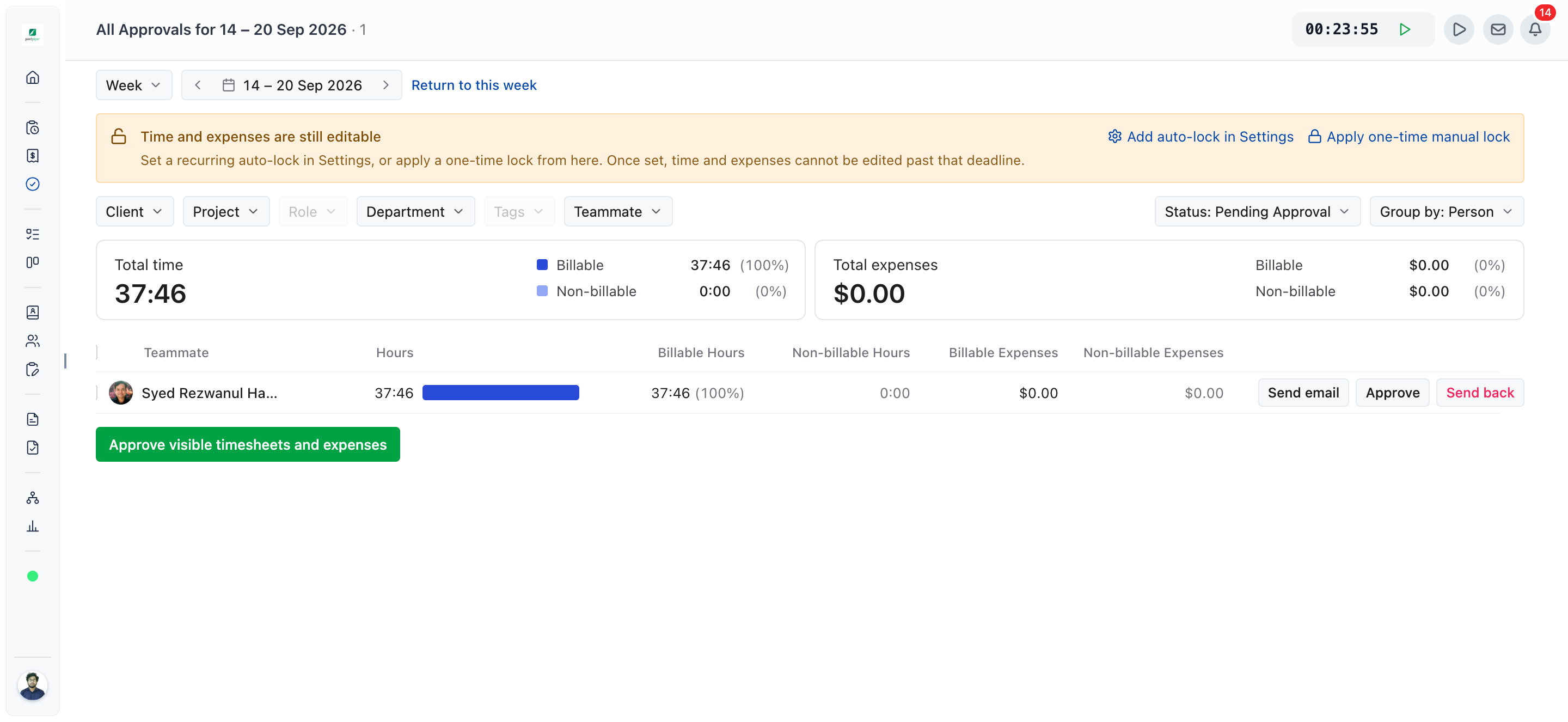
Approvals page with Status set to Pending Approval, grouped by Person, showing Approve and Send back on a row

What does each timesheet status mean?

Each entry on your timesheet carries one status, and the week shows a summary chip.

Status Meaning
Draft Tracked, not yet submitted. You can edit and delete it. The Day view leaves this status blank.
Submitted Waiting for a reviewer. You can edit it but not delete it.
Approved Signed off. It can’t be edited unless a reviewer reopens it or withdraws the approval.
Sent back Returned with a reason. Reopen it, fix it and resubmit.

The week chip reads Pending approval, Approved or Sent back. A locked entry shows This entry is locked. when you try to change it.

How is locking different from approving?

Approving says the hours are right. Locking closes the period so time and expenses in it can’t be edited or deleted.

  • Approving is a reviewer signing off an entry. An approved entry can’t be edited, but a reviewer can reopen it or withdraw the approval.
  • Locking freezes a date range, whatever the status of the entries in it.

To lock automatically, turn on Automatically lock timesheets in How to Set Up Timesheet Approval Policy. To lock once, click Apply one-time manual lock in the lock banner on the Approvals page.

How does approval affect invoicing?

Approval decides which hours an invoice can pull, depending on where you start the invoice.

  • In the invoice wizard, Which hours offers All hours, Approved only and Approved + pending approval. A project with unapproved time is tagged Has unapproved work.
  • From a project’s Timesheet tab, only approved time is pulled onto the invoice while approvals are on.

Not using OneSuite yet? Start your free trial →

FAQs

Do timesheets have to be approved before I can invoice them in OneSuite?

No, not from the invoice wizard. Which hours lets you bill All hours, Approved only or Approved + pending approval, and OneSuite flags projects with unapproved work so you see them first.

Can I withdraw a timesheet I already submitted?

No, you can’t withdraw your own submission. You can still edit a submitted entry, and a reviewer can send it back if it needs to return to you.

Where did the approval controls go?

Approvals has its own page. Click Approvals in the sidebar, under Track. Old links to the Team page’s approvals tab redirect there automatically.

Why can’t I approve my own timesheet?

Your business has manager self-approval switched off, so your own row shows Needs another reviewer. An admin controls this with Manager self-approval in Settings, Time Tracking, Approval Policy.

Who can approve my timesheet?

Anyone whose profile includes permission to approve timesheets. An admin sets that up in Settings, Workspace, Profiles & Permissions.

Can I just approve everything at the end of the month instead?

You can. Set the period to Month and click Approve visible timesheets and expenses. Weekly review catches mistakes while people still remember the work, which makes the hours easier to check.

What to do next

Learn every reviewer control: Filters, bulk actions and reminders are covered in How to Approve Timesheets and Expenses.

Set the rules: Turn on approvals, self-approval and automatic locking in How to Set Up Timesheet Approval Policy.

Bill the approved hours: Build an invoice from tracked time with Invoice Generation from Billable Hours.

Updated on October 1, 2026

One tool to suit all your client needs — OneSuite

2810 N Church St,
Delaware, USA, 19802

call +1 (302) 433-6002+1 (302) 433-6002
product hunt

Follow Us On

  • Facebook
  • X
  • Instagram
  • LinkedIn

Join Our Community

  • Facebook

Ask AI for a summary
of Onesuite

Features

Time tracking

Expense tracking

Budgeting

Billing & invoice

Client portal

Project management

Proposal & contract

CRM & Lead pipeline

Reporting

API documentation

Resources

Documentation

Public roadmap

Become an affiliate

Agency partner program

About

Contact

Support

Blog

Branding

Book a demo

Compare

Harvest

Toggl

Assembly

Wayfront

Dubsado

HoneyBook

Hello Bonsai

Product demo

  • Terms of use
  • Privacy policy
  • Cookie policy
  • Refund policy
  • Acceptable use policy
  • Data processing terms
  • Documentation
  • Public Roadmap
  • Book a demo
  • Get Support