This page lists what you can do in OneSuite, module by module, with where to find each capability and the guide that explains it. Use it to check whether OneSuite covers a job before you look for another tool, or to jump straight to the right help article.
In this guide you’ll learn how to:
- Find every OneSuite capability grouped by module
- Locate each capability in the sidebar, the top bar or Settings
- Open the help article that explains each capability step by step
- Find a module that is missing from your sidebar
How is this list organized?
The list follows the sidebar: Home first, then the Track, Organize, Client, Revenue and Company groups, then the tools you open from the top bar and the account menu.
| Sidebar group | Modules |
|---|---|
| (pinned, no heading) | Home |
| Track | Timesheet, Expenses, Approvals |
| Organize | Tasks, Projects |
| Client | CRM, Clients, Contracts |
| Revenue | Invoices, Estimates |
| Company | Team, Reports |
A few areas have no sidebar row. You open email from the Inbox icon in the top bar. You open Settings and Billing from the account menu: click your name at the bottom of the sidebar. In the tables below, “Where to find it” gives the path you click, separated by commas.
How to find a module that isn’t in your sidebar
An admin switches modules on for the whole business in Settings, Customize Navigation.
- Click your name at the bottom of the sidebar, then Settings.
- Open Customize Navigation.
- Under Modules this business uses, switch the module on.
- Click Save modules.
Only admins see these switches. A row also stays hidden if your profile lacks the permission for it, so ask an admin to check your profile if the module is on and you still can’t see it.
Home
Home is your dashboard: a KPI strip, a queue of work waiting on you, and widgets you arrange yourself.
| Capability | Where to find it | Learn more |
|---|---|---|
| See Active Clients, Ongoing Projects, Total Revenue and Pending Invoices at a glance | Home, KPI strip | Overview |
| See timesheets waiting for your review and open them with Review | Home, Needs you | Overview |
| Add, drag, resize and remove widgets, or reset to the default layout | Home, Customize | How to Customize Your Dashboard |
| Watch pipeline health with Pipeline Overview, Pipeline Growth, Recent Opportunities, Stalled Opportunities and Overdue CRM-Related Tasks | Home, CRM widgets | CRM, Client & Pipeline Widgets: OneSuite Dashboard Guide |
| Follow work with Recently Completed, Overdue Tasks Count & Age, Upcoming Deadlines and Most Active Projects | Home, task and project widgets | Track Tasks, Deadlines & Project Activity in OneSuite |
| Follow revenue with Revenue Forecast, Top Project by Revenue and Top Clients by Revenue | Home, revenue widgets | Track Revenue Trends, Forecasts & Top Projects in OneSuite |
| Monitor contracts and lead sources with Documents and Contracts and Lead Source | Home, document and CRM widgets | Monitor Documents, Contracts & Marketing Lead Sources |
| Give clients their own dashboard when they sign in to the portal | Client portal, Home | Client Portal Dashboard |
Timesheet
Timesheet is where each person logs time against projects, by timer or by hand, and submits it for approval.
| Capability | Where to find it | Learn more |
|---|---|---|
| Log and review time in four views: Day, Week, Calendar and List | Timesheet | Time Tracking in OneSuite |
| Run a timer from any page. A running timer stops at 8 hours, and you then keep or discard it | Top bar, timer | Time Tracking in OneSuite |
| Add an entry by hand with a project, work type, task and note. An entry you type in must be at least 2 minutes long, and no entry can exceed 24 hours | Timesheet, Add time | Tracking Your First Hours |
| Fill in a whole week in a grid | Timesheet, Week | Time Tracking in OneSuite |
| Show 1 day, 5 days or 7 days on a calendar and jump to any date | Timesheet, Calendar | Time Tracking in OneSuite |
| Bring yesterday’s rows across to a new day | Timesheet, Day | Time Tracking in OneSuite |
| Submit a week, a day or a custom range for approval | Timesheet, Submit week for approval | Timesheet Management & Approval |
| Reopen entries that were sent back, fix them and resubmit | Timesheet, Reopen entry | Timesheet Management & Approval |
Expenses
Expenses records the costs you incur on a project, with receipts, so they can be approved and billed.
| Capability | Where to find it | Learn more |
|---|---|---|
| Track an expense with a date, project, category, amount, notes and receipt | Expenses, Track expenses | How to Track Expenses |
| Create one expense per receipt by uploading several files at once | Expenses, Create expenses from files | How to Track Expenses |
| Mark a cost as billable to the client, reimbursable to the person who paid, or both | Expenses, Track expenses | How to Track Expenses |
| Mark a reimbursable expense as paid | Expenses, row actions, Mark as paid | How to Track Expenses |
| Submit a week of expenses for approval together with that week’s time | Expenses, Submit for approval | How to Track Expenses |
| Enter a quantity instead of an amount for unit-priced costs such as mileage | Settings, Time Tracking, Expense Categories | How to Set Up Expense Categories |
Approvals
Approvals is where reviewers check submitted time and expenses, approve them or send them back, and lock past periods.
| Capability | Where to find it | Learn more |
|---|---|---|
| Filter by Unsubmitted, Pending Approval or Approved, and group by Person, Project or Client | Approvals | How to Approve Timesheets and Expenses |
| Approve time and expenses one row at a time or in bulk | Approvals, Approve | How to Approve Timesheets and Expenses |
| Send entries back with a required Reason | Approvals, Send back | How to Approve Timesheets and Expenses |
| Remind people who haven’t submitted, or submit for them | Approvals, Send reminder or Force submit | How to Approve Timesheets and Expenses |
| Reverse an approval | Approvals, Withdraw approval | How to Approve Timesheets and Expenses |
| Lock a past period once so nobody can edit or delete its time and expenses | Approvals, Apply one-time manual lock | Timesheet Management & Approval |
| Turn approvals on, allow manager self-approval, warn about unapproved work on new invoices, and lock periods automatically | Settings, Time Tracking, Approval Policy | How to Set Up Timesheet Approval Policy |
Work Types and time tracking settings
Work types and the other Time Tracking settings decide how time is entered, priced and reviewed across the whole business.
| Capability | Where to find it | Learn more |
|---|---|---|
| Create the kinds of work your team tracks, each with an optional default rate | Settings, Time Tracking, Work Types, New work type | How to Set Up Work Types |
| Make a work type billable by default, or add it to every new project automatically | Settings, Time Tracking, Work Types | How to Set Up Work Types |
| Archive a work type that is in use instead of deleting it, and restore it later | Settings, Time Tracking, Work Types, Archive | How to Set Up Work Types |
| Choose Duration or Start and end times, require notes, and round entries | Settings, Time Tracking, Preferences | How to Set Timesheet Preferences |
| Set the time format, the day the week starts and the default weekly capacity | Settings, Time Tracking, Preferences | How to Set Timesheet Preferences |
| Let people flag expenses for reimbursement | Settings, Time Tracking, Preferences, Expense reimbursement | How to Set Timesheet Preferences |
| Create expense categories, with an optional unit and unit price | Settings, Time Tracking, Expense Categories | How to Set Up Expense Categories |
Tasks
Tasks shows your tasks from every project in one place, on a board or a calendar.
| Capability | Where to find it | Learn more |
|---|---|---|
| See your tasks across projects as cards in columns | Tasks, Board | Calendar View |
| See dated tasks on a Daily, Weekly or Monthly calendar, and search tasks and subtasks | Tasks, Calendar | Calendar View |
| Show events from a connected Google or Outlook calendar alongside your tasks | Settings, Integrations, Calendar | How to Connect Calendar, Files and Meeting Tools |
| See open, overdue and completed work per person (admins) | Tasks, Team Overview | Calendar View |
Projects
Projects holds your client work: tasks on boards, files, a timesheet of the hours spent, and billing and budget settings.
| Capability | Where to find it | Learn more |
|---|---|---|
| Create a project with a client, privacy, status and the views it uses | Projects, Create | Laying the Groundwork: Project Creation in OneSuite |
| Star a project so it appears under Favourites in the sidebar | Projects, row menu, Mark as favorite | Laying the Groundwork: Project Creation in OneSuite |
| Manage tasks on a Kanban board or in a list, with sections, assignees and due dates | Project, Kanban or List | Managing Project Boards in OneSuite |
| Add tasks, subtasks, labels, comments and attachments | Project, Kanban | Adding Tasks to Boards in OneSuite |
| Choose whether subtasks move with their parent task or on their own | Project, Customize, Attached with Parent or Independent Movement | Subtask Behavior & Movement Management |
| Add your own task fields, in nine field types | Project, Customize, Custom Fields | Custom Fields |
| Create categories and tags that every project can use | Projects, Customize | Custom Categories, Tags, and Labels in Projects |
| Reuse a set of tasks and subtasks | Projects, Customize, Task Templates | Task Templates |
| Save a project as a template, or start a new project from one | Projects, row menu, Save as template | Project Templates |
| Set the project type, billable rates, budget, budget alerts, work types, team rates and invoice defaults | Project, Billing | How to Set Up Project Billing and Budgets |
| See total hours, budget remaining, internal costs, invoiced and uninvoiced amounts, and invoice what is ready | Project, Timesheet | How to Track Project Hours and Costs |
| Manage project templates, task templates, categories and tags from one panel | Projects, Customize | Customize the Project Management Module |
CRM
CRM tracks your pipeline: the opportunities you are chasing and the companies and people behind them.
| Capability | Where to find it | Learn more |
|---|---|---|
| Work in four tabs: Opportunities, Companies, People and Tasks | CRM | CRM Overview |
| Add a person or a company, then fill in their details on their record | CRM, People or Companies, Add New | Adding People |
| Create an opportunity and link it to a company and a point of contact | CRM, Opportunities, Add New | Creating Opportunity |
| Switch opportunities between a table and a Kanban board | CRM, Opportunities | Customizing Your Opportunities View |
| Add, rename, recolour, reorder and delete pipeline stages | CRM, Opportunities, Kanban, Add stage | Understanding Pipeline Stages |
| Reorder or hide CRM tabs, and manage industries, sources and tags | CRM, Customize | How to Customize Your CRM |
| Create an opportunity automatically when a contact is added, and choose how it is named | CRM, Customize, Opportunity Automation | How to Set Up Opportunity Automation |
| Turn a person, company or opportunity into a client | Record, Convert to Client | How Opportunities, Companies, and People Work Together |
| Import people or companies from a CSV file, and export any CRM table | CRM, table Options, Import | Imports, Exports, and Search |
Clients
Clients keeps the record for every customer you bill, with their projects, invoices, contracts and files in one profile.
| Capability | Where to find it | Learn more |
|---|---|---|
| Add a company or individual client, and invite them to the portal as you do | Clients, Add New | Adding Clients |
| Open a client’s profile and move between its tabs, such as Projects, Invoices, Contracts, Notes, Files and Emails | Clients, client name | Client Profiles |
| Add people to a company client and choose its point of contact | Client profile, People, Add People | Client Profiles |
| Choose which profile tabs show, and manage client types, statuses, priorities, sources and industries | Clients, Customize | Understanding the Clients Solution |
| Import clients from a CSV file of up to 1,000 rows, and export the client list | Clients, Options, Import | Imports, Exports, and Search |
Client Portal
The client portal is where your clients sign in to see the projects, invoices, contracts and files you share with them.
| Capability | Where to find it | Learn more |
|---|---|---|
| Invite a client to the portal and choose what they can access | Client profile, Portal access | Giving Your Client Portal Access |
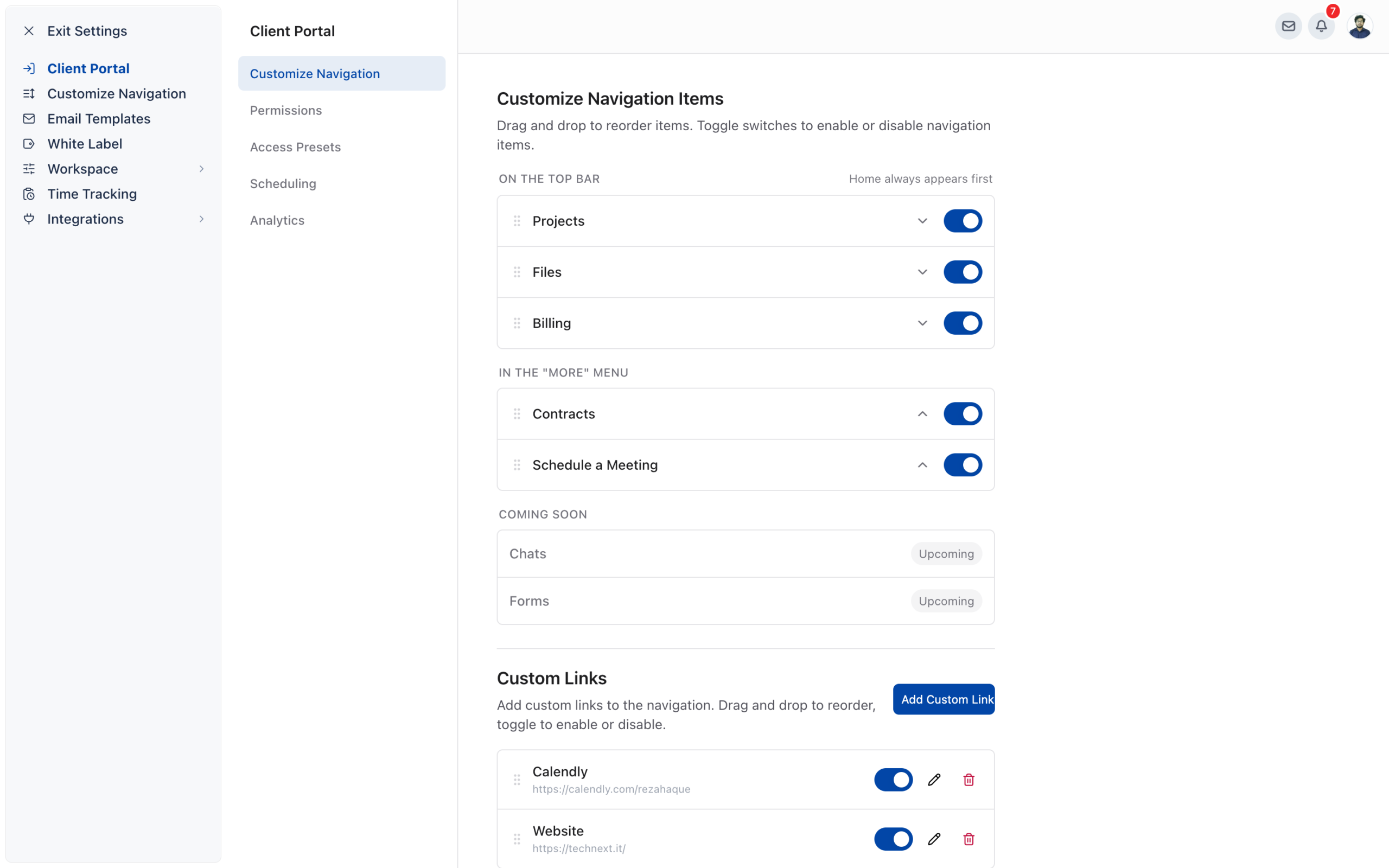
| Choose which items clients see in their portal navigation | Settings, Client Portal, Customize Navigation | Client Portal Customization |
| Set whether clients get View Only Access or Create or Update Access | Settings, Client Portal, Permissions | Client Portal Customization |
| Save reusable access presets and set a default | Settings, Client Portal, Access Presets | The OneSuite Client Portal |
| Let clients book meetings through Calendly, Google Calendar, Outlook Calendar or Zoom | Settings, Client Portal, Scheduling | How to Connect Calendar, Files and Meeting Tools |
| Track portal visitors with Google Tag Manager, Google Analytics or Microsoft Clarity | Settings, Client Portal, Analytics | How to Connect Analytics Tools |
Contracts
Contracts is where you write or upload proposals, contracts and agreements and send them out for electronic signature.
| Capability | Where to find it | Learn more |
|---|---|---|
| Write a document in the editor, starting blank or from the Template Library | Contracts, Start from blank | Creating a Document from Scratch |
| Upload a PDF and place signature, initials, date, text and checkbox fields on it | Contracts, Upload a document | Uploading a PDF Document |
| Send a document to up to 10 parties, with a custom email | Document, Send Parties to Sign | Sending Documents to Parties to Sign |
| Let signers sign in the browser without a OneSuite account | Signer’s email, signing link | Signing a Document |
| Track each document’s status and download the signed PDF, the Signature Certificate and the Audit Log | Contracts, document | Overview |
| Link a document to a project | Document, project selector | Uploading a PDF Document |
Invoices
Invoices turns tracked time, expenses and fees into invoices, sends them, and records what you are paid.
| Capability | Where to find it | Learn more |
|---|---|---|
| Move between Overview, Recurring, Retainers, Uninvoiced and Configure | Invoices | Access & Navigation |
| Build an invoice from tracked time, expenses and project fees in a guided wizard | Invoices, Create, From tracked time & expenses | Invoice Generation from Billable Hours |
| Write a one-off invoice with your own line items | Invoices, Create, From scratch | Create One-time Invoices |
| Make an invoice repeat on a schedule, from daily to yearly | Invoice editor, Repeats | Creating Recurring Invoices |
| Send an invoice by email with a PDF and a link to the web invoice | Invoice, Send invoice | Sending Your First Invoice |
| Record a full or partial payment | Invoice, Record payment | How to Record Invoice Payments |
| Set up your letterhead look, document wording and new invoice defaults | Invoices, Configure | Invoice Settings & Customization |
| Set tax rates and an optional second tax | Invoices, Configure, Taxes | How to Set Taxes on Your Invoices |
| Edit the invoice, reminder and thank-you emails, and chase unpaid invoices automatically | Invoices, Configure, Emails | How to Customize Invoice Email Messages |
| Show bank transfer details and online payment options on invoices | Invoices, Configure, Getting paid | How to Add Direct Bank Transfer Instructions to Your Invoices |
| Export invoices to CSV or Excel, or export line items | Invoices, Actions | Imports, Exports, and Search |
Retainers
Retainers hold money a client pays up front, which later invoices draw down.
| Capability | Where to find it | Learn more |
|---|---|---|
| Create a retainer for all of a client’s projects or for one project | Invoices, Retainers, New retainer | How to Use Retainers |
| Add funds, which raises a retainer invoice for the client to pay | Retainer, Add funds | How to Use Retainers |
| Draw from the balance to pay down a new invoice | Invoices, Create, Draw from retainer | How to Use Retainers |
| See the Balance, Funded and Drawn amounts and every retainer invoice | Retainer page | How to Use Retainers |
Estimates
Estimates prices work before it starts, and turns an accepted estimate into an invoice.
| Capability | Where to find it | Learn more |
|---|---|---|
| Create an estimate with line items, taxes and notes | Estimates, New estimate | How to Create Estimates |
| Send an estimate by email, or copy a client link | Estimate, Send estimate or Copy client link | How to Create Estimates |
| Let the client accept or decline without signing in, or mark the decision yourself | Estimate, Mark accepted or Mark declined | How to Create Estimates |
| Turn an accepted estimate into an invoice draft | Estimate, Create the invoice | How to Create Estimates |
| Export estimates to CSV or Excel | Estimates, Export | Imports, Exports, and Search |
Team
Team holds the people in your business, what they can do, what they cost and what they are paid for.
| Capability | Where to find it | Learn more |
|---|---|---|
| Invite a person with their type, roles, departments, weekly capacity and rates | Team, Members, Invite | Inviting Collaborators in OneSuite |
| Edit a person’s details, capacity, projects and permissions | Team, Members, person | Managing Team Members in OneSuite |
| Organize people with roles and departments | Team, Assignments | Creating Personalized Departments in OneSuite |
| Set each person’s default billable rate and cost rate | Team, Rates | Managing Team Members in OneSuite |
| Create custom profiles and assign them to people | Team, Assignments, Profiles | How to Set Up Profiles and Permissions |
| Import people from a file, and export the roster to CSV or Excel | Team, Members, roster menu | Imports, Exports, and Search |
Reports
Reports answers questions about hours, profit, billing and who changed what, across the whole business.
| Capability | Where to find it | Learn more |
|---|---|---|
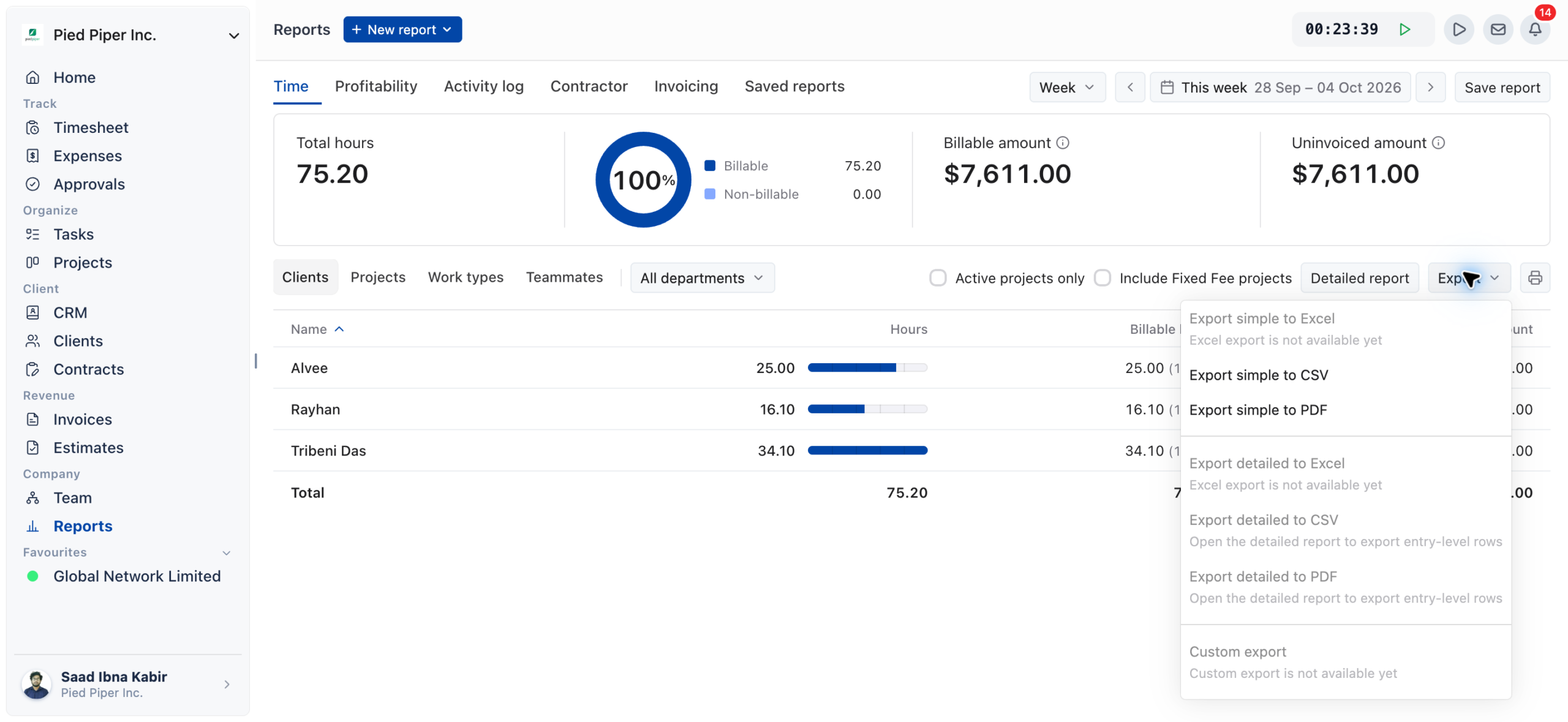
| See hours by client, project, work type or teammate | Reports, Time | Reports Overview |
| Compare revenue, costs and profit by client, project, team or work type | Reports, Profitability | Reports Overview |
| See contractor hours, utilization and cost | Reports, Contractor | Reports Overview |
| See what was invoiced, paid, still owed and not yet invoiced | Reports, Invoicing | Reports Overview |
| See who changed timesheets, approvals, projects, expenses, invoices and clients | Reports, Activity log | Reports Overview |
| Open every entry behind a total in a detailed time or expense report | Reports, New report | Reports Overview |
| Save a report, share it with your team, and email it on a Daily, Weekly or Monthly schedule | Reports, Save report | How to Save and Schedule Reports |
| Export a report to CSV or PDF | Reports, Export | Reports Overview |
Email Inbox
Email Inbox connects your mailbox so you can send and receive client email from inside OneSuite, on the right record.
| Capability | Where to find it | Learn more |
|---|---|---|
| Connect a Microsoft account, or Gmail through a custom SMTP connection. The number of inboxes you can connect depends on your plan, and you can add more as an add-on | Settings, Integrations, Email Inbox | Email Inbox Overview |
| Send, receive and reply to email, with attachments, CC and scheduled sending | Top bar, Inbox | Send and Receive Email in OneSuite |
| Email a contact from their record’s Emails tab | CRM or Clients, record, Emails | Send and Receive Email in OneSuite |
| Reuse email templates with dynamic fields | Settings, Email Templates | Create and Use Email Templates in OneSuite |
Integrations
Integrations connect OneSuite to your accounting, payment, calendar, storage, meeting and analytics tools.
| Capability | Where to find it | Learn more |
|---|---|---|
| Browse every integration group in one list | Settings, Integrations | Integrations Overview |
| Copy invoices and payments to QuickBooks Online or Xero, one at a time | Settings, Integrations, Accounting | How to Connect Accounting and Payment Tools |
| Take online payments through Stripe, PayPal, QuickPay, Razorpay, HitPay or CHIP | Settings, Integrations, Payment | How to Connect Accounting and Payment Tools |
| Connect Google Calendar or Outlook Calendar | Settings, Integrations, Calendar | How to Connect Calendar, Files and Meeting Tools |
| Link OneDrive files into client Files tabs | Settings, Integrations, Cloud Storage | How to Connect Calendar, Files and Meeting Tools |
| Connect Calendly, Google Calendar, Outlook Calendar or Zoom for client bookings | Settings, Integrations, Meeting Scheduling | How to Connect Calendar, Files and Meeting Tools |
| Add Google Tag Manager, Google Analytics or Microsoft Clarity to your client portal | Settings, Integrations, Analytics | How to Connect Analytics Tools |
| Send email through your own provider: SendGrid, Postmark, SMTP2Go, Brevo or AWS SES | Settings, Integrations, SMTP Settings | Integrations Overview |
| Create, update or delete clients and CRM records from another tool with incoming webhooks | Settings, Integrations, Incoming Webhooks | How to Use Webhooks and API Keys |
| Generate API keys for your own integrations | Settings, Workspace, API Keys | How to Use Webhooks and API Keys |
Settings and Billing
Settings and Billing open from the account menu and hold everything that applies to the whole business.
| Capability | Where to find it | Learn more |
|---|---|---|
| Switch modules on or off for everyone, and arrange your own sidebar | Settings, Customize Navigation | How to Set Up Your Workspace |
| Update your business name, logo, contact details, address, timezone and currency | Settings, Workspace, General | How to Set Up Your Workspace |
| Create profiles that decide what people can see and do | Settings, Workspace, Profiles & Permissions | How to Set Up Profiles and Permissions |
| Run your client portal on your own domain, with your own sign-in page, SEO settings and sender email | Settings, White Label | The OneSuite Client Portal |
| Delete the business and all of its data | Settings, Workspace, Delete Business | How to Set Up Your Workspace |
| See your plan, seats, add-ons, payment method and bills from OneSuite, or cancel | Account menu, Billing | How to Manage Your OneSuite Subscription |
| Switch between Light, Dark and System themes, and change the interface language | Account menu, Theme or Language | Navigating OneSuite |
| Search within each list using its own search box | Any list, search box | Imports, Exports, and Search |
Not using OneSuite yet? Start your free trial →
FAQs
What can OneSuite do?
OneSuite runs client work from first contact to payment: CRM, clients, contracts, projects, tasks, time and expense tracking, approvals, estimates, invoices, retainers and reports. The tables on this page list each capability by module, with a link to the guide that explains it.
Does OneSuite have time tracking and timesheets?
Yes. The Timesheet module logs time by timer or by hand in Day, Week, Calendar and List views. People submit time for approval, reviewers approve it in Approvals, and billable hours flow onto invoices through the invoice wizard.
Can I just use separate tools for CRM, projects and invoicing instead?
You can, but you then copy clients, hours and amounts between tools by hand. In OneSuite an opportunity converts into a client, the client’s projects collect tracked time and expenses, and those hours and costs build the invoice without being retyped.
Is there a global search in OneSuite?
No. OneSuite has no search across the whole app. Each list, such as clients, CRM tables, projects or the team roster, has its own search box.
Why don’t I see some of these modules in my sidebar?
A module shows only when it is switched on for your business and your profile has permission to open it. An admin can switch modules on in Settings, Customize Navigation, and can check your profile in Settings, Workspace, Profiles & Permissions.
Does OneSuite connect to QuickBooks or Xero?
Yes. Connect one of them in Settings, Integrations, Accounting to copy your invoices and record payments in your accounting software. A business can connect only one accounting integration at a time.
What to do next
Get set up: Follow the setup order for a new business in Setting Up Your Business.
See how the modules connect: Follow work from lead to paid invoice in How Solutions Work Together.
Look up a term: Check what a word means in OneSuite with the OneSuite Glossary.