
Taxes in OneSuite are rates you save once, such as sales tax, VAT or service tax, and then charge on invoice lines, with an optional second tax on top. Setting them up in one place means every invoice calculates tax the same way, and you never retype a percentage.
In this guide you’ll learn how to:
- Create your tax rates in Configure
- Choose the taxes a new invoice starts with
- Charge a second tax, simple or compound
- Apply, change or remove taxes on one invoice
- Set a default tax on a project
How to create your tax rates
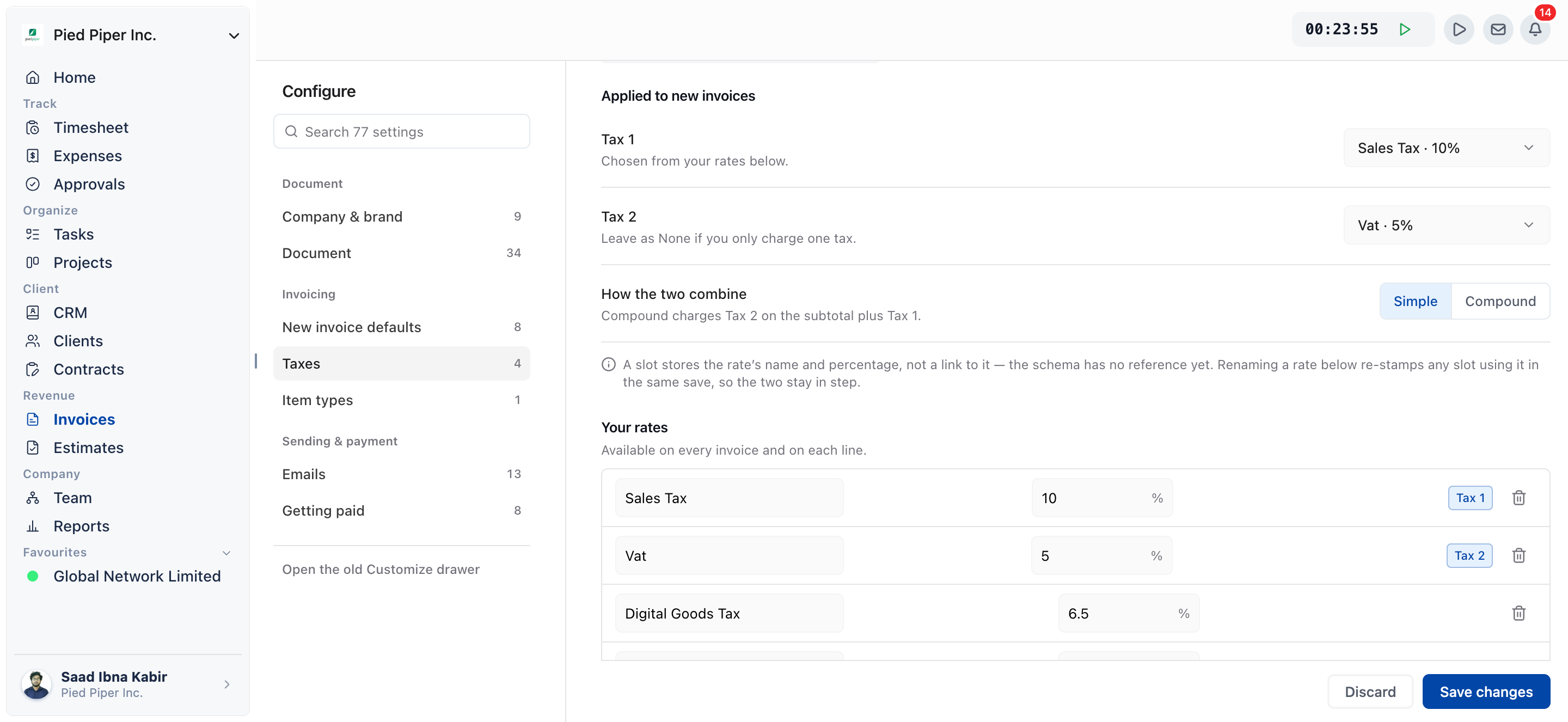
You create tax rates in Invoices, Configure, Taxes, under Your rates.
- Click Invoices in the sidebar.
- Click the Configure tab.
- Click Taxes in the Configure rail. It sits in the Invoicing group.
- Under Your rates, click Add a rate.
- Enter a Rate name, for example
VAT (UK)orSales Tax (CA). This is the name your client sees on the invoice. - Enter the Percentage, for example
10for 10%. - Repeat for every rate you charge.
- Click Save changes.
The save bar appears as soon as you change something. Click Discard to undo your changes instead. If a rate has a name but no percentage, or a percentage but no name, OneSuite blocks the save with Give every rate a name and a percentage.
To remove a rate, click its trash icon (Delete rate), then click Save changes. The rates you save are available on every invoice and on each line.
How to choose the taxes a new invoice starts with
You pick the starting taxes under Applied to new invoices on the same Taxes page.
- Open Invoices, Configure, Taxes.
- Under Tax 1, choose one of your rates.
- Under Tax 2, choose a second rate. Leave it as None if you only charge one tax.
- If you use two taxes, choose how they combine: Simple or Compound.
- Click Save changes.
These choices are copied onto an invoice when it is created, and you can still change them on each invoice. If you rename or re-rate a rate that Tax 1 or Tax 2 uses, the slot is updated in the same save, so the two stay in step. The New invoice defaults page shows the same choices read-only, with a Manage taxes link back to this page.
How do simple and compound taxes differ?
Simple charges both taxes on the pre-tax amount, while compound charges Tax 2 on the subtotal plus Tax 1.
| Mode | How Tax 2 is worked out | Example: 1,000 subtotal, Tax 1 at 10%, Tax 2 at 5% |
|---|---|---|
| Simple | Both taxes are charged on the pre-tax amount. | Tax 1 = 100, Tax 2 = 50, total tax 150 |
| Compound | Tax 2 is charged on top of Tax 1, on the subtotal plus Tax 1. | Tax 1 = 100, Tax 2 = 55, total tax 155 |
Use compound only when your tax authority tells you to charge one tax on top of another.
How to apply taxes on an invoice
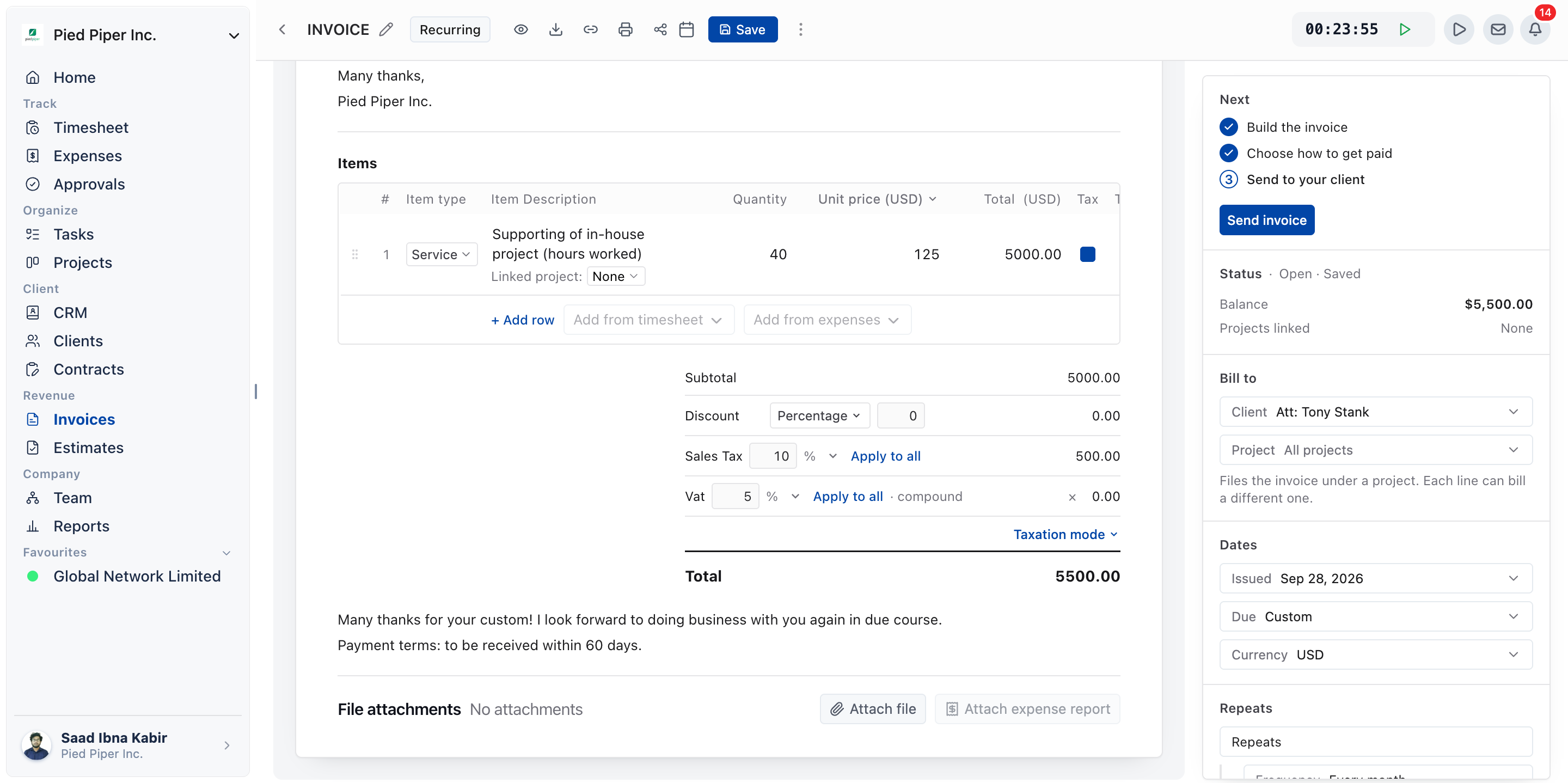
You apply taxes in the totals area of the invoice editor, below the line items.
- Open a draft invoice, or create one with New invoice.
- Add your line items.
- Next to Tax in the totals, open the rate picker (Choose tax) and pick a rate. If the list says No taxes set up, create a rate in Configure first.
- Click Apply to all to tick Tax on every line.
- To charge a second tax, click + Enable second tax, pick a rate for Tax 2, and click its Apply to all.
- Under Taxation mode, choose Simple or Compound.
- Check the totals, then save the invoice.
Each line has its own Tax and Tax 2 checkbox, so you can leave a line untaxed by unticking it. To drop the second tax, click the cross beside Tax 2 (Remove second tax). To take tax off the whole invoice, open the Charges group in the editor rail and switch off Apply tax.
Estimates carry Tax and Tax 2 columns on their lines in the same way.
How to set a default tax on a project
You set a project’s default tax in the Invoice values card on the project’s Billing tab.
- Click Projects in the sidebar and open the project.
- Click the Billing tab.
- In Invoice values, enter a Tax percentage between 0 and 100.
- To add a second tax, click Enable second tax and enter the Second tax percentage, also between 0 and 100.
- To take the second tax away, click Disable second tax.
There is no save button on the Billing tab. Each change saves on its own, and the card shows Saving… and then Saved. These values are what a new invoice for this project starts from, and every one of them can still be changed on the invoice itself. You need permission to edit the project to change them.
Where each tax setting lives
| Where | Setting | What it controls |
|---|---|---|
| Configure, Taxes, Your rates | Rate name, Percentage | The list of rates you can pick on any invoice |
| Configure, Taxes, Applied to new invoices | Tax 1, Tax 2, How the two combine | The taxes a new invoice starts with |
| Invoice editor, totals | Tax, Tax 2, Taxation mode, Apply to all | The taxes on this one invoice |
| Invoice editor, Charges | Apply tax | Whether this invoice charges tax at all |
| Project, Billing, Invoice values | Tax, Second tax (0 to 100%) | The tax a new invoice for this project starts from |
Not using OneSuite yet? Start your free trial →
FAQs
How do I add VAT to an invoice in OneSuite?
Create a rate called VAT in Invoices,
Configure, Taxes, then pick it next to
Tax in the invoice editor and click Apply to
all. If you want every new invoice to start with VAT, choose it
as Tax 1 on the Taxes page.
Can I charge two taxes on one invoice?
Yes. Click + Enable second tax in the invoice editor, pick a rate for Tax 2, and choose Simple or Compound under Taxation mode. You can also make two taxes the default by setting both Tax 1 and Tax 2 in Configure.
How do I make one line item tax-free?
Untick that line’s Tax checkbox, and its Tax 2 checkbox if you charge a second tax. The other lines stay taxed.
Can I use a different tax rate for one project?
Yes. Open the project’s Billing tab and set Tax and Second tax in Invoice values. New invoices for that project start from those percentages instead of your business defaults.
My older invoice shows a different tax layout. How do I change it?
Click Switch to Tax / Tax 2 in the invoice’s totals area. It replaces the older tax rows with Tax and Tax 2 and per-line checkboxes.
Can I just add tax as a line item instead?
You can, but OneSuite then treats it as an ordinary charge, not a tax. Using a tax rate keeps the tax on its own row, works it out from the lines you tick, and updates it when the amounts change.
What to do next
Finish your invoice setup: Choose your letterhead, wording and new invoice defaults in Invoice Settings & Customization.
Set project defaults: Add tax, due dates and discounts per project with How to Set Up Project Billing and Budgets.
Send an invoice: Put your tax rates to work in Create One-time Invoices.