Search Bar
- Search bar (left-aligned)
- Allows users to search through opportunity records by keyword — such as opportunity name, company, contact, or deal value.
- Typing in this field filters the displayed list in real time.
How to Search for an Opportunity
- Go to the Opportunities tab inside your CRM
- Look for the Search opportunities… bar in the top right corner of the screen
- Click on it — your cursor will appear inside the search box
- Start typing the name of the opportunity, company, or deal
- Results will appear as you type — click on the one you’re looking for to open it
Search Opportunities
Each column represents a stage in your sales process. The default stages are:
- Contacted – Deals where you’ve made first contact but nothing formal yet.
- Qualification – Opportunities you’re actively exploring. Is this a real fit?
- Proposal Sent – You’ve sent a proposal and are waiting on a decision.
- Won – Closed deals. The finish line.
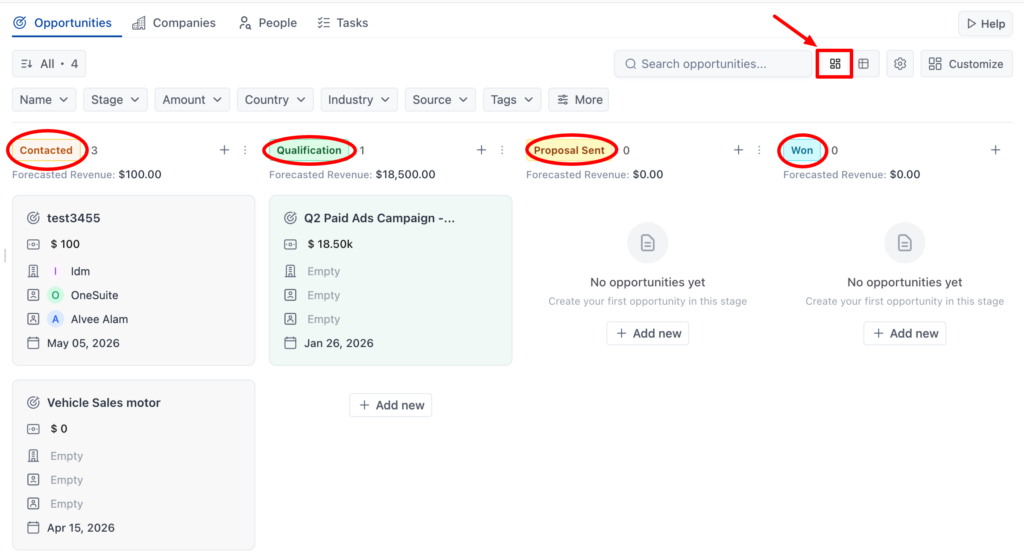
At the top of each column you’ll see a deal count and a Forecasted Revenue total. That number adds up the amounts on every opportunity in that stage.
The Opportunities List View
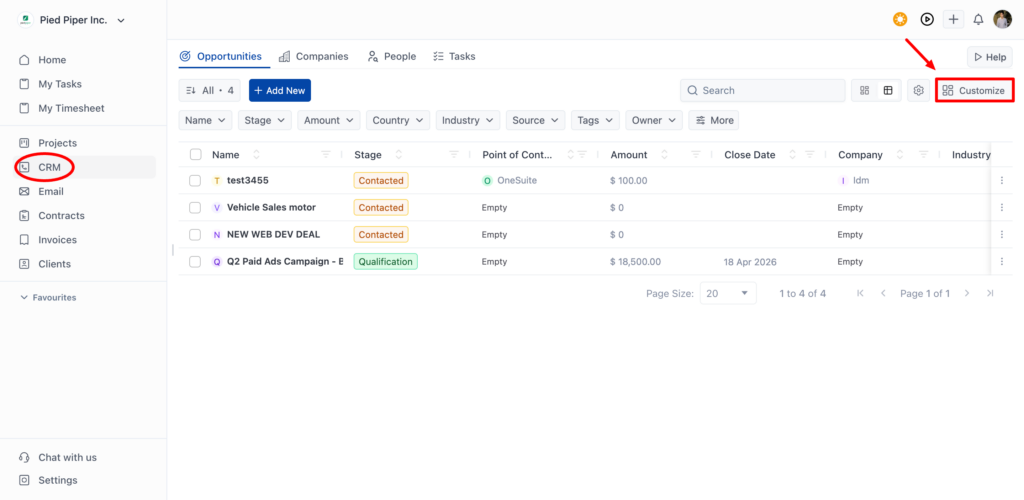
The List view shows your pipeline as a table. Same deals as the Kanban view, different format. Use it when you want to compare opportunities side by side, sort by a specific column, or see more deals on screen at once.
Customize
Click Customize in the top right of the Opportunities view to tailor CRM to how your business actually works. It opens a panel with five sections.
Tab
Tab Settings controls which sections appear in your CRM navigation. All four are turned on by default:
- Opportunities – Your sales pipeline. Leave this on.
- Companies – Your organization database.
- People – Your contact database.
- Tasks – All CRM-related tasks in one place.
Industry
Manage the list of industries available when categorizing companies and opportunities. Add, edit, or remove options to match your market.
Source
Source tracks where your opportunities come from. OneSuite comes with six sources ready to use:
- Email Campaign – Leads that came in through an email marketing campaign
- SEO – Prospects who found you through organic search
- LinkedIn – Connections and outreach from LinkedIn
- Event – Leads you met at a conference, webinar, or any live event
- Referral – Deals sent your way by an existing client or partner
- Website – Inbound inquiries through your website
Tag
Create and manage tags for organizing opportunities. Tags let you group and filter deals by anything that doesn’t fit a standard field.
Adding a Tag
Type a name in the Tag name field and click + Add Tag. That’s it. The tag is now available to apply to any opportunity.
Opportunity Automation – Set up automated actions that trigger as deals move through your pipeline. Move a deal to a new stage and let OneSuite handle the follow-up steps automatically.
Opportunity Automation
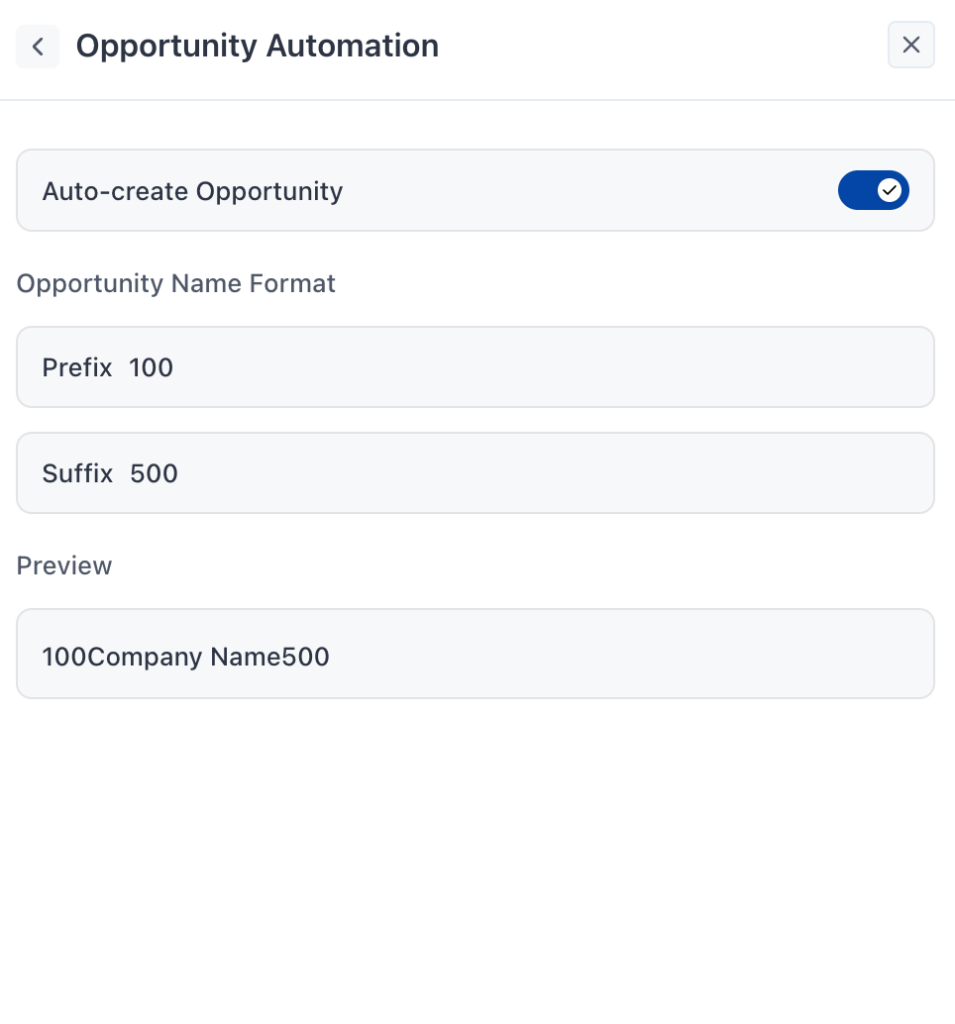
Opportunity Automation reduces manual work by creating opportunities for you automatically. One setting, one naming format, and CRM starts building your pipeline without the extra steps.
Auto-create Opportunity
This toggle is on by default. When enabled, OneSuite automatically creates a new opportunity whenever a new company or contact enters your CRM. You don’t have to remember to create it manually — it’s already there waiting.
Turn it off if you prefer to create opportunities yourself, one by one, only when there’s a real deal to track.
Opportunity Name Format
Control how auto-created opportunities get named. Two fields let you wrap the company name with your own text:
- Prefix – Text that appears before the company name. For example, Deal – produces Deal – Company Name
- Suffix – Text that appears after the company name. For example, – New produces Company Name – New