
The Calendar view on the Tasks page places your tasks on a daily, weekly or monthly grid, using each task’s start and due dates. It shows what is scheduled when, so you can spot days where deadlines pile up and move work before it becomes a problem.
In this guide you’ll learn how to:
- Open the Calendar tab on the Tasks page
- Switch between Daily, Weekly and Monthly views and move through dates
- Search the calendar and read each task block
- Reschedule a task by dragging it, or add a task from an empty slot
Before you start
- If you don’t see Tasks in the sidebar, an admin can switch it on in Settings, Customize Navigation.
- The Calendar tab shows only if your profile includes permission to view project settings.
How to open the Calendar view
- Click Tasks in the sidebar, under Organize.
- Click the Calendar tab.
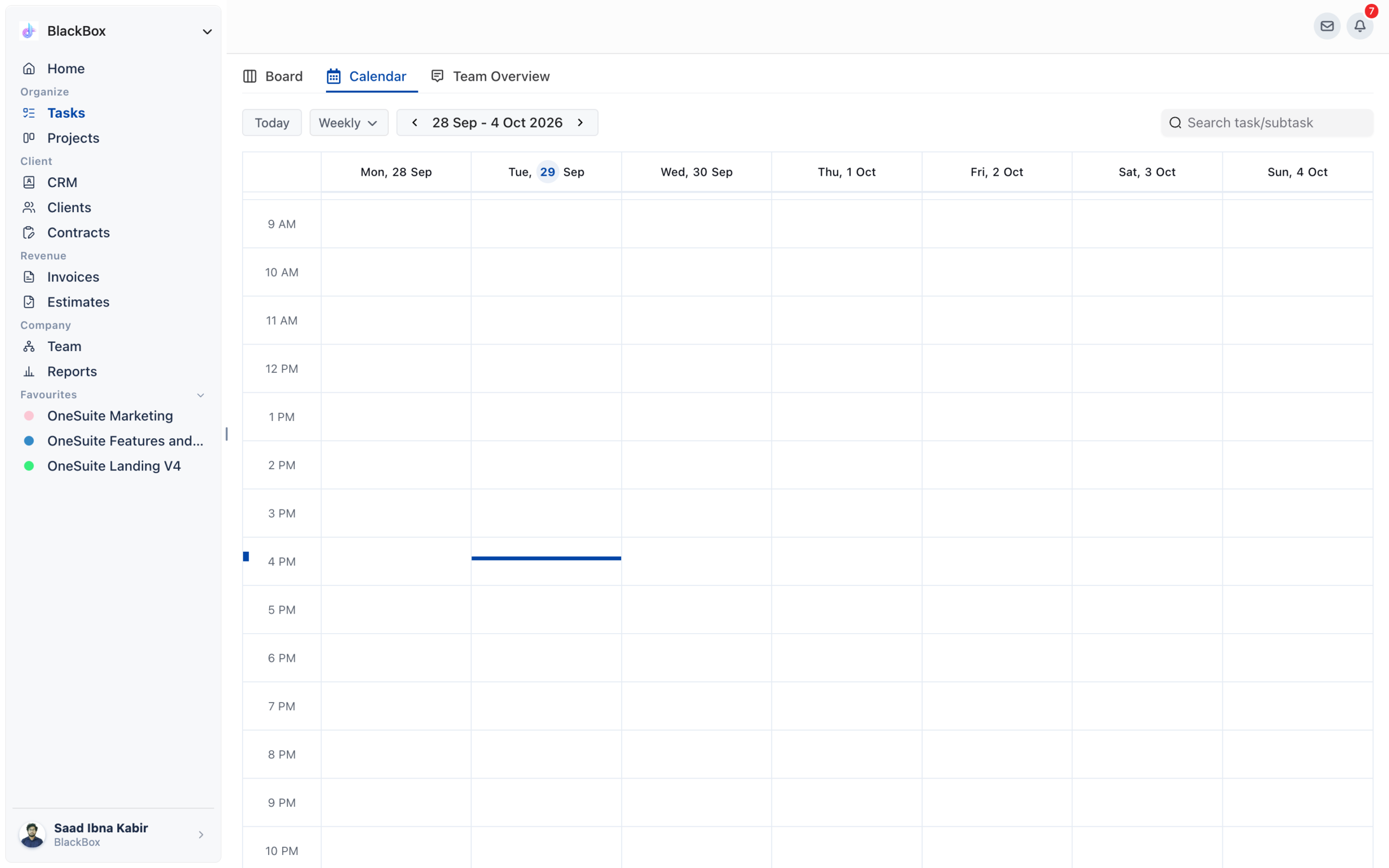
What are the tabs on the Tasks page?
The Tasks page has up to three tabs. Which ones you see depends on your permissions.
| Tab | What it shows | Who sees it |
|---|---|---|
| Board | Your tasks as cards in columns. | People with permission to view the project module. |
| Calendar | Your tasks on a time grid by start and due date. | People with permission to view project settings. |
| Team Overview | Workload across your team: open, overdue and completed counts per person, a Daily Due vs Completed chart and a Weekly team report. | Admins with permission to view project settings. |
How to change the calendar view and move through dates
The controls sit above the grid: Today, the view menu, the date range with arrows, and the search box.
- Open the view menu next to Today and choose Daily, Weekly or Monthly. The calendar opens on Weekly until you pick another view, and your browser remembers your choice.
- Click the left or right arrow beside the date range to move back or forward by one day, week or month, depending on the view.
- Click Today to come back to the current day, week or month.
There is no date picker on this calendar. To reach a date further away, switch to Monthly and use the arrows.
Weeks run Monday to Sunday. The Weekly and Daily views scroll to the morning when they open, and a line marks the current time.
What does the calendar show?
The calendar shows your project tasks and your CRM tasks, placed by their start and due dates.
- Timed tasks sit in the hour rows of the Daily and Weekly views.
- All-day and multi-day tasks sit in the All day row at the top.
- Monthly view shows up to five tasks per day. Click +N MORE under a day to see the others, and N LESS to collapse them again.
- Colours: project tasks are coloured by priority, completed tasks turn green, and CRM tasks are purple.
- Subtasks are not drawn on the calendar. A task that has subtasks shows how many beside its name.
A task needs a start date or a due date to appear. Tasks with neither are on the Board but not on the calendar, which is the usual reason something looks missing.
If a calendar is connected in Settings, Integrations, Calendar and set to show its events on the Tasks calendar, those events appear too. They are read-only, and a sync button appears beside the search box.
How to search the calendar
Type in Search task/subtask above the grid. The calendar narrows to tasks whose name matches what you type. Clear the box to see everything again.
How to reschedule a task on the calendar
Drag a project task to a new day or time to move it, and drag its edge to change how long it runs.
- Find the task on the calendar.
- Drag it to a new day or time slot. OneSuite confirms with Task moved successfully.
- To change its length, drag the edge of the block. OneSuite confirms with Task duration updated successfully.
CRM tasks can’t be moved here. Reschedule them from the CRM page. Clicking a CRM task opens it there.
To mark a project task complete, click the circle at the start of its block. Click it again to mark the task incomplete.
How to add a task from the calendar
Click an empty day or time slot to open Create Task with the date already filled in.
- Click an empty time slot in the Daily or Weekly view, or an empty day in the Monthly view.
- In Create Task, enter the Task Name. The start and due date are set to the day you clicked. If you clicked a time slot, the start time is that time and the end time is 30 minutes later.
- Fill in any other details, such as Priority or the project under Connect to a project.
- Click Save, or Save & add more to create another.
Not using OneSuite yet? Start your free trial →
FAQs
Why is a task missing from my OneSuite calendar?
It probably has no start date or due date. The calendar places tasks by those dates, so a task with neither can’t be drawn. Add a date and it appears.
Can I switch the Tasks calendar to a 1 day, 5 day or 7 day view?
No, the Tasks calendar offers Daily, Weekly and Monthly. The 1 day, 5 days and 7 days span belongs to the Calendar view on your Timesheet, which shows time entries rather than tasks.
How do I jump to a specific date on the Tasks calendar?
Use the arrows beside the date range, and Today to come back. There is no date picker, so switch to Monthly to move across weeks faster.
Does the Tasks calendar show my team’s tasks?
No, it shows your own tasks. For a picture of the whole team, admins can use the Team Overview tab on the same page.
Do subtasks appear on the calendar?
No, subtasks are not drawn. The parent task shows how many subtasks it has beside its name.
Can I just use my Google or Outlook calendar instead?
You can, but it won’t show your OneSuite tasks. Connect it in Settings, Integrations, Calendar and choose to show its events here, so your meetings and tasks sit on one grid.
What to do next
Work through your tasks: Add and manage tasks on project boards with Adding Tasks to Boards in OneSuite.
Bring in your meetings: Connect Google Calendar or Outlook with How to Connect Calendar, Files and Meeting Tools.
Log time on your tasks: Track the hours behind each task with Time Tracking in OneSuite.