
You customize your OneSuite dashboard by choosing which widgets sit on it, where they go and whether each one is half or full width. A layout built around the numbers you check every day saves you from opening five modules each morning to find them.
In this guide you’ll learn how to:
- Open the Customize dashboard drawer
- Add widgets by dragging them or with Add
- Resize, move and remove widgets on the grid
- Reset your dashboard to the default layout
- Read the Needs you queue and the KPI strip
Before you start
- Open your dashboard by clicking Home, the pinned first row at the top of the sidebar.
- A widget is offered only if your profile has permission for it and the modules it reads from are switched on for your business. If a widget you expect is not in the drawer, ask an admin to check both.
How to open the Customize dashboard drawer
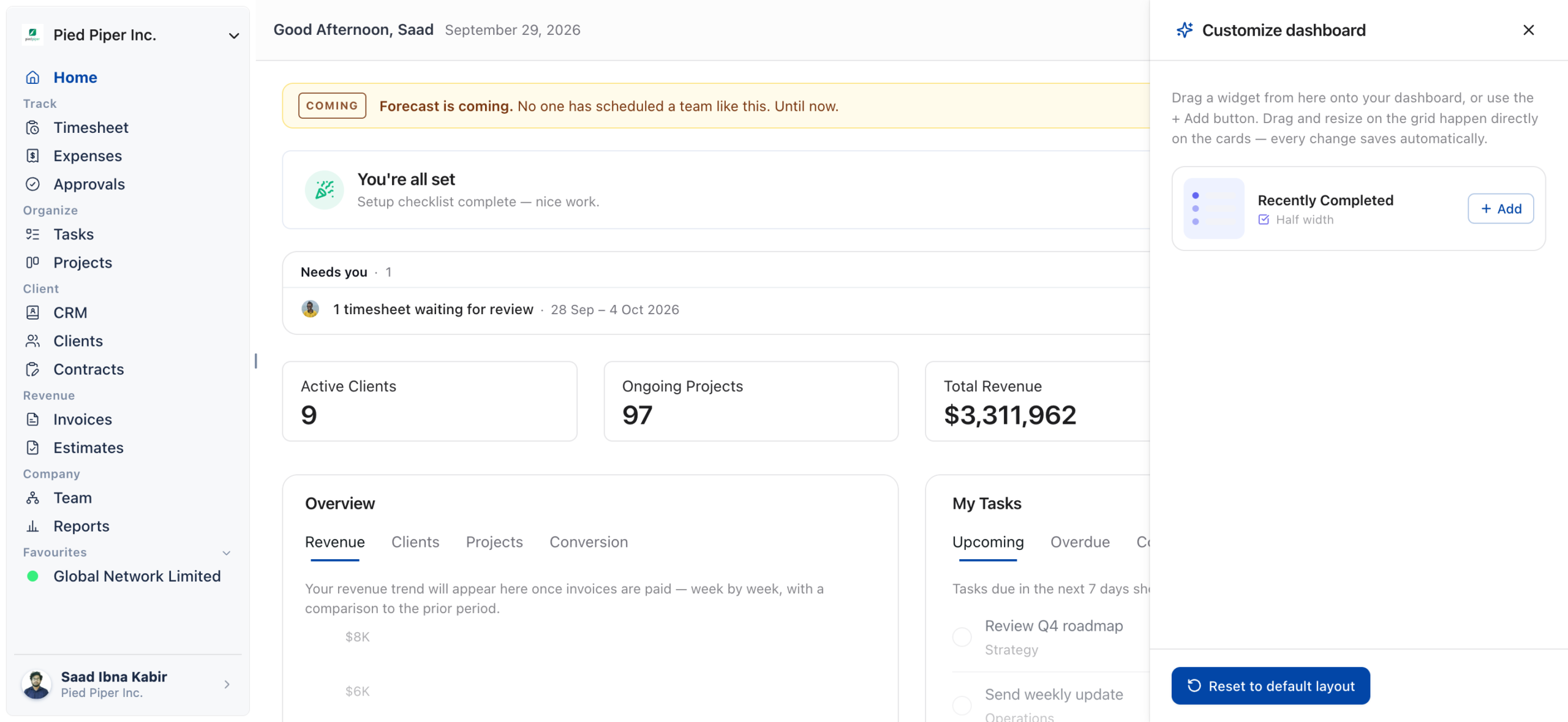
Click Customize above the widget grid to open the Customize dashboard drawer.
- Click Home in the sidebar.
- Click Customize, on the right just above your widgets.
- The Customize dashboard drawer opens and lists every widget that is not on your dashboard yet.
Each widget in the drawer shows whether it is Full width or Half width. When every widget you can use is already on your dashboard, the drawer says All widgets are on your dashboard.
How to add a widget
Add a widget from the Customize dashboard drawer, either with its Add button or by dragging it onto the grid.
- Click Customize to open the drawer.
- Find the widget you want.
- Click Add. The widget joins the end of your dashboard.
- Or drag the widget out of the drawer and drop it on the grid where you want it to sit.
Every change saves automatically. There is no Save button.
How to resize a widget
Resize a widget from its Widget options menu, where you choose between half and full width.
- Hover over the widget and click the ⋯ menu (Widget options) in its top-right corner.
- Choose Half size to make it take half the width of the grid, so two widgets sit side by side.
- Or choose Full size to make it span the full width of the grid.
How to move a widget
Move a widget by dragging its card to a new place on the grid. The other widgets shift to make room, and the new order saves automatically.
- Click and hold the widget card.
- Drag it to the new position.
- Release it.
How to remove a widget
Remove a widget with Remove widget in its options menu, or by dragging it back into the drawer.
- Hover over the widget and click the ⋯ menu (Widget options).
- Click Remove widget. It leaves the grid at once and the other widgets reflow to fill the space.
- Or, with the Customize dashboard drawer open, drag the card from the grid into the drawer.
Removing a widget deletes no data. The widget goes back into the Customize dashboard drawer, so you can add it again at any time.
If you remove every widget, the grid shows Your dashboard is empty with an Open customize button that opens the drawer.
How to reset your dashboard layout
Click Reset to default layout at the bottom of the Customize dashboard drawer to start over.
- Click Customize.
- Click Reset to default layout.
Reset puts every widget you have access to back on the grid in the standard order, all at half width, and closes the drawer. It asks for no confirmation, so use it only when you want a fresh start.
What the Needs you queue shows
Needs you is a short queue of timesheets waiting for your review. It sits above the KPI strip, at the top of the dashboard.
- Read the row, for example 1 timesheet waiting for review, and the week it belongs to.
- Click Review to open Approvals and review the week.
Needs you is not a widget, so you can’t add, move or remove it. It appears only when all of these are true:
- your profile can approve team timesheets and view team time;
- approvals are switched on for your business;
- at least one timesheet is waiting for you.
People with draft or submitted time for the week are counted. Your own time is left out unless your business allows self-approval.
What the KPI strip shows
The KPI strip is a row of four pinned tiles between Needs you and your widgets. You can’t move, resize or remove it.
| Tile | What to do when it is empty |
|---|---|
| Active Clients | Click Add your first client |
| Ongoing Projects | Click Create a project |
| Total Revenue | Click Send an invoice |
| Pending Invoices | Click Create an invoice |
Each tile appears only if your profile can see top-level insights and has access to the module behind it.
Which widgets can you add to your dashboard?
These are the widgets you can place on the grid, grouped by the area they report on. Which of them you see depends on your permissions and your business’s modules.
| Area | Widgets |
|---|---|
| Overview | Overview |
| Tasks | Recently Completed, the widget listing tasks assigned to you, Overdue Tasks Count & Age |
| Projects | Upcoming Deadlines, Most Active Projects, Top Project by Revenue |
| Clients | Top Clients by Revenue |
| CRM | Pipeline Overview, Pipeline Growth, Recent Opportunities, Stalled Opportunities, Lead Source, Overdue CRM-Related Tasks |
| Contracts | Documents and Contracts |
| Revenue | Revenue Forecast |
Overview, Pipeline Growth and Revenue Forecast have their own date range: Last 7 days, Last 30 days, Last 90 days, Last 12 months or Custom range.
Not using OneSuite yet? Start your free trial →
FAQs
How do I add a widget back to my OneSuite dashboard?
Click Customize, find the widget in the Customize dashboard drawer and click Add. Removed widgets always return to the drawer, and adding one back puts it at the end of your dashboard.
How do I make a dashboard widget bigger or smaller?
Open the widget’s ⋯ menu (Widget options) and choose Full size or Half size. There is no drag handle for resizing; width is set from this menu only.
Why is a widget missing from the Customize dashboard drawer?
It is either already on your dashboard, or your profile lacks its permission, or a module it reads from is switched off. The drawer lists only widgets you can use that are not on the grid yet.
Why don’t I see the Needs you queue on my dashboard?
You don’t see Needs you when nothing is waiting, when approvals are switched off, or when your profile cannot approve team timesheets. It only appears when there is a timesheet you can act on.
Do I need to save my dashboard layout?
No. Every add, move, resize and removal saves automatically, and your layout is kept the next time you sign in.
Can I use Reports instead of customizing the dashboard?
You can use both, because they do different jobs. The dashboard is a quick look at where things stand today, while Reports lets you choose a period, filter it, and save or schedule the result.
What to do next
Get the full tour: See what every part of Home shows with Overview.
Read your pipeline widgets: Learn what each CRM card tells you with CRM, Client & Pipeline Widgets: OneSuite Dashboard Guide.
Clear your review queue: Work through Needs you with How to Approve Timesheets and Expenses.