
Connect your Gmail account to OneSuite using the Custom SMTP/IMAP option. Once connected, you can send and receive Gmail emails from inside your CRM, with every email automatically linked to People, Company, Opportunity, and Client records.
[ Note: Direct Google OAuth sign-in is coming soon. This guide covers the current method using a Google App Password. ]
Before you start
- A Gmail account (personal or Google Workspace)
- 2-Step Verification is enabled on your Google account
- A Google App Password (you’ll create one below)
Step 1: Enable 2-Step Verification
If you haven’t already:
- Go to myaccount.google.com.
- Click Security in the left menu.
- Under “How you sign in to Google,” click 2-Step Verification and follow the prompts.
Step 2: Create a Google App Password
- Go to myaccount.google.com.
- Go to this link, App Passwords link with your Gmail account logged in.
- Sign in if prompted.
- In the App name field, type OneSuite.
- Click Create.
- Copy the 16-character password. You’ll need this in the next step.
Important: Store the App Password securely. Google won’t show it again after you close the dialog.
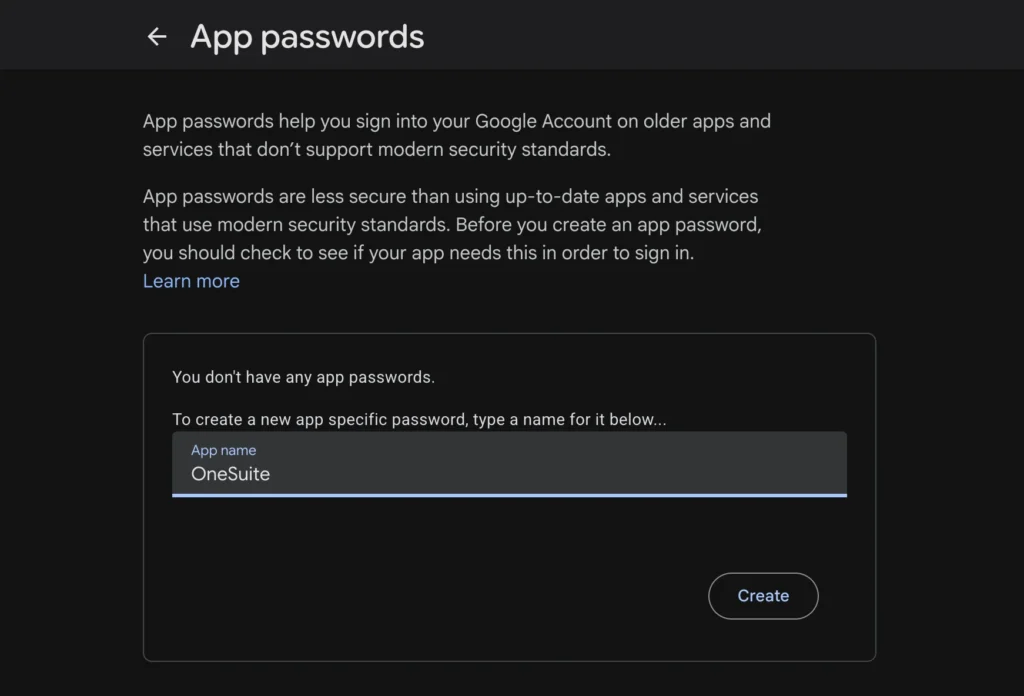
OneSuite also has a built-in guide for this. When you open the Custom SMTP form, click “How to get App Password?” at the top of the dialog to see the steps without leaving OneSuite.
Step 3: Connect Gmail in OneSuite
- Click Settings in the bottom-left corner of the sidebar.
- Click Integrations → Email Inbox.
- Click + Add Email.
- Select the Custom card and click Connect Account.
- The “Connect Email via SMTP/IMAP” dialog appears.
- In the Provider dropdown, select Gmail. The IMAP and SMTP fields auto-fill with Gmail’s server settings.
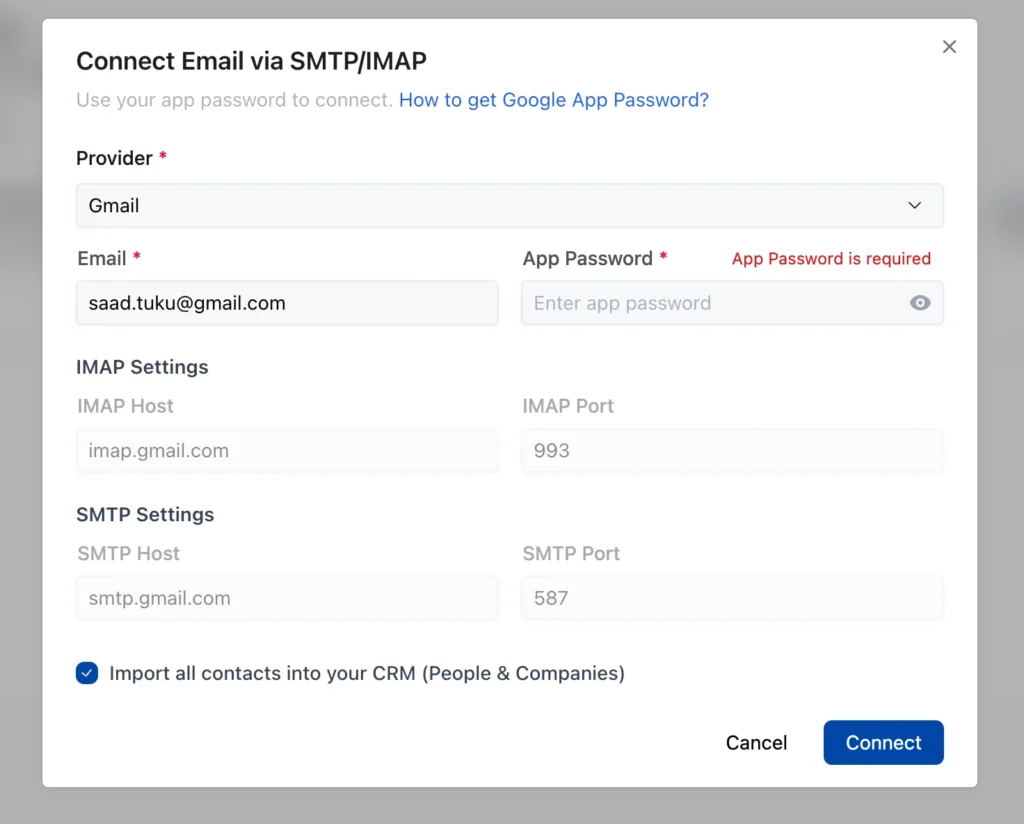
7. Enter your Email address (your full Gmail address).
8. Enter your App Password (the 16-character password from Step 2, not your regular Gmail password).
9. Check or uncheck “Import all contacts into your CRM (People & Companies)” depending on whether you want to import existing contacts.
10. Click Connect.
OneSuite tests the connection. If successful, your account appears in the Connected Email Accounts table. The status shows “importing emails…” initially, then changes to “● Connected”.
How to verify your connection works
- Click Exit Settings to return to the main app.
- Click Email in the sidebar.
- Open any People or Client record → Emails tab → Compose. Your Gmail address should appear in the From field.
- Send a test email to yourself to confirm both sending and receiving work.
Gmail server settings reference
| Setting | Value |
| SMTP Host | smtp.gmail.com |
| SMTP Port | 587 |
| IMAP Host | imap.gmail.com |
| IMAP Port | 993 |
| Authentication | Google App Password (16 characters) |
Note: These values are pre-filled automatically when you select Gmail in the Provider dropdown. You only need to enter your email address and App Password.
How to disconnect your Gmail account
- Go to Settings → Integrations → Email Inbox.
- Click the three-dot menu (⋮) next to your Gmail account.
- Click Disconnect.
- Confirm by clicking Disconnect in the confirmation dialog. This action cannot be undone: you’ll need to reconnect if you want to use it again.
Troubleshooting
- “App Passwords” doesn’t appear in Google settings
Enable 2-Step Verification first. App Passwords are only available when 2-Step Verification is turned on. - Connection fails with “authentication error”
Make sure you’re using the 16-character App Password, not your regular Gmail password. If you’ve lost it, generate a new one in your Google account settings. - I can send but not receive emails
Verify IMAP is enabled in your Gmail settings: Gmail → Settings → Forwarding and POP/IMAP → Enable IMAP.
Connection works, but emails are slow to appear
Gmail can take a few minutes to sync. Always use the manual sync button. If emails still haven’t appeared after 15 minutes, try disconnecting and reconnecting.
Not using OneSuite yet? Start your free trial →
FAQs
Can I use a Google Workspace (business) account?
Yes. The same SMTP/IMAP settings work for Google Workspace accounts (yourname@yourdomain.com). You’ll still need an App Password.
Why do I need an App Password instead of my regular password?
Google blocks third-party apps from using regular passwords for security. App Passwords are 16-character codes that give OneSuite access without exposing your main password.
Will this stop working when Google OAuth launches for OneSuite?
No. Custom SMTP connections will continue to work. When Google OAuth launches, you’ll have the option to switch to one-click sign-in.
Can I connect multiple Gmail accounts?
Yes, up to the 2-account limit per workspace. Repeat the steps with a different Gmail address and its own App Password.
What does the Provider dropdown do?
When you select a provider (Gmail or Zoho), OneSuite pre-fills the IMAP and SMTP server settings automatically. You only need to enter your email and password.
Can I connect Zoho Mail?
Zoho in the Provider dropdown, and OneSuite pre-fills the Zoho server settings. Enter your Zoho email and app password to connect.
What to do next
Send your first email: Learn how to compose, reply, schedule, and attach files in Send and Receive Emails.
Set up templates: Save time with reusable templates in Create and Use Email Templates.
Prefer Outlook? See the one-click setup guide for Microsoft Outlook.