
Pipeline stages represent the steps in your sales process. As opportunities move from first contact to closed deal, you update their stage to reflect current status.
In this guide you’ll learn:
- What pipeline stages are
- Default stages in OneSuite
- How to move opportunities between stages
- When to update stages
What Are Pipeline Stages? #
Stages are checkpoints in your sales process. Each opportunity has one stage at a time. Update the stage as the deal progresses to track where it stands.
Stages help you:
- See where each deal stands at a glance
- Identify which deals need attention
- Forecast revenue based on stage
- Understand where deals get stuck
How to Move Opportunities Between Stages #
- Go to the Opportunities tab in Kanban view
- Click and hold an opportunity card
- Drag it to the new stage column
- Release to drop Stage updates automatically
Adding or Deleting a Stage #
You can create custom stages or delete existing ones to match your sales process.
Adding a New Stage #
- Go to Opportunities tab in Kanban view
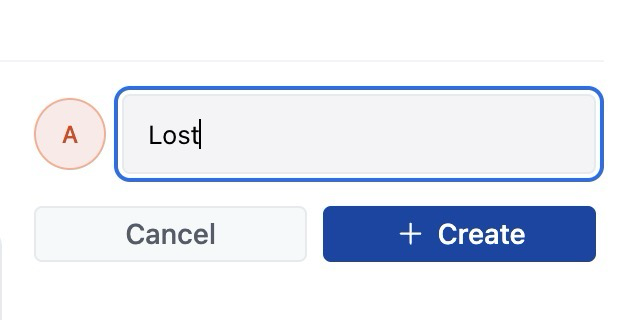
- Click Add Stage
- Enter the stage name
- Select a color from the color picker on the right side of the name
- Click Create
The new stage appears in your pipeline immediately.
Deleting a Stage #
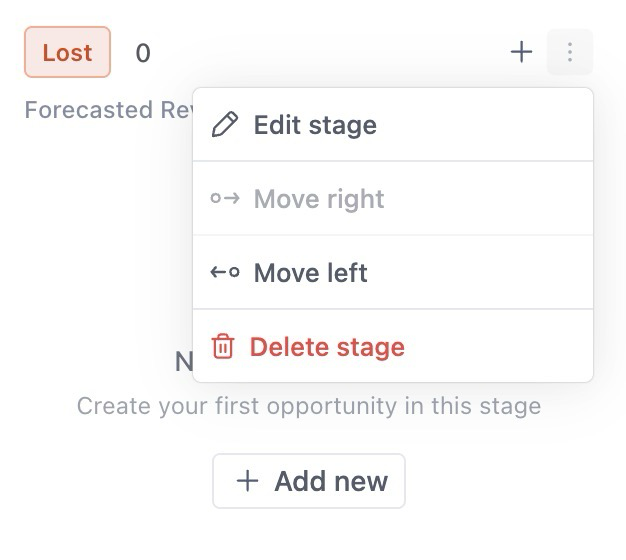
- Click the three dots in the top right corner of the stage column
- Click Delete Stage
- Confirm deletion
Important: You can only delete empty stages. If the stage has opportunities in it, you must move or delete those opportunities first before deleting the stage.
FAQ #
Q: Can I change the default stages?
Yes. Customize stages to match your sales process.
Q: Can I move an opportunity backward in stages?
Yes. Move backward if deal status changes or mark as lost.
Q: Should I create a “Lost” stage?
Yes. Tracking lost deals helps identify patterns and improve your process.
Q: How long should opportunities stay in each stage?
Varies by your sales cycle. Review timeline history in detail view to see time spent per stage.