Skip to content

OneSuite Logo

  • SolutionsExpand
    • Projects icon

      Projects

      Manage tasks smartly & deliver timely

      Lead Pipeline icon

      CRM

      Nurture leads and win more clients

      Invoice icon

      Invoice

      Create invoices in minutes & get paid

      Client Portal icon

      Client Portal

      Ensure transparency & gain trust

      Document Hub icon

      Document Hub

      Create & sign documents easily

      Team

      Manage tasks smartly & deliver timely

  • Use Cases
  • Pricing
  • ResourcesExpand
    • Documentation

      Support

      Roadmap

      Changelog

      FAQ

      Blog

      API Doc

  • CompanyExpand
    • About
Try for free

Help Center

  • Documentation
  • Public Roadmap
  • Book a demo
  • Get Support
OneSuite Logo
intro to onesuite

OneSuite 101

6
  • Introduction
  • Understanding OneSuite’s Structure
  • How Solutions Work Together
  • Navigating OneSuite
  • All OneSuite Capabilities
  • OneSuite Glossary
quick start guide

Quick Start Guide

7
  • Setting Up Your Business
  • Adding Your Payment Methods
  • Inviting Team Members
  • Adding Your First Leads
  • Adding Your First Client
  • Giving Your Client Portal Access
  • Sending Your First Proposal

CRM

6
  • CRM Overview
  • Adding People
  • Adding Companies
  • Creating Opportunity
  • How Opportunities, Companies, and People Work Together
  • Understanding Pipeline Stages
client

Client Management in OneSuite

6
  • Understanding the Clients Solution
  • Adding Clients
  • Client Profiles
  • Imports, Exports, and Search
  • The OneSuite Client Portal
  • Video Documentation : Client Management
pm

Manage your Projects Effortlessly

7
  • Subtask Behavior & Movement Management
  • Laying the Groundwork: Project Creation in OneSuite
  • Managing Project Boards in OneSuite
  • Adding Tasks to Boards in OneSuite
  • Lifesaver:Templates in OneSuite
  • Custom Categories, Tags, and Labels in Projects
  • Video Documentation : Project Management

Documents

5
  • Overview
  • Creating a Document from Scratch
  • Uploading a PDF Document
  • Sending Documents to Parties to Sign
  • Signing a Document
team

OneSuite's Team Management

4
  • Inviting Collaborators in OneSuite
  • Creating Personalized Departments in OneSuite
  • Managing Team Members in OneSuite
  • Video Documentation : Team Collaboration
Invoices & Payments

Invoices & Payments

7
  • Access & Navigation
  • Invoice Settings & Customization
  • Create One-time Invoices
  • Creating Recurring Invoices
  • How to set taxes on your invoices
  • How to Add Direct Bank Transfer Instructions to Your Invoices
  • How to Customize Invoice Email Messages
View Categories
  • Home
  • Docs
  • CRM
  • Creating Opportunity

Creating Opportunity

Opportunities are specific deals you’re pursuing. Each one tracks a potential project with revenue attached, which stage it’s in, and when you expect to close it.

In this guide you’ll learn:

  • When to create opportunities
  • How to add opportunities
  • Required and important fields
  • Linking opportunities to companies and people

When to Create Opportunities #

Create an opportunity when you discuss specific paid work with someone. Not “maybe someday” conversations, but actual projects being discussed with potential dollar amounts.

Create opportunities for:

  • Specific projects with defined scope
  • Retainer agreements being discussed
  • Any work with a potential revenue amount
  • Deals with realistic timelines

Don’t create opportunities for:

  • General “let’s stay in touch” conversations
  • Website visitors with no contact
  • People who download resources but show no buying intent

How to Add an Opportunity #

  1. Click CRM V2 in the left sidebar
  2. Click the Opportunities tab at the top
  3. Click + Add New in the top left corner
  4. Add the opportunity name and amount. The opportunity will be saved automatically.
  5. Click the name to open details and fill in additional information

Required and Important Fields #
Required #

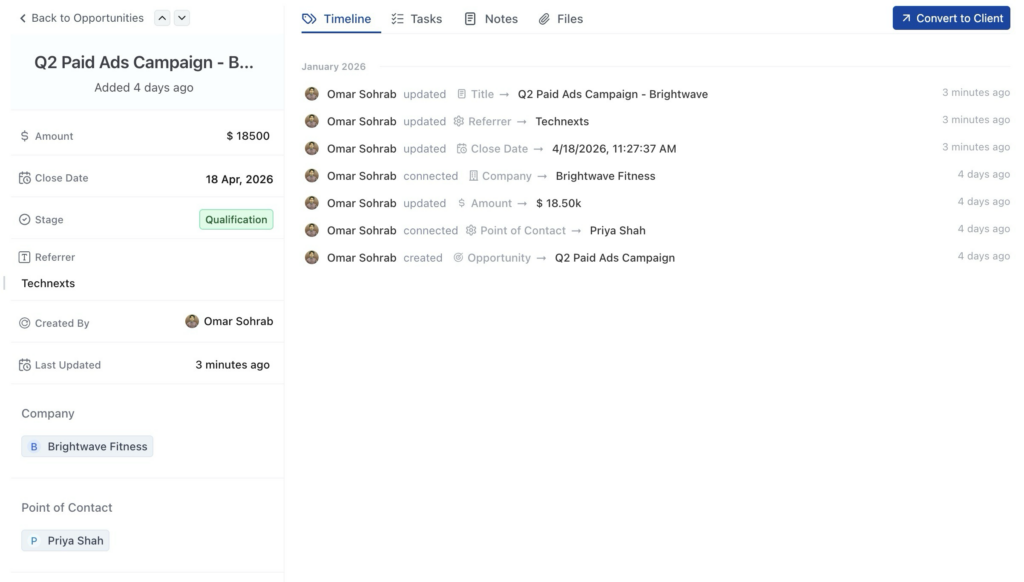
Name – Clear deal name. Use format: “Project Type – Company Name”

Examples: “Website Redesign – Brightwave Fitness” or “Brand Refresh – Oak & Stone Coffee”

Important Optional Fields #

Amount – The dollar value of this deal. Enter the number without currency symbols.

Close Date – When you expect to win or lose this deal. Click the calendar icon to select a date.

Stage – Where this deal is in your sales process. Default stages include:

  • Contacted
  • Testimonial Request
  • Follow Up Needed
  • Won
  • Testimonial Given

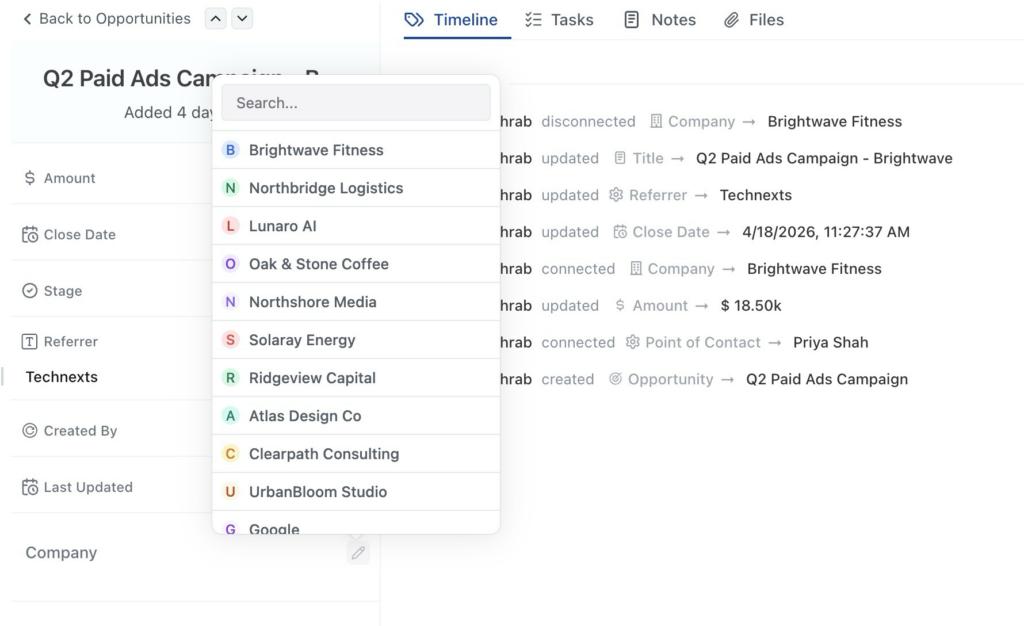
Company – Search and select the company this opportunity is for. Leave blank if working with a solo freelancer.

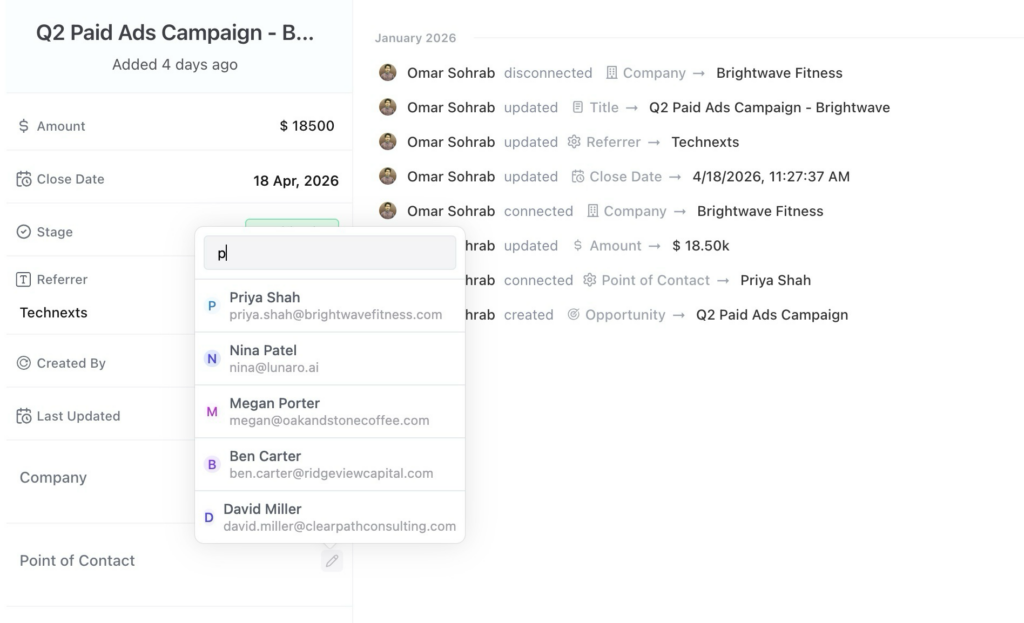
Point of Contact – After selecting a company, choose which person at that company is your main contact. If no company, select the person directly.

Owner – The team member responsible for this opportunity. Defaults to you.

Linking Opportunities to Companies #

When creating an opportunity for a business:

  1. Scroll down to find the company
  2. Click on the pencil icon
  3. Search and select the company you want to link.
  4. Opportunity is linked to the company.

Linking Point of Contact #

When creating an opportunity for a business:

  1. Scroll down to find the point of contact section
  2. Click on the pencil icon
  3. Search and select the people you want to link.
  4. The point of contact is now added to the opportunity.
Editing Opportunity Information #

To update information later:

  1. Click on the opportunity name to open detail view
  2. Click the pencil icon next to any field
  3. Make your changes
  4. Changes save automatically

FAQ #

Q: Can I create an opportunity without a company?
Yes. If you’re working with a solo freelancer or consultant, leave the company field blank and select the person as point of contact.

Q: What if I don’t know the exact amount yet?
Enter your best estimate. You can update it later as you learn more about the project scope.

Q: Do I need to set a close date?
Not required, but highly recommended. It helps you track timelines and forecast when deals will close.

Q: Can I change the point of contact later?
Yes. Open the opportunity detail view, click the pencil icon next to point of contact, and select a different person.

Q: What if the person I want as point of contact doesn’t appear in the dropdown?
They need to be linked to the company first. Go add them as a person at that company, then come back and select them.

Q: Can one company have multiple opportunities?
Yes. Create separate opportunities for each deal. For example, Brightwave Fitness might have one opportunity for a website project and another for a marketing campaign.

Updated on January 30, 2026

Did this article answer your question?

  • Happy
  • Sad
Adding CompaniesHow Opportunities, Companies, and People Work Together

Leave a Reply Cancel reply

Your email address will not be published. Required fields are marked *

This site uses Akismet to reduce spam. Learn how your comment data is processed.

Table of Contents
  • When to Create Opportunities
  • How to Add an Opportunity
  • Required and Important Fields
    • Required
    • Important Optional Fields
  • Linking Opportunities to Companies
  • Linking Point of Contact
  • Editing Opportunity Information
  • FAQ
OneSuite Logo

Streamline your agency's workflow while you focus on growth—manage clients, projects, teams, proposals, contracts, and invoices effortlessly with OneSuite!

product hunt

Follow Us On

  • Facebook
  • X
  • Instagram
  • LinkedIn

Join Our Community

  • Facebook
  • WhatsApp

Features

Projects

Lead Pipeline

Documents

Invoices

Client Portal

Teams

Resources

Contact

Support

Docs

Blog

Branding

Become an affiliate

Agency Partner Program

Public roadmap

Book a demo

Compare

OneSuite vs. Kitchen Co

OneSuite vs. Moxie

OneSuite vs. Flowlu

OneSuite vs. Plutio

OneSuite vs. Bonsai

OneSuite vs. ClientManager

  • Terms of use
  • Privacy policy
  • Cookie policy
  • Refund policy
  • Acceptable use policy
  • Data processing terms
  • Solutions
    • Projects icon

      Projects

      Manage tasks smartly & deliver timely

      Lead Pipeline icon

      CRM

      Nurture leads and win more clients

      Invoice icon

      Invoice

      Create invoices in minutes & get paid

      Client Portal icon

      Client Portal

      Ensure transparency & gain trust

      Document Hub icon

      Document Hub

      Create & sign documents easily

      Team

      Manage tasks smartly & deliver timely

  • Use Cases
  • Pricing
  • Resources
    • Documentation

      Support

      Roadmap

      Changelog

      FAQ

      Blog

      API Doc

  • Company
    • About
  • Documentation
  • Public Roadmap
  • Book a demo
  • Get Support
Try OneSuite   →